XABCD TRADING
NinjaTrader Chart Not Updating with Live Data
Subscribe
to get alerts to our next blog post!
Are your charts lagging or not updating? One issue that some users have reported is that the charts on their NinjaTrader platform are not updating. This can be frustrating and make it difficult for traders to make informed decisions. In this blog post, we will discuss some of the possible reasons why this issue might occur and what you can do to fix it.
What Are The First Steps to Check If Charts Are Not Updating?
Data Provider Having Connection Issues
The most common reason for chart updates not showing up on NinjaTrader is a connection issue. This can be caused by a variety of factors, such as a slow internet connection, a problem with your router, or a problem with the server. To troubleshoot this issue, you can try restarting your router, closing and reopening NinjaTrader, or checking to see if there are any known issues with the server.
Can you access other websites ok?
Do a speed check to make sure your connection is not an issue.
Live Data Feed Issues
Has your data expired? or has your free data trial ended? This is one of the most common reasons why a chart is not updating. If you're new to NinjaTrader or Futures - you need to purchase data. There is only one way to get free futures data. Unless you're doing it like that, you will need to purchase data.
Has your demo data expired? Past your two week trial?
Have you confirmed with your data provider that all their services are operational?
Hardware or Software Issues
In some cases, the issue with NinjaTrader charts not updating might be related to hardware or software problems. For example, you might be using an outdated version of NinjaTrader or you might have a hardware issue with your computer. To fix these issues, you can try updating NinjaTrader, checking for updates for your operating system, or checking for hardware issues on your computer.
Please make sure you computer specs meets the minimum system requirements at the very least. This is enough to run the default NinjaTrader 8 platform and open up a chart. As soon as you start customizing NT8 your additional resources might go up.
It might also be possible your machine is to slow if your machine is over 10 years old. If you're looking to upgrade, check out some new machine suggestions but first check your computer resources to see if your maxing out on ram or cpu

Chart Settings
Finally, it's possible that the issue with NinjaTrader charts not updating might be related to your chart settings. For example, you might have set the chart to display a limited number of bars or you might have the chart set to pause when you switch to a different tab. To fix this issue, you can try changing your chart settings or resetting the chart to its default settings.
Create a new workspace - see if the problem still happens?
Start NinjaTrader in Safe Mode and see if the problem continues to happen?
Holiday?
Check to see if the markets are open. Every holiday we get a live chat message from someone saying their data isn't working and its because the market is closed. It might seem super obvious but holidays can be a very valid reason, especially with the new holidays.
Still Having an Issue?
Troubleshooting Data Issues
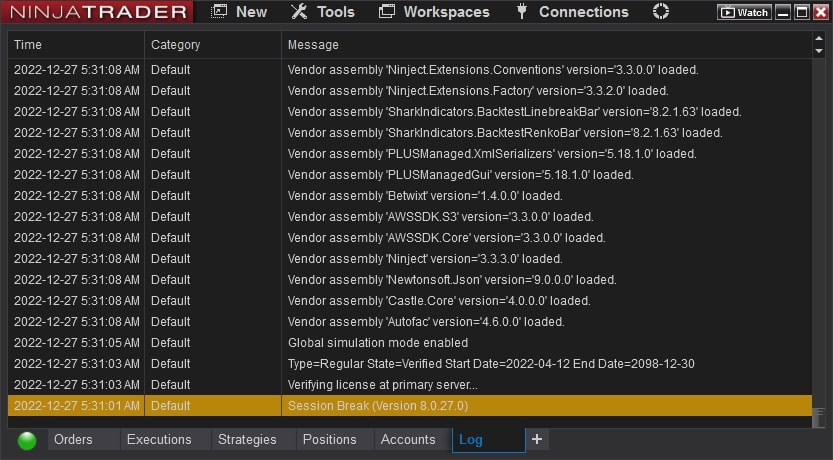
Check your log tab in your NinjaTrader 8 control center to see if anything highlighted in orange or red stands out. Perhaps these lines will point you in the right direction to resolve your issue. There are several possible reasons why NinjaTrader charts might not be updating. If you are experiencing this issue, you can try troubleshooting the problem by checking your connection, data feed, hardware and software, and chart settings. If you are unable to fix the issue on your own, you can contact NinjaTrader for further assistance.
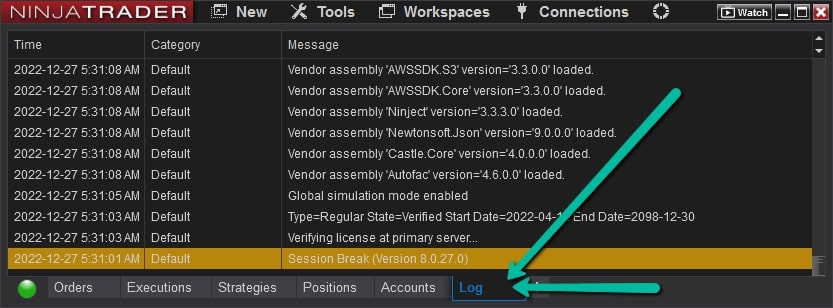
NinjaTrader support has also answered this topic on a number of their forms. Browsing these might provide you additional information that could help you resolve your issue.
Post #1: Charts not Updating
Post #2: Charts not Updating Automatically
Post #3: Charts not updating since market open
If you still have not solved your issue its time to let NinjaTrader dig through your log files for you, or feel free to try reading them yourself first. Look for words such as "error", "critical" or the name of your data provider.
Frequently Asked Questions
Why is my NinjaTrader chart not updating with live data?
A NinjaTrader chart not updating is most commonly caused by a lost or disconnected data feed connection. Check your Connection Status in the Control Center to ensure your market data provider shows a green connected status. If disconnected, try reconnecting by right-clicking the connection and selecting "Connect," or restart NinjaTrader entirely.
How do I fix a frozen or stuck chart in NinjaTrader?
To fix a frozen chart, first try reloading the chart by right-clicking on it and selecting "Reload NinjaScript" or pressing F5 to refresh the data. If that doesn't work, close the chart and reopen it with the same instrument and settings. You should also verify that your internet connection is stable and that the market for the instrument is currently open.
Why does my NinjaTrader chart stop updating after hours?
NinjaTrader charts may stop updating after regular trading hours if your data feed subscription does not include extended or after-hours market data. Additionally, your chart's session template may be configured to only display Regular Trading Hours (RTH). You can change this by adjusting the session template in the Data Series settings to include electronic or extended trading hours.
Can indicators cause a NinjaTrader chart not updating issue?
Yes, custom or poorly optimized indicators can cause NinjaTrader charts to freeze or stop updating. A script with an infinite loop or heavy computational load can lock the chart's rendering thread. Try removing all custom indicators from the chart to see if it resumes updating, then add them back one at a time to identify the problematic indicator.
How do I reset my NinjaTrader data connection to fix chart issues?
To reset your data connection, go to the Control Center, navigate to the Connections menu, and disconnect your data feed. Wait a few seconds, then reconnect. If the issue persists, go to Tools > Options > Market Data and clear any cached data, then restart the platform to establish a fresh connection with your data provider.
Still have a question about this?Ask the XABCD team in Live Chat and get help with your setup.Ask in Live Chat →
Be the First to Read New Articles
Free tutorials, fixes and setup guides by email.
Recommended Tool
XABCD ATM Pack
23 free ATM strategy templates for NinjaTrader 8. Import them and start with your stops and targets already set up.
Get the Free ATM Pack →
Recommended Video
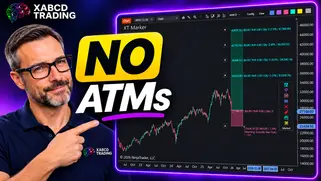
Ditch NinjaTrader ATMs: This Is More Powerful
See how to set your risk and calculate contracts directly on the chart.
Watch Now
Subscribe on YouTube
Related Tool
XABCD ATM Pack
23 free ATM strategy templates for NinjaTrader 8. Import them and start with your stops and targets already set up.
Get the Free ATM Pack
Why XABCD Trading
- Built for NinjaTrader 8 since 2009
- Trusted by 2,000+ traders
- On-chart tools, no ATM templates needed
- Free tools to get started
Get Project Updates
Twice-monthly maximum, we will give you updates on all the projects going here.
Quick Links