XABCD TRADING

NinjaTrader Fancy Zones: Snap Charts Fast (8.1.9)
Subscribe
to get alerts to our next blog post!
If you trade on more than one screen, you have probably fought with window placement for years. Good news: NinjaTrader fancy zones support actually works now. Starting with NinjaTrader 8.1.9, chart windows snap into FancyZones grids the way you always wanted. There is one checkbox you must flip first, though, and almost nobody finds it on the first try. In this guide, therefore, we walk through the whole setup, plus some Windows 11 snap tricks that pair nicely with it.
Let's keep it simple and practical. No fluff, just the steps and the settings that matter for a reliable trading desktop layout.
What Are NinjaTrader Fancy Zones, Exactly?
PowerToys FancyZones is a free Microsoft utility that lets you draw custom window layouts on your monitors and snap apps into them. When people say "NinjaTrader fancy zones," they mean using that tool to arrange NinjaTrader charts, the Control Center, DOMs, and order entry windows into tidy, repeatable grids.
Think of it as graph paper for your desktop. First, you draw the boxes once. After that, you drag a chart, hold a key, and the chart drops perfectly into place. As a result, there is no more pixel-nudging a chart for ten minutes before the open.
Why does this matter for traders? Because screen real estate is money. A messy desktop hides information. A clean NinjaTrader 8 window layout, on the other hand, lets your eyes find price, volume, and your order panel in a split second.
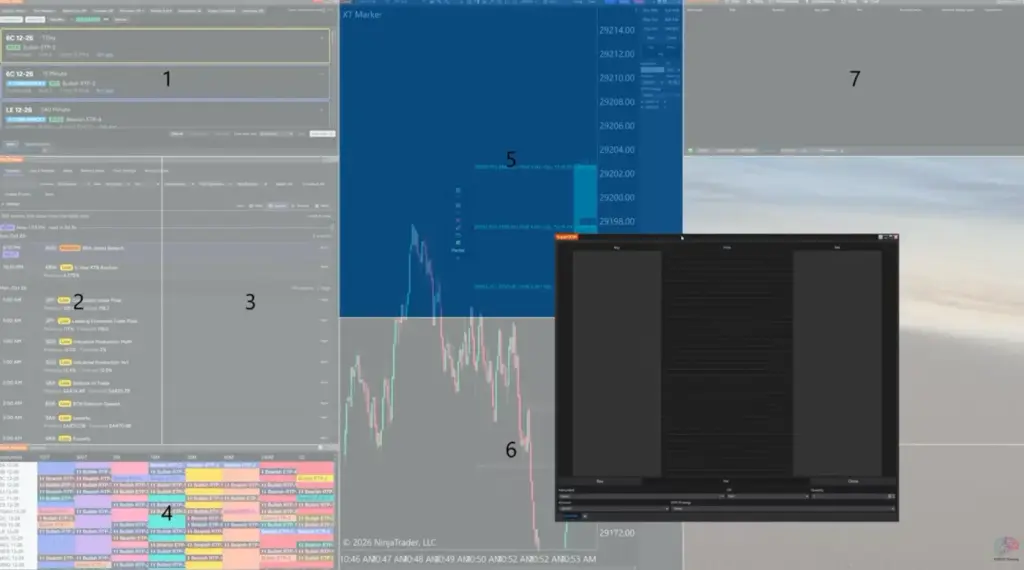
Screenshot of a trading desktop with the FancyZones grid overlay visible and NinjaTrader charts snapped into each zone.
Why It Never Worked Before (and What Changed in 8.1.9)
Older NinjaTrader 8 builds used custom window chrome that FancyZones did not recognize, so charts simply refused to snap. You would drag a chart, see the zone highlight, release the mouse, and then the chart would land wherever it felt like. Frustrating, right?
With NinjaTrader 8.1.9, however, that behavior changed. The platform's windows now play nicely with the snapping engine. As a result, charts, the Control Center, SuperDOMs, and most other windows land exactly where you drop them.
Key takeaway: NinjaTrader 8.1.9 is the turning point. If charts still refuse to snap, check your version number first, before you change anything else.
So step one is boring but essential. Open your Control Center, check Help > About, and confirm your build. If you are behind, update. Meanwhile, everything below assumes 8.1.9 or newer.
The One Setting You Must Enable: Allow Child Windows Snapping
Inside PowerToys, turn on "Allow child windows snapping" or NinjaTrader charts will not snap into your zones. This is the single biggest gotcha, and consequently it trips up almost everyone.
Here is why. NinjaTrader treats charts and other windows as child windows of the main application. By default, FancyZones ignores child windows to avoid weird behavior in other apps. Therefore, your charts get skipped. Flip that switch, and the whole thing clicks into place.
How to Turn It On
- Open PowerToys Settings from the system tray.
- Next, click FancyZones in the left sidebar.
- Scroll down to the Windows section.
- Then toggle on Allow child windows snapping.
- While you are there, also enable Keep windows in their zones when the screen resolution changes.
That is it. Now drag a chart while holding Shift, and watch the zone light up. Finally, release, and the chart fills the box.
If you want the official wording for every toggle, Microsoft documents the behavior of the allow child windows snapping option in its FancyZones documentation. In short, that page is worth bookmarking because the settings list changes slightly with each PowerToys release.
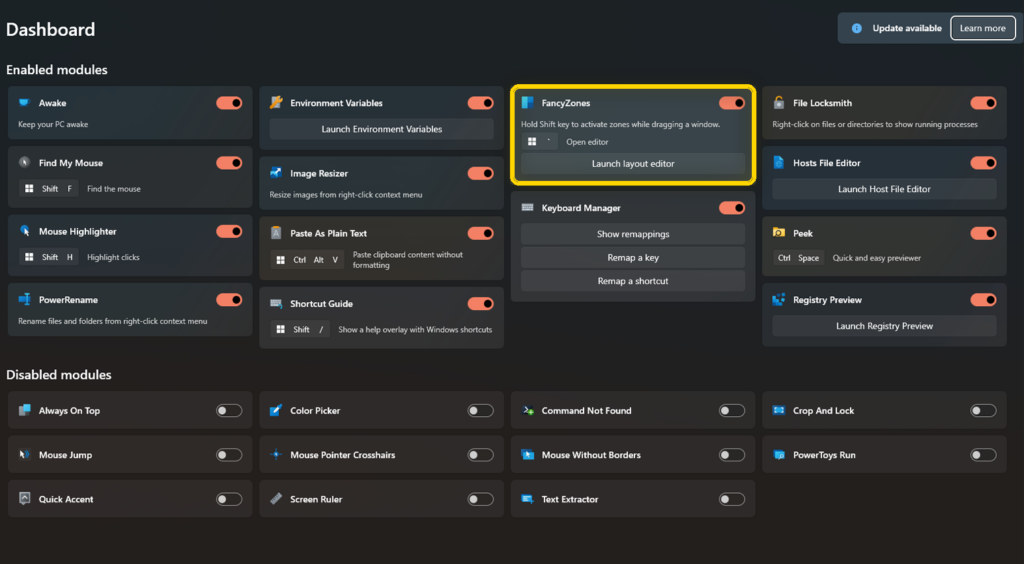
Screenshot of the PowerToys FancyZones settings page with the "Allow child windows snapping" toggle switched on and highlighted.
Step-by-Step: Setting up NinjaTrader Fancy Zones
The full setup takes about ten minutes, and you only do it once per layout. Follow these steps in order.
1. Install PowerToys
Grab PowerToys from the official Microsoft page. It is free and open source. You can find it on the PowerToys download page. Install it, and then reboot if Windows asks.
2. Open the Zone Editor
Press Win + Shift + ` or click "Launch layout editor" in FancyZones settings. The FancyZones zone editor shows one card per monitor. Pick the monitor you want to design first.
3. Choose or Build a Layout
You get templates like Columns, Grid, and Priority Grid. Templates are fine for a quick start. However, custom layouts work much better for trading. Click Create new layout, then pick Grid or Canvas.
- Grid: zones tile edge to edge with no gaps. Great for charts.
- Canvas: zones can overlap and float. Handy for a DOM that sits on top.
4. Set Zone Gap and Highlight Distance
Set the space around zones to 0 if you want charts touching. By comparison, a gap of 4 to 8 pixels looks cleaner on a big monitor. Meanwhile, raise the highlight distance if zones feel hard to target.
5. Snap Your Windows
Hold Shift and drag a chart. The zone glows. Let go. Done. Alternatively, if you prefer snapping without a modifier key, enable "Hold Shift to activate zones" in reverse, so dragging always snaps.
6. Save the Workspace
Once everything looks right, save your NinjaTrader workspace. That way the platform remembers window sizes, and FancyZones remembers the grid. Together, they restore your desk in seconds.
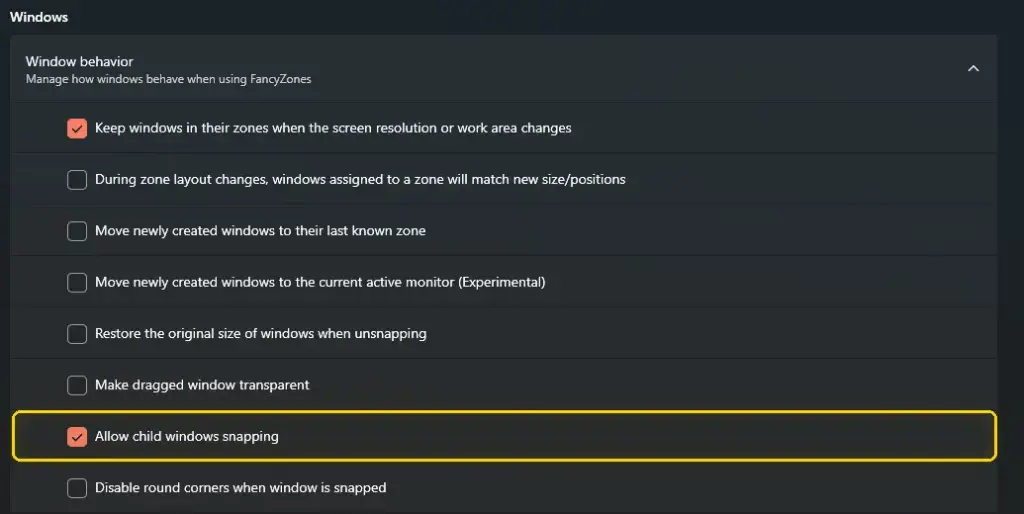
Screenshot of Microsoft PowerToys FancyZones window behavior settings, highlighting the "Allow child windows snapping" checkbox. This setting is important when configuring NinjaTrader 8.1.9 to work with FancyZones, allowing supported NinjaTrader windows to be arranged within custom desktop zones.
Layout Ideas That Work Well for Traders
The best NinjaTrader fancy zones layouts match your trading style, not someone else's screenshot. Still, a few patterns show up again and again.
The Classic Four-Chart Grid
Two by two on a single 27-inch or 32-inch monitor. Each chart gets a different timeframe. Simple, balanced, and above all easy to scan.
The Ultrawide Three-Column
On a 34-inch or 49-inch ultrawide, three equal columns feel great. Put your main execution chart in the middle. Then keep context charts on either side.
The Command Center
One big zone on the left for your primary chart. In addition, a narrow strip on the right is split into three small zones. Those small zones hold the Control Center, a SuperDOM, and a market analyzer.
The News and Alerts Lane
Reserve one slim vertical zone for alerts and headlines. If you run a news indicator, this lane keeps economic releases in view without covering price.
Try two or three layouts over a week. Eventually, you will feel which one reduces head-turning and mouse travel.
Multiple Monitors, Multiple Layouts
FancyZones stores a separate layout per monitor, and it can also store a different layout per virtual desktop. That flexibility is powerful for a NinjaTrader multi-monitor setup.
For example, you might run a chart grid on monitor one. Monitor two, meanwhile, could hold a research layout with a browser and a spreadsheet. Monitor three might be your execution screen with a DOM and order panel.
One caution: if layouts seem to reset after you unplug a monitor, enable "Keep windows in their zones when the screen resolution changes." Furthermore, docking laptops benefit from that setting too.
Virtual desktops can be finicky. If settings do not stick across desktops, try assigning layouts while each desktop is active. In addition, keep your monitor arrangement stable in Windows Display Settings.
Windows 11 Snap Layouts: The Built-In Option
Windows 11 includes Snap Layouts, a lighter built-in alternative that works without installing anything. Hover over the maximize button, and a small menu of layout choices appears.
Windows 11 snap layouts are quick and friendly. They are also limited. For instance, you cannot draw custom zones, and you only get a handful of presets. For a two-chart or three-chart setup, nevertheless, that may be plenty.
Handy Windows 11 Snapping Tips
- Press Win + Z to open Snap Layouts with the keyboard.
- Use Win + Arrow keys to snap a window left, right, or to a quadrant.
- Snap Groups remember which windows were paired, so you can restore both at once from the taskbar.
- Turn off "Show snap layouts when I hover over a window's maximize button" if the popup annoys you.
- Finally, find all of this under Settings > System > Multitasking.
Can you use both? Yes, but it gets confusing. Most traders therefore pick one. If you want custom grids, go with the PowerToys FancyZones route and disable the hover popup.
Troubleshooting NinjaTrader Fancy Zones
Ninety percent of snapping problems come down to three things: an old build, the child window toggle, or admin permissions. Work through this list before you give up.
Charts Still Will Not Snap
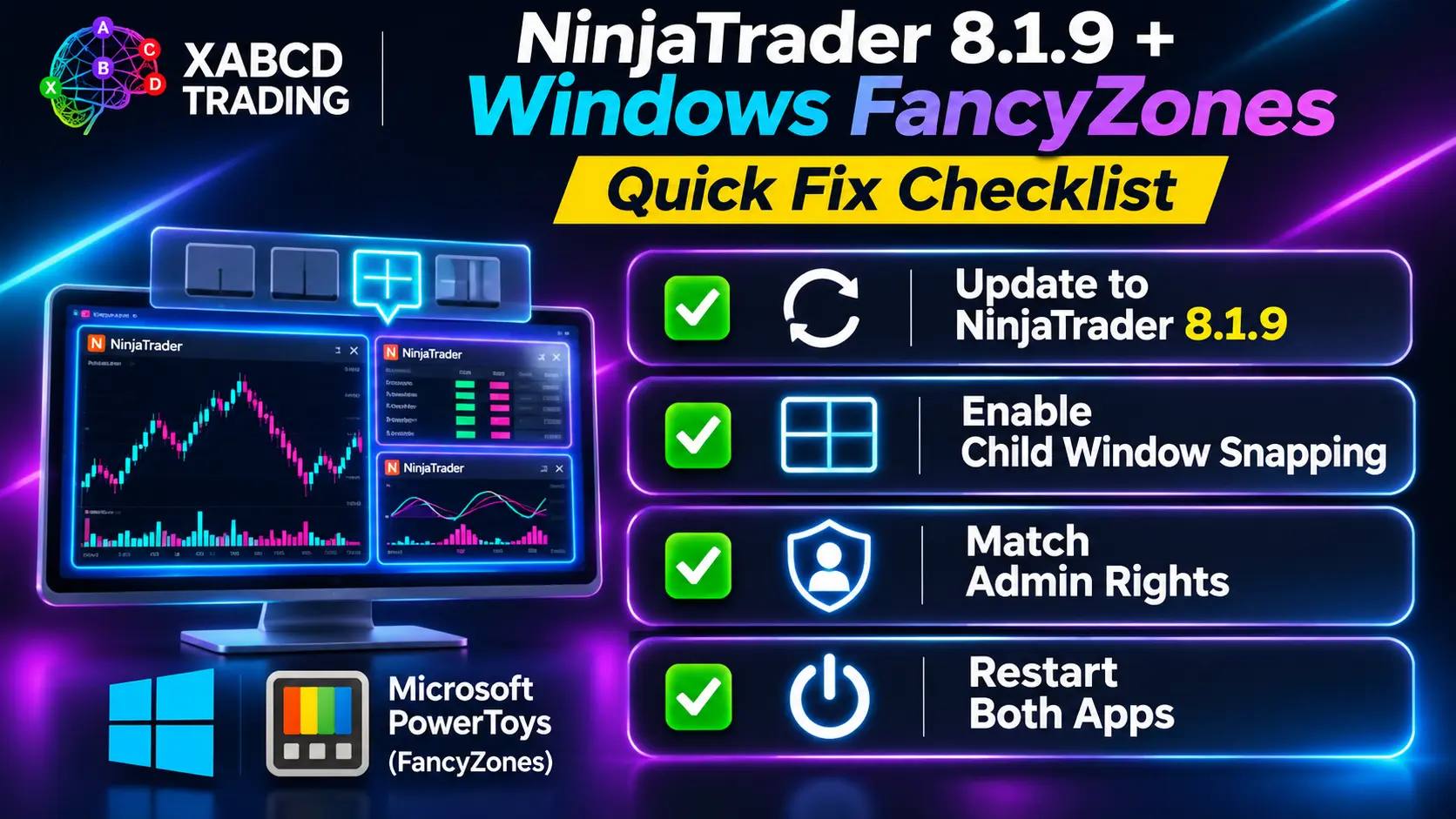
First, confirm you are on 8.1.9 or newer. Second, double-check "Allow child windows snapping." Third, restart both PowerToys and NinjaTrader after changing settings.
The Zone Indicator Does Not Appear
Increase the zone highlight opacity and the activation distance. Also, make sure "Show zones on all monitors while dragging" matches what you expect.
Windows Forget Their Zone After a Reboot
Enable "Restore the original size of windows when unsnapping" and "Move newly created windows to their last known zone." Then save your NinjaTrader workspace again so both systems agree.
One App Runs as Administrator
If NinjaTrader runs elevated but PowerToys does not, snapping fails silently. Consequently, run PowerToys as administrator, or run both normally. Consistency is what matters.
Everything Feels Sluggish While Dragging
Heavy charts plus many indicators can slow redraws. Check your platform load with a performance monitor tool before blaming FancyZones.
Checklist graphic showing the four most common fixes: update to 8.1.9, enable child window snapping, match admin rights, and restart both apps.
Pairing Window Layouts With Faster Workflow
A tidy screen only pays off if your hands move fast too. In other words, layout and workflow go together.
Once your zones are set, map a few keyboard shortcuts. Learning NinjaTrader hotkeys cuts clicks dramatically. For instance, you can switch instruments or timeframes without touching the mouse.
Next, standardize your entries. Pre-built ATM strategy templates let you fire a bracket order with a single click. Meanwhile, a position sizing calculator keeps risk consistent on every trade.
Finally, keep your analysis tools in one dedicated zone. Scanning for setups with pattern indicators is far easier when the scanner window never moves.
Pro Tips for a Cleaner Trading Desktop
Here are small habits that make a big difference over time.
- Name your workspaces by session: "Open," "Midday," "Review."
- Keep one spare zone empty for popups and dialogs.
- Match chart templates so every zone looks consistent.
- Hide the taskbar on secondary monitors to reclaim pixels.
- Screenshot your layout after you perfect it, so you can rebuild it later.
- Back up PowerToys settings from the General tab before major updates.
Additionally, resist the urge to cram ten charts onto one screen. Fewer, larger charts usually lead to better decisions. Clutter creates hesitation, and in turn hesitation costs money.
Keep Your Hardware Honest Too
Window management helps, yet hardware still sets the ceiling. For example, two 27-inch panels at matching resolution snap far more predictably than a mixed-DPI setup. Similarly, running every monitor at 100% scaling avoids blurry charts and off-by-a-few-pixels zones. If you must mix scaling levels, test the layout before the session rather than during it. The current Windows 11 system requirements and display guidance are summarized on the official Windows 11 specifications page, which is handy before you buy another screen.
Frequently Asked Questions
Does NinjaTrader Work With FancyZones?
Yes. From NinjaTrader 8.1.9 onward, charts and other platform windows snap into FancyZones layouts correctly and can be saved in a NinjaTrader workspace layout. However, you must enable "Allow child windows snapping" in PowerToys first.
Why Won't My NinjaTrader Charts Snap Into Zones?
The most common cause is the disabled child window snapping option in FancyZones settings. Check that toggle, confirm you are running 8.1.9 or newer, and then restart both programs.
Is FancyZones Better Than Windows 11 Snap Layouts?
FancyZones gives you custom grids, per-monitor layouts, and far more control. Windows 11 snap layouts, by contrast, are simpler and need no install. Traders with three or more charts usually prefer FancyZones.
Will FancyZones Slow Down NinjaTrader?
No, FancyZones only runs during window drags and uses very few resources. If your platform feels slow, the cause is usually heavy indicators, data load, or chart settings instead.
Do My NinjaTrader Fancy Zones Layouts Survive a Reboot?
They should, as long as you enable the option to move newly created windows to their last known zone. Moreover, saving your NinjaTrader workspace helps restore sizes and positions.
Can I Use Different Zones on Each Monitor?
Absolutely. The FancyZones zone editor treats every display separately, so a NinjaTrader multi-monitor setup can mix a six-zone grid on one screen with a simple two-column layout on another.
Final Thoughts
Window management sounds like a boring topic. In practice, though, it changes how your whole session feels. A clean, repeatable desktop lowers stress and speeds up decisions.
With NinjaTrader 8.1.9, setting up NinjaTrader fancy zones finally takes minutes instead of hours. Update the platform, flip the child window toggle, draw your grid, and then save the workspace. That is the whole recipe.
After that, layer on hotkeys, templates, and a consistent chart style. Your future self will thank you at 9:29 in the morning.
Download free indicators now and finish building the trading desktop you actually enjoy using.
New NinjaTrader Articles Delivered First
Recommended Video
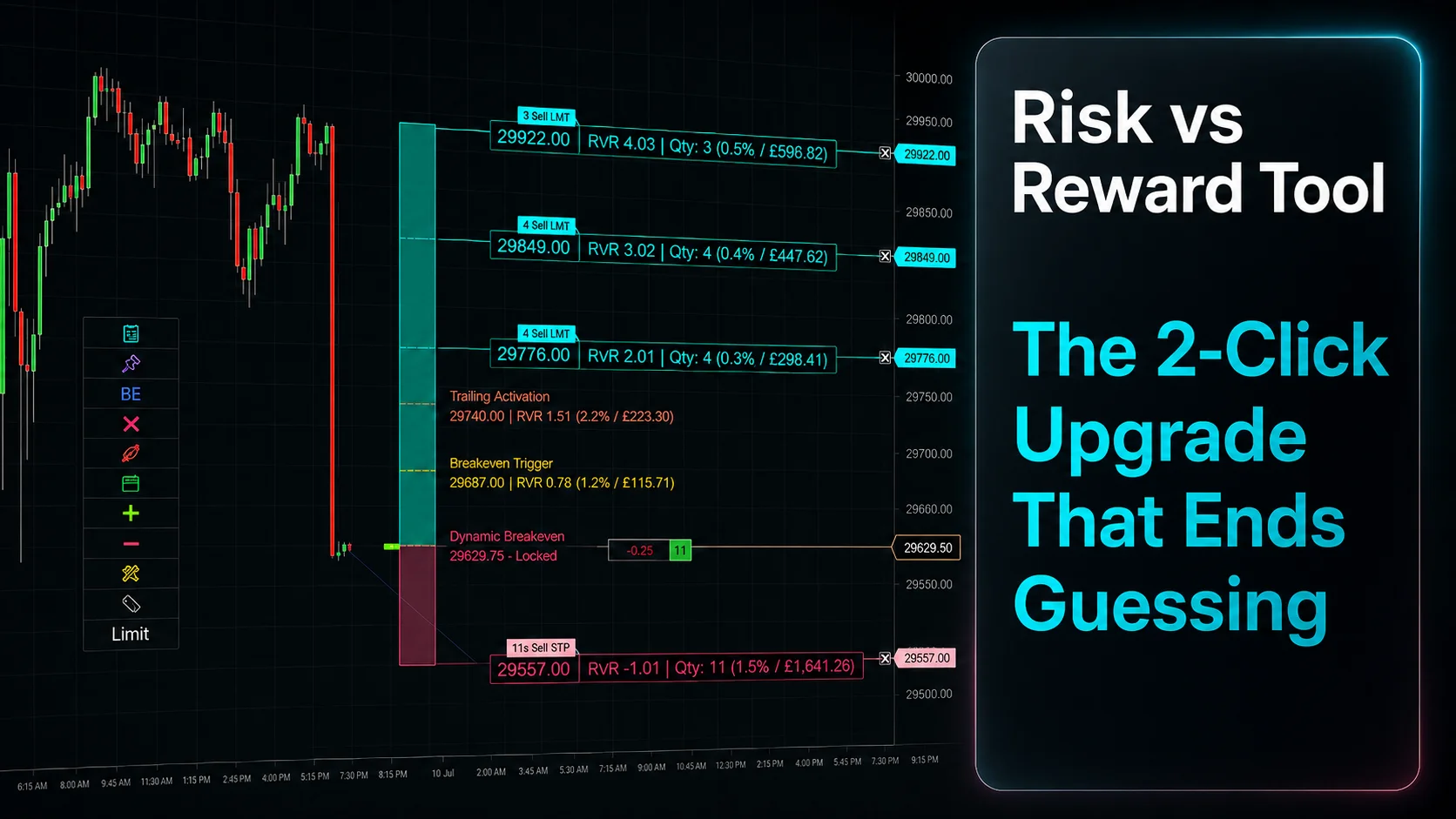
Ditch NinjaTrader ATMs: This Is More Powerful
See how to set your risk and calculate contracts directly on the chart.
Watch Now
Subscribe on YouTube
Related Tool
XABCD Position Tool
Automatic position sizing and on-chart trade management.
Explore the Tool
Why XABCD Trading
- Built for NinjaTrader 8 since 2009
- Trusted by 2,000+ traders
- On-chart tools, no ATM templates needed
- Free tools to get started

Get Project Updates
Twice-monthly maximum, we will give you updates on all the projects going here.
Quick Links
NinjaTrader Fancy Zones: Snap Charts Fast (8.1.9)
NinjaTrader 8.1.9: What’s New (And What to Fix)
NinjaTrader 8 Position Size Calculator: On-Chart Setup
Trade NQ, Copy MNQ: Copy NQ Trades to MNQ in NinjaTrader 8
NinjaTrader Data Feed Not Updating? Quick Fixes
NinjaTrader Risk Per Trade: Risk $500 on Every Trade
NinjaTrader 8.1.8 Review: Should You Upgrade or Wait?
XABCD Pattern Alerts: The Complete Guide for Traders
Risk vs Reward Tool: The 2-Click Upgrade That Ends Guessing