XABCD TRADING
NinjaTrader 8 Trailing Stop Guide – Step By Step for 2026
Subscribe
to get alerts to our next blog post!
2 Ways to Set Up a Trailing Stop in NinjaTrader 8
Setting up trailing stops in NinjaTrader is easy once you know which method fits your situation. First, ask yourself one question:
Are you already in the trade, or are you thinking about going in to the market?
This matters because the method changes depending on whether your order is already placed. If you haven't entered yet, use an ATM strategy. If you're already in, use an OCO order. Below, we'll walk through both.
ATM (Automatic Trade Management)
This will need to be done before the trade is placed. If your existing position has not been placed, you will use an ATM strategy (might want to try our Free ATM Pack) to trail your stops. This is just one of a few ways of attaching ATM orders when placing positions.
1) Open a chart and in the top you will see the chart trader can at the top which looks like a pause button (5th icon over by default from the right).
2) Under the ATM Strategy section of your order is where you will configure your trailing stop.
You can see this in the video at the 1 minute mark below.
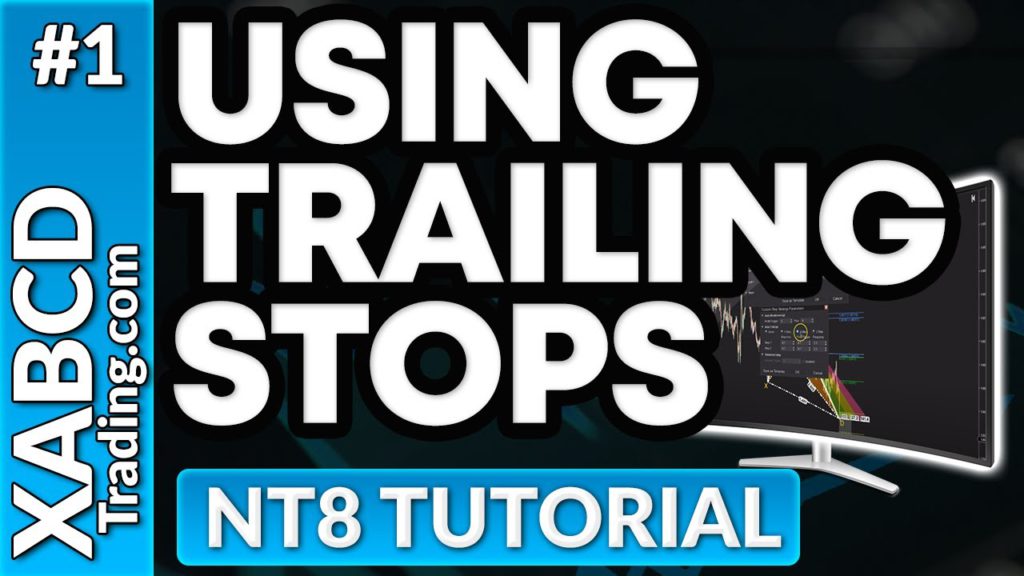 (opens in a new tab)
If you have any questions on trailing stops in NinjaTrader 8. Please ask us in the comments section below and we'd be happy to reply right back to you.
OCO Orders (One Cancels the Other Order)
If you're already in the market, you will use OCO orders to trail your stop. You can use OCO orders as well to place trades based on conditions.
This is not the ideal way of doing it and depending how many trades you have on. It could get a bit confusing if you did it that way. Consider trying to get into the habit of placing a trialing stop or an auto stop to break-even if you leave trades on over night.
Why Use Trailing Stops?
Protecting Profits: This is probably the most important reason which is why I will list it first. Trailing stops allow our xabcd pattern traders to lock in profits as the price of an asset rises. Instead of setting a fixed stop-loss level, which may lead to premature exits, a trailing stop adjusts upward as the price increases. This helps to capture more gains during strong market trends.
Minimizing Losses: Trailing stops help limit potential losses by automatically adjusting the stop-loss level if the price moves against the trade. This is very helpful to use with our free news indicator to make sure stops are moved up before news events.
Reducing Emotional Decision-Making: Emotions, such as fear and greed, can influence trading decisions. Trailing stops provide a systematic and disciplined approach to risk management, reducing the impact of emotional decision-making. Maybe you are not even around the screen because you trade better that way, the trailing stops can even be moved up in steps.
Freeing Up Mental Bandwidth: Constantly monitoring price movements and deciding when to exit a trade can be mentally taxing. Trailing stops automate the process, freeing up mental bandwidth for other aspects of trading or investing.
Facilitating Active Trading: For active traders who may not have the time to closely monitor the markets throughout the day, trailing stops provide a way to automate risk management, allowing for more efficient and timely exits.
Minimizing Losses: Trailing stops help limit potential losses by automatically adjusting the stop-loss level if the price moves against the trade. This is very helpful to use with our free news indicator to make sure stops are moved up before news events.
Reducing Emotional Decision-Making: Emotions, such as fear and greed, can influence trading decisions. Trailing stops provide a systematic and disciplined approach to risk management, reducing the impact of emotional decision-making. Maybe you are not even around the screen because you trade better that way, the trailing stops can even be moved up in steps.
Freeing Up Mental Bandwidth: Constantly monitoring price movements and deciding when to exit a trade can be mentally taxing. Trailing stops automate the process, freeing up mental bandwidth for other aspects of trading or investing.
Facilitating Active Trading: For active traders who may not have the time to closely monitor the markets throughout the day, trailing stops provide a way to automate risk management, allowing for more efficient and timely exits.
Frequently Asked Questions
Can I add a trailing stop in NinjaTrader after I'm already in a trade?
Yes, if you are already in a trade, you can use OCO (One Cancels the Other) orders to trail your stop. However, this is not the ideal method, especially if you have multiple trades on, as it can get confusing. It's better practice to set up your trailing stop before entering the trade using an ATM strategy.
How do I set up trailing stops in NinjaTrader 8 using ATM?
To set up trailing stops in NinjaTrader 8 using ATM, open a chart and click the Chart Trader icon at the top (it looks like a pause button, the 5th icon from the right by default). Under the ATM Strategy section of your order, you can configure your trailing stop settings. This must be done before the trade is placed.
What is the difference between ATM and OCO for trailing stops in NinjaTrader?
ATM (Automatic Trade Management) is used to configure trailing stops before a trade is placed and is the preferred method. OCO (One Cancels the Other) orders are used when you are already in a position and need to add a trailing stop after the fact. ATM is generally more straightforward, while OCO can become confusing if you have multiple trades open.
Can trailing stops move up in steps on NinjaTrader?
Yes, trailing stops in NinjaTrader can be moved up in steps. This is especially useful if you are not actively watching the screen, as it automates the process of locking in profits incrementally as the price moves in your favor.
Should I use a trailing stop or a fixed stop-loss in NinjaTrader?
A trailing stop is generally more advantageous than a fixed stop-loss because it adjusts automatically as the price moves in your favor, helping you lock in profits during strong trends. A fixed stop-loss may lead to premature exits. Trailing stops also reduce emotional decision-making and free up mental bandwidth by automating your risk management.
Still have a question about this?Ask the XABCD team in Live Chat and get help with your setup.Ask in Live Chat →
New NinjaTrader Articles Delivered First
Free tutorials, fixes and setup guides by email. Two emails a month at most.
Free tutorials, fixes and setup guides by email. Two emails a month at most.
Recommended Tool
XABCD ATM Pack
23 free ATM strategy templates for NinjaTrader 8. Import them and start with your stops and targets already set up.
Get the Free ATM Pack →
Recommended Video

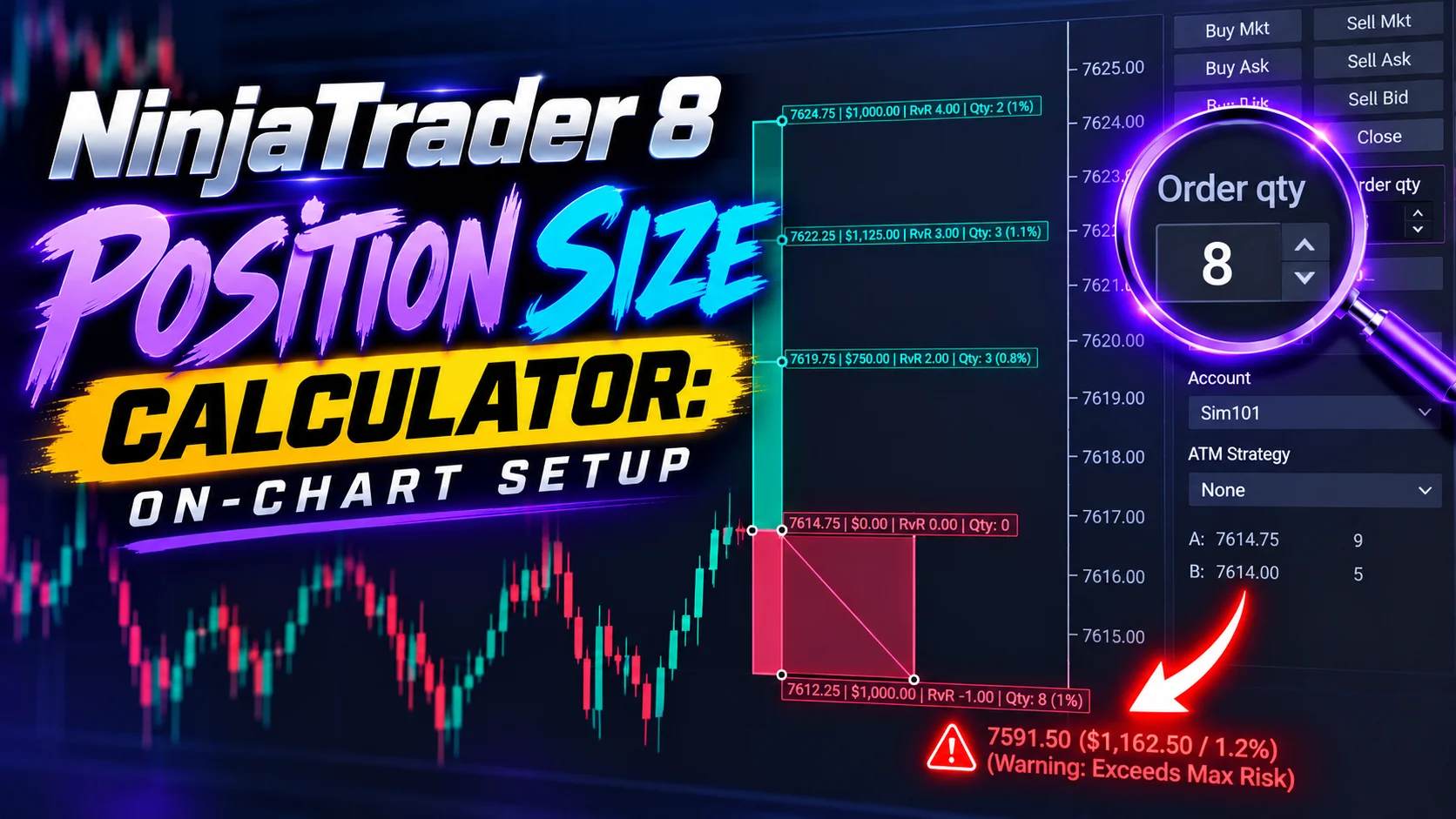
Ditch NinjaTrader ATMs: This Is More Powerful
See how to set your risk and calculate contracts directly on the chart.
Watch Now
Subscribe on YouTube
Related Tool

XABCD ATM Pack
23 free ATM strategy templates for NinjaTrader 8. Import them and start with your stops and targets already set up.
Get the Free ATM Pack
Why XABCD Trading
- Built for NinjaTrader 8 since 2009
- Trusted by 2,000+ traders
- On-chart tools, no ATM templates needed
- Free tools to get started


Get Project Updates
Twice-monthly maximum, we will give you updates on all the projects going here.
Quick Links