XABCD TRADING
Chart Navigation Shortcuts and HotKeys Within NinjaTrader 8

Subscribe
to get alerts to our next blog post!
Navigation Shortcuts within NinjaTrader 8 are all pretty simple to use. Below we've listed 4 of them that you will find most useful in your technical analysis and every day chart navigation. We have also put all the tips in a video that demonstrates the function of each.
Free-form Chart Movement
Shortcut Key: CTRL + Left Mouse
This is extremely useful and use it on every chart I analyze. When you hold down the control button (CTRL) and then press (and hold down) the left mouse button - you will be able to drag the chart around to position it where you need it.
Example: Say you are drawing a trend channel and you need to extend the trend to see where price is going. You would hold down your CTRL + Left Mouse and move the current bar further to the left giving you more room to draw on the right.
Candlestick Bar Width in NinjaTrader 8
Shortcut Key: ALT + Up/Down Arrows
There are times in your trading day that you are re-scaling the charts. This can make each candlestick bar further from the previous one creating gaps between the bars. One thing you can do to make the chart look more normal is make the candlestick bars skinny or fatter depending on the desired result. This would be an annoying task if you had to do it in the properties, so instead hold down the ALT Key and tap the up and down arrows multiple times and watch the candlesticks grow or shrink.
Zooming In/Out On A NinjaTrader 8 Chart
Shortcut Key: CTRL + Up/Down Arrows
Zooming in and out is quite common to do when your charting. It's pretty easy too since all you need to do is hold CTRL + Up/Down Arrows to zoom in and out of a chart. This makes it a lot easier than trying to re scale your chart and and then move the chart around. A simple task now made even easier with the use of shortcuts and hotkeys.
Moving Current Price Up/Down
Shortcut Key: Shift + Up/Down Arrows
Price is usually aligned along the right price axis on your chart, but how high or low might depend on the trend of the market. If you want to re position current price higher or lower on the chart, you would just need to hold down the shift button and tap your up and down arrows until you hit the desired results.
Frequently Asked Questions
What are navigation shortcuts?
Navigation shortcuts are keyboard combinations, gestures, or commands that allow users to quickly move between sections, pages, or elements within software, websites, or operating systems. They help improve productivity by reducing reliance on a mouse and streamlining repetitive tasks.
What are the most common keyboard navigation shortcuts for web browsers?
The most common browser navigation shortcuts include Alt + Left Arrow to go back, Alt + Right Arrow to go forward, Ctrl + T to open a new tab, Ctrl + W to close a tab, and Ctrl + L to jump to the address bar. These shortcuts work across most major browsers including Chrome, Firefox, and Edge.
How do I create custom navigation shortcuts on my computer?
On Windows, you can create custom shortcuts by right-clicking a program's shortcut, selecting Properties, and assigning a key combination in the Shortcut Key field. On Mac, you can go to System Settings > Keyboard > Keyboard Shortcuts to create or modify shortcuts for specific apps or system-wide functions.
What navigation shortcuts work in Windows File Explorer?
In Windows File Explorer, useful navigation shortcuts include Alt + Up Arrow to go to the parent folder, Alt + D to select the address bar, Ctrl + N to open a new window, and Backspace or Alt + Left Arrow to return to the previous folder. These shortcuts make browsing files significantly faster than using a mouse alone.
Do navigation shortcuts improve accessibility for users with disabilities?
Yes, navigation shortcuts are essential for accessibility, especially for users who cannot operate a mouse due to motor impairments or visual disabilities. Screen readers and assistive technologies rely heavily on keyboard shortcuts to help users navigate content, skip to main sections, and interact with page elements efficiently.
Frequently Asked Questions
What are navigation shortcuts?
Navigation shortcuts are keyboard combinations, gestures, or commands that allow users to quickly move between sections, pages, or elements within software, websites, or operating systems. They help improve productivity by reducing reliance on a mouse and streamlining repetitive tasks.
What are the most common keyboard navigation shortcuts for web browsers?
The most common browser navigation shortcuts include Alt + Left Arrow to go back, Alt + Right Arrow to go forward, Ctrl + T to open a new tab, Ctrl + W to close a tab, and Ctrl + L to jump to the address bar. These shortcuts work across most major browsers including Chrome, Firefox, and Edge.
How do I create custom navigation shortcuts on my computer?
On Windows, you can create custom shortcuts by right-clicking a program's shortcut, selecting Properties, and assigning a key combination in the Shortcut Key field. On Mac, you can go to System Settings > Keyboard > Keyboard Shortcuts to create or modify shortcuts for specific apps or system-wide functions.
What navigation shortcuts work in Windows File Explorer?
In Windows File Explorer, useful navigation shortcuts include Alt + Up Arrow to go to the parent folder, Alt + D to select the address bar, Ctrl + N to open a new window, and Backspace or Alt + Left Arrow to return to the previous folder. These shortcuts make browsing files significantly faster than using a mouse alone.
Do navigation shortcuts improve accessibility for users with disabilities?
Yes, navigation shortcuts are essential for accessibility, especially for users who cannot operate a mouse due to motor impairments or visual disabilities. Screen readers and assistive technologies rely heavily on keyboard shortcuts to help users navigate content, skip to main sections, and interact with page elements efficiently.
Still have a question about this?Ask the XABCD team in Live Chat and get help with your setup.Ask in Live Chat →
New NinjaTrader Articles Delivered First
Free tutorials, fixes and setup guides by email. Two emails a month at most.
Free tutorials, fixes and setup guides by email. Two emails a month at most.
Recommended Tool
XABCD HotKeys
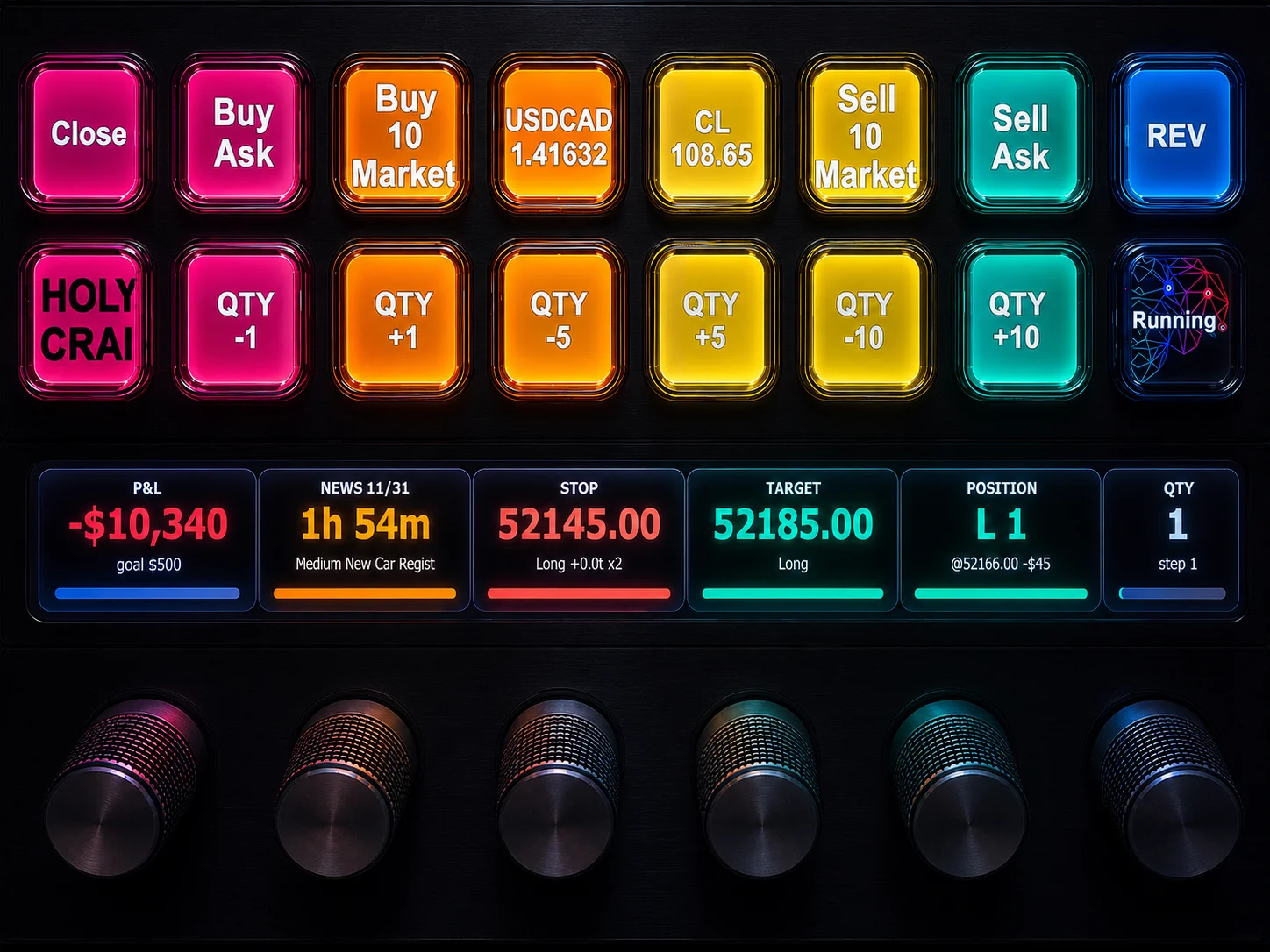
HotKey automation for NinjaTrader 8, with Stream Deck support. Run the actions you use most without reaching for the mouse.
See XABCD HotKeys →
Recommended Video
Ditch NinjaTrader ATMs: This Is More Powerful
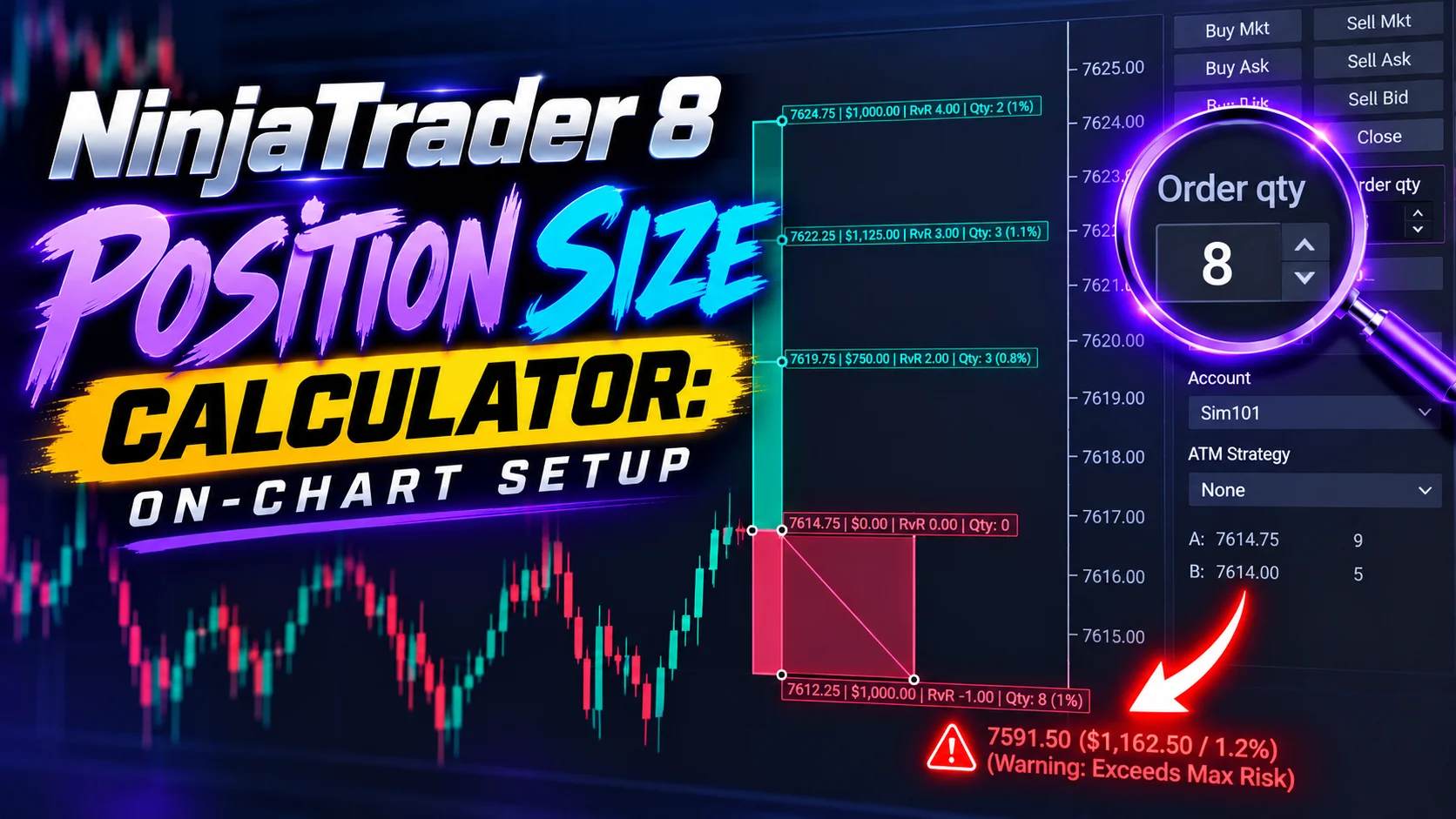
See how to set your risk and calculate contracts directly on the chart.
Watch Now
Subscribe on YouTube
Related Tool

XABCD HotKeys
HotKey automation for NinjaTrader 8, with Stream Deck support. Run the actions you use most without reaching for the mouse.
See XABCD HotKeys
Why XABCD Trading
- Built for NinjaTrader 8 since 2009
- Trusted by 2,000+ traders
- On-chart tools, no ATM templates needed
- Free tools to get started


Get Project Updates
Twice-monthly maximum, we will give you updates on all the projects going here.
Quick Links