XABCD TRADING
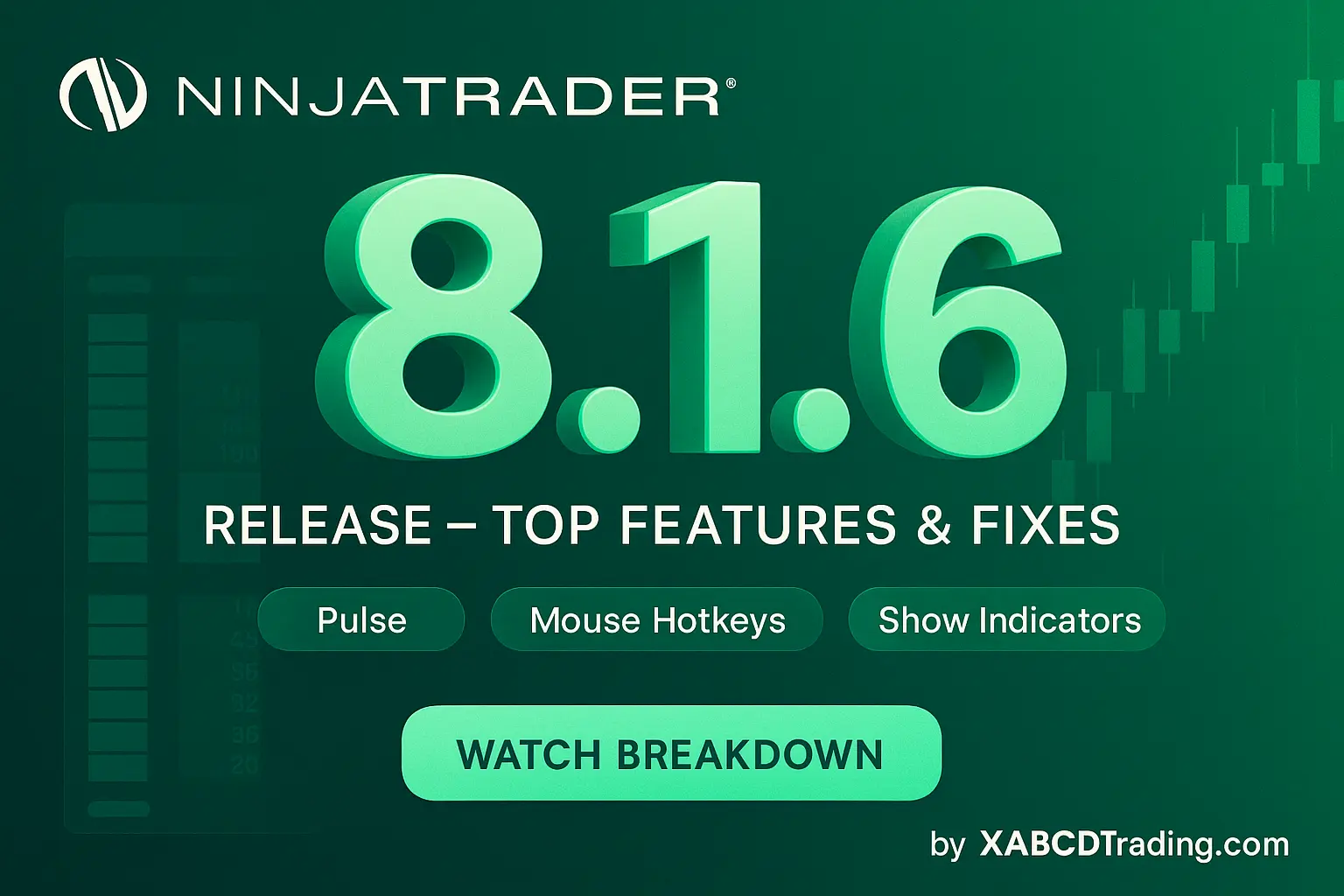
NinjaTrader 8.1.6 — The “No Fluff” Tour (Speed, Clarity, Fewer Clicks)
Subscribe
to get alerts to our next blog post!
If you only have five minutes to figure out what changed in NinjaTrader, make it this update. NinjaTrader 8.1.6 quietly fixes the annoying stuff that costs you time, and adds a few power moves you’ll actually use every session. Here’s the fast, plain-English version. If you skipped the previous update, our NinjaTrader 8.1.5 release breakdown covers its 15 new features, 33 bug fixes, and the Kraken acquisition news.

The Big Wins (you’ll feel these right away)

Pulse: Market Participation at A Glance (Feature #18488)
If you only have five minutes to figure out what changed in NinjaTrader, make it this update. 8.1.6 quietly fixes the annoying stuff that costs you time, and adds a few power moves you’ll actually use every session. Here’s the fast, plain-English version.
Practical Use
- How: Control Center → New → Pulse; pin it near your primary chart.
- When to use: At session open, pre-news, and after big pushes to see if participation confirms price.
- Read it: Rising price without strengthening Pulse = potential exhaustion; align entries with participation expanding in your trade direction.
Mouse Hot Keys for order entry (Feature #29312)

Modifier + click = order fired. Map the combos you actually use so your hands stay on the chart and your orders go in fast.
- How: Tools → Hot Keys → Chart → set Ctrl + Left Click (example) to place a limit at cursor.
- When to use: Momentum pulls, fade levels, bracket entries you re-use constantly.
- Safety tip: Start with one mapping you’ll use daily; add more only when the first is second nature.
“Show Indicators” one-click cleanup (Feature #27716)

Modifier + click = order fired. Map the combos you actually use so your hands stay on the chart and your orders go in fast.
- How: Right-click chart → Show Indicators (or map it to a hot key).
- When to use: Before entries/exits to sanity-check structure, during replay reviews, or when sharing screenshots.
- Pro tip: Pair with a mouse hot key (below) for a quick “clean → place order → restore” workflow.
Multiple Time Highlighter (Feature #30422)

What it is: Add several time highlights to a single chart. Why you care: Track opens, ETH, lunch lull, news windows—all in one view.
- How: Chart → Indicators → Time Highlighter → add multiple with different times/colors.
- When to use: Mark RTH open, FOMC window, inventory liquidation hour, or your custom “no trade” blocks.
- Pro tip: Save as a template so every chart inherits your session map.
Streamlined Template Loading (Feature #29784)

What it is: Apply Chart/MA/SuperDOM/Drawing Tool templates from the right-click menu—no extra dialog. Why you care: Less friction switching between views, faster standardization.
- How: Right-click → Templates → apply. Manage stays available for organizing.
- When to use: Flip between “Scalp” vs “Swing” chart configs, or swap DOM visuals on news days.
- Pro tip: Name templates by task (“ES-Scalp-2s”, “ES-Swing-10m”) so the right one is obvious mid-session.
Import & Export Workspaces

What it is: Backup/share/move entire layouts from Control Center. Why you care: New PC setup in minutes; versioned backups before big changes.
- How: Control Center → Workspaces → Export (or Import).
- When to use: Before major template edits, migrating machines, or sharing a standard layout with a teammate.
- Pro tip: Keep a dated archive (e.g., Workspace-ES-2025-09-12.nin) so you can roll back quickly.
NinjaScript Editor (C# 13)
What it is: Editor updated for the latest C# language level. Why you care: Cleaner code, less boilerplate, more modern patterns for indicators/add-ons/strategies.
- How: Open NinjaScript Editor; new syntax/features compile out of the box.
- When to use: Refactoring utilities, building custom filters, adding diagnostics around order events.
- Pro tip (devs): Use modern language features to simplify parameter handling and reduce ceremony in indicators; add unit-like checks with clear exceptions for faster debugging.
Description Links (Feature #31035)
What it is: Indicator descriptions now support line breaks + clickable links. Why you care: Faster onboarding to new tools with direct jumps to docs/videos.
- How: Indicators panel → select an indicator → click links in the description.
- When to use: Testing a new vendor study, handing off setups to a teammate, or documenting your own indicators.
- Pro tip: Standardize a “Docs” line in your custom indicators pointing to your internal wiki.
Bug Fixes (top 5 that matter)
Fix #5 — Saturday session crash (Trading Hours) - A rare template with three Saturday sessions could crash the platform. Fixed.
Fix #4 — Strategies tab duplication reset PnL Duplicating the Strategies tab no longer zeroes Realized PnL. Fixed.
Fix #3 — Cumulative Delta + Tick Replay Cumulative Delta now resets properly at session change with Tick Replay. Fixed.
Fix #2 — Delta Bars + Tick Replay Delta Bars work correctly with Tick Replay. Fixed.
Fix #1 — Candle render error (strategies/chart) An error that could block candles from rendering is gone. Fixed.
Fix #4 — Strategies tab duplication reset PnL Duplicating the Strategies tab no longer zeroes Realized PnL. Fixed.
Fix #3 — Cumulative Delta + Tick Replay Cumulative Delta now resets properly at session change with Tick Replay. Fixed.
Fix #2 — Delta Bars + Tick Replay Delta Bars work correctly with Tick Replay. Fixed.
Fix #1 — Candle render error (strategies/chart) An error that could block candles from rendering is gone. Fixed.
Final Thoughts on NinjaTrader 8.1.6
The Good, The Bad and The Ugly
NinjaTrader 8.1.6 feels like the release where NinjaTrader gets out of your way. It cuts clutter, trims clicks, and tightens the loop between spotting an idea and putting risk on. The new “clean chart” toggle and multiple time highlights make reading price action dead simple, while right-click templates and workspace import/export smooth out the day-to-day setup grind. Mouse hotkeys in NinjaTrader 8.1.6 keep your hands on the chart when it’s time to act. Pulse adds a quick read on who’s actually participating, and the editor’s C# 13 support plus clickable description links make both building and learning tools faster. The headline fixes land where they should—stability around candles, Tick Replay, and oddball session setups. Net/net: this is a trader-quality update—practical, polished, and worth installing, with a few small preferences to set before you’re cruising.
I liked that there were features in this release, and wasn't just about bug fixes as we've seen in prior releases.
I liked that there were features in this release, and wasn't just about bug fixes as we've seen in prior releases.
Frequently Asked Questions
What new features does NinjaTrader 8.1.6 include?
NinjaTrader 8.1.6 introduces Pulse for real-time market participation tracking, mouse hot keys for faster chart-based order entry, a one-click "Show Indicators" toggle for cleaner charts, and the ability to add multiple time highlights to a single chart. It also adds streamlined template loading from the right-click menu, workspace import/export, NinjaScript Editor support for C# 13, and clickable links within indicator descriptions.
How do I update to NinjaTrader 8.1.6?
NinjaTrader updates are generally available through the NinjaTrader platform's built-in update mechanism or by downloading the latest installer from the official NinjaTrader website. Before updating, it's a good idea to export your workspaces from Control Center → Workspaces → Export, a feature now available in 8.1.6, so you can roll back quickly if needed.
What is the Pulse feature in NinjaTrader and how do I use it?
Pulse is a new NinjaTrader update that gives you a quick read on market participation at a glance. You can access it via Control Center → New → Pulse and pin it near your primary chart. Use it at session open, before news events, and after big price pushes—rising price without strengthening Pulse may signal potential exhaustion, while expanding participation in your trade direction can help confirm entries.
What bugs were fixed in NinjaTrader 8.1.6?
NinjaTrader 8.1.6 fixes five notable bugs: a candle rendering error that could block candles from displaying, Delta Bars and Cumulative Delta not working correctly with Tick Replay, the Strategies tab duplication resetting Realized PnL to zero, and a rare crash caused by trading hours templates with three Saturday sessions. These stability fixes target areas around candles, Tick Replay, and edge-case session setups.
How do mouse hot keys work for order entry in NinjaTrader's new features?
Mouse hot keys let you fire orders directly from the chart using a modifier key plus a mouse click, such as Ctrl + Left Click to place a limit order at the cursor. You set them up under Tools → Hot Keys → Chart, mapping the specific combinations you use most often. For safety, it's recommended to start with one mapping you'll use daily and add more only once the first becomes second nature.
Frequently Asked Questions
What new features does NinjaTrader 8.1.6 include?
NinjaTrader 8.1.6 introduces Pulse for real-time market participation tracking, mouse hot keys for faster chart-based order entry, a one-click "Show Indicators" toggle for cleaner charts, and the ability to add multiple time highlights to a single chart. It also adds streamlined template loading from the right-click menu, workspace import/export, NinjaScript Editor support for C# 13, and clickable links within indicator descriptions.
How do I update to NinjaTrader 8.1.6?
NinjaTrader updates are generally available through the NinjaTrader platform's built-in update mechanism or by downloading the latest installer from the official NinjaTrader website. Before updating, it's a good idea to export your workspaces from Control Center → Workspaces → Export, a feature now available in 8.1.6, so you can roll back quickly if needed.
What is the Pulse feature in NinjaTrader and how do I use it?
Pulse is a new NinjaTrader update that gives you a quick read on market participation at a glance. You can access it via Control Center → New → Pulse and pin it near your primary chart. Use it at session open, before news events, and after big price pushes—rising price without strengthening Pulse may signal potential exhaustion, while expanding participation in your trade direction can help confirm entries.
What bugs were fixed in NinjaTrader 8.1.6?
NinjaTrader 8.1.6 fixes five notable bugs: a candle rendering error that could block candles from displaying, Delta Bars and Cumulative Delta not working correctly with Tick Replay, the Strategies tab duplication resetting Realized PnL to zero, and a rare crash caused by trading hours templates with three Saturday sessions. These stability fixes target areas around candles, Tick Replay, and edge-case session setups.
How do mouse hot keys work for order entry in NinjaTrader's new features?
Mouse hot keys let you fire orders directly from the chart using a modifier key plus a mouse click, such as Ctrl + Left Click to place a limit order at the cursor. You set them up under Tools → Hot Keys → Chart, mapping the specific combinations you use most often. For safety, it's recommended to start with one mapping you'll use daily and add more only once the first becomes second nature.
Still have a question about this?Ask the XABCD team in Live Chat and get help with your setup.Ask in Live Chat →
New NinjaTrader Articles Delivered First
Free tutorials, fixes and setup guides by email. Two emails a month at most.
Free tutorials, fixes and setup guides by email. Two emails a month at most.
Recommended Tool
XABCD ATM Pack
23 free ATM strategy templates for NinjaTrader 8. Import them and start with your stops and targets already set up.
Get the Free ATM Pack →
Recommended Video
Ditch NinjaTrader ATMs: This Is More Powerful
See how to set your risk and calculate contracts directly on the chart.
Watch Now
Subscribe on YouTube
Related Tool
XABCD ATM Pack
23 free ATM strategy templates for NinjaTrader 8. Import them and start with your stops and targets already set up.
Get the Free ATM Pack
Why XABCD Trading
- Built for NinjaTrader 8 since 2009
- Trusted by 2,000+ traders
- On-chart tools, no ATM templates needed
- Free tools to get started
Get Project Updates
Twice-monthly maximum, we will give you updates on all the projects going here.
Quick Links