XABCD TRADING

XABCD Pattern Alerts: The Complete Guide for Traders
Subscribe
to get alerts to our next blog post!
Finding an XABCD pattern is only useful if you notice it at the right time. That is exactly why XABCD Pattern Alerts exist. They bring every detected setup into one central window so you never miss a trading opportunity again. Whether you trade futures, forex, or stocks on NinjaTrader, these alerts can change how you interact with your charts and scanners.
Think about it. You might be monitoring several instruments, chart types, and timeframes all at once. A pattern could complete on a 100-tick chart while you are studying a five-minute chart. Meanwhile, an opportunity may appear on ES while your attention is on NQ. By the time you cycle through every open window, the setup you wanted may already be several bars old.
The XABCD Pattern Suite was designed to reduce that dependence on constantly watching charts. It can identify patterns across your charts and Market Analyzer columns, score their characteristics, track forming setups, and provide the information you need to evaluate each opportunity. The redesigned XABCD Pattern Alerts window brings all of that together in one powerful place.
What Are XABCD Pattern Alerts and Why Do They Matter?
Instead of treating every chart as a separate island, the Alerts window creates one central location for the patterns detected throughout the suite. It can announce new patterns out loud, filter alerts by quality and timeframe, connect an alert directly to a chart, remove duplicate signals, and record how completed patterns perform over time.
The result is not simply another notification window. It is a more practical way to use the entire XABCD indicators and tools during a live trading session. So let's break down every feature of this redesigned window and show you how to get the most out of it.
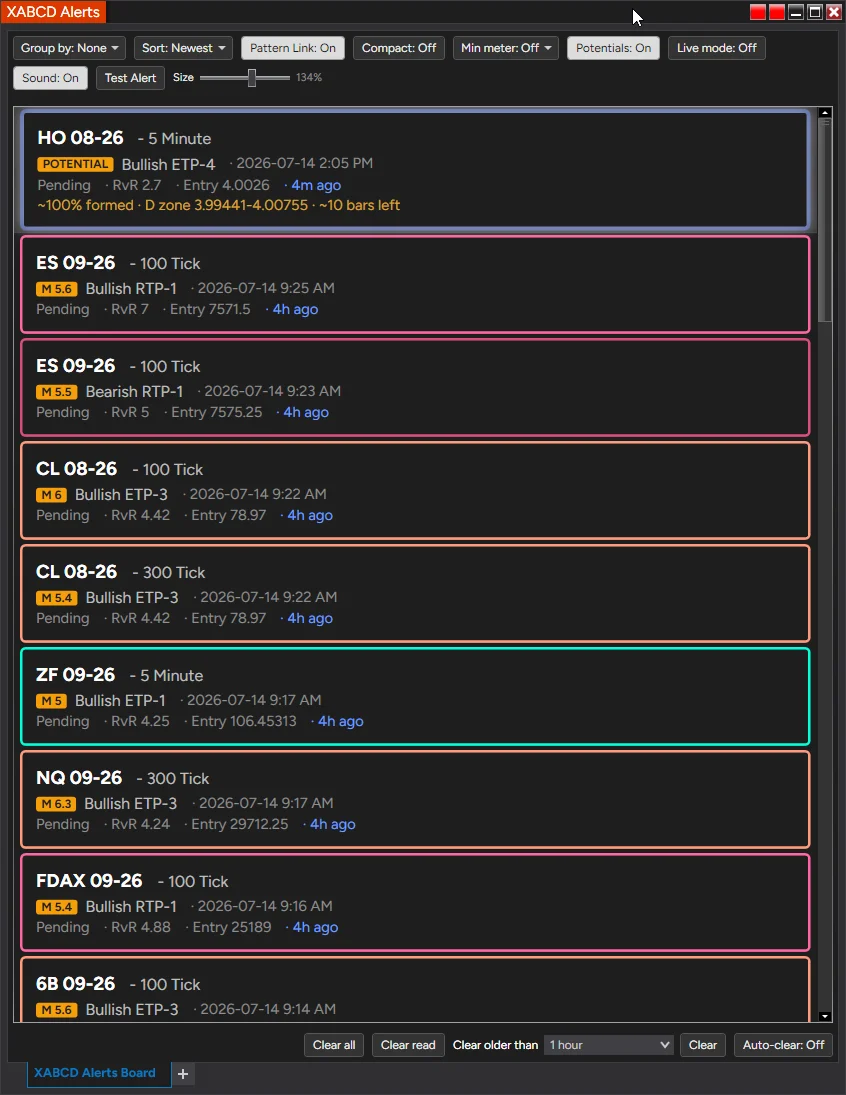
Overview of the XABCD Pattern Alerts window displaying multiple detected pattern tiles organized by instrument and timeframe
Your XABCD Pattern Alerts Can Now Speak
At the top of the Alerts window you will find a Sound: On control. When sound is enabled, the suite can announce a newly confirmed pattern using the built-in Windows speech engine. This is one of the standout features of the new XABCD Pattern Alerts system.
Rather than hearing a generic beep, you can hear an announcement such as:
"Bullish ETP-1 Pattern on the 100-tick timeframe."
Or perhaps:
"Bearish RTP-1 Pattern on the five-minute timeframe."
A standard sound only tells you that something happened. However, a spoken alert tells you what happened. That includes the direction, pattern name, and timeframe. You don't even need to look at the screen right away.
That distinction matters when the XABCD pattern scanner is monitoring more markets than you can comfortably display at once. You may be reading economic news, managing an open position, or temporarily away from your desk. A spoken alert gives you enough context to decide whether the setup deserves your attention.
The direction is intentionally announced first. Hearing "bullish" or "bearish" immediately gives you the most important context before the rest of the alert plays. Furthermore, spoken alerts are enabled by default, but they are entirely optional. Traders who prefer traditional sound files can disable speech and assign individual WAV files to specific patterns and directions.
Because the speech is generated locally by Windows, there is no external service to configure. You won't need to download audio files or install additional software.
One Organized Audio Queue Across the Suite
Multiple alerting tools can quickly become distracting when several sounds play at the same time. For example, a pattern alert may begin speaking just as a market-news alert fires. Another pattern may complete half a second later. Instead of receiving useful information, you hear overlapping sounds that are hard to understand.
The new XABCD audio system prevents that by placing alerts into a shared queue. Spoken announcements, custom WAV files, and supported alerts from XABCD News Pro are played one at a time in the order they are received.
When several patterns complete together, each announcement finishes before the next one begins. This creates a calmer and more usable alerting environment. It is especially helpful for traders who use multiple XABCD tools together.
The queue also manages unusually large bursts of alerts. When too many arrive at once, it prioritizes the most recent information. You won't be forced to listen to a long backlog of opportunities that may no longer be relevant. The objective is not to produce more noise. It is to make the information easier to understand and act upon.
Test the Entire Alert Workflow Instantly
The Test Alert button lets you confirm that your alert configuration is working before a live pattern appears. This is a small but incredibly useful feature for anyone setting up XABCD Pattern Alerts for the first time.
Pressing the button adds a clearly marked test tile to the board. It also activates the same alert process used by a genuine pattern. Depending on your settings, it can:
- Play a spoken pattern announcement
- Play a selected WAV file
- Add an alert tile to the board
- Bring the Alerts window to the front
As a result, you can easily confirm that your speakers are working and your volume is appropriate. You no longer need to wait for the XABCD pattern scanner to detect a live setup before discovering that your computer was muted or that an alert option was disabled.
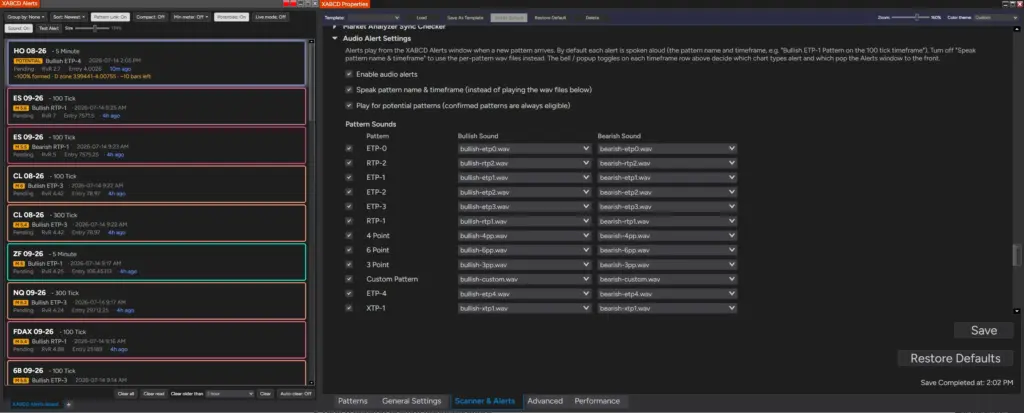
Screenshot of the test alert tile appearing on the alerts board alongside the audio settings configuration panel
Audio Settings That Follow You Between Workspaces
Audio configuration is stored within the main XABCD Properties window rather than inside an individual NinjaTrader workspace. Therefore, your alert preferences remain consistent when you change workspaces, restart NinjaTrader, or load a different chart layout.
Inside the Scanner and Alerts tab, the Audio Alert Settings section provides control over how the Pattern Suite communicates new opportunities. You can enable or disable audio globally and choose whether the suite should speak the pattern name and timeframe.
When spoken alerts are disabled, you can assign separate bullish and bearish sounds to individual XABCD pattern types. For instance, a bullish ETP-1 can use a different sound from a bearish ETP-3 or RTP-1. This gives traders the flexibility to create a recognizable audio language around the patterns they follow most closely.
You can also decide whether potential patterns should produce audio. Confirmed patterns are always eligible for an alert. However, potential patterns are still forming and may change before confirmation. Their audio stays disabled unless you specifically turn it on.
This design accommodates two different styles of pattern trading alerts:
- Traders who only want completed, confirmed setups
- Traders who want advance notice as potential structures begin to form
Decide Which Timeframes Deserve Your Attention
Not every timeframe needs to interrupt you. A smaller tick chart may produce frequent patterns, while a daily chart may produce only an occasional setup. Treating both with the same alert priority can create unnecessary noise.
The Market Analyzer Template Builder now includes alert controls for each configured timeframe. Every row can include two independent options:
- A bell that determines whether the timeframe can produce an audio alert
- A popup option that determines whether the Alerts window should move to the front
This lets you build a much more selective XABCD trading workflow. You could allow patterns from a daily or 60-minute chart to speak and pop the window forward. Meanwhile, patterns from a busy 100-tick chart appear silently on the board.
The Pattern Suite still detects and organizes all permitted patterns. You simply decide which ones are important enough to interrupt your current task. The global audio settings determine what each pattern sounds like. In contrast, the timeframe controls determine when that sound is allowed to play.
Together, they provide a level of alert control that is difficult to achieve by assigning a basic alert directly to each individual chart. This is where NinjaTrader pattern alerts truly shine compared to simpler notification systems.
Read Every Pattern at a Glance
Each detected setup appears as its own tile within the XABCD Pattern Alerts window. The tile begins with the instrument and contract, followed by the timeframe. Below that you will find key pattern information, including:
- The XABCD Pattern Meter score
- Bullish or bearish direction
- Pattern name
- Confirmation time
- Current status
- Risk-versus-reward information
- Entry price
- Relative age of the alert
A newly detected pattern may show "just now," while an older setup may display "3h ago." Each tile is also outlined using the color associated with that pattern type. Once you become familiar with the suite, the combination of color, direction, score, and layout makes it possible to review a large number of alerts quickly.
This is where the advantage of an integrated suite becomes most apparent. The alert is not merely telling you that a geometric formation exists. It brings together the pattern classification, XABCD pattern meter score, direction, timeframe, entry information, and current status produced by the XABCD tools.
Instead of piecing that information together manually across several windows, you can evaluate it from one organized tile. For more details on how the pattern meter works, check out the XABCD performance documentation.

Close-up of an individual alert tile displaying instrument name, timeframe, pattern meter score, direction, entry price, and alert age
Filter the Patterns Before They Consume Your Attention
Detecting more patterns is not always better. Without filtering, a multi-instrument scanner can produce so much information that the best setups become impossible to distinguish from everything else. The Alerts window includes several controls that allow you to narrow the board to the patterns most relevant to your approach.
Minimum Meter Score
The XABCD pattern meter evaluates characteristics of each confirmed pattern. The Min Meter control allows you to hide patterns below a selected score. Raising the minimum score does not change how the Pattern Suite detects patterns. It simply changes which detected patterns are allowed to occupy your attention.
This can be useful when you want to study whether higher-scoring patterns perform differently. Similarly, it helps when you only want to focus on setups that meet a more selective threshold.
Potential Patterns
The Potentials control determines whether still-forming XABCD patterns appear beside confirmed setups. With potentials enabled, you can monitor developing structures before they complete. With potentials disabled, the board remains focused on confirmed patterns only.
Grouping and Sorting
Alerts can be grouped and sorted to match your preferred workflow. You may want to organize patterns by instrument, timeframe, direction, or another available category. Sorting newest first keeps the most recent opportunities near the top of the board. This flexibility is essential for traders managing a large XABCD trading workflow.
Compact Mode and Display Size
Compact mode reduces the space used by each tile. As a result, more patterns can remain visible at once. The Size control scales the board so it remains readable on different monitor sizes and trading layouts.
Live Mode
Live mode determines whether the board continues updating as new patterns arrive. You can temporarily pause the movement of the board while reviewing existing setups. Then return to live monitoring when you are finished. These controls help transform the Pattern Suite from a broad detection tool into a personalized pattern trading alerts system.
Click an Alert and Move Directly to the Chart
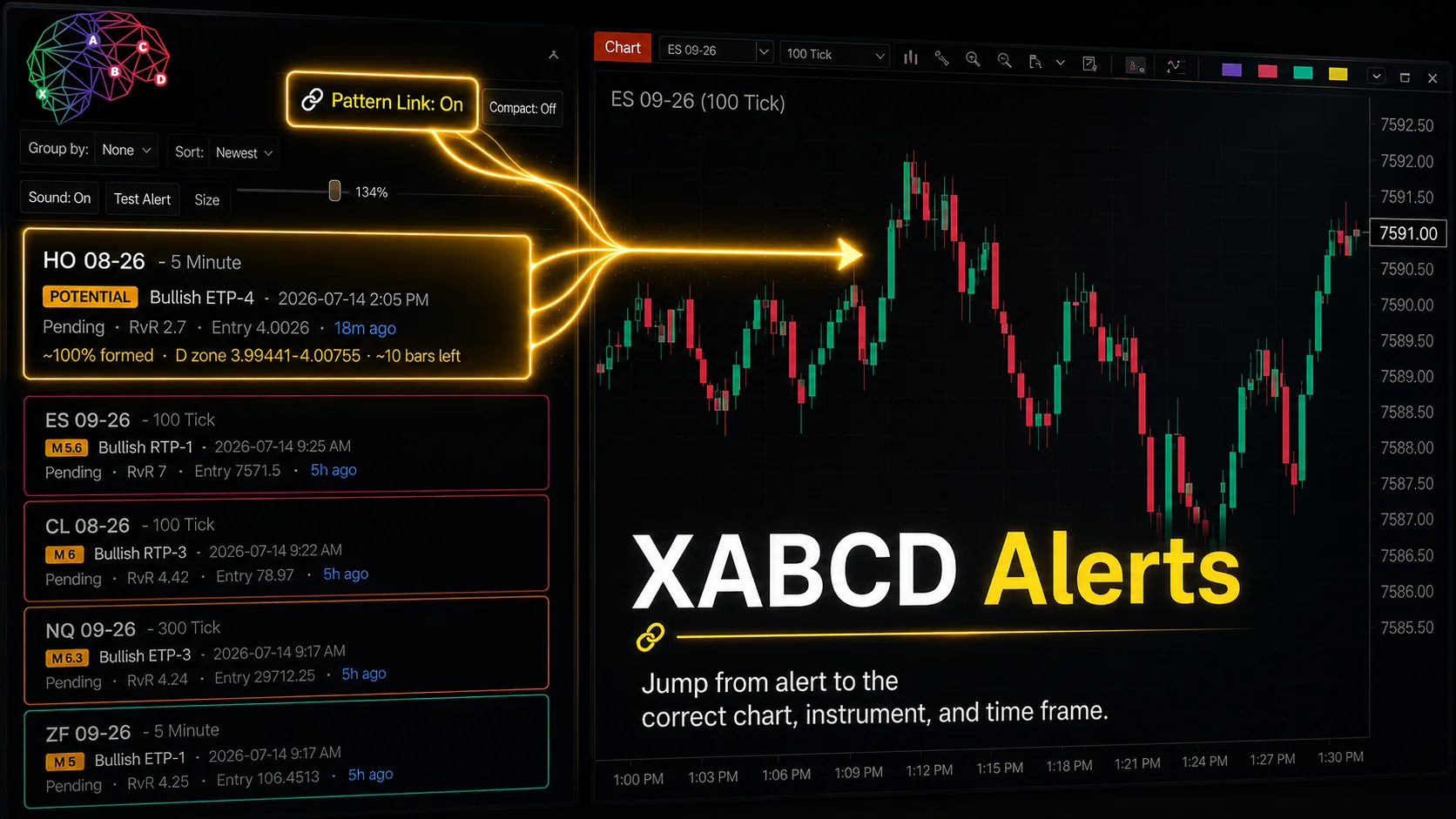
One of the most useful features of XABCD Pattern Alerts is Pattern Link. When Pattern Link is enabled, selecting an alert can automatically update a tab-linked NinjaTrader chart to the alert's instrument and interval.
Suppose the Pattern Suite detects a bullish ETP-3 on an NQ 300-tick chart. Instead of manually finding NQ, changing the chart interval, and locating the pattern, you can simply select the alert. The linked chart moves directly to it.
This turns the Alerts window into more than a list of notifications. It becomes a navigation system for the XABCD patterns being detected throughout your trading environment. The Pattern Suite handles the monitoring. The alert identifies the opportunity. Pattern Link takes you directly to the chart for deeper analysis.
Consequently, this can significantly reduce the number of repetitive steps required when scanning several instruments and timeframes. It is a game changer for traders who follow many markets at once.
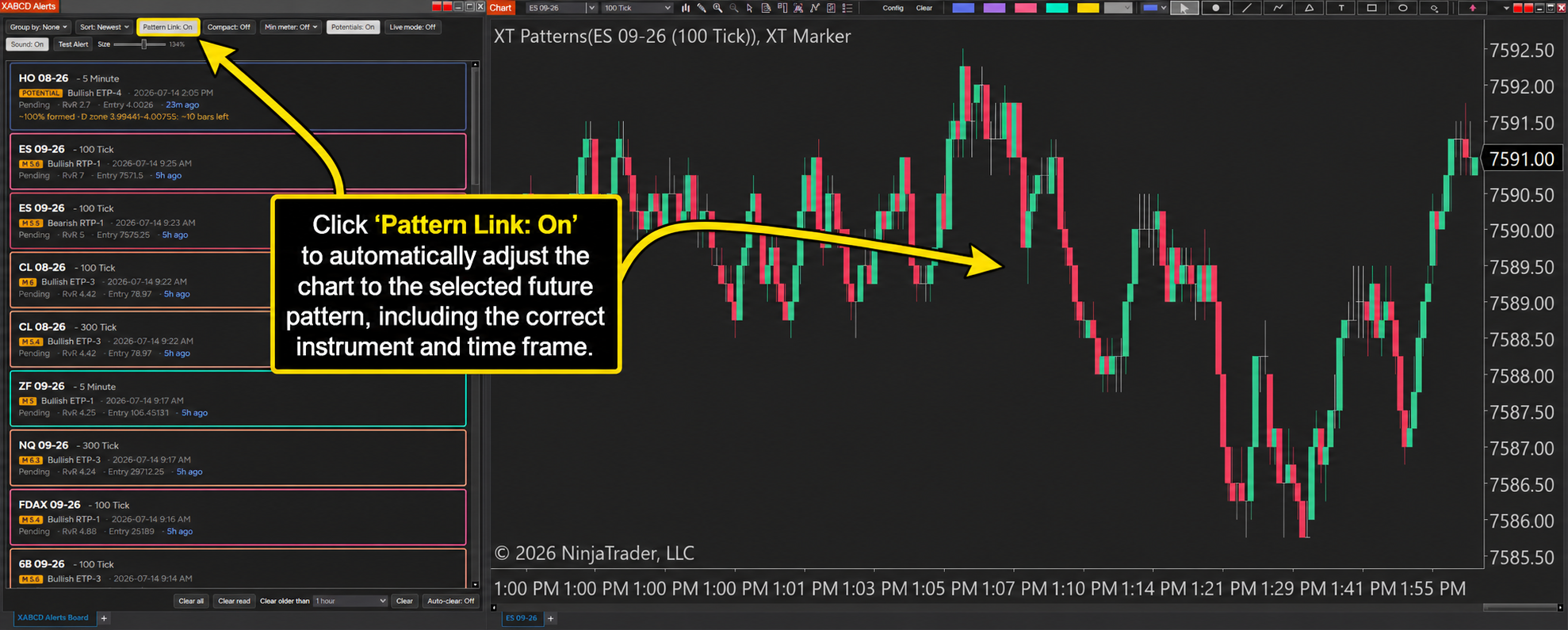
Diagram showing how clicking a pattern alert tile automatically updates a linked NinjaTrader chart to display the corresponding instrument and timeframe
One Market Pattern, One Alert
The XABCD chart indicator and Market Analyzer column operate as independent sources. When both are monitoring the same instrument and timeframe, they may identify the same underlying pattern. Without coordination, that could produce two alerts for one setup and distort the performance statistics.
The redesigned Alerts window uses cross-source deduplication to prevent that problem. When the chart and scanner report the same pattern within the relevant detection window, the suite recognizes that they refer to the same market event. It then displays a single alert tile.
The pattern is counted once, monitored once, and eventually graded once. This is an important improvement for anyone using the Pattern Suite across both charts and the Market Analyzer. You can take advantage of multiple detection sources without filling the board with repeated copies of the same setup. For additional context on how patterns are tracked, see XABCD patterns in 2025.
Keep the Board Focused on Current Opportunities
A full trading session can produce a large number of alerts. The bottom toolbar includes several ways to prevent old patterns from overwhelming the board. You can:
- Clear every alert
- Remove only alerts you have already reviewed
- Clear alerts older than a selected age
- Perform a quick manual clear
- Enable automatic clearing
These controls allow the XABCD Pattern Alerts window to operate throughout the day while remaining focused on current opportunities. Older alerts can be removed without affecting the Pattern Suite's ability to detect new setups. The board becomes a working view of what deserves attention now rather than a permanent archive of everything that occurred earlier.
The Performance Tab: Learn Which Patterns Fit Your Markets
The Alerts tab helps you find patterns as they occur. However, the Performance tab helps you determine which of those patterns may deserve continued attention. This is where the XABCD Pattern Alerts system truly separates itself from basic notification tools.
Every confirmed pattern can be recorded and monitored as price moves toward its target or reversal-area stop. As more setups resolve, the window develops a database based on the instruments, timeframes, and pattern settings you actually use.
This is different from relying only on a broad historical claim or a generalized backtest. The data reflects the patterns identified by your copy of the XABCD Pattern Suite within your own selected markets.
Summary tiles provide an overview of:
- Win rate
- Average R
- Wins and losses
- Breakeven results
- Total recorded patterns
- Patterns that remain open
A detailed table can then break the results down by pattern, instrument, and timeframe. For example, you may discover that a specific bearish RTP pattern has performed well on MES 300-tick charts but has been less effective on another instrument or interval.
That does not mean the software decides which trades you should take. It means the suite gives you a structured way to study the patterns instead of relying entirely on memory or isolated examples. You can also explore the performance documentation details for a deeper look at how outcomes are tracked.
Measure the Value of the XABCD Pattern Meter
The Performance tab also organizes results by XABCD pattern meter score. This allows you to examine an important question: do patterns with higher meter scores perform differently from patterns with lower scores?
Results can be divided into high-, medium-, and low-meter groups. Each category displays its win rate and average R. Over time, this can help you determine whether the Pattern Meter should play a larger role in your selection process.
Instead of assuming that a higher score must be better, you can compare the scores against the outcomes recorded from your own instruments and timeframes. This evidence-based approach is at the heart of the XABCD trading workflow.
Reset the Data When Your Approach Changes
The Reset Stats button lets you begin a new measurement period. You may want to reset the statistics after:
- Changing important Pattern Suite settings
- Selecting a different group of instruments
- Adjusting your preferred timeframes
- Beginning a new testing period
- Changing how targets or stops are evaluated
A confirmation prompt helps prevent accidental deletion. Once reset, the suite immediately begins collecting new results as future confirmed patterns are detected and resolved. This keeps your XABCD Pattern Alerts performance data clean and relevant to your current approach.
Better Alignment Between the Scanner and Chart
A chart indicator and Market Analyzer scanner can occasionally appear to disagree when they load different amounts of historical data. Even when the underlying pattern logic is the same, differences in the available bars may cause each source to evaluate the market from a slightly different starting point.
The Pattern Suite now works to align the XABCD pattern scanner detection settings more closely with the chart. This is particularly helpful on time-based intervals such as minute and daily charts. The objective is to make the pattern shown by the scanner correspond more consistently with what you see after opening the same instrument and timeframe on a chart.
As a result, it reduces uncertainty and creates a more connected experience between detection, alerting, and chart analysis. You can trust that what the scanner found is what you will see on the chart.
More Than a Pattern Indicator
The redesigned XABCD Pattern Alerts window highlights an important distinction between displaying patterns and building a practical pattern-trading workflow. A basic indicator can place a pattern on the chart in front of you. The XABCD Pattern Suite is designed to go much further.
Here is what it helps you accomplish:
- Monitor multiple instruments and timeframes simultaneously
- Detect both potential and confirmed patterns
- Evaluate patterns using the XABCD pattern meter
- Receive spoken or customized audio alerts
- Control which timeframes are allowed to interrupt you
- Review every setup from one central window
- Move directly from an alert to a linked chart
- Avoid duplicate scanner and chart notifications
- Track pattern outcomes over time
- Compare results by pattern, market, timeframe, meter score, and quality
The redesigned Alerts window brings all of those capabilities into a single workflow. During the session, it helps you identify where your attention may be needed. After the session, it helps you study what happened and determine which combinations appear most relevant to your trading.
That is the larger purpose of the XABCD Pattern Suite. It does not simply draw more patterns. It makes those patterns easier to find, organize, evaluate, and research through intelligent pattern trading alerts.
Frequently Asked Questions About XABCD Pattern Alerts
What platforms support XABCD Pattern Alerts?
XABCD Pattern Alerts are built for NinjaTrader. They work with both the chart indicator and the Market Analyzer column. The spoken alert feature uses the built-in Windows speech engine, so no extra software is required.
Can I filter XABCD Pattern Alerts by meter score?
Yes. The Min Meter control lets you hide patterns below a chosen score. This allows you to focus only on setups that meet your quality threshold while the suite continues detecting all patterns in the background.
Do XABCD Pattern Alerts track performance over time?
They do. The Performance tab records every confirmed pattern and monitors it as price moves toward the target or stop. Over time, it builds a database of win rates and average R values based on your specific instruments and timeframes.
Will I get duplicate alerts from the chart and scanner?
No. The Alerts window uses cross-source deduplication. When the chart indicator and Market Analyzer both detect the same pattern, the suite recognizes it as one event and displays a single alert tile.
How does Pattern Link work with XABCD Pattern Alerts?
When Pattern Link is enabled, clicking an alert tile automatically updates a tab-linked NinjaTrader chart to display that alert's instrument and interval. It saves you from manually switching charts and hunting for the detected pattern.
Wrapping It All Up
The market will continue producing setups whether you are staring at every chart or not. XABCD Pattern Alerts make sure you don't have to. They watch your selected markets, announce new opportunities, filter out the noise, and give you a structured way to evaluate every detected pattern.
From spoken announcements and smart audio queuing to performance tracking and deduplication, this redesigned window is far more than a simple notification panel. It is the central hub for a complete XABCD trading workflow built around finding better setups and making smarter decisions.
If you have been relying on manually scanning charts one by one, consider giving XABCD Pattern Alerts a try. Your attention is a limited resource. Let the Pattern Suite help you spend it where it matters most.
New NinjaTrader Articles Delivered First
 (opens in a new tab)
Easy Order Tool
The Strategy


Scanning & Alerting
NinjaTrader Release
XABCD News (Free Version)
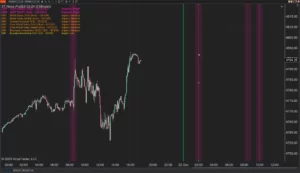
XABCD News (Community Edition) is the best free Indicator for NinjaTrader 8. Don't let news sneak up on you again. Puts economic news events on your charts so you can stay informed and move around positions/stops before the news is released. Works in any market.
XABCD Priceline (Free)
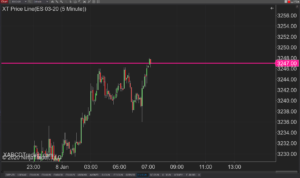
XABCD Price Line tool for NinjaTrader 8 will draw a line at current price and move every time the market changes price. This is useful because it will allow you to easily identify where price is at all times and the exact quoted price.
Trade NQ, Copy MNQ: Copy NQ Trades to MNQ in NinjaTrader 8
NinjaTrader Data Feed Not Updating? Quick Fixes

NinjaTrader Risk Per Trade: Risk $500 on Every Trade
NinjaTrader 8.1.8 Review: Should You Upgrade or Wait?
XABCD Pattern Alerts: The Complete Guide for Traders
Risk vs Reward Tool: The 2-Click Upgrade That Ends Guessing
NinjaTrader Faster Last Price Updates on Charts Explained
NinjaTrader 8 Hotkeys: Best Shortcuts for Faster Trading
NinjaTrader Position Sizing Tool: 64 Features Stock NT8 Does Not Include