XABCD TRADING
NinjaTrader OCO Orders – A Lesson on Order Placement

Subscribe
to get alerts to our next blog post!
NinjaTrader OCO Orders
NinjaTrader OCO Orders are an advanced order type used in many platforms. We're going to discuss how they work in NinjaTrader 8 and will show you an example of doing this with our XABCD Pattern Indicator Suite for NinjaTrader 8. If you need specific help, feel free to visit our contact us page where you can try the live chat.
Practice on A Demo Account First
It is always best when trying out new order types to do them first inside of a demo account. Learn how to setup a NinjaTrader 8 demo account before trying this in your live account.
What is an OCO Order?
OCO is an acronym that stands for: "One Cancels the Other" and will allow you to pair orders together. Why would you want to pair an order? Let's say you have a pending order with a target and a stop, and your pending order gets filled. Here is the outcome using an OCO order and not using an OCO order. To know right away when a paired order fills or cancels, you can configure NinjaTrader 8 Gmail so the platform sends those notifications to your email.

When NOT using an OCO order:
You have a trade you like, and you place 3 individual orders that are not paired with one another. Here are the 3 orders:
- Pending Order
- Stop Order
- Target Order
- Pending Order - Filled
- Stop Order - Still Open
- Target Order - Filled
When YOU ARE using an OCO order:
Using the same example of three orders above, you're going to have a different result because these ninjatrader oco orders are paired. Remember, here are the 3 orders:
- Pending Order
- Stop Order
- Target Order
- Pending Order - Filled
- Stop Order - REMOVED by the OCO since the target was filled.
- Target Order - Filled
OCO orders are paired so that if one of these are filled or removed/cancelled, the other orders will also be cancelled.
How Do You Place The NinjaTrader OCO Order?
Open your Chart Trader from the tool bar and Select Your Simulation Account. We're going to setup NinjaTrader OCO orders where the pending order will be the white arrow, the stop will be at the red arrow and the target would be at the yellow arrow. While working on the chart, learn what the middle mouse button does in NinjaTrader 8, since it can speed up navigation as you set these orders.
Cross Hairs
Switching your mouse pointer to the cross hairs can be a lot easier to line up your orders. Ctrl+Q will switch your mouse to cross hairs and Ctrl+R will put you back to your pointer. This is very handy specifically when using NinjaTrader OCO Orders.
Right Click on the chart trader toolbar. A little menu will pop up and you will need to select OCO Order. When you select it you will notice a little OC in the top right of the chart window.

Right click on the chart and sell a limit order.

Right click on the chart and place a buy stop market order. Notice how the green OC in the top right is still on and there.

Finally right click on the chart trader panel and uncheck the OCO Order. The green light that reads OC in the top right should go off.

Right click on the chart and place a buy limit order for your target. Notice how the green OC in the top right is still on and there.
Congrats! You Just Placed NinjaTrader OCO Orders
What's going to happen now is when price gets you filled, it will wait for your stop or target to be hit first and then it will remove the other order that is just lingering there. You're now protected. Without placing NinjaTrader OCO orders that trade previous order will still be on your chart.
Frequently Asked Questions
Can you use OCO orders in NinjaTrader for both stop loss and take profit?
Yes, NinjaTrader OCO orders allow you to pair a stop loss and a take profit together so that when one is filled, the other is automatically cancelled. This prevents the remaining order from triggering and putting you back into the market unintentionally.
What happens if I don't use OCO orders in NinjaTrader?
If you place a stop order and a target order without pairing them as NinjaTrader OCO orders, the remaining order will stay active even after one is filled. This means if price later reaches the leftover order, it could trigger and put you back into a position you didn't intend to take.
How do I enable OCO mode on the NinjaTrader chart?
To enable OCO mode, right-click on the Chart Trader toolbar and select "OCO Order." You will see a green "OC" indicator appear in the top right of the chart window, confirming that any orders you place will be paired together. When you're done placing the paired orders, right-click the toolbar again and uncheck OCO Order to turn it off.
Should I practice NinjaTrader OCO orders on a demo account first?
Yes, it is always recommended to practice new order types like OCO orders on a demo account before using them with real money. NinjaTrader 8 allows you to set up a simulation account so you can test placing and managing OCO orders without any financial risk.
How do I know when an OCO paired order has been filled or cancelled?
You can configure NinjaTrader 8 to send Gmail notifications so the platform alerts you by email when a paired order is filled or cancelled. This allows you to stay informed about your OCO order status even when you're not actively watching the chart.
Frequently Asked Questions
Can you use OCO orders in NinjaTrader for both stop loss and take profit?
Yes, NinjaTrader OCO orders allow you to pair a stop loss and a take profit together so that when one is filled, the other is automatically cancelled. This prevents the remaining order from triggering and putting you back into the market unintentionally.
What happens if I don't use OCO orders in NinjaTrader?
If you place a stop order and a target order without pairing them as NinjaTrader OCO orders, the remaining order will stay active even after one is filled. This means if price later reaches the leftover order, it could trigger and put you back into a position you didn't intend to take.
How do I enable OCO mode on the NinjaTrader chart?
To enable OCO mode, right-click on the Chart Trader toolbar and select "OCO Order." You will see a green "OC" indicator appear in the top right of the chart window, confirming that any orders you place will be paired together. When you're done placing the paired orders, right-click the toolbar again and uncheck OCO Order to turn it off.
Should I practice NinjaTrader OCO orders on a demo account first?
Yes, it is always recommended to practice new order types like OCO orders on a demo account before using them with real money. NinjaTrader 8 allows you to set up a simulation account so you can test placing and managing OCO orders without any financial risk.
How do I know when an OCO paired order has been filled or cancelled?
You can configure NinjaTrader 8 to send Gmail notifications so the platform alerts you by email when a paired order is filled or cancelled. This allows you to stay informed about your OCO order status even when you're not actively watching the chart.
Still have a question about this?Ask the XABCD team in Live Chat and get help with your setup.Ask in Live Chat →
New NinjaTrader Articles Delivered First
Free tutorials, fixes and setup guides by email. Two emails a month at most.
Free tutorials, fixes and setup guides by email. Two emails a month at most.
Recommended Tool
XABCD ATM Pack
23 free ATM strategy templates for NinjaTrader 8. Import them and start with your stops and targets already set up.
Get the Free ATM Pack →
Recommended Video

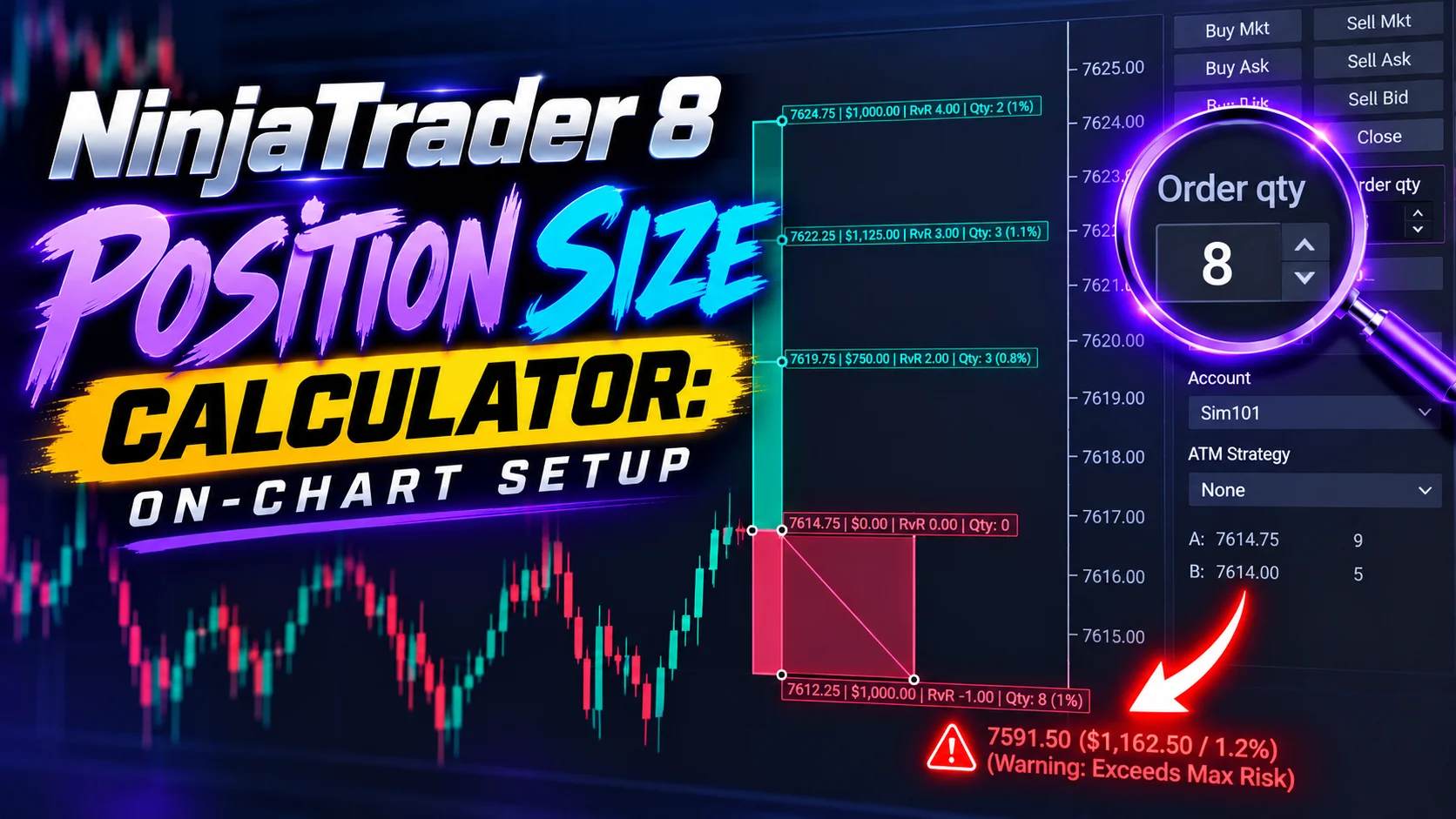
Ditch NinjaTrader ATMs: This Is More Powerful
See how to set your risk and calculate contracts directly on the chart.
Watch Now
Subscribe on YouTube
Related Tool
XABCD ATM Pack
23 free ATM strategy templates for NinjaTrader 8. Import them and start with your stops and targets already set up.
Get the Free ATM Pack
Why XABCD Trading
- Built for NinjaTrader 8 since 2009
- Trusted by 2,000+ traders
- On-chart tools, no ATM templates needed
- Free tools to get started

Get Project Updates
Twice-monthly maximum, we will give you updates on all the projects going here.
Quick Links