XABCD TRADING
Why Isn’t NinjaTrader Working?

Subscribe
to get alerts to our next blog post!
Follow this Guide to Resolving Issues Fast in NinjaTrader 8
Bookmark this page and guide. If you don't need it today, you will in the future in solving any NinjaTrader 8 issue. It's going to be a much faster approach than solving it by filing a support request.
Troubleshooting NinjaTrader Issues: Backup First!
This won't take long at all but can save you hours. Go into your /Documents/NinjaTrader 8/ folder and backup the whole thing. The reason why we do this is because we can resport back to the current configuration just by taking this backup copy and replacing it with whatever new one we're using. So to get everything back to the way it was - restoring this folder would be the quickest path and it gives you the safety and comfort in knowing your current enviroment is safe. If a crypto instrument's history goes missing after a restore, our guide to restoring XRPUSD data in NinjaTrader 8 walks through recovering it via Coinbase.
Check System Requirements
This seems obvious but some peope run virtual machines on their mac that don't meet the system requirements. Its more rare these days not to hit the minimums but it should be double checked for your situation.
- 2 (GHz) or faster quad core 64-bit processor
- 8 GB RAM
- DirectX 10 compatible graphics card
- SSD Hard Drive
Make Sure You're Using the Latest Version
The NinjaTrader 8 Release Notes usually have anywhere from 50-100+ bug fixes. That means if you're a few version behind you could have over 300 bugs that had been fixed. Upgrading is a good way to stay current with both new features as well as to avoid potential problems.
We also put out on our youtube channel release videos that walk you through the most important stuff fixed and new features released.
The Quick Approach: The Questions You Need To Ask Yourself
One of the fastest ways to solving any problem is to narrow down where the problem is happening. You'll be able to do this in your head in most cases. Its a much needed way to narrow down where the issue is really occuring. This is where we will start with our own approach.
Stability Issues? Establish A Base Line.
Establish a baseline is the first thing you should do. A baseline is a working situation. For instance, if you installed just a stock (out of the box) copy of NinjaTrader 8, does it still crash, freeze or have any performan issues? Probably not. The actual platform is very stable and has a good reputation. Where the problems can lay is that 3rd party developers (many good, many that have bad code) can cause stability issues.
What we do at this site (xabcdtrading.com) is provide xabcd pattern software. Developers used, have used to work for NinjaTrader so our code is quite optomized for performance and can do a whole lot of neat things. But during our success with creating pattern software, we've helped our own customers sort out their NinjaTrader platforms. We've seen a lot of crazy stuff, but there is also a lot of "old" code which can't run on newer version of NT8 which start creating stability issues.
Is the Issue Hardware or Software Related?
Let's say that the issue your having is freezing or the platform locking up. You might not be able to tell right away if this issue is hardware or software. For instance, you might have an issue with bad RAM. One way to approaching all hardware related issues is by doing a "burn in". This is a program that runs overnight and stress tests your PC logging results which later will tell you if any of your hardware components are bad.
memtest86 is a pretty good standard application that you put onto a USB drive, boot from that drive and you can run all these stress tests on your computer. You should know your hardware is fine before trying to troubleshoot any performance, crashing or freezing issues.
Narrowing Down The Software Issue
Once we know it's a software issue, we need to understand if the platform can operate if it's just installed and out of the box. Then we can figure out if it's a configuration issue, an addon causing the issue or where exactly the problem would be laying.
Check Your Control Center Logs
Your NinjaTrader Control Center Logs can be found within the main window (known as the control center window) when NinjaTrader 8 first boots up. There are a bunch of tabs at the bottom such as "Orders", "Executions", "Strategies" and the very last one is "Log". The Log Tab is the one you will be most interested in when trying to troubleshoot any issues. This is especially the case if you have any data issues or blank charts.

NinjaTrader Control Center Window
Messages here that are not highlighted are just informational. Messages highlighted in Orange are a warrnings and if you see them in red, its considereed critical.
This would be the first place I would look to get any indication of problems. The messages you see above in orage read:
Time	Category	Message
2023-12-20 7:38:07 AM	Connection	Instrument ZB 12-23 Globex is not enabled to receive real-time data. Please add the instrument to your IB account data subscriptions. Error: 'Requested market data is not subscribed.Delayed market data is available.ZB DEC'23/TOP/ALL'
This would tell you right away that the data your viewing is delayed and that you don't have real time market data. If you type in a symbol and data doesn't appear, you could see other messages like this:
Time	Category	Message
2023-12-20 7:39:57 AM	Connection	IB was unable to locate instrument. Please verify your symbol mapping is correct for instrument SPK 12-23 Globex
In this case, I'm using interactive brokers and they can't find any symbol (instrument) data inside of NinjaTrader 8. So I would want to consult with my data provider.
So you can see there are a lot of useful messages that can be found or read about here in the Log tab of the Control Center.
Log and Trace Files in NinjaTrader 8
Your log and trace files are very useful when troubleshooting issues as they will contain a lot of information about your system as well as anything logged by it which can help you figure out issues. Especially the last messages in those logs or messages at a timestamp that the problem happened.
Location of those files: are found in your Documents/NinjaTrader 8/logs/ and Documents/NinjaTrader 8/trace/ folders. Each file is named with a timestamp so you'll probably want to sort them by date/time to get the file that contains the logs for the day you have experianced the problem.
Some keywords to look for are: exception, failed, incompatible and will usually put you on the right path for messages that could help you pinpoint the error.
Can You Get It Working in Safe Mode?
NinjaTrader has a safe-mode that you can run by looking in the start menu. It will launch the NinjaTrader 8 program using a restricted mode. For example, it will launch without loading any NinjaTrader 8 add-ons.

Has it Every Worked Correctly?
Did it stop working recently? What was happening around that time? Did you install 3rd party addons? What you want to do next is figure out a time it happened and then look in your logs.
Help and Support in NinjaTrader 8
If nothing so far has worked, you will want to send in your logs and trace files to NinjaTrader support. You can reach support via support@ninjatrader.com which I would recommend instead of calling them at 1.800. 496.1683. The reason why I would email them is because there is a very good chance they will need to see your logs and trace files. These will have to be submitted anyways by email, so including them (even with basic questions) is recommended so that you can actually get an answer as a first reponse (and not them asking for your logs).
Logs and Trace Files
Here are the steps to getting those logs and trace files to NinjaTrader.
- Open the Windows File Explorer by pressing and holding the Windows key while pressing the E key
- Navigate to the Documents > NinjaTrader 8 folder
- In the NinjaTrader 8 folder, right-click on the log folder and select Send To> Compressed (zipped) Folder
- Repeat the process above with the trace folder
- Send the two compressed folders as attachments to this email
- Once the email has been sent, you can safely delete these compressed folders
Frequently Asked Questions
What are the minimum system requirements for NinjaTrader 8?
NinjaTrader 8 requires a 2 GHz or faster quad-core 64-bit processor, 8 GB of RAM, a DirectX 10 compatible graphics card, and an SSD hard drive. Running the platform on virtual machines that don't meet these specs—common among Mac users—can lead to performance and stability issues.
Why does NinjaTrader keep freezing or crashing?
NinjaTrader freezing or crashing can stem from either hardware or software issues. On the hardware side, faulty RAM or other components may be the cause, and running a burn-in tool like memtest86 overnight can help identify bad hardware. On the software side, outdated third-party add-ons or old code that isn't compatible with newer versions of NinjaTrader 8 are common culprits—try launching in safe mode to see if the issue persists without add-ons loaded.
How do I contact NinjaTrader support and what should I send them?
You can reach NinjaTrader support by emailing support@ninjatrader.com or calling 1-800-496-1683, though email is recommended. Before contacting them, zip your log and trace folders found in Documents > NinjaTrader 8 > logs and Documents > NinjaTrader 8 > trace, and attach them to your email so you can get a meaningful answer on the first response.
Where do I find log and trace files in NinjaTrader 8?
Log and trace files are located in the Documents/NinjaTrader 8/logs/ and Documents/NinjaTrader 8/trace/ folders on your computer. Each file is named with a timestamp, so sort by date to find the one matching when your issue occurred. Look for keywords like "exception," "failed," or "incompatible" to help pinpoint the error.
What does NinjaTrader safe mode do and how do I use it?
NinjaTrader safe mode launches the platform in a restricted state without loading any third-party add-ons, which helps determine whether an add-on is causing your issue. You can find and launch it from the Windows Start menu by searching for the NinjaTrader 8 safe mode option. If the platform runs normally in safe mode, the problem is likely caused by one of your installed add-ons.
Frequently Asked Questions
What are the minimum system requirements for NinjaTrader 8?
NinjaTrader 8 requires a 2 GHz or faster quad-core 64-bit processor, 8 GB of RAM, a DirectX 10 compatible graphics card, and an SSD hard drive. Running the platform on virtual machines that don't meet these specs—common among Mac users—can lead to performance and stability issues.
Why does NinjaTrader keep freezing or crashing?
NinjaTrader freezing or crashing can stem from either hardware or software issues. On the hardware side, faulty RAM or other components may be the cause, and running a burn-in tool like memtest86 overnight can help identify bad hardware. On the software side, outdated third-party add-ons or old code that isn't compatible with newer versions of NinjaTrader 8 are common culprits—try launching in safe mode to see if the issue persists without add-ons loaded.
How do I contact NinjaTrader support and what should I send them?
You can reach NinjaTrader support by emailing support@ninjatrader.com or calling 1-800-496-1683, though email is recommended. Before contacting them, zip your log and trace folders found in Documents > NinjaTrader 8 > logs and Documents > NinjaTrader 8 > trace, and attach them to your email so you can get a meaningful answer on the first response.
Where do I find log and trace files in NinjaTrader 8?
Log and trace files are located in the Documents/NinjaTrader 8/logs/ and Documents/NinjaTrader 8/trace/ folders on your computer. Each file is named with a timestamp, so sort by date to find the one matching when your issue occurred. Look for keywords like "exception," "failed," or "incompatible" to help pinpoint the error.
What does NinjaTrader safe mode do and how do I use it?
NinjaTrader safe mode launches the platform in a restricted state without loading any third-party add-ons, which helps determine whether an add-on is causing your issue. You can find and launch it from the Windows Start menu by searching for the NinjaTrader 8 safe mode option. If the platform runs normally in safe mode, the problem is likely caused by one of your installed add-ons.
Still have a question about this?Ask the XABCD team in Live Chat and get help with your setup.Ask in Live Chat →
New NinjaTrader Articles Delivered First
Free tutorials, fixes and setup guides by email. Two emails a month at most.
Free tutorials, fixes and setup guides by email. Two emails a month at most.
Recommended Tool
XABCD ATM Pack
23 free ATM strategy templates for NinjaTrader 8. Import them and start with your stops and targets already set up.
Get the Free ATM Pack →
Recommended Video
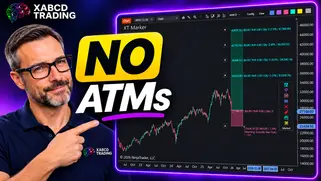
Ditch NinjaTrader ATMs: This Is More Powerful
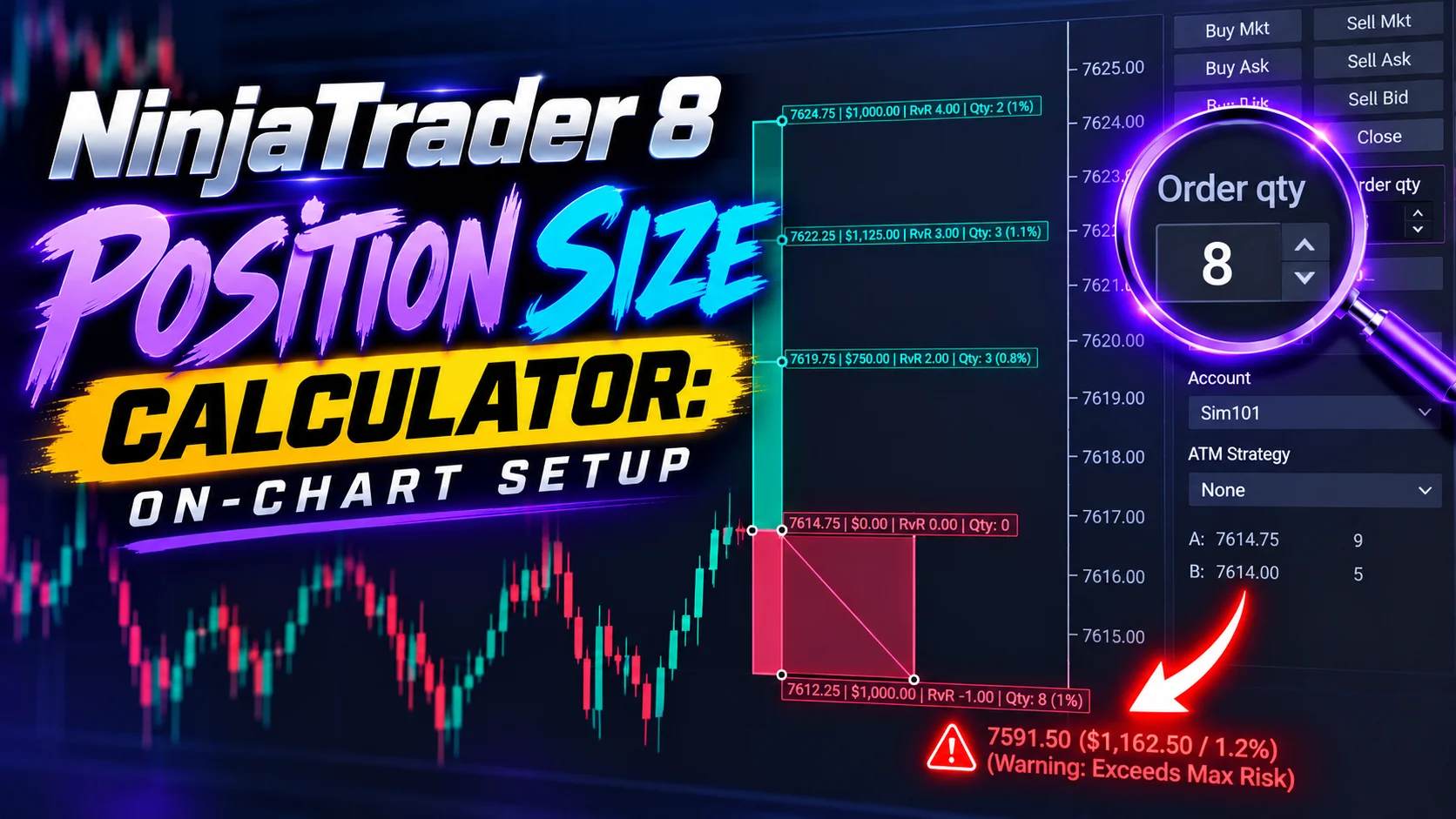
See how to set your risk and calculate contracts directly on the chart.
Watch Now
Subscribe on YouTube
Related Tool
XABCD ATM Pack
23 free ATM strategy templates for NinjaTrader 8. Import them and start with your stops and targets already set up.
Get the Free ATM Pack
Why XABCD Trading
- Built for NinjaTrader 8 since 2009
- Trusted by 2,000+ traders
- On-chart tools, no ATM templates needed
- Free tools to get started

Get Project Updates
Twice-monthly maximum, we will give you updates on all the projects going here.
Quick Links