XABCD TRADING

NinjaTrader 8.1.9: What’s New (And What to Fix)
Subscribe
to get alerts to our next blog post!
This guide explains exactly what changed in NinjaTrader 8.1.9, whether you should install it, and how to set up the window layout trick that the release notes leave out. If you trade futures on the desktop platform, you are going to like this release, because it is a mix of fun quality-of-life upgrades and some seriously overdue stability fixes.
In short, NinjaTrader 8.1.9 adds real Windows snapping support, a much faster Market Analyzer, optional order confirmations, per-tab account memory, and a long list of squashed bugs. Some of it will change how you work every single day. Some of it, honestly, you will never notice. Below, we walk through all of it together, in plain English, feature by feature and fix by fix.
Before writing anything down, I spent several days poking at this NinjaTrader 8 update on both a sim account and a live one. As a result, I can also show you the setup trick that the release notes never mention.
Stick around for that part, because it is the one that trips people up. Moreover, by the end you will have a clear install checklist, a compatibility plan for third-party indicators, and a short list of settings worth auditing right after you upgrade.
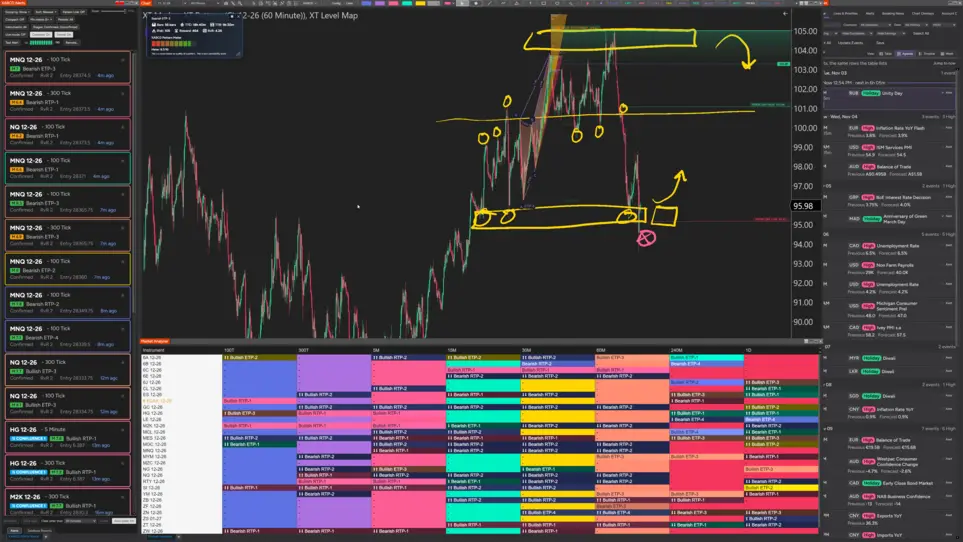
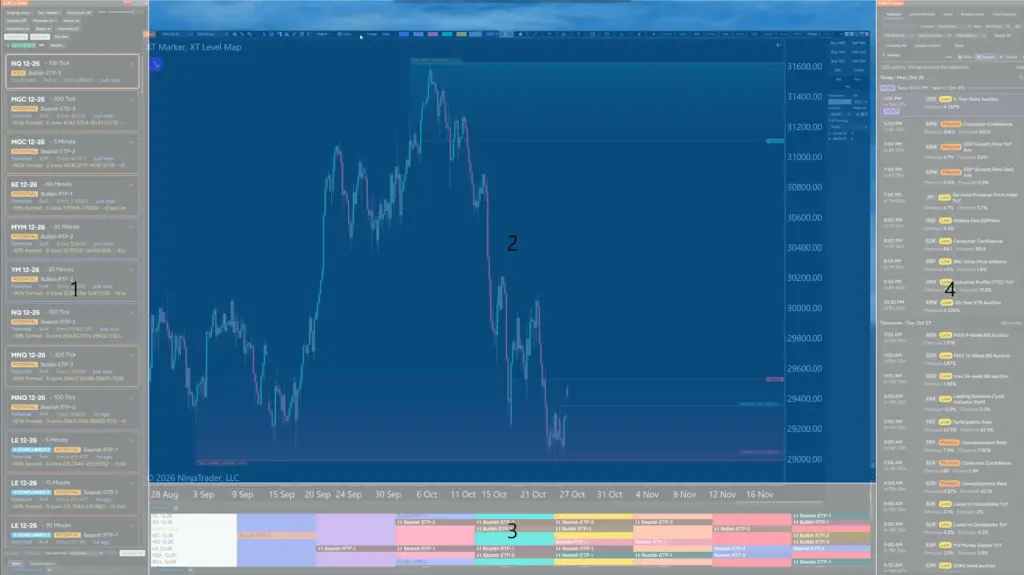
Screenshot of a NinjaTrader 8.1.9 desktop workspace with several charts and the Market Analyzer snapped neatly into a multi-zone grid on a wide monitor.
NinjaTrader 8.1.9 at a Glance
Here is the short version. NinjaTrader 8.1.9 is a feature-plus-stability release, and the stability half is arguably the bigger deal for live traders. Consequently, even traders who ignore new features should pay attention to this one.
- NinjaTrader window snapping — platform windows finally cooperate with Windows snap layouts.
- Taskbar icon update — the tray icon now shows your connection status.
- AI Strategy Builder — the prompt-driven strategy tool moves out of preview.
- "New" menu labels — little badges that highlight recently added features.
- Price marker colors — bid, ask and last colors can sit right on the price axis.
- NinjaTrader Market Analyzer speed — big templates load in seconds instead of minutes.
- NinjaTrader order confirmations — optional pop-ups for placement, close and cancellation.
- Per-tab memory — each chart tab remembers its account, ATM and quantity.
- NinjaTrader 8.1.9 bug fixes — position sync, reconnection crashes, stuck order states and more.
The headline feature of NinjaTrader 8.1.9 is window snapping. The most valuable change, however, is the pile of order and connection bug fixes nobody puts on a marketing page.
Window Snapping in NinjaTrader 8.1.9
Window snapping is the change that affects literally everyone. Before this update, you could drag a platform window around and nothing special happened. Now, by contrast, you drag it and Windows offers you snap positions, just like a browser or a text editor.
First, drag a window to the top of the screen and a layout picker appears. Then you pick a zone and the window locks into place. Simple, clean, and honestly overdue.
Why Traders Wanted This
Most of us run more than one window. For example, you might have a few charts, a SuperDOM, an order ticket and a scanner. Lining those up by hand eats time. Furthermore, a nudge of the mouse used to ruin a layout you spent ten minutes building.
With NinjaTrader 8.1.9, you can drop a window into a slot and move on. Meanwhile, your workspace stays tidy between sessions. In addition, rebuilding a screen after a monitor change takes a fraction of the time it used to.
The Catch: Four Zones Is Not Enough
Here is the problem. The built-in Windows snap layouts give you a handful of options, usually around four main arrangements. From a trader's point of view, that is thin. If you run an ultrawide or a 4K panel, for instance, you have room for eight or ten small charts, not four big ones.
So the native NinjaTrader window snapping is nice, but it is not a full solution. Fortunately, there is a free fix, and we cover it next.
Screenshot showing the Windows snap layout picker overlay appearing as a NinjaTrader window is dragged to the top edge of the screen.
Using PowerToys FancyZones With NinjaTrader 8.1.9
FancyZones lets you design your own grid, so NinjaTrader 8.1.9 windows can snap into custom zones instead of the four default layouts. Better still, it is part of Microsoft PowerToys, it is free, and it takes about three minutes to set up.
With FancyZones for NinjaTrader you can carve a monitor into six, eight or twelve zones. Then you drag any window into a zone and it fills that space exactly. For a trader with lots of small charts, that is a huge win.
The Setting Nobody Tells You About
Out of the box, FancyZones will not grab your platform windows. I banged my head on this for a couple of days. Eventually, however, I found the toggle, and it is buried.
- First, open PowerToys and go into Settings.
- Next, click FancyZones in the left-hand list.
- Then scroll down until you see the option for allowing child windows snapping.
- It is off by default. Therefore, turn it on.
- Finally, close the settings window. No restart needed.
That is it. Now hold your Shift key, drag a window, and let go over the zone you want. The window snaps straight into that slot. Honestly, it feels like magic the first time.
You can grab the tool from the Microsoft FancyZones docs if you do not already have PowerToys installed.
Charts Are Still Stubborn
One honest caveat. Some window types, especially chart windows, behave differently than the SuperDOM or the Market Analyzer. Native Windows 11 snapping generally handles them. FancyZones, however, can be hit or miss depending on your setup and version.
That is a bit of a bummer, because charts are the windows we move most. Still, the child-window toggle above solves it for the majority of layouts. Therefore, test it with your own workspace before you rebuild everything.
The Taskbar Icon Now Shows Connection Status
Small change, genuinely useful. In NinjaTrader 8.1.9, the system tray icon reflects your connection state at a glance.
Previously you had to bring the platform forward to check. Now, by comparison, you can glance at the taskbar and know whether data is flowing. For instance, if you are writing emails on a second monitor, you still see a connection drop immediately.
It is the kind of tiny addition that quietly saves you from a bad surprise. Similarly, if you want even deeper visibility into latency and data flow, our free platform lag monitor pairs nicely with it.
AI Strategy Builder Goes Live
The prompt-based AI Strategy Builder is now generally available under the New menu. Previously it sat behind a preview flag. In NinjaTrader 8.1.9, by contrast, anyone can open it and start typing.
The idea is simple. You describe the strategy in words, and the builder assembles the logic for you. For traders who dislike the drag-and-drop condition editor, therefore, that is a shortcut worth testing.
Watch Your Token Limits
There is a catch here too. The AI builder consumes tokens, and there is a cap on how many you get. Consequently, heavy experimentation could run you into a wall.
Whether that matters depends entirely on you. If you never automate anything, you will not care. On the other hand, if you prototype strategies weekly, keep an eye on usage.
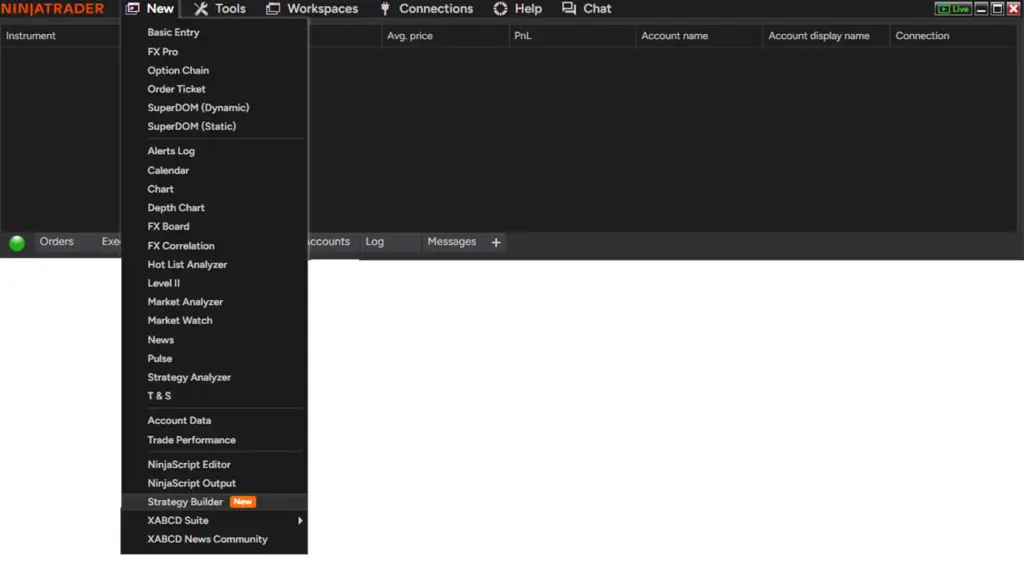
Screenshot of the NinjaTrader New menu with the AI Strategy Builder item highlighted and a small NEW badge displayed beside it.
Those "NEW" Labels on the Menu
You will spot small badges next to recently added menu items. These are not in the release notes, but they are definitely there.
I understand the reasoning. Most people never read release notes, so the badges pull attention toward fresh features. Therefore they probably boost adoption.
Personally? I would rather not see them. My menu is a tool, not a billboard. Ideally they would disappear a week or two after you first open that menu. Hopefully they do not hang around until the next release, because that would get old fast.
Price Marker Colors on the Axis
NinjaTrader 8.1.9 lets you show bid, ask and last colors directly beside the price markers on your chart axis. Specifically, you configure it in the data series settings, right where the existing price marker options live.
Will most traders use this? Probably not. It adds visual weight to an area that is already busy, and the markers can overlap when the spread is tight.
Still, some people love seeing bid and ask context without a DOM open. If that is you, turn it on. Alternatively, if you prefer a cleaner axis, a simple price line tool often reads better.
Market Analyzer Speed Is the Sleeper Hit
This one deserves applause. The NinjaTrader Market Analyzer in 8.1.9 loads dramatically faster, and the difference is not subtle.
We lean on the Market Analyzer hard. Our scanning templates cover dozens of futures symbols across multiple timeframes. That easily means well over a hundred chart objects loading behind the scenes.
Before this update, opening that template took a couple of minutes. Now, however, it takes a few seconds. The first time it happened, I honestly thought something had broken. Nope. It just finished.
What That Means Day to Day
- First, you can rebuild a scanner mid-session without losing your rhythm.
- Second, switching workspaces stops feeling like a coffee break.
- Finally, bigger watchlists become practical instead of painful.
Combine the speed boost with snapping, and the Market Analyzer becomes a lot friendlier. For instance, we park ours in a tall zone on the right side of the monitor and leave it there all day. Likewise, if you scan for harmonic setups, our pattern scanning suite benefits directly from the faster load times.
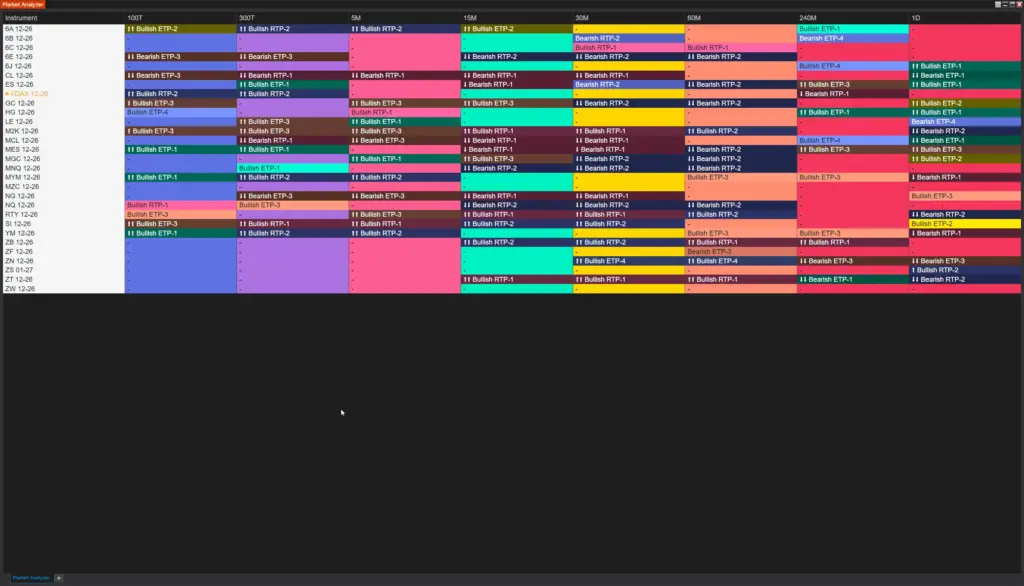
Screenshot of the NinjaTrader Market Analyzer loading a large futures scanning template with dozens of symbols and columns filled in seconds.
Optional Order Confirmations
NinjaTrader 8.1.9 adds NinjaTrader order confirmations for order placement, closing a position and cancelling orders. Importantly, they are off by default, which is the right call.
How to Turn Confirmations On
- First, go to Tools in the main menu.
- Next, click Options or Settings.
- Then select the Trading tab.
- Finally, the confirmation toggles sit right at the top.
You can enable them individually. So you might confirm closes but not entries, for example.
Should You Use Them?
Honestly, I find pop-ups annoying during fast markets. An extra click costs time, and time costs ticks. In contrast, newer traders often benefit from the speed bump.
If you have ever flattened the wrong account, this feature pays for itself instantly. Consider turning on the close confirmation only, and leaving entries fast. In addition, pairing that with well-built ATM strategy templates keeps your exits consistent without extra clicks.
Chart Tabs Remember Account, ATM and Quantity
This is one of my favorite changes in NinjaTrader 8.1.9. Each chart tab can now hold its own account selection, its own ATM strategy and its own order quantity.
Think about how often you flip between tabs. You set up a scalp on one tab with one contract, then jump to a swing tab where you trade three. Previously those settings could follow you around and cause confusion.
Now the settings stick to the tab. As a result, mistakes from "I thought that was the other account" drop sharply. For prop traders juggling evaluation and funded accounts, moreover, that alone justifies the update.
A Quick Safety Habit
Even with per-tab memory, build a habit of checking three things before you click buy. First, check the account. Second, check the quantity. Third, check the ATM. Altogether it takes two seconds and saves real money.
Sizing matters just as much as the account. Therefore, if you size by gut feel, try a chart-based sizing tool so risk stays consistent across every tab.
Bug Fixes in NinjaTrader 8.1.9 That Actually Matter
Features get the headlines, yet the NinjaTrader 8.1.9 bug fixes are where this release earns its keep. Several of these were genuine trading hazards, so read this section carefully.
Lost Positions With Multi-Account Exits
If you use a trade copier or exit several accounts at once, positions could get lost. For example, the platform might show an open position on an account that was already flat. That is a nightmare scenario, and thankfully it is fixed.
Prop traders running copiers across multiple funded accounts should update for this reason alone.
Overnight Positions Not Updating
Positions held overnight sometimes failed to show new executions. Instead, you had to disconnect and reconnect before fills appeared. Obviously that is a problem when you carry risk through a session break. This one, too, is resolved.
Close Button Failing to Resubmit
Clicking close again after a partial execution change could fail to send another closing order. In other words, you pressed the button and nothing happened. Fortunately, NinjaTrader 8.1.9 fixes that behavior.
Orders Stuck in Unknown Status
Order status occasionally froze in an unknown state. Traders running fast execution tests, in particular, saw this fairly often. It has been cleaned up in this release.
Crash on Reconnection Loop
Here is the big one. A reconnection loop after a service disconnect could crash the entire platform. I have watched it happen, and it is not fun mid-trade.
It was a tough bug to reproduce, so credit where it is due. Eventually the team narrowed it down and fixed it. Stability improvements like this never trend on social media, but they protect your account.
Account History Causing Stuck Connections
Certain account histories could leave a connection hanging until it timed out. The cause may relate to history size, though that is speculation. Either way, it is handled now.
CQG Auto-Reconnect
CQG connections did not always reconnect on their own. With NinjaTrader 8.1.9, by contrast, they should.
Market Data Subscriptions Not Recovering
Finally, market data subscriptions that failed mid-session did not always recover. Practically speaking, your chart would stop printing new prices while looking perfectly normal. That is dangerous. Now, however, the subscription recovers automatically instead of leaving you blind.
Should You Install NinjaTrader 8.1.9?
Yes, for most traders the answer is a clear yes. The order and connection fixes alone outweigh any hesitation.
That said, use common sense about timing. Here, therefore, is the approach I recommend.
- First, update on a weekend or outside market hours.
- Second, back up your workspaces and templates.
- Also, note your current indicator versions before upgrading.
- Next, launch on a sim account and poke around for ten minutes.
- Finally, check that your add-ons compile without errors.
Third-Party Indicator Compatibility
Most well-maintained add-ons move to NinjaTrader 8.1.9 without drama. Nevertheless, compile errors happen when a vendor used an older reference. If something breaks, therefore, contact the developer before deleting anything.
Keep your custom files tidy as well. After all, a clean Documents folder makes every future ninjatrader 8 update smoother.
How to Update to NinjaTrader 8.1.9
The process is the same as every recent release. First, grab the installer from the official NinjaTrader download page for the desktop platform. Second, close the platform completely. Third, run the installer over the top of your existing install.
You do not need to uninstall the previous version. Likewise, your workspaces, chart templates and historical data stay where they are. Still, backups cost you nothing and buy peace of mind.
After the install finishes, open the platform and check the version number under Help. It should read 8.1.9 followed by the build digits. For the complete technical list, meanwhile, read the official NinjaTrader release notes.
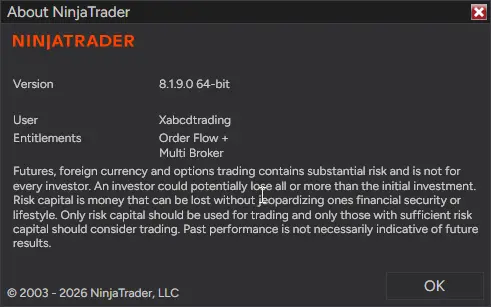
Screenshot of the NinjaTrader Help About window confirming the 8.1.9 version and build number after a successful update.
Getting the Most Out of NinjaTrader 8.1.9
Once the update is in, spend twenty minutes making it yours. A little setup time, in other words, pays off for months.
Rebuild Your Layout With Zones
Start by sketching your ideal screen. Next, decide how many charts you really watch, then build matching zones in FancyZones. Afterwards, snap everything into place and save the workspace.
Add Keyboard Speed
Snapping handles the mouse side. Keyboard shortcuts, on the other hand, handle the rest. Learning a handful of platform hotkey setups will cut seconds off every routine task.
Mind the Event Calendar
Faster scanners mean nothing if you get blindsided by an economic release. Consequently, a free news event indicator puts upcoming announcements right on the chart, so you can step aside before volatility hits.
Revisit Your Risk Settings
Since chart tabs now store accounts and quantities, audit them. First, make sure no tab is still pointed at an old evaluation account. Furthermore, confirm your ATM templates use the stop and target distances you actually want today.
Small Things Worth Noticing
A few extras deserve a mention, even though they will not change your life.
- First, the tray icon tooltip is clearer when the platform runs in the background.
- Second, menu badges fade attention toward newer tools, which helps casual users.
- In addition, workspace switching feels snappier thanks to the loading improvements.
- Finally, confirmation dialogs are per-action, not all-or-nothing.
Meanwhile, nothing major was removed. That matters, because disappearing features cause more support tickets than new ones.
My Honest Take on NinjaTrader 8.1.9
Rating this release is easy. On features, it is a solid B. On stability, by comparison, it is an A.
Window snapping is fun and immediately useful, though it needs FancyZones to shine on big monitors. The Market Analyzer speed jump, meanwhile, is the quiet star, especially for pattern scanners. Price marker colors and menu badges, by contrast, feel like filler.
However, the fixed reconnection crash, the recovered market data subscriptions and the corrected multi-account positions are the real story. Those bugs could cost you money. Now, thankfully, they will not.
Boring fixes beat flashy features. A platform that never loses your position is worth more than any new button.
Frequently Asked Questions
What Is New in NinjaTrader 8.1.9?
NinjaTrader 8.1.9 adds Windows snapping support, a connection-status taskbar icon, the generally available AI Strategy Builder, bid and ask colors on price markers, much faster Market Analyzer loading, optional order confirmations, and per-tab account, ATM and quantity memory. In addition, it fixes several order, position and reconnection bugs.
Why Will FancyZones Not Snap My NinjaTrader Windows?
Open PowerToys settings, click FancyZones, and then scroll down to the option that allows child windows snapping. It is disabled by default, so turn it on. No restart is required, and snapping works immediately afterward.
Is NinjaTrader 8.1.9 a Free Update?
Yes. Platform updates are free for existing users, including free licence holders. Simply download the latest installer and then run it over your current installation.
Will My Indicators Still Work After Updating?
Most third-party indicators and add-ons continue to work normally in NinjaTrader 8.1.9. Occasionally, however, an older add-on throws a compile error, so test on sim first and contact the vendor if something fails.
Do I Have to Use the New Order Confirmation Prompts?
No, they are turned off by default. You can enable them individually under Tools, then Options, then the Trading tab. Many traders, for example, enable only the close confirmation to avoid slowing down entries.
Final Thoughts
Overall, NinjaTrader 8.1.9 is an easy recommendation. You get a tidier screen, a faster scanner, safer tab-level settings and a noticeably more stable platform. In addition, the setup trick for FancyZones unlocks the layout flexibility serious traders actually need.
So take twenty minutes this weekend. Install the update, build your zones, audit your chart tabs, and then save a fresh workspace. Finally, enjoy a cleaner, quicker trading desk on Monday.
Download the free performance monitor and see exactly how much smoother your platform runs after upgrading to NinjaTrader 8.1.9.
New NinjaTrader Articles Delivered First
Recommended Video
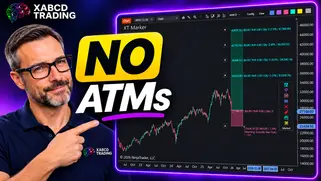
Ditch NinjaTrader ATMs: This Is More Powerful
See how to set your risk and calculate contracts directly on the chart.
Watch Now
Subscribe on YouTube
Related Tool
XABCD Position Tool
Automatic position sizing and on-chart trade management.
Explore the Tool
Why XABCD Trading
- Built for NinjaTrader 8 since 2009
- Trusted by 2,000+ traders
- On-chart tools, no ATM templates needed
- Free tools to get started
Get Project Updates
Twice-monthly maximum, we will give you updates on all the projects going here.
Quick Links
NinjaTrader 8.1.9: What’s New (And What to Fix)
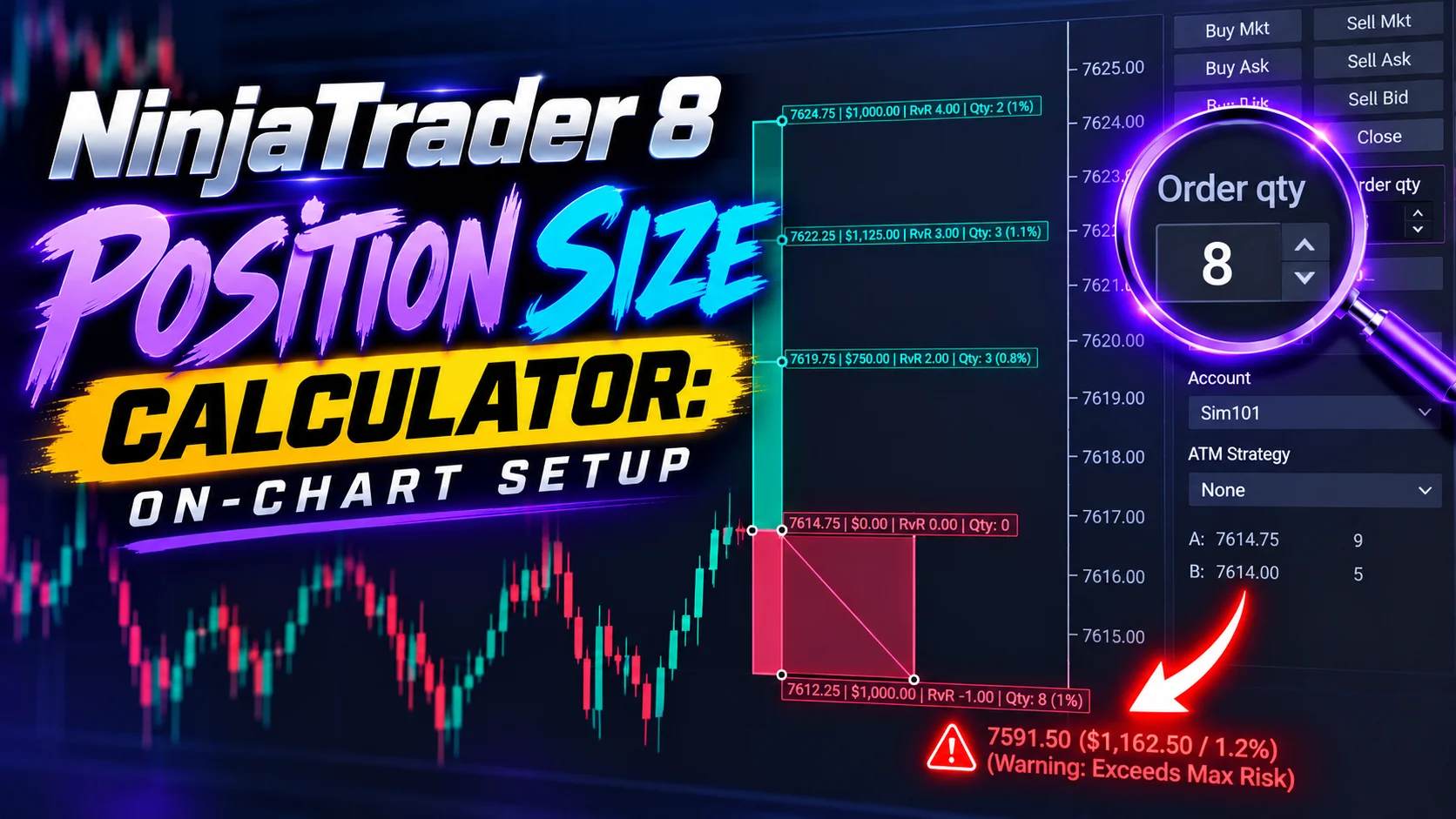
NinjaTrader 8 Position Size Calculator: On-Chart Setup
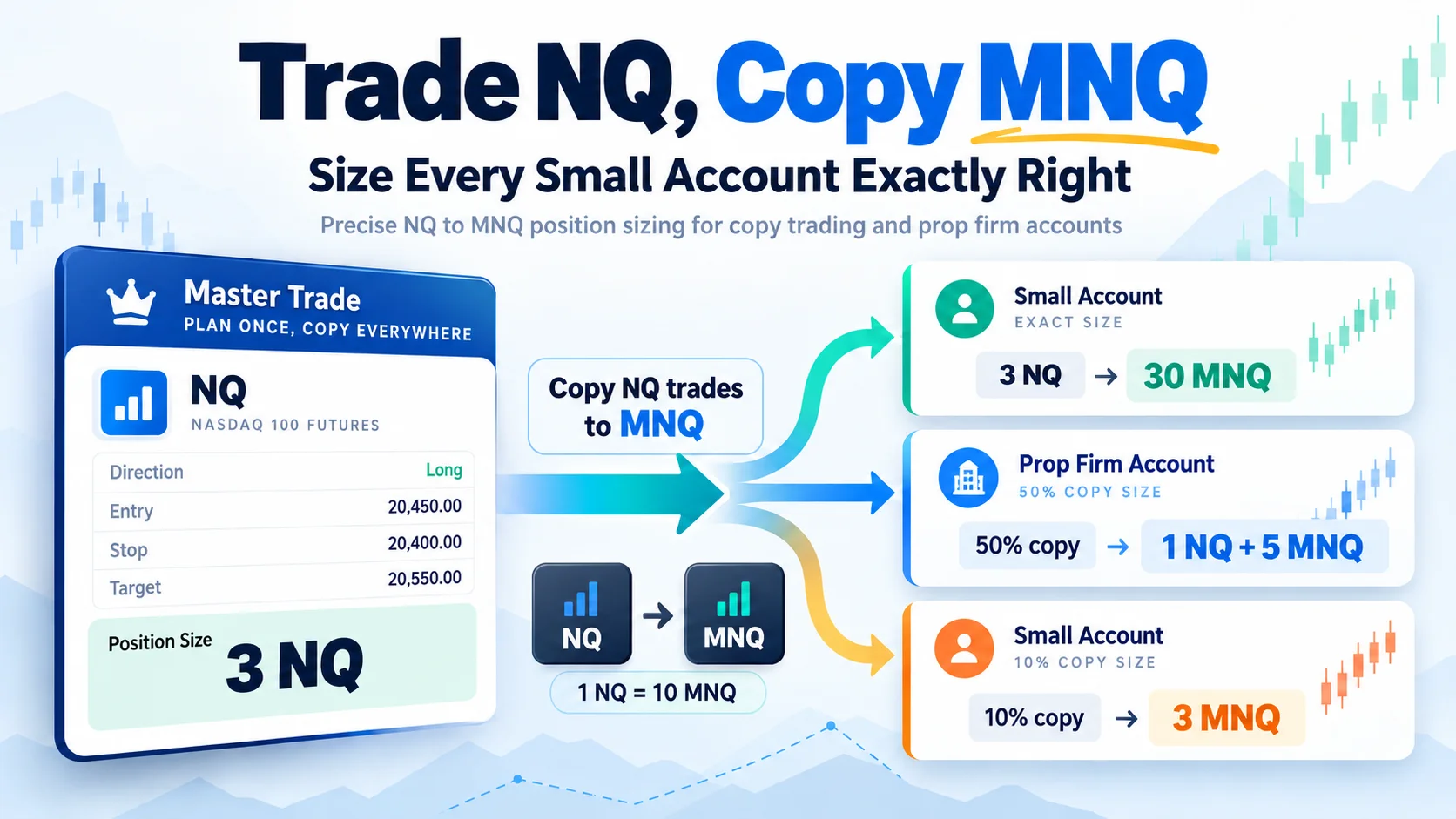
Trade NQ, Copy MNQ: Copy NQ Trades to MNQ in NinjaTrader 8
NinjaTrader Data Feed Not Updating? Quick Fixes
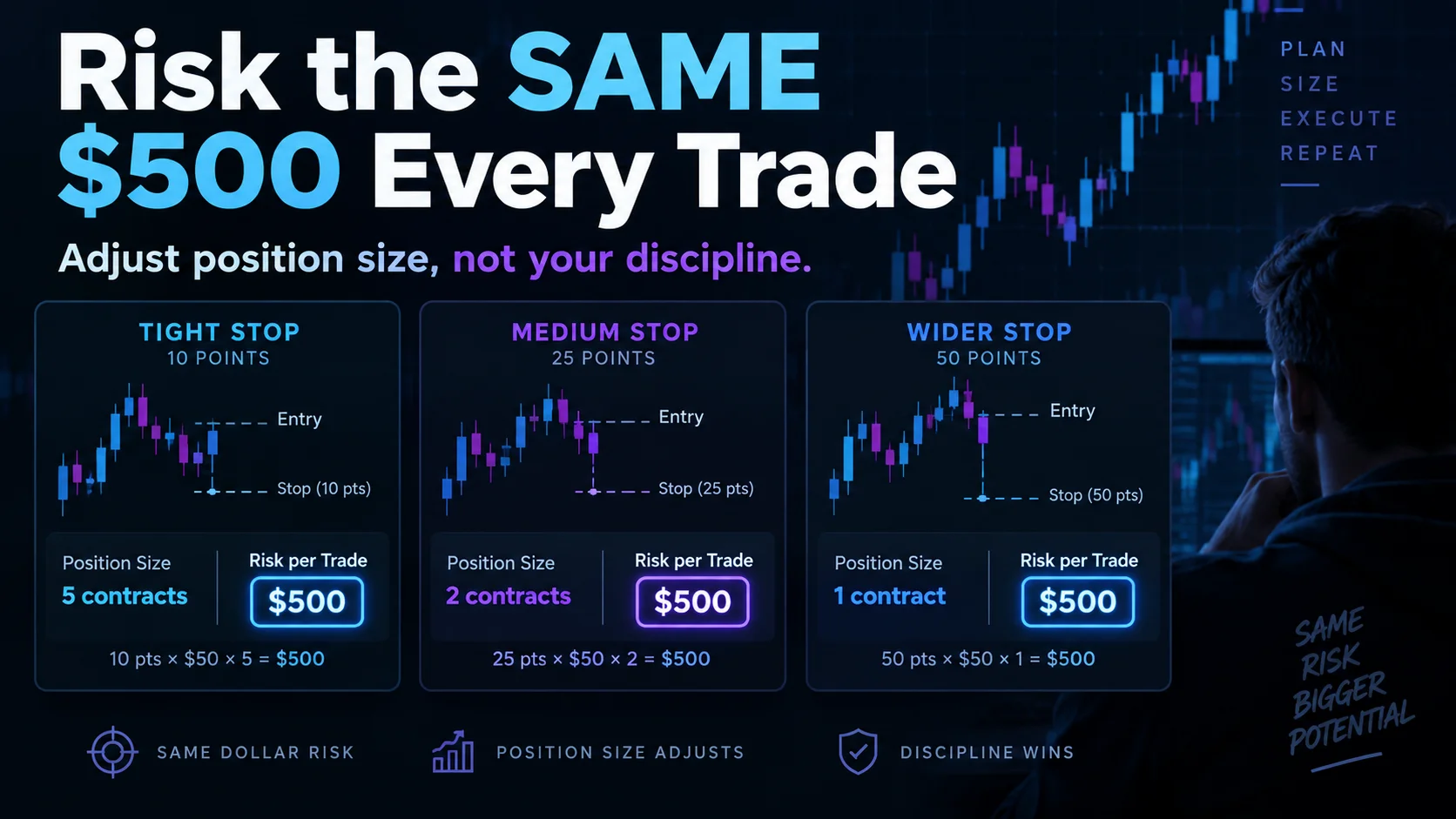
NinjaTrader Risk Per Trade: Risk $500 on Every Trade
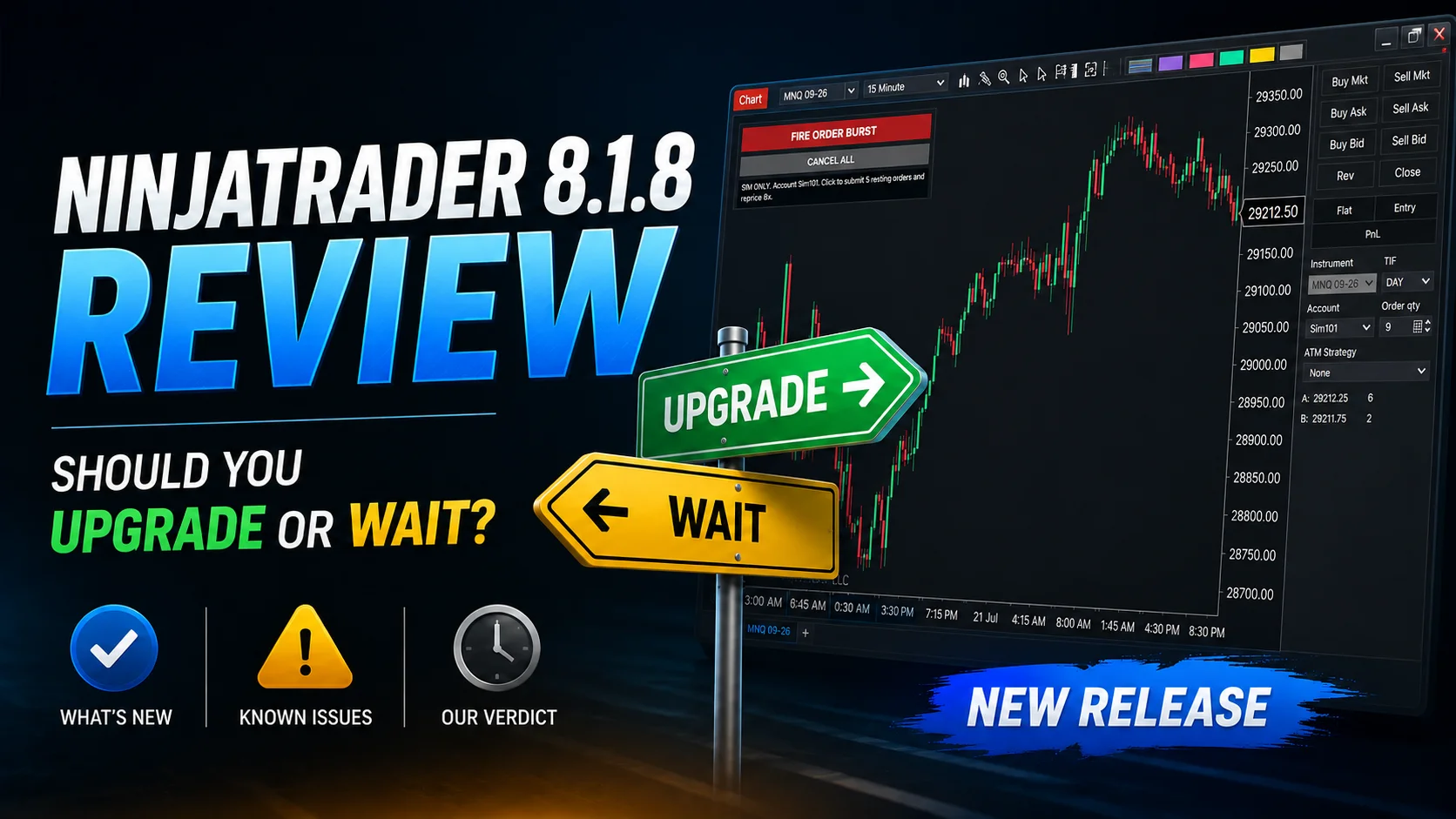
NinjaTrader 8.1.8 Review: Should You Upgrade or Wait?
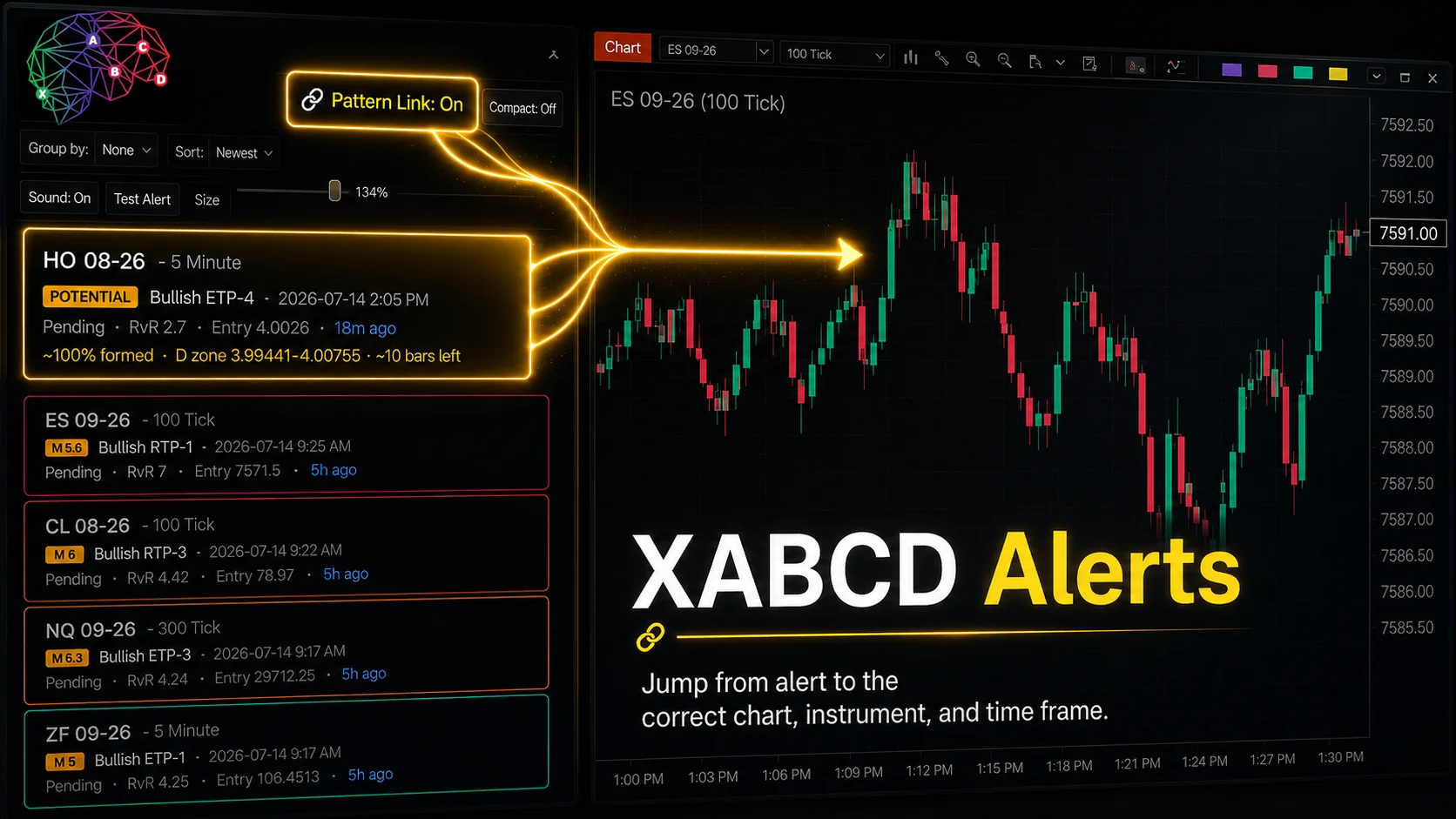
XABCD Pattern Alerts: The Complete Guide for Traders
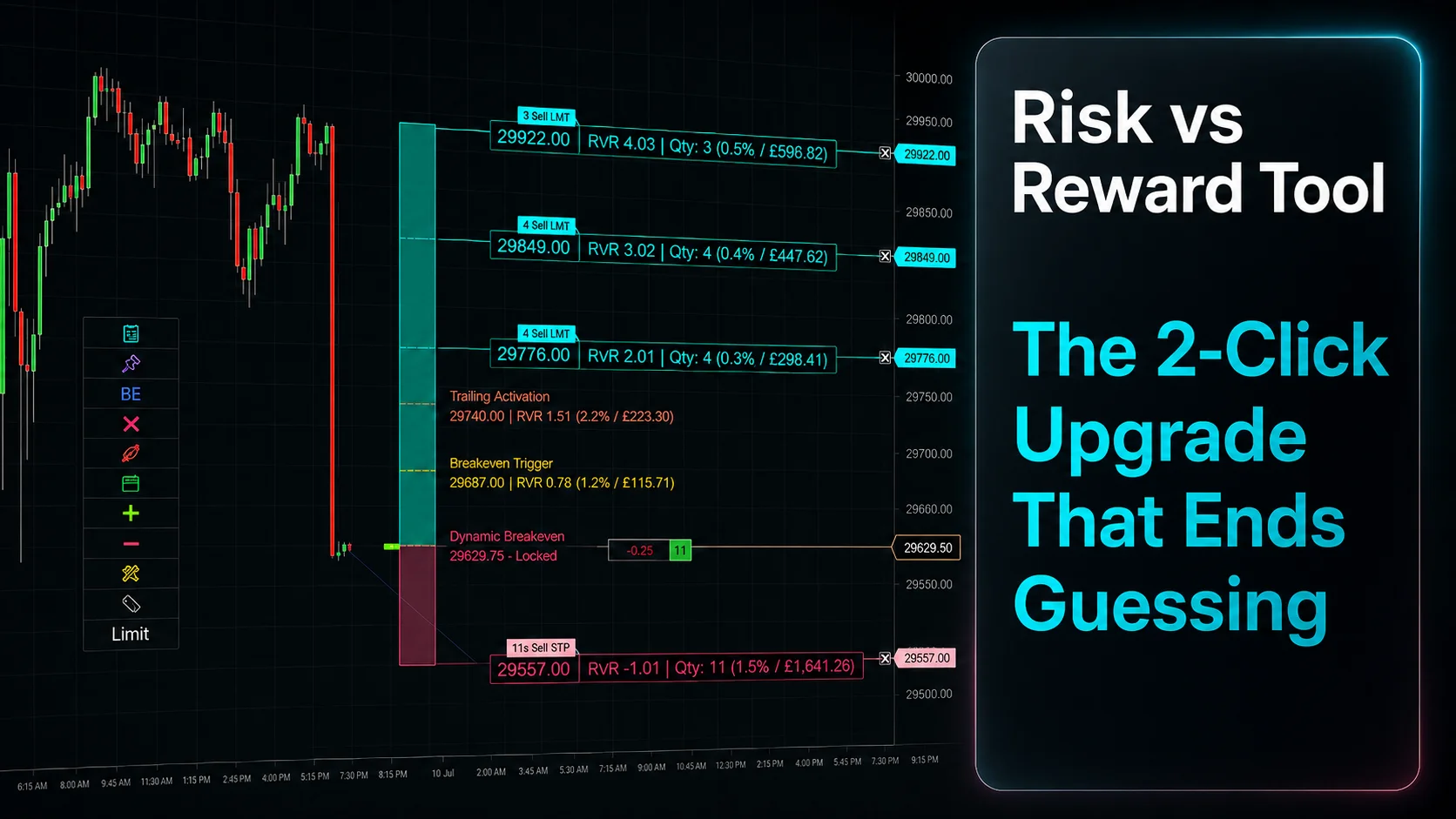
Risk vs Reward Tool: The 2-Click Upgrade That Ends Guessing
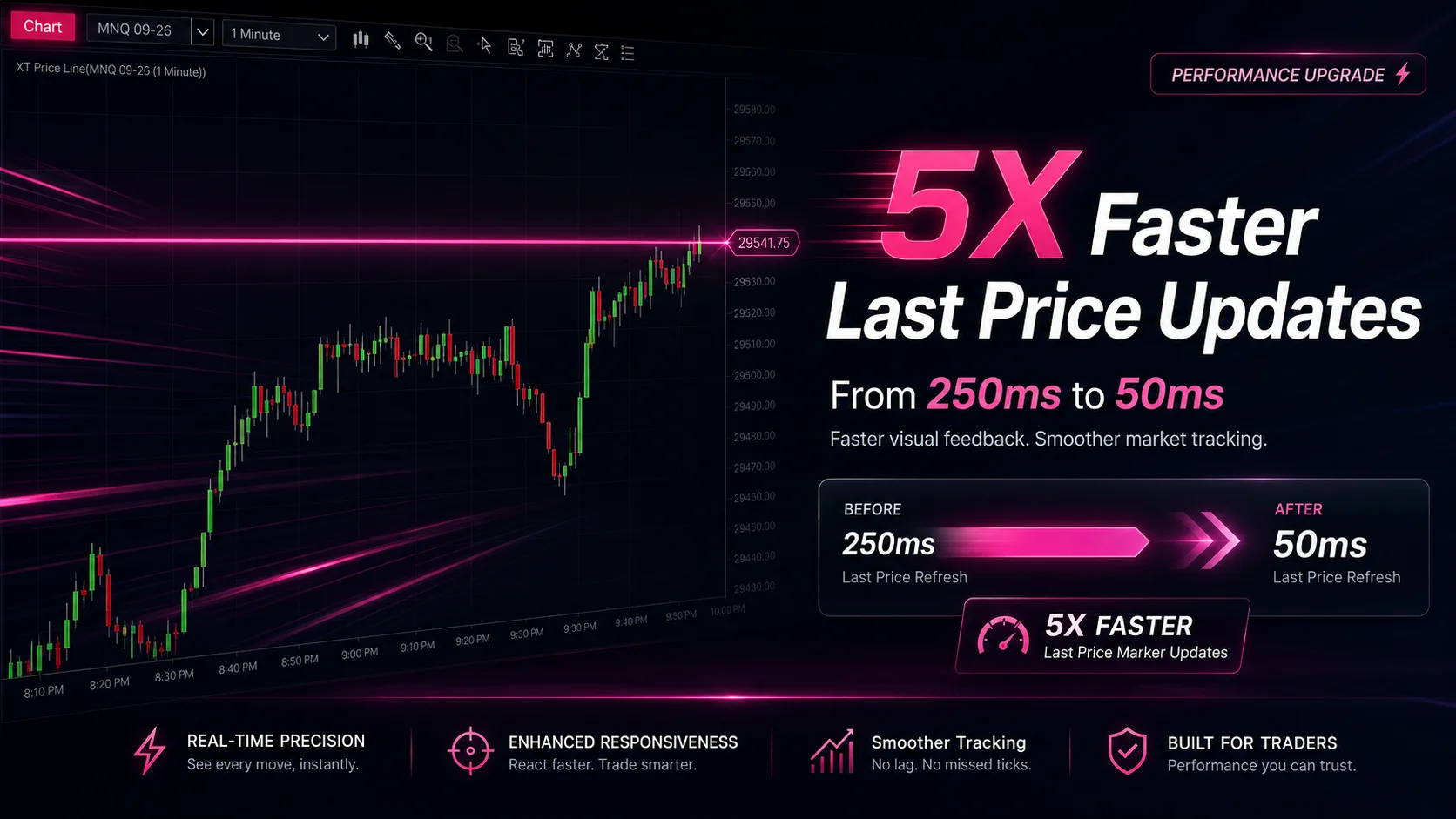
NinjaTrader Faster Last Price Updates on Charts Explained