XABCD TRADING

NinjaTrader 8 Position Size Calculator: On-Chart Setup
Subscribe
to get alerts to our next blog post!
A NinjaTrader 8 position size calculator tells you how many contracts fit your risk before you place a trade. The XABCD Position Tool does that math on the chart itself. How does it work? In this guide you'll learn how to set it up, check its numbers and trust the result.
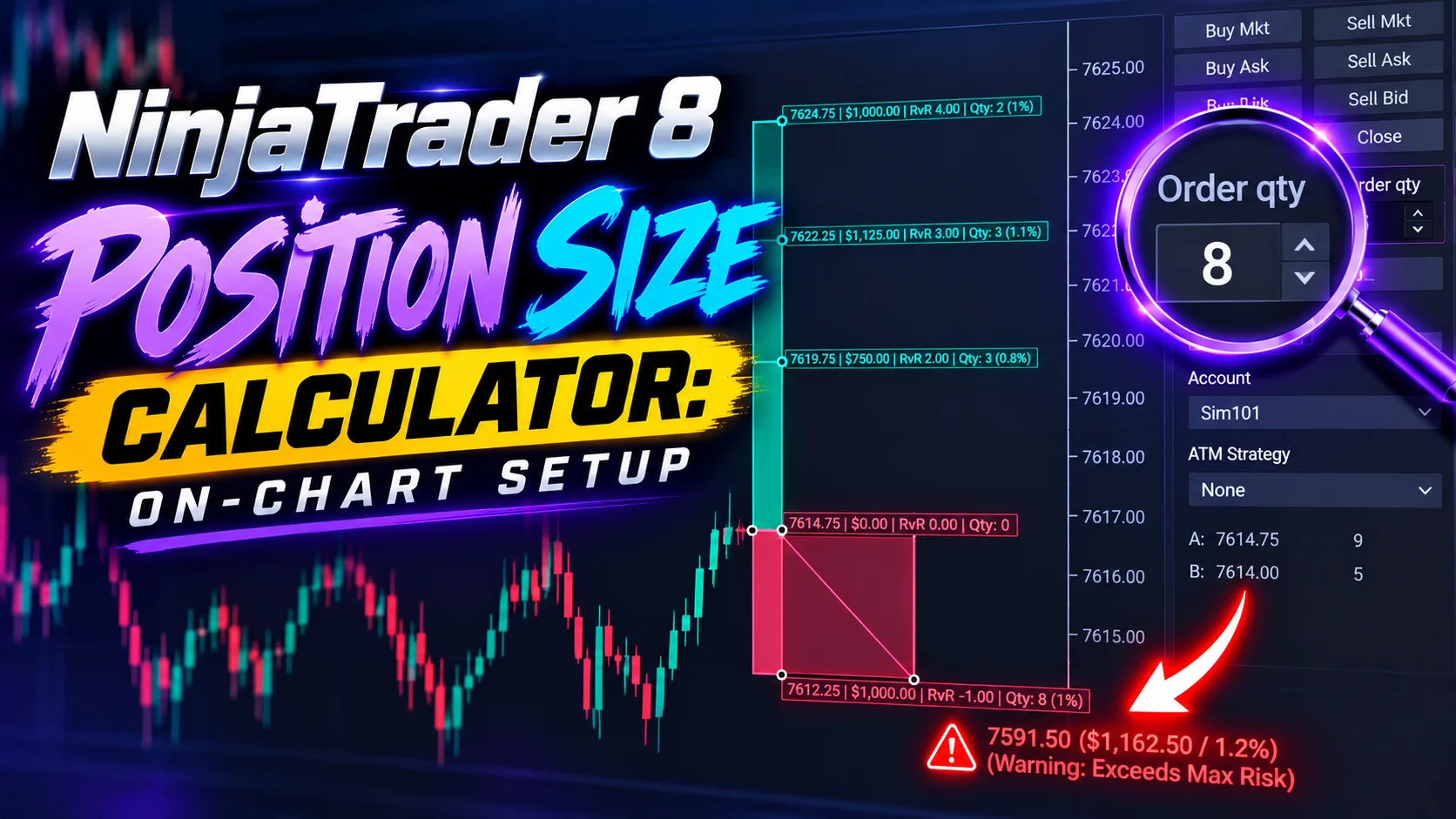
For example, say you risk $1,000 a trade and your ES stop sits 10 ticks away. You click the entry, then click the stop, and the chart shows 8 contracts. Drag the stop, and the number changes with it. That way, you skip the calculator and the spreadsheet.
Table of Contents
This table of contents links to every section below.
Why Position Size Comes First
Every trade starts with one question: how many contracts? The answer decides what a stop-out costs. Two traders can share the same entry and stop, yet lose very different amounts, because only one of them sized the trade.
Your risk is the quantity times the stop distance times the point value. If you pick the quantity by feel, the risk is a guess too. So the number has to come from your budget, not from habit.
The catch is that your stop moves. A tighter stop lets you hold more contracts for the same dollars, while a wider stop lets you hold fewer. Each time the stop changes, the quantity has to change with it. That is a lot of arithmetic to repeat while a setup is forming.
A fixed budget solves this. You decide once what a stop-out may cost, and the quantity becomes the only number that moves. A NinjaTrader 8 position size calculator does the moving for you.
The Formula Behind Every Position Size Calculator
Every position size calculator starts from the same formula. The Position Tool's own documentation writes it like this:
Position Size = Risk Amount / (Stop Distance × Point Value)
Risk Amount is the dollars you lose if the stop fills. Stop Distance is how far the stop sits from your entry. Point Value is what one point of movement is worth for one contract. So you divide your budget by what one contract risks, and the answer is the quantity.
On ES, one point is worth $50. A 10-tick stop is 2.5 points, so one contract risks 2.5 × $50, which is $125. Then $1,000 / $125 gives 8 contracts.
Ticks, Points and Dollars
A tick is the smallest price step a contract can make. ES, MES, NQ and MNQ all move in 0.25-point ticks, so one point is four ticks. The dollar value of a tick is what changes from contract to contract.
You can measure the stop in either unit. Count the ticks and multiply by the tick value, or count the points and multiply by the point value. Both routes give the same dollars per contract.
Contract Values to Keep Handy
This table lists the four contracts used in this guide. CME Group's Micro E-mini S&P 500 contract specs show MES at $5 per index point, with a minimum tick of 0.25 points, or $1.25.
| Contract | Tick size | Value per tick | Value per point |
|---|---|---|---|
| ES | 0.25 | $12.50 | $50 |
| MES | 0.25 | $1.25 | $5 |
| NQ | 0.25 | $5.00 | $20 |
| MNQ | 0.25 | $0.50 | $2 |
Micros are built as a fraction of the E-mini. CME's Micro E-mini equity index futures FAQ says micro multipliers are one tenth of the E-mini ones, for example $5 for MES against $50 for ES.
The Manual Way to Size a Trade in NinjaTrader 8
Without a sizing tool, you run the formula yourself before every order. Here is the routine:
- First, decide your risk in dollars. Say it is $1,000.
- Next, find your stop price and count the ticks from your entry. Say it is 10.
- Then multiply the ticks by the tick value. On ES, 10 × $12.50 is $125 per contract.
- After that, divide the budget by that figure. $1,000 / $125 is 8.
- Also round down to a whole number, because you cannot trade a fraction of a contract.
- Finally, type the quantity into the Chart Trader quantity box and place the order.
NinjaTrader's Chart Trader help page covers submitting orders from the chart, where you pick the account, order quantity and time in force yourself.
The routine works. It also costs time whenever the stop moves, and one slip in the rounding can put you over budget. If you trade through ATM Strategies today, this comparison of NinjaTrader position sizing and ATM Strategies puts the two approaches side by side.
How the Position Tool Works as a NinjaTrader 8 Position Size Calculator
The XABCD Position Tool is a drawing tool for NinjaTrader 8. You draw the trade on your chart, and the tool calculates the position size from your risk settings. It uses the formula above, so the answer matches what you would get by hand.
First, the tool takes your budget from the Risk Mode you choose. Next, it measures the stop distance from the two lines you drew. Then it returns the largest whole number of contracts whose risk fits that budget.
You can drag each line on the tool, and the size recalculates as you move the stop. So the quantity always matches the trade on your screen. Want the full tour? The position sizing page covers planning, sizing and placing the whole trade.
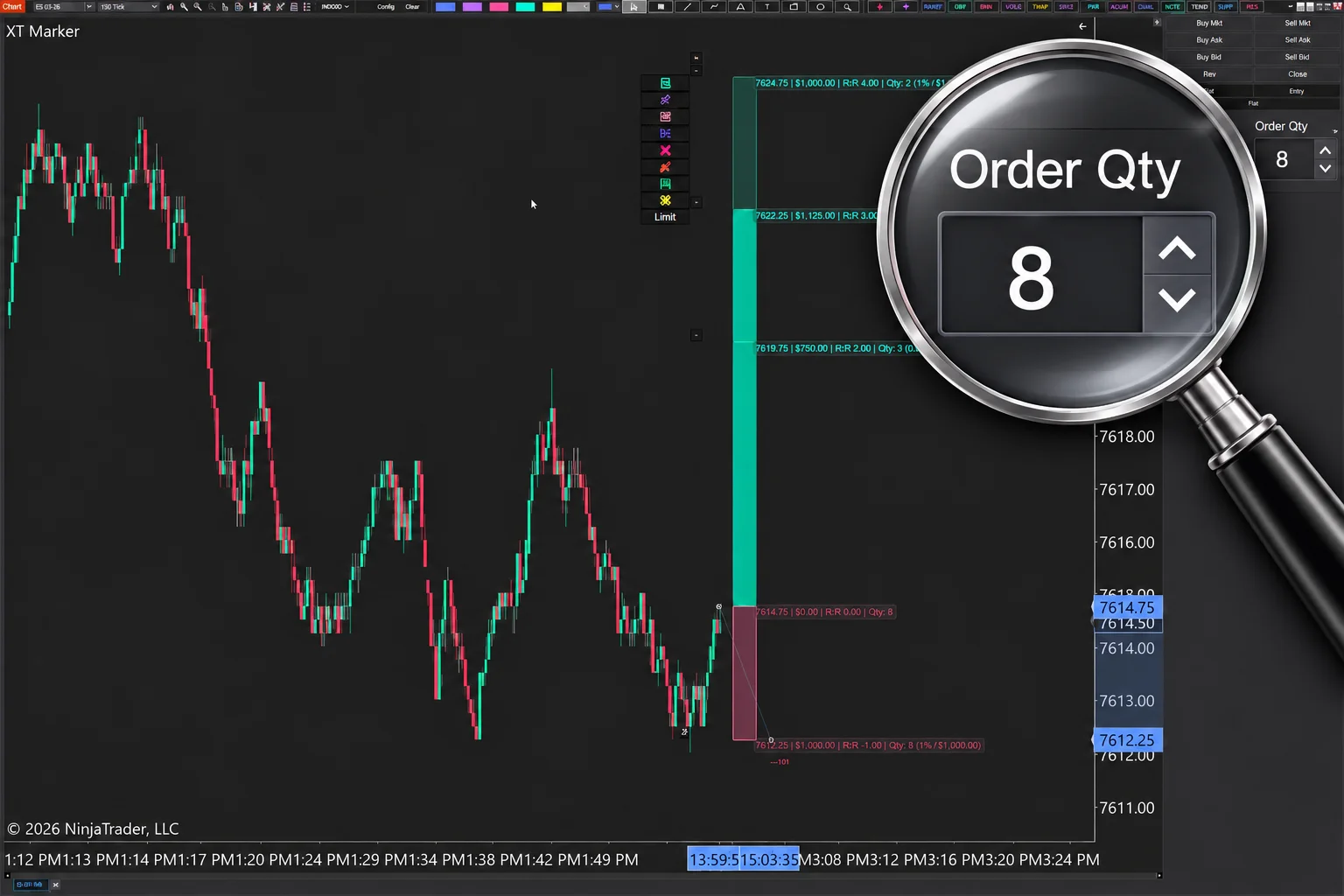
The Position Tool on an ES chart: a 10-tick stop and a $1,000 budget give Qty: 8.
What the Labels on the Lines Show
The entry line shows your quantity. The stop line shows the dollars at risk, and each target line shows the profit you stand to make there. Shaded zones fill the space between the entry and those lines.
The Trade Size row in the Visibility section controls the Qty label. It ships ON for planning and for once you are in the trade, unless you saved your own settings. The Unit Count row ships OFF, so turn it on if you want the stop distance printed in ticks and points. Both rows live on the Appearance tab.
Set Your Risk Amount Before You Draw
A NinjaTrader 8 position size calculator needs a budget before it can size anything. Out of the box, Risk Mode is Percent of Account Value, and Risk Amount (%) is 1.5. A fixed dollar budget is easier to compare from trade to trade, so this guide uses one.
- First, pick the XT Position Tool from the Drawing Tools menu and draw a trade on an ES chart. Any two clicks will do for now.
- Next, click the yellow icon in the floating menu on the tool. That opens the Properties window.
- Then open the Risk tab and find the Position Sizing section.
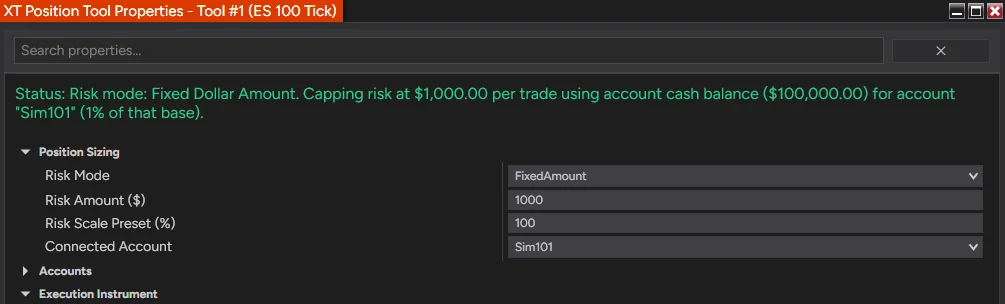
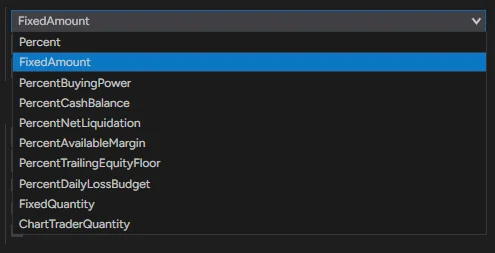
- After that, set Risk Mode to Fixed Dollar Amount.
- Also type 1000 into Risk Amount ($).
- Finally, click Save Defaults so every new tool you draw starts with these settings.
Click this yellow icon in the floating menu to open Properties.
The window edits the tool you opened it from, and its title bar names that tool and, when it can, its chart. Check the title if you run tools on more than one chart.
Risk Mode and Risk Amount ($) in the Position Sizing section of the Risk tab.
Draw Your First Trade in Two Clicks
With the budget set, your NinjaTrader 8 position size calculator is ready to use. Follow these steps on a Sim account first.
- First, open an ES chart. A 5-minute chart works well for practice.
- Next, select the XT Position Tool from the Drawing Tools menu. If your chart toolbar has the XABCD button, its Position Tool row (Draw one on this chart) does the same.
- Then click on the chart where you want your entry.
- After that, click again where you want your stop, 10 ticks from the entry.
- Finally, read the quantity on the entry line.
That is the whole job. The tool calculates your position size from your risk settings, so you don't type the number.
Draw the Stop First If You Prefer
By default the tool uses Entry First, then Stop. If you'd rather anchor the stop first, set Drawing Order to Stop First, then Entry in the Position Settings section of the Orders tab. Then click Save Defaults, so the next tool you draw starts with it. The sizing and direction math stays the same either way.
A Worked Example on ES: $1,000 and a 10-Tick Stop
Let's use round numbers. Risk Mode is Fixed Dollar Amount, Risk Amount ($) is 1000, and the chart is ES. You click a long entry at 5,000.00, then click the stop at 4,997.50.
- First, the distance: 5,000.00 minus 4,997.50 is 2.5 points, which is 10 ticks.
- Next, one contract risks 10 ticks × $12.50, which is $125.
- Then $1,000 / $125 is exactly 8, so the tool sizes 8 contracts.
- Finally, check the total: 8 × $125 is $1,000, so the whole budget is in use.
The entry line reads Qty: 8, and the stop line shows the dollars at risk. The percent route lands in the same place. In Percent of Account Value mode, a $50,000 account risking 2 percent also has $1,000, so the same stop gives the same 8 contracts.
A Smaller Account on a Percent Budget
Not everyone sizes from a fixed dollar figure. Say Risk Mode is Percent of Account Value, Risk Amount (%) is 1 and the account holds $25,000. That is a $250 budget. You click the ES entry at 4,500 and the stop at 4,495.
The stop is 5 points away, which is 20 ticks, so one contract risks $250. Then $250 / $250 is 1, and the tool sizes 1 contract. A small account still gets a clean answer, because one contract at that stop uses exactly the $250 budget.
Drag the Stop and Watch the Size Change
Now drag the stop line away from the entry. Each new price changes the risk per contract, so the tool recomputes the quantity. This table shows ES with a $1,000 budget.
| Stop distance | Risk per contract | Contracts | Total risk |
|---|---|---|---|
| 10 ticks (2.5 points) | $125 | 8 | $1,000 |
| 12 ticks (3 points) | $150 | 6 | $900 |
| 20 ticks (5 points) | $250 | 4 | $1,000 |
| 32 ticks (8 points) | $400 | 2 | $800 |
| 80 ticks (20 points) | $1,000 | 1 | $1,000 |
Look at the pattern. Double the stop and the size halves, as the 10-tick and 20-tick rows show. The total risk never goes above $1,000.
Before and after: the quantity drops from 8 to 6 as the stop moves out.
Dragging Before and After Your Entry Fills
Before you click Submit, a drag reshapes the plan but moves no order. After your entry fills, the same drag does more. Letting go of the stop line moves your working stop order to that price, the same as dragging a stop in NinjaTrader.
The line has to actually move, because clicking it without dragging changes nothing. For small steps, the Stop Price Up and Stop Price Down hot keys (Ctrl+Shift+] and Ctrl+Shift+-) move the stop one tick per press, and working orders follow when you stop pressing.
When the Entry Follows the Market
The Attach button in the floating menu locks the entry to the current market price, so the entry follows price from then on. By default the stop slides with it to keep the distance you drew, so the size stays put.
If the stop is pinned, or Preserve Stop Price on Auto-Attach is on, the stop stays at its price instead. Then the distance changes with the market, and the position size follows it.
Why a Fraction Always Rounds Down
Not every stop divides the budget evenly. Take a 12-tick stop on ES. One contract risks 12 × $12.50, which is $150. Then $1,000 / $150 comes to 6.67.
The tool sizes 6 contracts, which risk $900. Seven contracts would risk $1,050, so they would break your budget. The rule is simple: the size is the largest whole number of contracts whose risk fits your budget, and a fraction is never rounded up.
The documentation gives a second case. With $200 allowed and $70 per contract, the division gives 2.857 contracts. The tool sizes 2 for $140, because 3 would cost $210.
There is no setting for this. It is how every trade is sized.
A NinjaTrader 8 position size calculator that rounds to the nearest whole number would show 7 here, and the trade would risk more than you chose. Rounding down makes your budget a ceiling. The few dollars left over are the price of staying under it.
The Same Trade on MNQ and MES
Micro contracts split the same risk into smaller pieces. MNQ is worth $2 per point, so one tick is $0.50. Say your budget is still $1,000 and the MNQ stop is 14 points from your entry, which is 56 ticks.
- First, one contract risks 14 × $2, which is $28.
- Next, $1,000 / $28 is 35.7, so the tool rounds down to 35 contracts.
- Finally, 35 × $28 is $980 of risk.
Stretch the stop to 20 points and one contract risks $40. Then $1,000 / $40 is exactly 25 contracts, for $1,000 of risk.
MES shows the ten-to-one link with ES. A 10-tick stop on MES costs 10 × $1.25, or $12.50 per contract. So $1,000 buys 80 MES, where the same stop on ES buys 8. Eight ES or 80 MES put the same $1,000 on the same stop.
Plan on NQ, Trade MNQ
Execution Routing lets a chart show one contract and trade another, such as planning on an NQ chart and placing the orders on MNQ. The tool sizes the trade for the contract it trades. A percent or dollar risk works out the MNQ quantity from MNQ's point value, so your risk holds.
The labels then name the contract, for example Qty: 6 MNQ on an NQ chart. You set up a route in the Execution Instrument section of the Risk tab, which appears after you click Advanced Mode.
How the Size Splits Across Your Targets
The quantity on the entry and stop lines is the whole position, while each target line shows its own share. Order Distribution decides how the tool divides the position. You find it in the Position Settings section of the Orders tab.
Even is the default. It gives each target the same quantity, and when the size does not divide evenly, the extra contracts go to the first targets. With 6 contracts and 3 targets, that is 2 at each. Front Heavy gives 3, 2 and 1, and Back Heavy gives 1, 2 and 3.
Custom Percentages lets you set each target's Allocation %. The percentages must add up to exactly 100 before Properties lets you save, unless they all stay at 0.
The documentation also shows an uneven case. A 4-contract position with three targets on Even exits 2 contracts at the first target, then 1 at each of the other two, so the extra contract goes to the nearest target.
Targets and the Rounding
Rounding down can leave your real risk below the budget, and the target types treat that gap differently. In Fixed Dollar Amount mode, 1R is your Risk Amount ($) for an R-Multiple target. A Risk vs Reward target still works from the stop distance you drew.
The documentation shows it on ES at $50 a point, with a $500 budget and a stop 6 points away. One contract risks $300, so the tool buys 1. A 2:1 Risk vs Reward target sits 12 points away, worth $600. A 2R R-Multiple target sits 20 points away, worth $1,000.
Choose the Risk Mode That Feeds the Calculator
The calculator is only as good as the budget it starts from. Risk Mode picks that budget. You find it on the Risk tab, in the Position Sizing section.
The tool offers ten methods. Seven take a percentage of a base: Account Value, Buying Power, Cash Balance, Net Liquidation, Available Margin, Trailing Equity Floor and Daily Loss Budget. The other three are Fixed Dollar Amount, Fixed Quantity Override and Use Chart Trader Quantity.
Percent of Account Value
This is the default mode. It risks a percentage of your account balance, using NinjaTrader's Cash Value, which leaves out open profit and loss. Risk Amount (%) ships at 1.5 and accepts 0.1 to 100. For example, a $100,000 account at 1.5 percent risks $1,500 a trade.
Funded accounts sometimes need a different base. Risk Allocation Value lets you size from a set account value instead of your real balance. It sits in the Risk - Advanced section, which appears after you click Advanced Mode at the bottom of the Properties window. It applies in Percent of Account Value mode.
Fixed Dollar Amount
This mode risks the same dollars on every trade, whatever the account size. You set the amount in Risk Amount ($). At 0 it falls back to Risk Amount (%) of the account, so enter a real figure. With $500 there, every trade is sized so a stop-out loses no more than $500.
If you'd rather start from the dollars and let the stop distance solve itself, see the guide to a stop loss from your dollar risk.
Fixed Quantity Override and Use Chart Trader Quantity
These two modes skip the calculation. Fixed Quantity Override trades the number in Risk Quantity Override, which is 1 by default, whatever the stop distance. Use Chart Trader Quantity reads the number you type into Chart Trader instead.
Choose one only when you want to pick the size yourself, because the stop no longer changes it. Max Unit Qty still caps Fixed Quantity Override.
Scale Your Risk on the Fly
Sometimes you want half your normal size without opening Properties. Set Risk Scale Preset (%) in the Position Sizing section first. The preset runs from 1 to 100 percent and defaults to 100, which leaves your risk unchanged.
Then use the Scale Risk Down (Ctrl+Shift+D) and Scale Risk Up (Ctrl+Shift+U) hot keys. A 50 percent preset halves a $1,000 budget to $500, and a second press takes it to $250, because the keys compound. While your risk differs from what it was when you drew the tool, the stop line shows [Scaled: N%].
In Fixed Quantity Override, the keys scale the contract count instead. In Use Chart Trader Quantity, they have no effect.
Cap the Size With Max Unit Qty
Max Unit Qty caps how many contracts you can hold, whatever your account size or risk settings say. It sits under Risk Limits on the Risk tab, and 0 means no limit.
The cap counts the position you already hold in that contract on the account. So with a limit of 6 and 4 contracts open, the next trade is sized at no more than 2. The tool applies the cap after all its other calculations, so the cap wins whenever the formula asks for more.
Limit Mode decides how the cap works. Absolute, the default, is a literal count, so a limit of 5 means exactly 5 contracts on ES, MES, NQ or MNQ. Equivalent treats the limit as contract equivalents, so a limit of 5 on a standard contract allows 50 on the micro.
Size for the Stop That Really Fills
The formula measures the gap between the two lines you drew. A stop order can still fill a little late, though, and a stop offset can put the order further out than the line. Slippage Buffer (Ticks) covers both. It sits in Risk Limits, takes 0 to 50 ticks and defaults to 0.
The buffer adds extra ticks to the stop distance when the tool sizes the trade. It does not move the stop order. For example, a 10-tick ES stop with a 2-tick buffer is sized as 12 ticks. One contract counts as $150, so $1,000 buys 6 contracts instead of 8.
The Stop offset in Order Offset Rules raises the same issue. With Applies to set to Order and a positive offset, your stop order sits further away than the line your size was worked out from. A stop-out then loses more than your risk setting.
To size for it, add the same number of ticks to Slippage Buffer (Ticks), or set Applies to to Line. The guide to sizing for slippage in NinjaTrader goes further.
Count Commission in the Size
Commission is a cost on every contract, and it eats into the budget you set. Include Commission In Risk makes the tool shrink the size until stop risk plus commission fits. It's off by default, so turn it on under Commission Settings on the Risk tab.
For example, take a $1,000 budget, $200 of stop risk per contract and $5 of round-trip commission. Five contracts would cost $1,025, so the tool sizes 4.
The fees come from the template you pick in the Commission Template list. Leave it blank, and the tool uses the commission template assigned to your account in NinjaTrader instead. The guide to including commissions in your NinjaTrader position size walks through both choices.
Check the Math With Copy Plan
You don't have to take the number on faith. Copy Plan puts the trade plan on your clipboard, the same as Ctrl+Shift+C. It lists the entry and its order type, the stop, the risk in ticks and dollars with commission and as a share of your account, and each target's price, distance, R, quantity and dollars.
Paste it into a note and compare it with your own math. It pastes as plain text in a message, as rows in a spreadsheet, as Markdown in Discord or Slack and as a formatted card in an email. A journal entry then starts from numbers you already checked.
Send the Sized Trade to Your Broker
When the quantity looks right, click Submit in the floating menu. Order Confirmation is on by default, so a window lists the entry, stop, targets and quantities before anything goes out.
The default Order Submission Mode is Entry Only with Ghost Orders. Only the entry goes to your broker at first, and the stop and targets wait as dashed ghost lines. When the entry fills, they turn into real orders. The Risk vs Reward tool guide covers the reward side of the same two clicks.
How the Quantity Reaches Chart Trader

The tool also pushes its quantity into NinjaTrader's Chart Trader. Update Chart Trader qty is on by default, and it writes the calculated size into the quantity box each time the size recalculates. So when you move the stop, the number in Chart Trader updates as well. You find the setting on the Advanced tab, under Custom Settings.
The tool stops writing the moment you submit. After that, you can type a partial-close quantity into Chart Trader without the tool overwriting it. If you would rather type the number yourself, switch Risk Mode to Use Chart Trader Quantity, and the tool reads from Chart Trader instead.
When Chart Trader Shows a Different Number
With two tools on the same instrument, only the last tool you clicked owns Chart Trader for it. Click the tool you mean, and the tool pushes its size again. A tool that comes back with a saved workspace pushes nothing until you click it.
After a trade closes, the tool releases Chart Trader, so you can type any quantity freely. Click the tool again to take the box back.
Save Your Sizing Setup
Click Save Defaults at the bottom of the Properties window, and every new tool you draw starts from your current settings. A template works differently. Click Save, name it, and bring it back later with Load.
The name box starts as default.xml. Replace it unless you mean to change the settings every new tool starts with. If you ever want the factory settings back, Restore Default deletes your saved defaults and asks first.
When the Size Shows 0
Sometimes the labels read Qty: 0. That is the tool telling you something. If the stop label reads (Warning: Exceeds Max Risk), one contract at that stop already risks more than your budget, so the size rounds down to 0.
On ES with a $1,000 budget, a stop 81 ticks away does it, because one contract then risks $1,012.50. Move the stop closer or raise the risk. For the reason in words, open the Risk tab and read the Status line at the bottom.
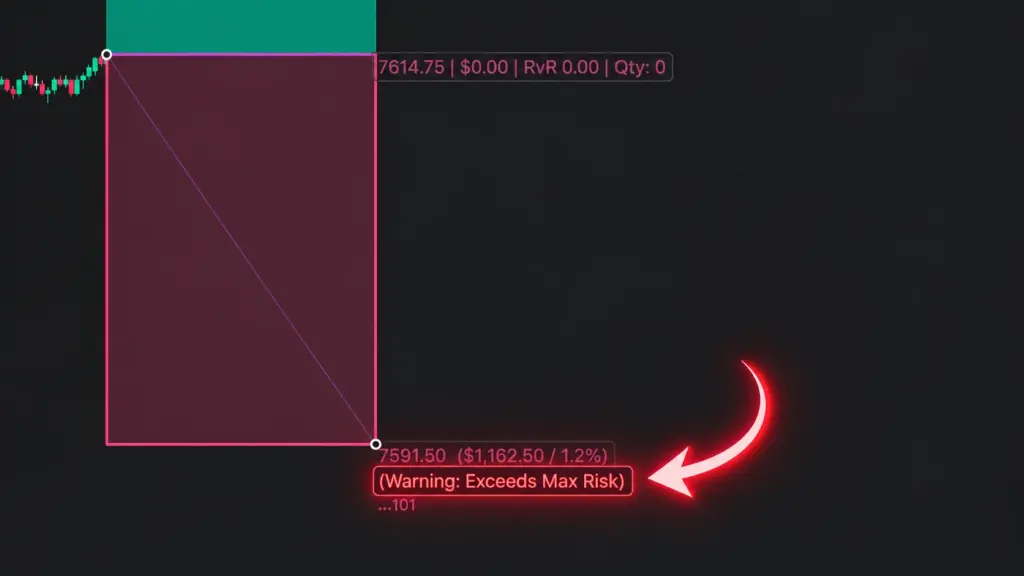
A stop 81 ticks away: one contract risks more than $1,000, so the size is 0.
A position you already hold can also cause it. If the labels read Qty: 0 (at Max Unit Qty 6/6), your open position has reached the cap. The full list of causes is in the guide to a NinjaTrader position size of zero.
Mistakes to Avoid
These habits can throw your sizing off:
- Skipping the Risk Mode check. The default is Percent of Account Value at 1.5 percent, so your dollar risk may differ from the amount you had in mind.
- Dragging the stop after a fill. The drag moves your working stop order, so adjust the plan before you submit.
- Rounding up by hand. The tool rounds down because your budget is a ceiling, so a manual bump to the next contract breaks it.
- Forgetting an old Max Unit Qty. A cap from last month can shrink today's trade, so check Risk Limits when the size looks small.
- Sizing from the line when the order sits further out. A stop offset adds risk the line does not show, so add the same ticks to Slippage Buffer (Ticks).
- Fighting the tool for the Chart Trader box. It keeps writing its size while no order is working, so turn off Update Chart Trader qty if you want to type your own.
- Trusting a NinjaTrader 8 position size calculator you never tested. A wrong setting sizes every trade the same wrong way, so check the quantity against your own math first.
Test It Before You Use Real Money
Try the calculator on a Sim account or in Market Replay before any live trade. The Simulator offers simulated accounts such as Sim101. For Market Replay, NinjaTrader uses the Playback connection and the Playback101 account, so close every other connection first.
- First, open an ES chart and select a Sim account such as Sim101.
- Next, draw a trade with a 10-tick stop.
- Then click the yellow icon in the floating menu on that tool, and set Risk Mode to Fixed Dollar Amount. Type 1000 in Risk Amount ($), and the quantity should read 8.
- After that, drag the stop out to 12 ticks. The quantity should read 6.
- Also drag the stop out to 81 ticks. The quantity falls to 0, and the stop label warns Exceeds Max Risk.
- Finally, put the stop back at 10 ticks and click Submit. Read the confirmation window before you send anything.
If every number matches, your NinjaTrader 8 position size calculator is set up the way you meant. If one differs, check Risk Mode, Max Unit Qty, Slippage Buffer (Ticks) and Include Commission In Risk first.
Quick Reference
- A NinjaTrader 8 position size calculator comes down to one formula, Position Size = Risk Amount / (Stop Distance × Point Value), and the result always rounds down.
- Open Properties with the yellow icon in the floating menu, then set Risk Mode and Risk Amount ($) on the Risk tab.
- Find Max Unit Qty and Slippage Buffer (Ticks) in Risk Limits, also on the Risk tab.
- Commission Settings sit on the Risk tab too, so Include Commission In Risk is one tick away.
- Drawing Order lives in Position Settings on the Orders tab.
- Update Chart Trader qty sits under Custom Settings on the Advanced tab.
- Save Defaults makes your current settings the start point for every new tool.
Frequently Asked Questions About the NinjaTrader 8 Position Size Calculator
How Does a NinjaTrader 8 Position Size Calculator Work?
It divides your risk amount by what one contract risks at your stop, then rounds down to whole contracts. The Position Tool does this for you, so you draw the entry and the stop and it shows the quantity on the chart.
How Many ES Contracts Can I Trade With $1,000 of Risk?
It depends on the stop. With a 10-tick stop, one contract risks $125, so 8 contracts fit. With a 20-tick stop, one contract risks $250, so only 4 fit. A 12-tick stop gives 6, because the tool rounds down.
Does the Position Tool Ever Round the Position Size Up?
No. The size is the largest whole number of contracts whose risk fits your budget, so a fraction always rounds down. A 12-tick ES stop on a $1,000 budget gives 6.67, and the tool sizes 6 contracts. Seven would risk $1,050, which is over budget.
Can I Use the NinjaTrader 8 Position Size Calculator on Micro Contracts Like MES and MNQ?
Yes. The tool works from the point value of the contract you trade, which is $5 for MES and $2 for MNQ. A 10-tick MES stop risks $12.50 per contract, so $1,000 buys 80 contracts. The same stop on ES buys 8.
Why Does the Quantity Change When I Drag the Stop?
Because the risk per contract changes with the distance. A wider stop costs more per contract, so fewer contracts fit your budget. A tighter stop does the opposite, and the tool recalculates as you move the line, so the label always matches the trade on your screen.
Where Do I Set My Risk Amount?
Click the yellow icon in the floating menu on the tool, then open the Risk tab and find Position Sizing. Choose a Risk Mode first, then enter the amount. In Fixed Dollar Amount mode, the box is Risk Amount ($). Then click Save Defaults if you want every new tool to start there.
Next Steps
A NinjaTrader 8 position size calculator works best when you can see it move. Start on a Sim account, set a fixed dollar budget, and drag the stop through a few distances. Then compare each quantity with your own math.
Trading futures and forex involves substantial risk of loss. The examples here use round numbers for teaching and are not trade advice.
New NinjaTrader Articles Delivered First
 (opens in a new tab)
Easy Order Tool
The Strategy

Scanning & Alerting

NinjaTrader Release
XABCD News (Free Version)
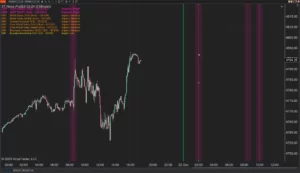
XABCD News (Community Edition) is the best free Indicator for NinjaTrader 8. Don't let news sneak up on you again. Puts economic news events on your charts so you can stay informed and move around positions/stops before the news is released. Works in any market.
XABCD Priceline (Free)
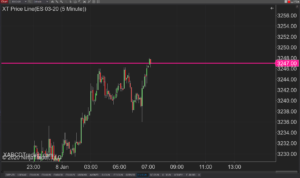
XABCD Price Line tool for NinjaTrader 8 will draw a line at current price and move every time the market changes price. This is useful because it will allow you to easily identify where price is at all times and the exact quoted price.
NinjaTrader 8 Position Size Calculator: On-Chart Setup
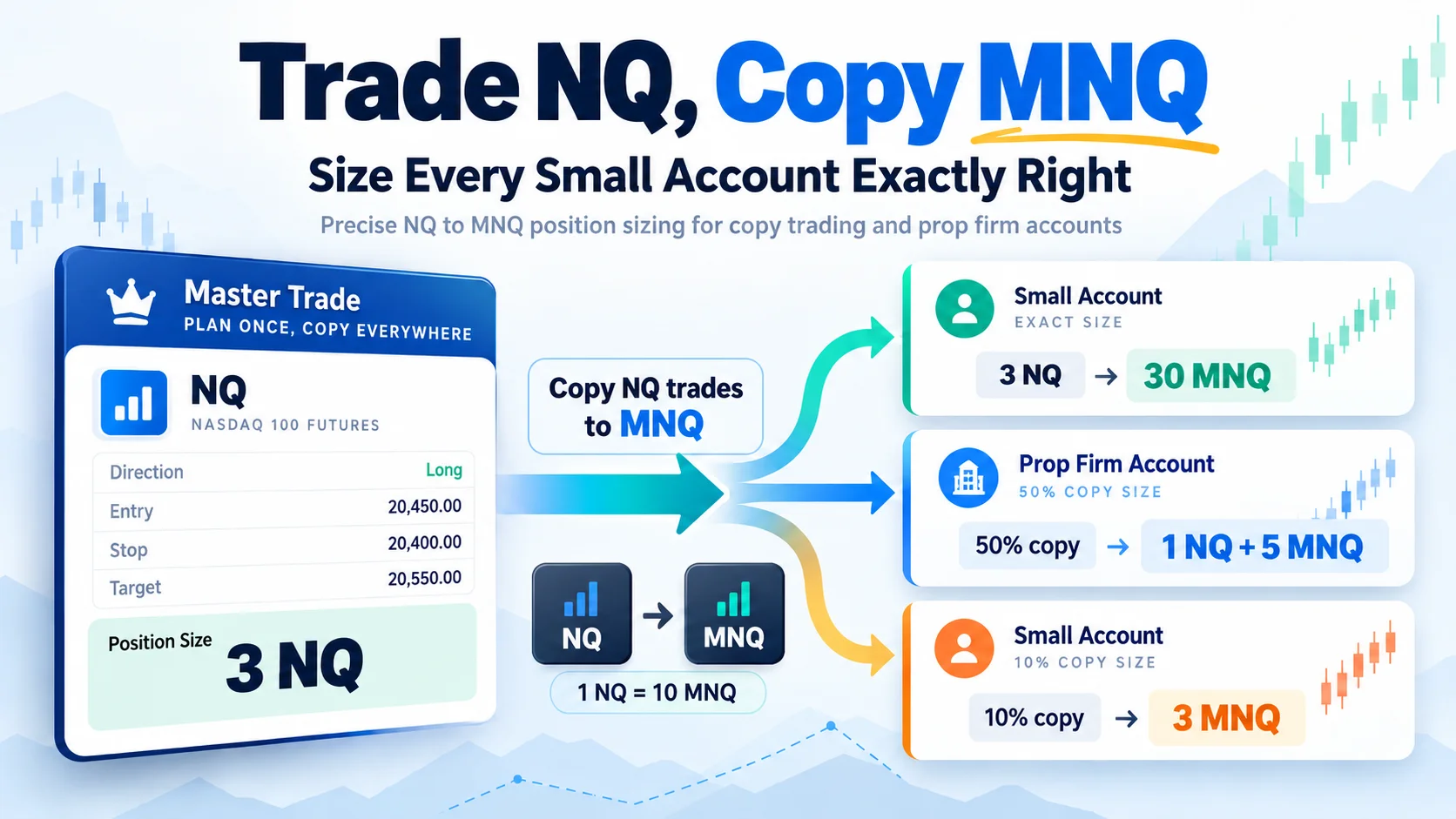
Trade NQ, Copy MNQ: Copy NQ Trades to MNQ in NinjaTrader 8
NinjaTrader Data Feed Not Updating? Quick Fixes
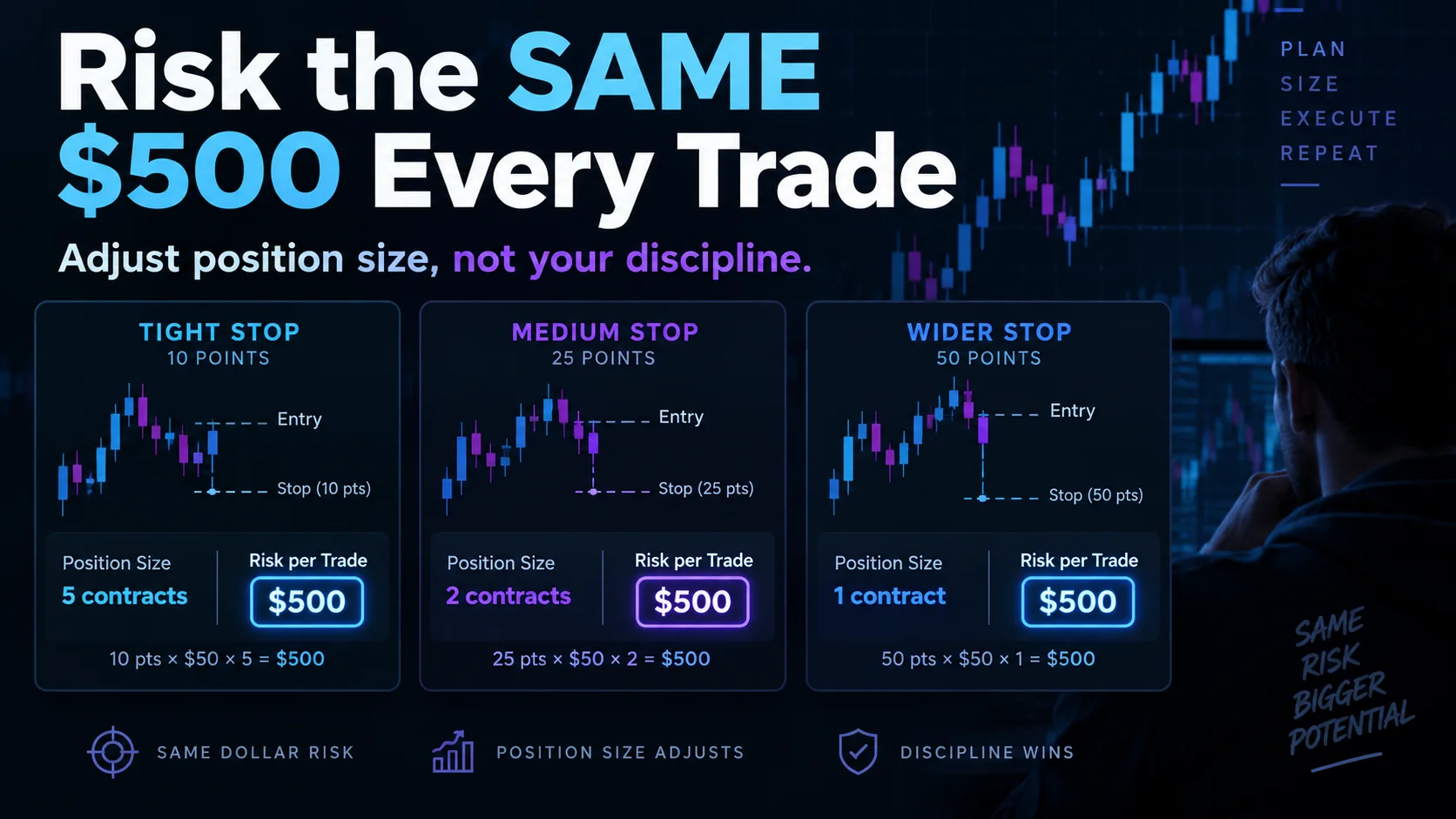
NinjaTrader Risk Per Trade: Risk $500 on Every Trade
NinjaTrader 8.1.8 Review: Should You Upgrade or Wait?
XABCD Pattern Alerts: The Complete Guide for Traders
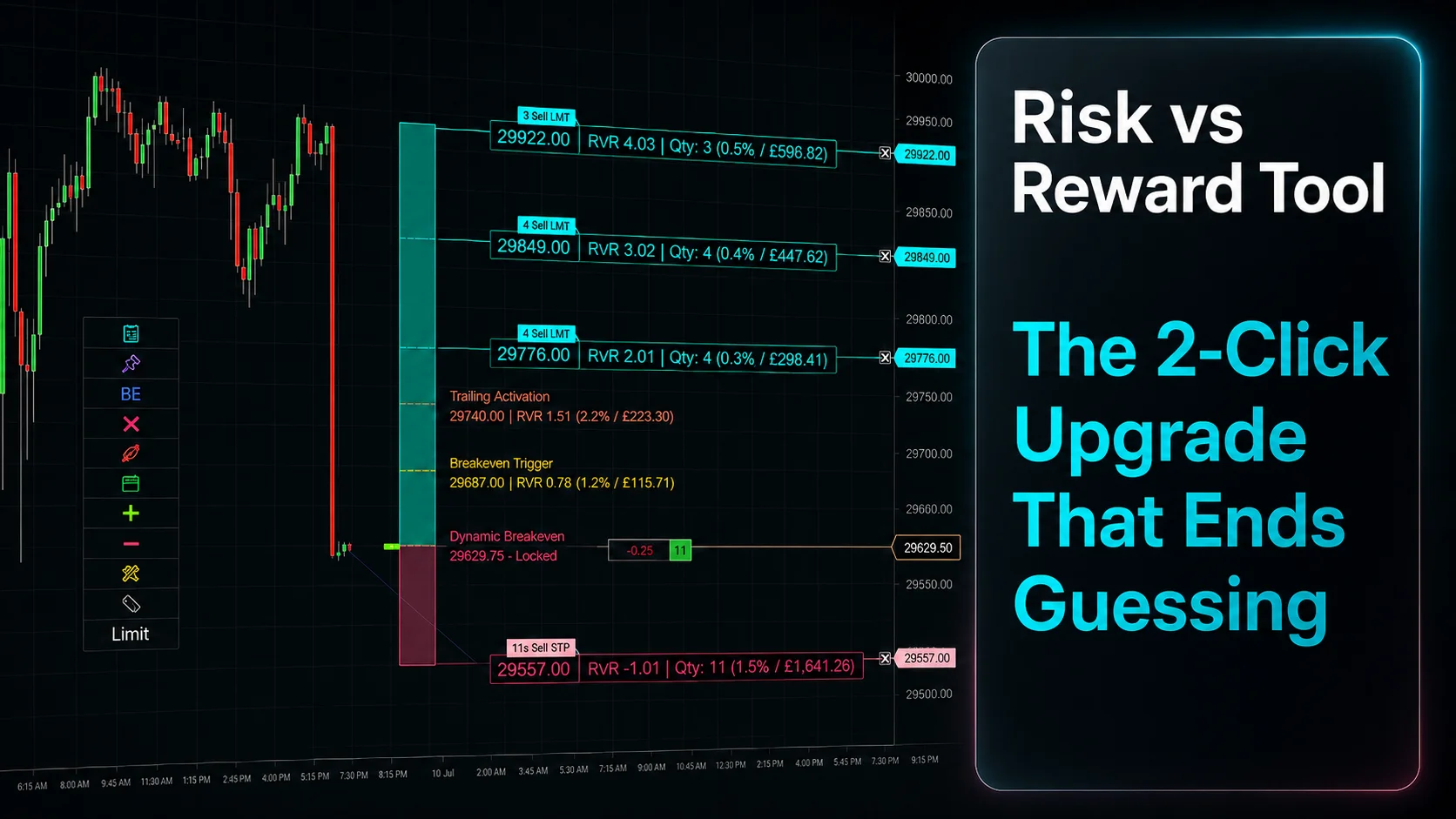
Risk vs Reward Tool: The 2-Click Upgrade That Ends Guessing
NinjaTrader Faster Last Price Updates on Charts Explained
NinjaTrader 8 Hotkeys: Best Shortcuts for Faster Trading