XABCD TRADING

5 Tips for Charting in NinjaTrader 8 You Need To Know
Subscribe
to get alerts to our next blog post!
5 Tips for Charting in NinjaTrader 8 That Will Come in Extremely Handy!
Here are 5 Charting in Ninjatrader 8 tips that we put together while using the platform. Leave us a comment below if there are any other good tricks that you can share.
Free Chart Movement
The control button holds secret powers in NinjaTrader 8. It's probably one of the most used buttons when I'm personally charting in NinjaTrader 8.
Step 1: Open a chart
Step 2: Hold down the control key on your keyboard (and keep it pushed down)
Step 3: Click and drag the chart around to move your orientation.
Step 1: Open a chart
Step 2: Hold down the control key on your keyboard (and keep it pushed down)
Step 3: Click and drag the chart around to move your orientation.
The Price Line Tool
This isn't built into NinjaTrader by default but you can get it here.
Step 1: Download the tool from the link above.
Step 2: Because we have produced, paid the developers and support this tool we just kindly ask that you like, subscribe or follow us.
Step 3: Fill out the form so we can generate your license key and email it to you.
Step 4: Wait, but soon you'll get your license key. We tend to do this in a couple hours but we will for sure get it to you in the next 12 hours. Sit tight and await your free key.
Step 1: Download the tool from the link above.
Step 2: Because we have produced, paid the developers and support this tool we just kindly ask that you like, subscribe or follow us.
Step 3: Fill out the form so we can generate your license key and email it to you.
Step 4: Wait, but soon you'll get your license key. We tend to do this in a couple hours but we will for sure get it to you in the next 12 hours. Sit tight and await your free key.
Sending Chart Objects Forward or Backwards
Understand that NinjaTrader 8 charts work in layers. If you have a drawing tool or an indicator that goes over top of the candle sticks but would rather have it behind the candlesticks you can send that drawing, or that indicator to the background. This can help make your charts more visible.
Step 1: Open a chart
Step 2: Select the object (drawing tool/indicator etc)
Step 3: Hold down the shift key and use the wheel on your mouse to move the object further to the background or the foreground. There are 15 different layers and you can send it as far back as you need.
Step 1: Open a chart
Step 2: Select the object (drawing tool/indicator etc)
Step 3: Hold down the shift key and use the wheel on your mouse to move the object further to the background or the foreground. There are 15 different layers and you can send it as far back as you need.
Default Templates
You can setup an NT8 chart to open the same way every single time. This way you don't have to reconfigure settings or add in your indicators all over again.
Step 1: Get a chart exactly the way you want it. This will be a template so that all your future charts will open with the same settings.
Step 2: Right click on the chart, go to templates -> save as. Call the name of the template "default" and hit save.
Step 1: Get a chart exactly the way you want it. This will be a template so that all your future charts will open with the same settings.
Step 2: Right click on the chart, go to templates -> save as. Call the name of the template "default" and hit save.
Using any other term except "default" would cause the pattern not to work any longer.
Setting Up Hot Key's
Hot Key's can be setup within the control center window (that's the first window that opens in NT8) .
Step 1: Select Tools -> Hot Key's from the Control Center window.
Step 2: Here you can select which aspect of the program you want to attach a hotkey too and program it.
All your hotkey's are stored in a file called UI.xml which is in your main MyDocuments/NinjaTrader 8/ folder if you ever want to back them up.
Step 1: Select Tools -> Hot Key's from the Control Center window.
Step 2: Here you can select which aspect of the program you want to attach a hotkey too and program it.
All your hotkey's are stored in a file called UI.xml which is in your main MyDocuments/NinjaTrader 8/ folder if you ever want to back them up.
New NinjaTrader Articles Delivered First

Easy Order Tool
The Strategy

Scanning & Alerting
NinjaTrader Release
XABCD News (Free Version)
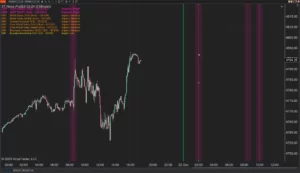
XABCD News (Community Edition) is the best free Indicator for NinjaTrader 8. Don't let news sneak up on you again. Puts economic news events on your charts so you can stay informed and move around positions/stops before the news is released. Works in any market.
XABCD Priceline (Free)
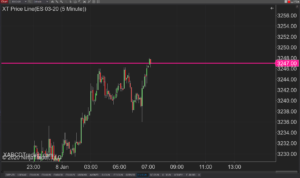
XABCD Price Line tool for NinjaTrader 8 will draw a line at current price and move every time the market changes price. This is useful because it will allow you to easily identify where price is at all times and the exact quoted price.
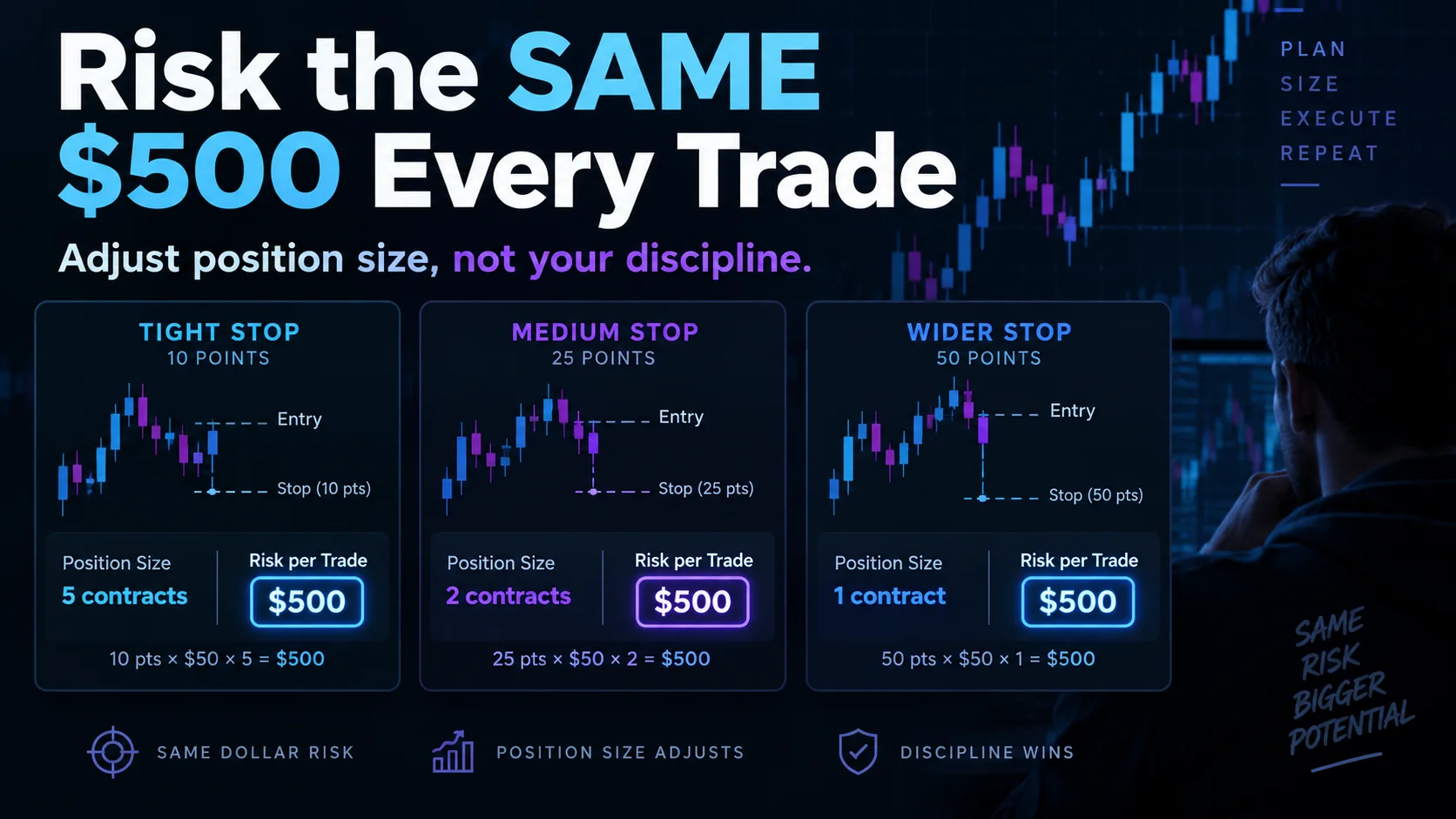
NinjaTrader Risk Per Trade: Risk $500 on Every Trade
NinjaTrader 8.1.8 Review: Should You Upgrade or Wait?
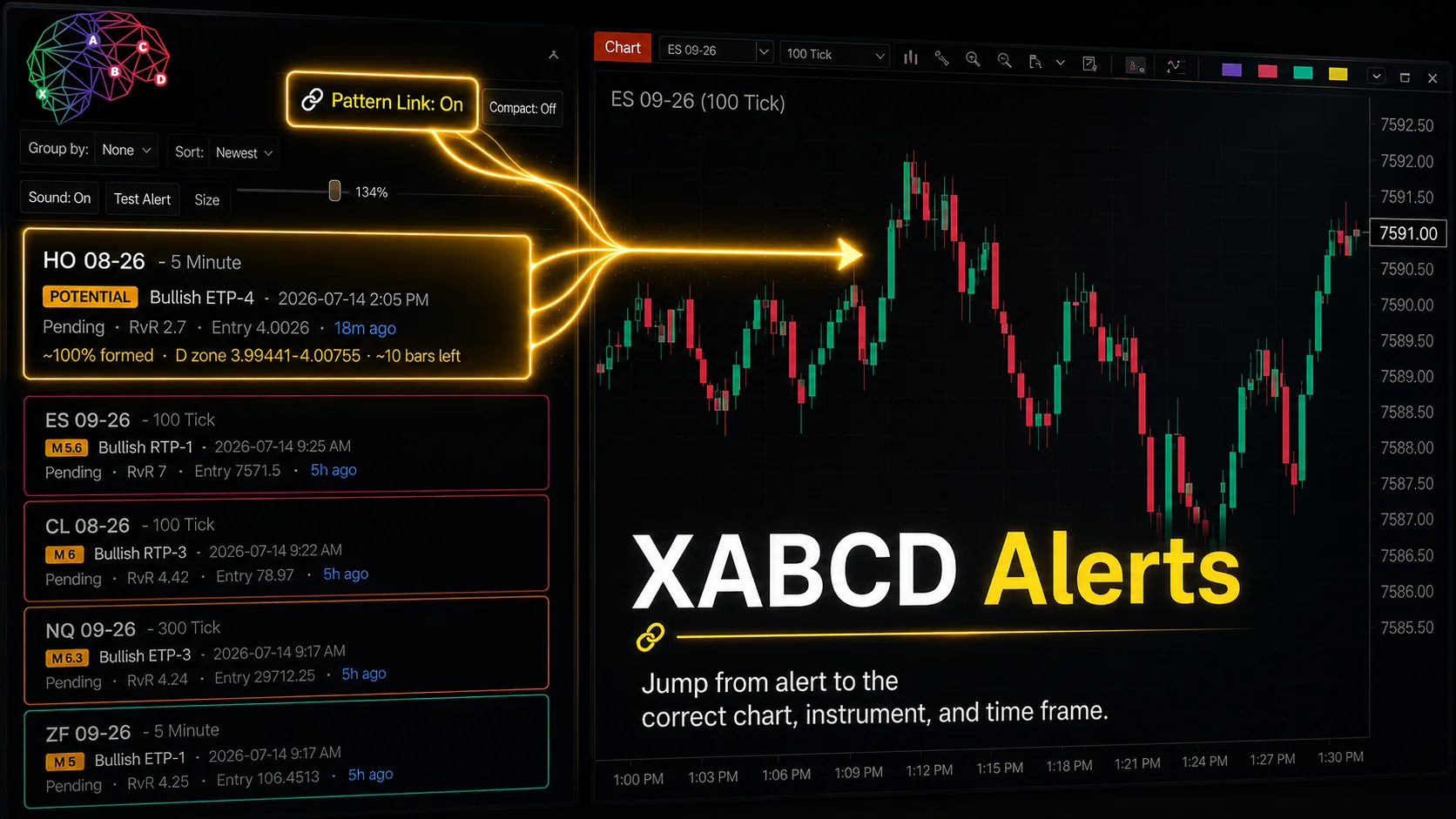
XABCD Pattern Alerts: The Complete Guide for Traders
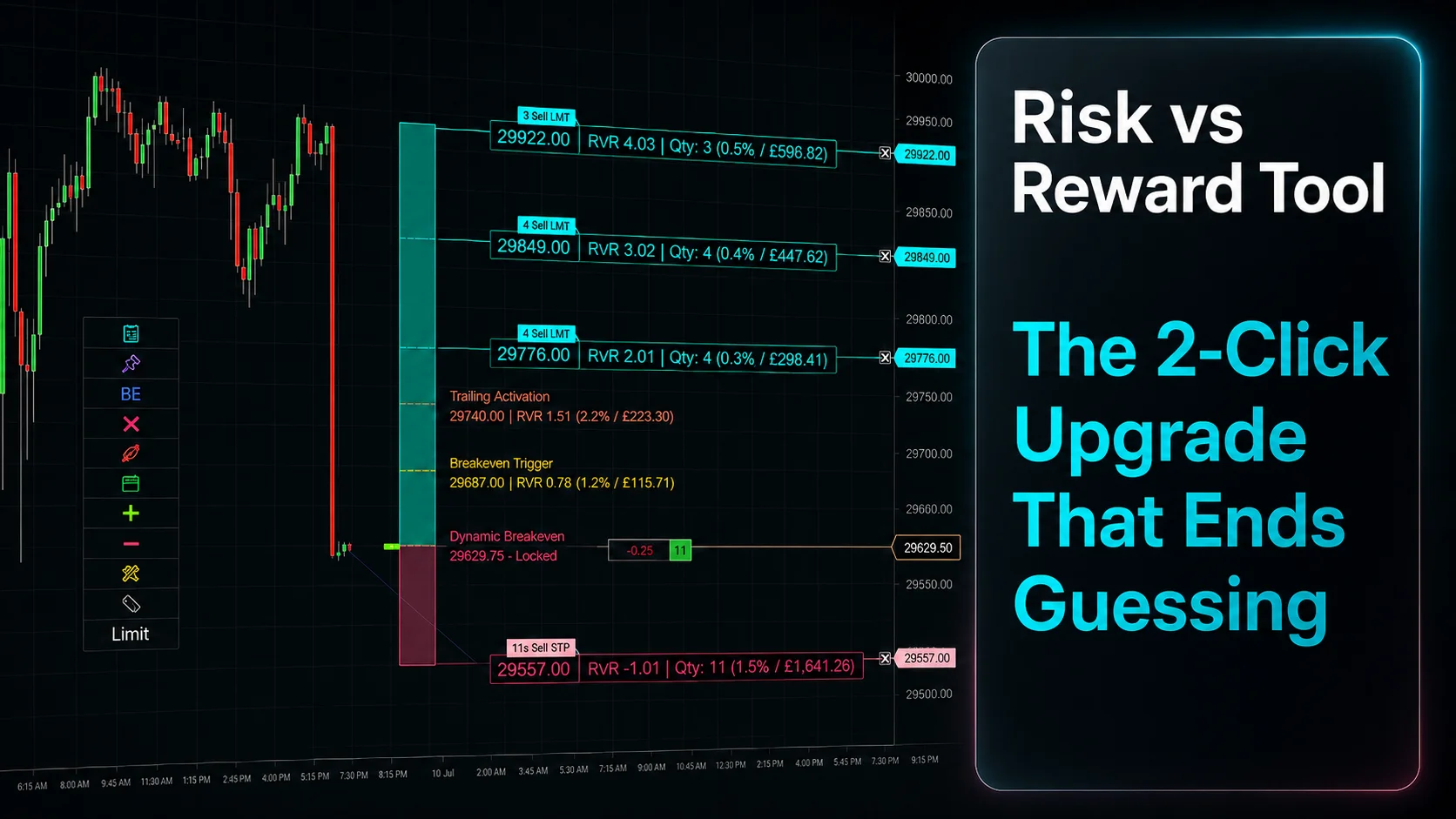
Risk vs Reward Tool: The 2-Click Upgrade That Ends Guessing
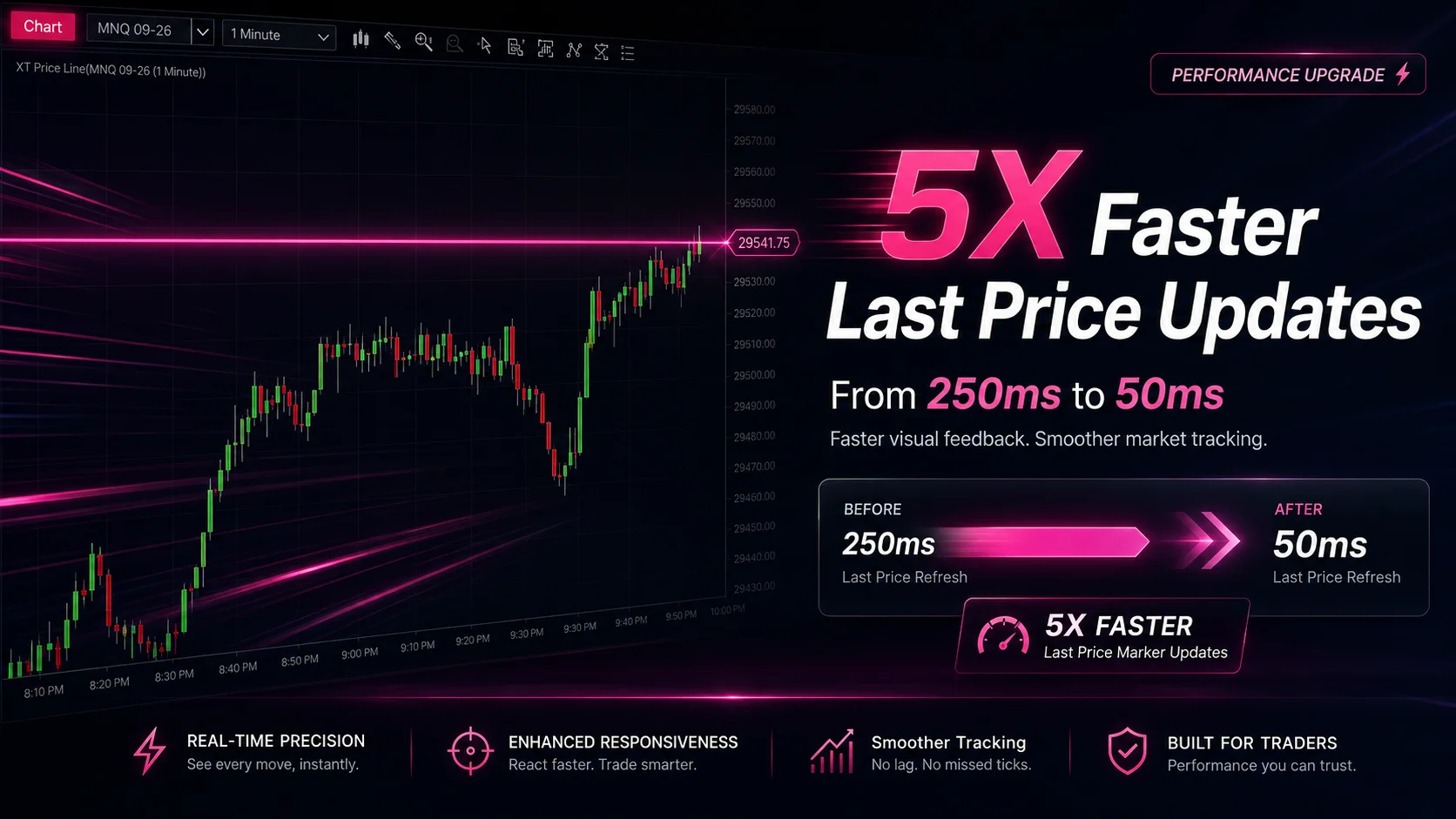
NinjaTrader Faster Last Price Updates on Charts Explained
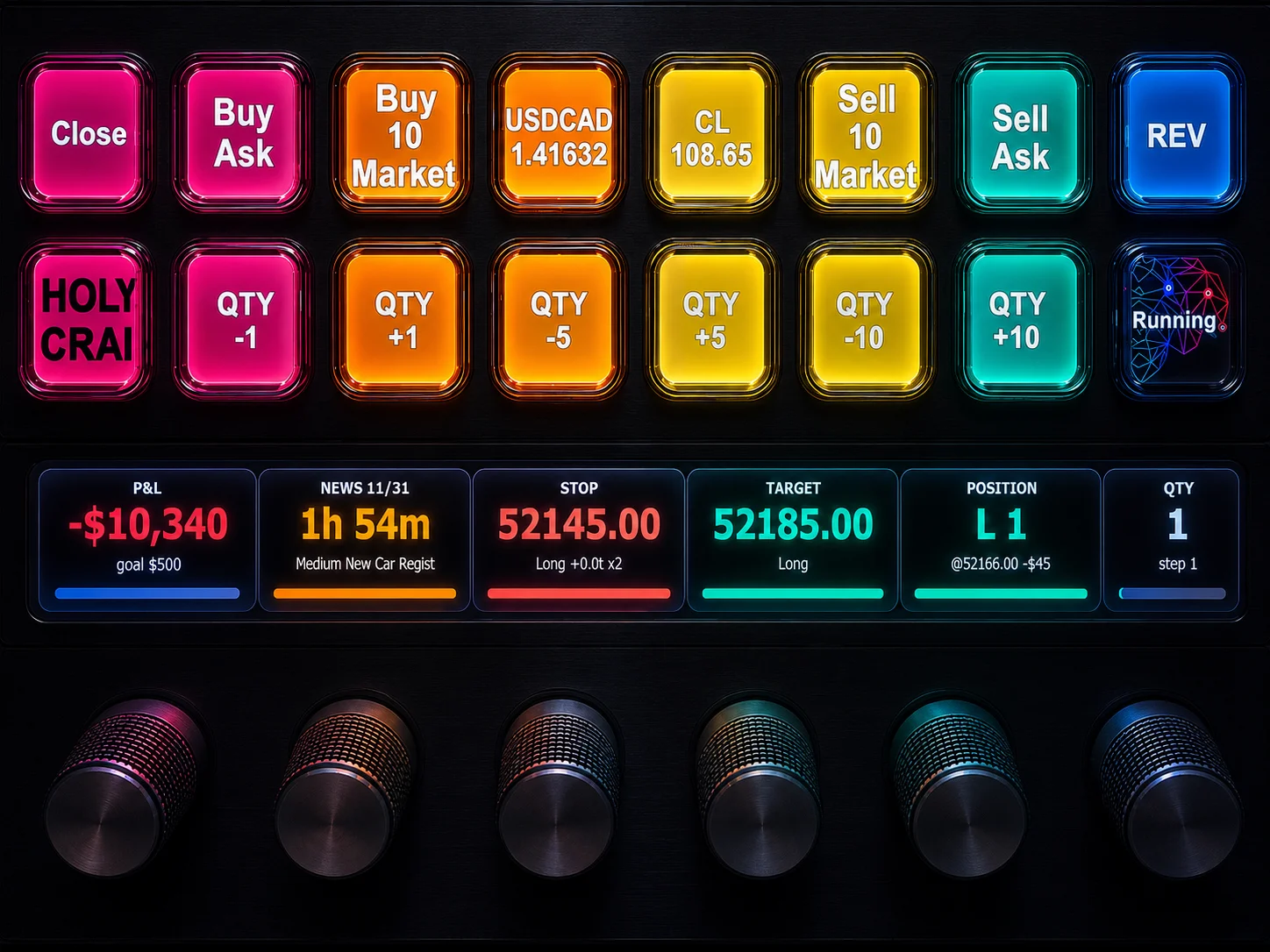
NinjaTrader 8 Hotkeys: Best Shortcuts for Faster Trading
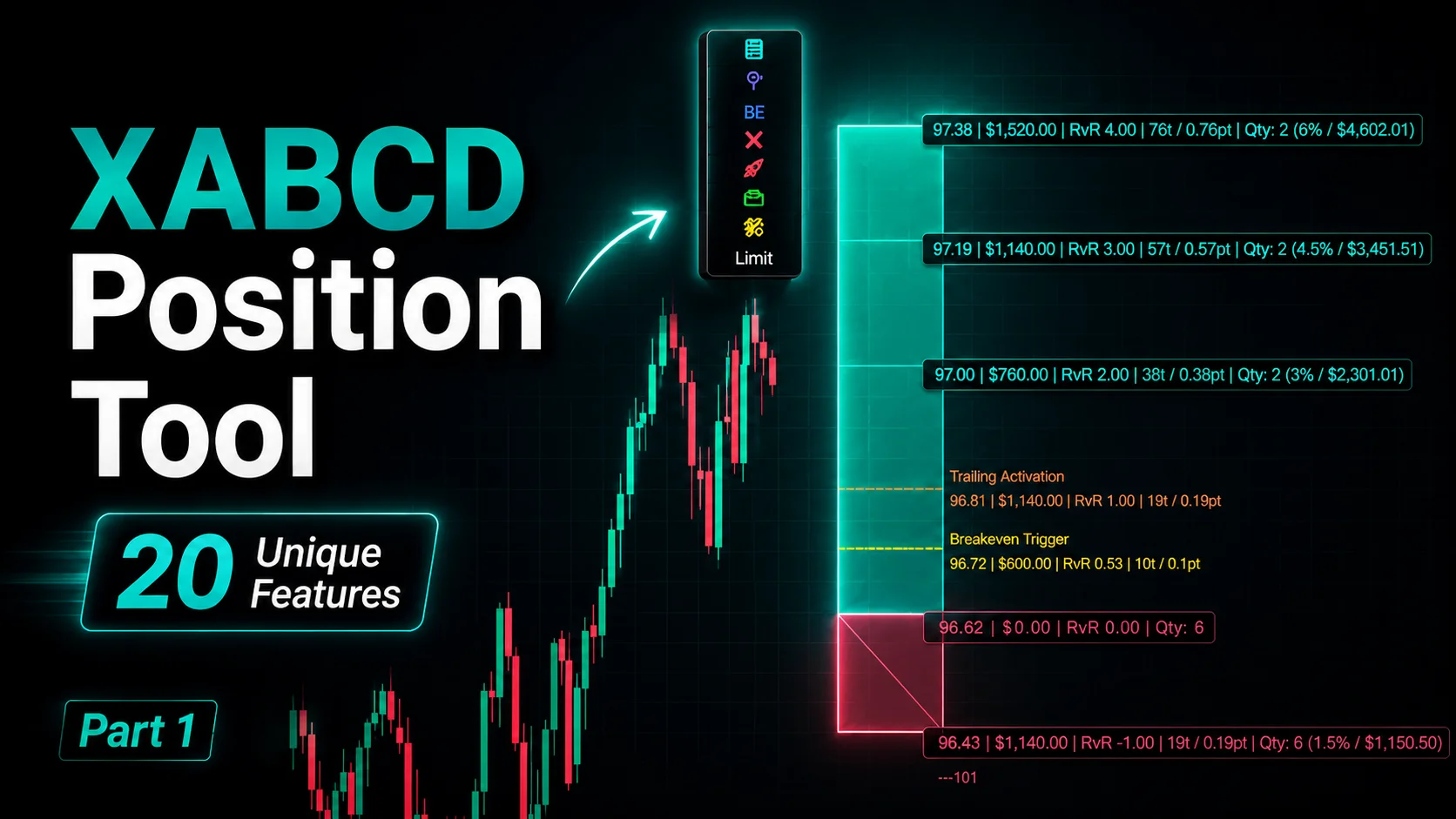
NinjaTrader Position Sizing Tool: 64 Features Stock NT8 Does Not Include
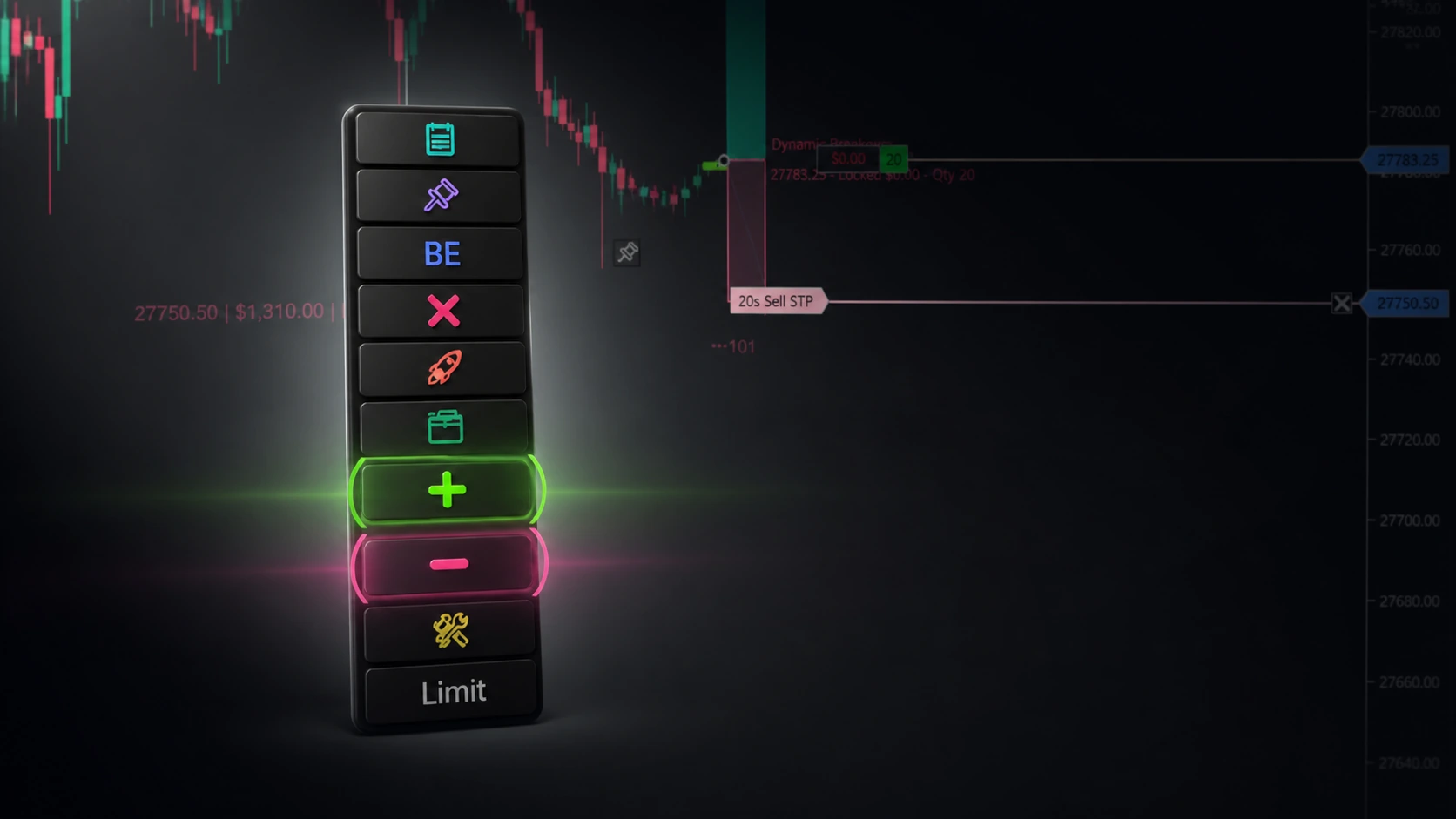
NinjaTrader – Adding to Position: A Field Guide for Active Traders
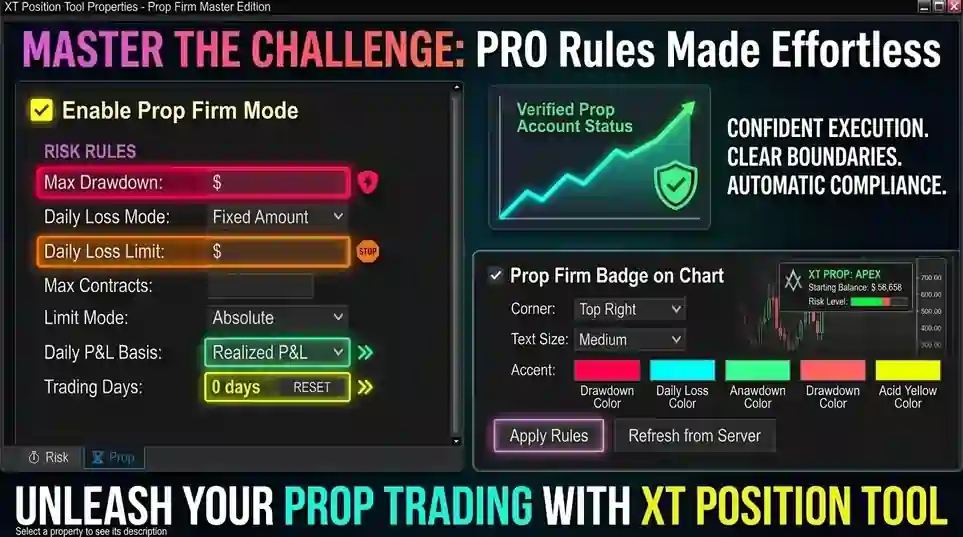
NinjaTrader Prop: The Ultimate Guide to Prop Firm Trading