XABCD TRADING

How to Get Cryptocurrency and Bitcoin Working in NinjaTrader in 2025?
Subscribe
to get alerts to our next blog post!
Does NinjaTrader Work With Bitcoin or Cryptocurrency?
Yes, NinjaTrader added a coinbase connection in build 8.0.15.0. Coinbase made changes to the API which stopped NinjaTrader 8.1.3 from working. NinjaTrader made these changes and got it working again in 8.4.1.
What You Can Do
Many traders choose NinjaTrader for its exceptional charting capabilities and use their broker's platform to execute trades. The combination of advanced charting, scanning tools, and access to Coinbase through NinjaTrader has become an increasingly popular choice.
What You Can't Do
Trading the actual cryptocurrency or its private keys can't be done in NinjaTrader 8. However, you can trade Bitcoin futures, as they are listed on a regulated futures exchange, but direct cryptocurrency trading is not supported.
Which Cryptocurrency is Supported with NinjaTrader?
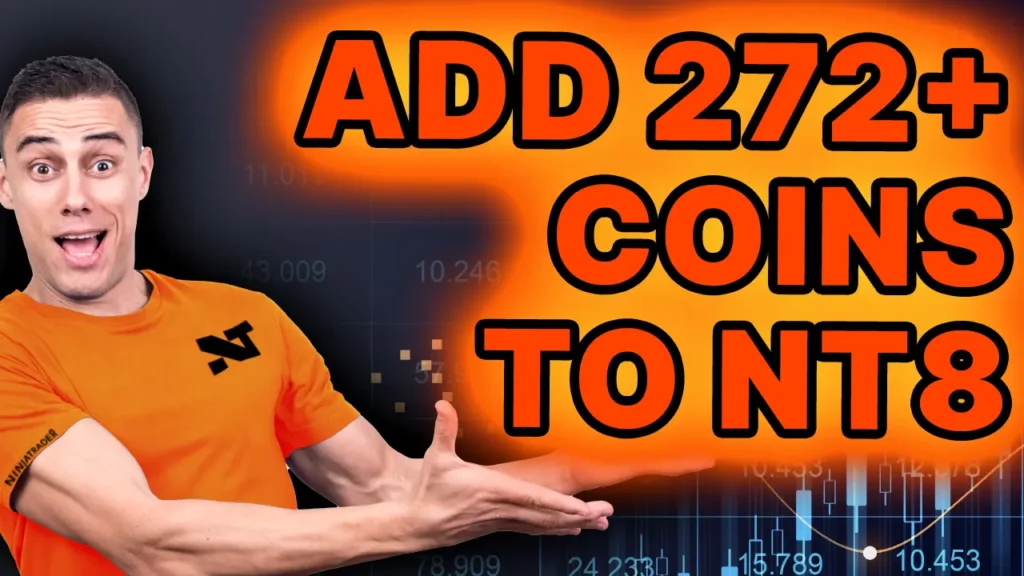
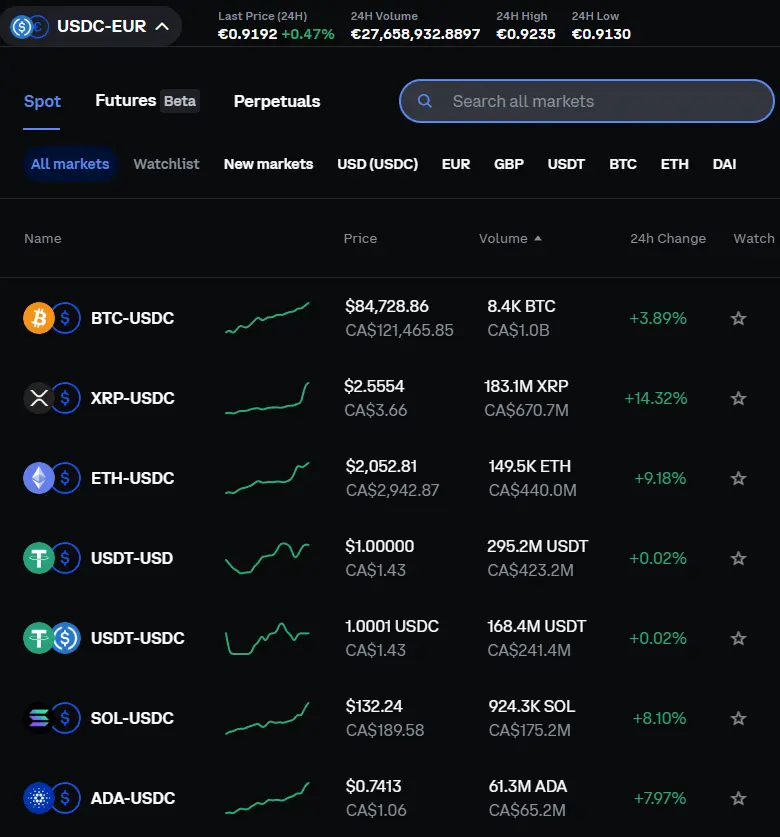
Anything that is supported by coinbase. You can find a full list on their website here by clicking in their search bar. There are over 14,000 assets.
So yes, you can see the BTC, ETH, LTC, BCH, ADA, SOL, DOGE, DOT,SHIB, USDC etc... head over to coinbase site for a full list and then follow the instructions below to add them.
Where Do You get the Coinbase URL for Custom Symbols?
When you create a Custom Instrument in NinjaTrader 8 for Coinbase data, you aren’t guessing at some hidden URL — you simply point NT8 at Coinbase’s public API endpoints. Here’s exactly what you need:
Eg: 1) Go here: https://pro.coinbase.com/ and do a search "BTC" and select the BTC-USD. You will see the url for that page changes to: https://pro.coinbase.com/trade/BTC-USD which is the url you need to use in your instrument manager.
Below you will see where you can do a search at coinbase to find out which symbols they have and then to select them and grab the url for the instrument manager.
How do I connect Coinbase to NinjaTrader?
If you want to connect Coinbase to NinjaTrader, here’s a simple guide to help you out. Just make sure you’re using NinjaTrader version 8.1.4 or higher before getting started. If you're not, update your software first!
Step 1: Open NinjaTrader
Launch NinjaTrader and go to the Control Center.
Click on Connections > Configure.
Step 2: Set Up Coinbase Connection
In the Connection Configuration window:
- Click Add to create a new connection.
- Select Coinbase from the list.
Give the connection a name you’ll recognize (like “Coinbase”). No API keys or special credentials are needed—NinjaTrader handles it for you!
- Click Add to create a new connection.
- Select Coinbase from the list.
Give the connection a name you’ll recognize (like “Coinbase”). No API keys or special credentials are needed—NinjaTrader handles it for you!
Step 3: Connect to Coinbase
Once the connection is created, click Connections > Coinbase to activate it.
If the connection is successful, you’ll see a confirmation message. You can now access Coinbase data directly in NinjaTrader.
Step 4: Start Using Coinbase in NinjaTrader
- View cryptocurrency market data in NinjaTrader’s charts and tools.
- Use the live data to analyze trends or trade within the platform if trading is supported.
- Use the live data to analyze trends or trade within the platform if trading is supported.
Can I Trade Cryptocurrencies Live on NinjaTrader?
No, live trading for cryptocurrencies is not currently available on NinjaTrader. The Coinbase connection is designed only for simulation trading, which means you can analyze cryptocurrency markets, practice strategies, and use NinjaTrader's tools in a simulated environment—but you cannot execute live trades.
What Can You Do with the Coinbase Connection in NinjaTrader 8?
- Simulation Trading: Use NinjaTrader to simulate trades based on real-time or historical cryptocurrency data.
- Charting and Analysis: Access NinjaTrader’s advanced charting tools to analyze crypto markets.
- Practice Strategies: Test your trading strategies in a risk-free simulation mode.
- Market Data: View price movements for supported cryptocurrencies in real-time.
New NinjaTrader Articles Delivered First
 (opens in a new tab)
Easy Order Tool
The Strategy


Scanning & Alerting

NinjaTrader Release
XABCD News (Free Version)
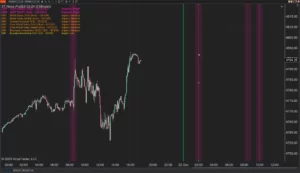
XABCD News (Community Edition) is the best free Indicator for NinjaTrader 8. Don't let news sneak up on you again. Puts economic news events on your charts so you can stay informed and move around positions/stops before the news is released. Works in any market.
XABCD Priceline (Free)
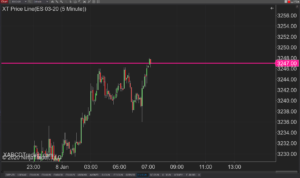
XABCD Price Line tool for NinjaTrader 8 will draw a line at current price and move every time the market changes price. This is useful because it will allow you to easily identify where price is at all times and the exact quoted price.
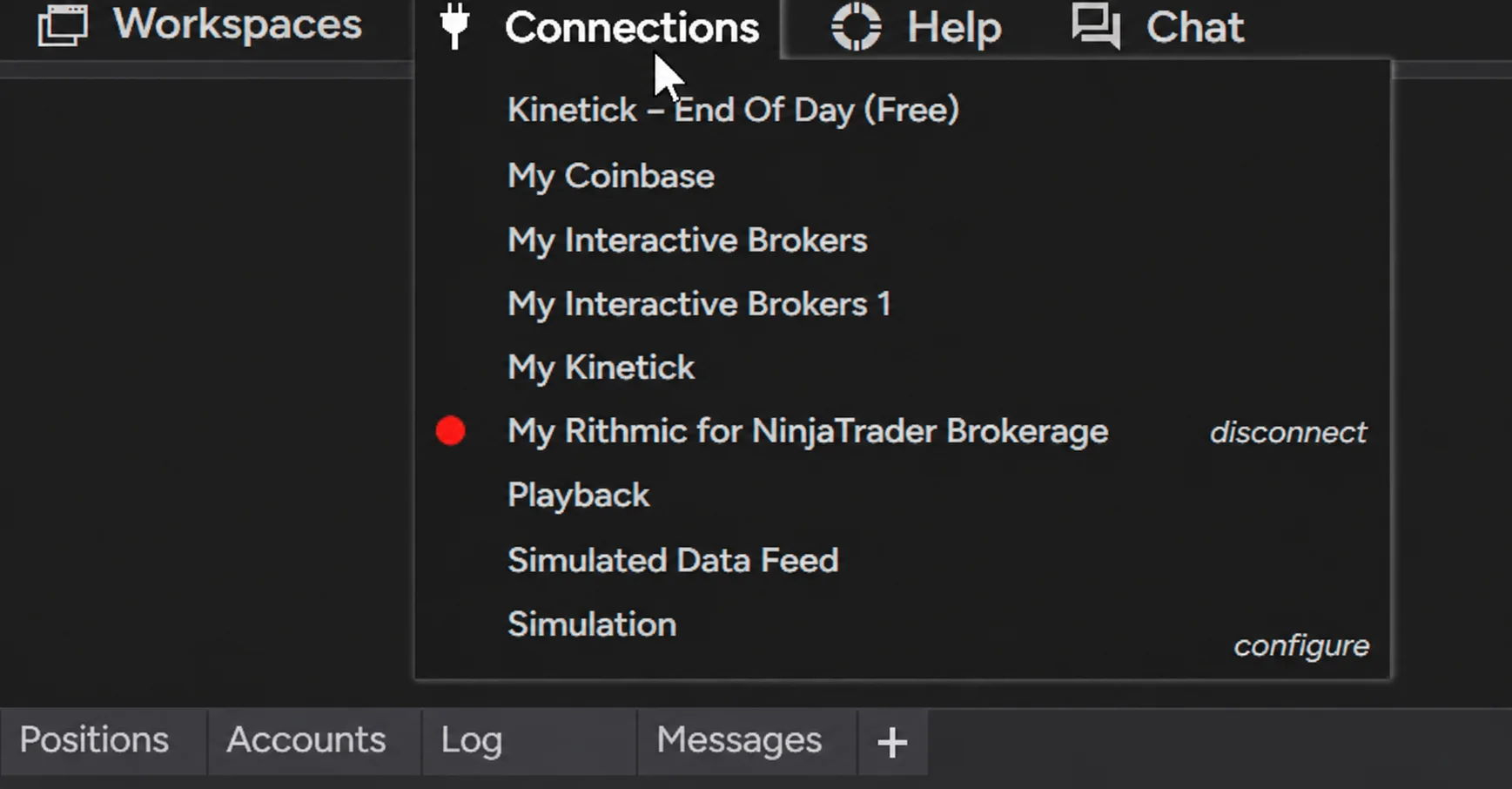
NinjaTrader Data Feed Not Updating? Quick Fixes

NinjaTrader Risk Per Trade: Risk $500 on Every Trade
NinjaTrader 8.1.8 Review: Should You Upgrade or Wait?
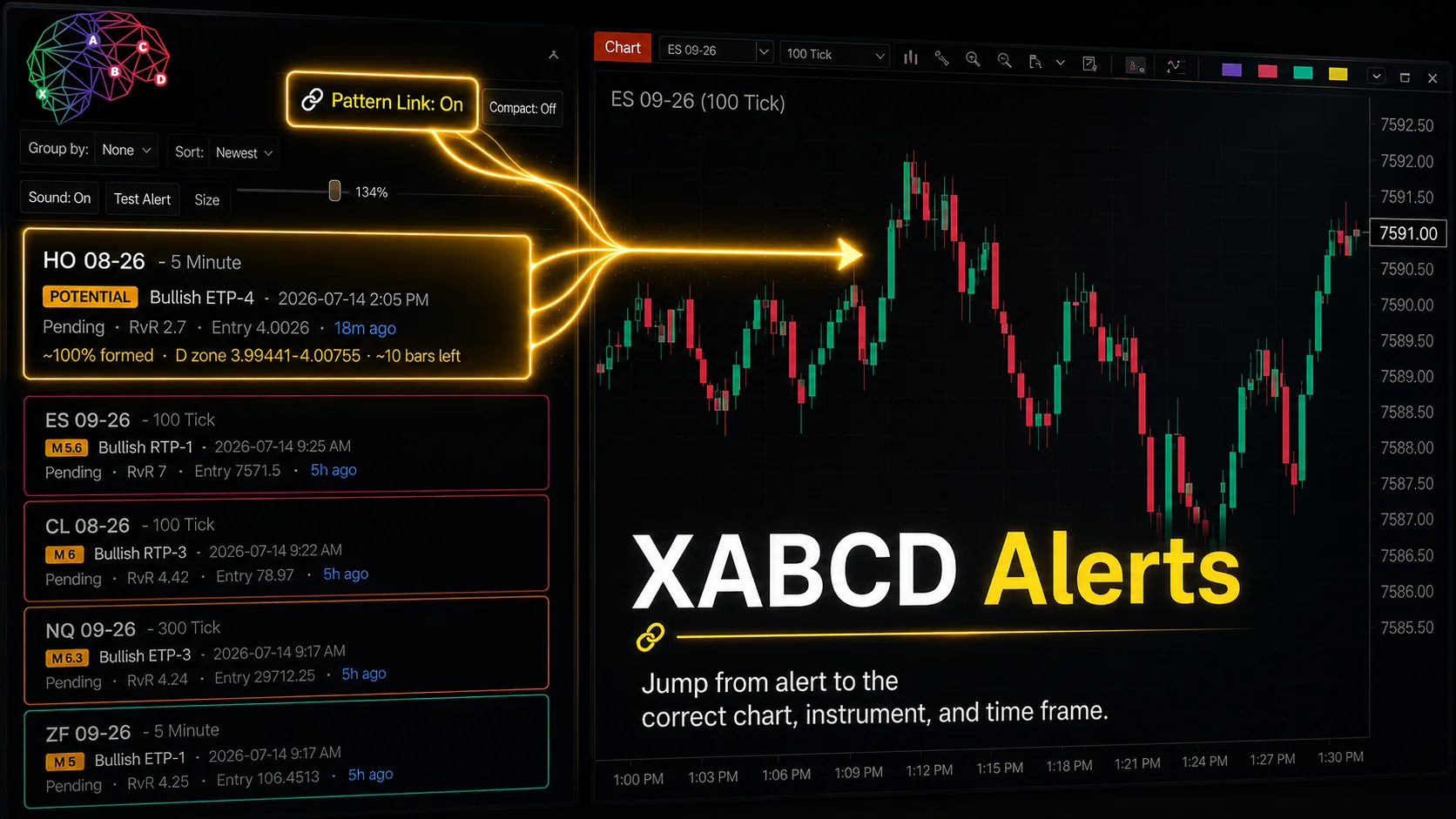
XABCD Pattern Alerts: The Complete Guide for Traders
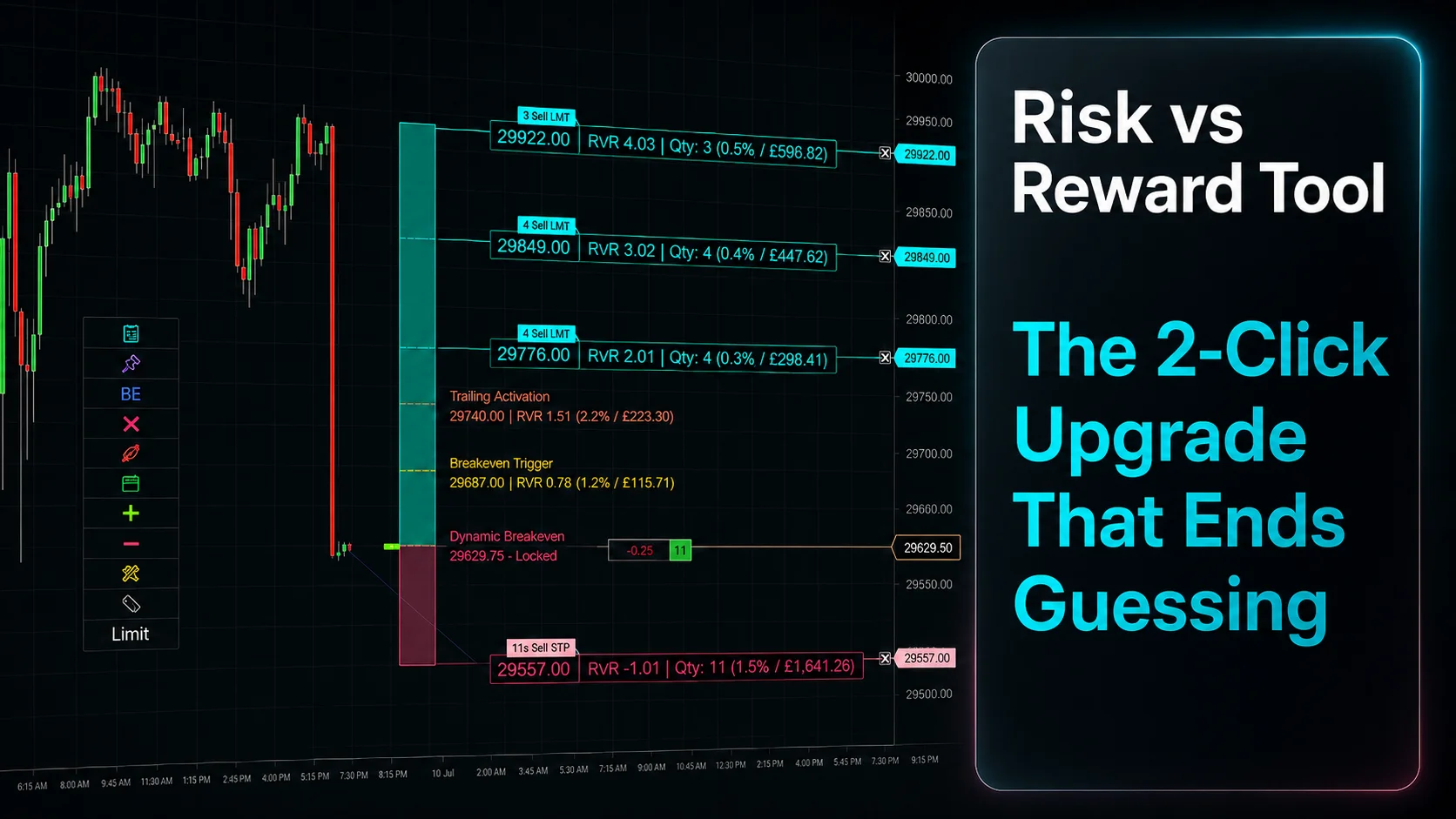
Risk vs Reward Tool: The 2-Click Upgrade That Ends Guessing
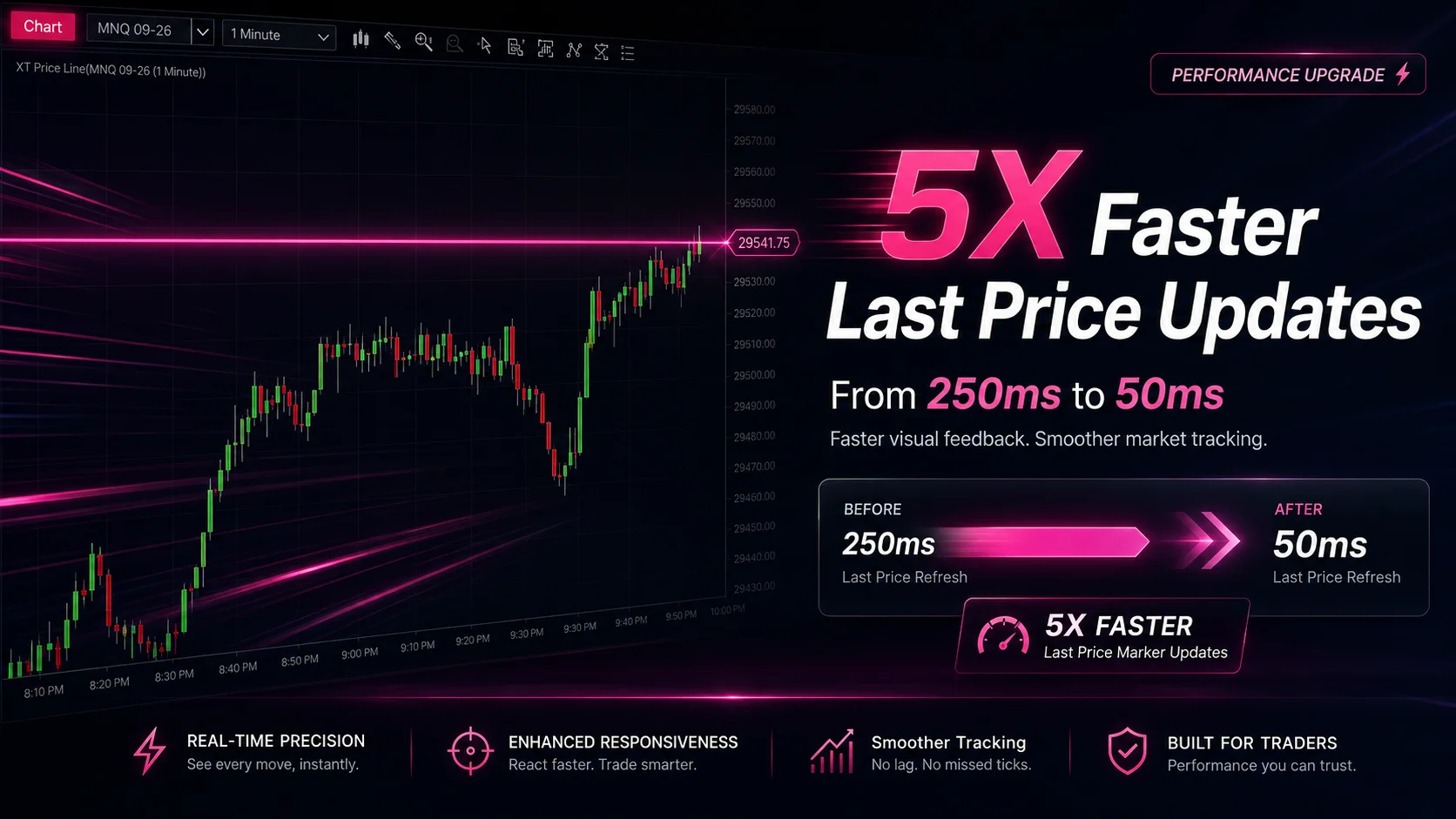
NinjaTrader Faster Last Price Updates on Charts Explained
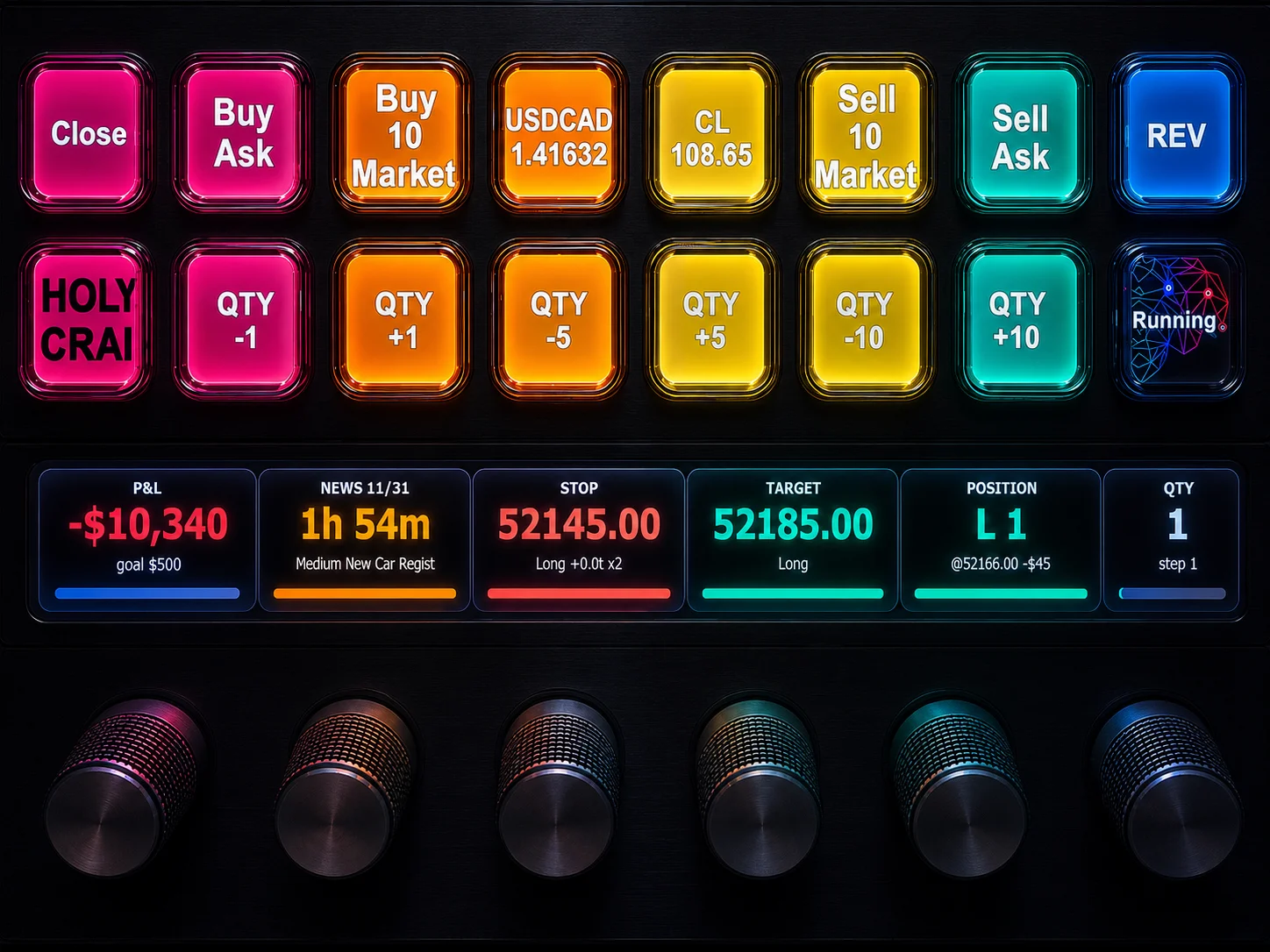
NinjaTrader 8 Hotkeys: Best Shortcuts for Faster Trading
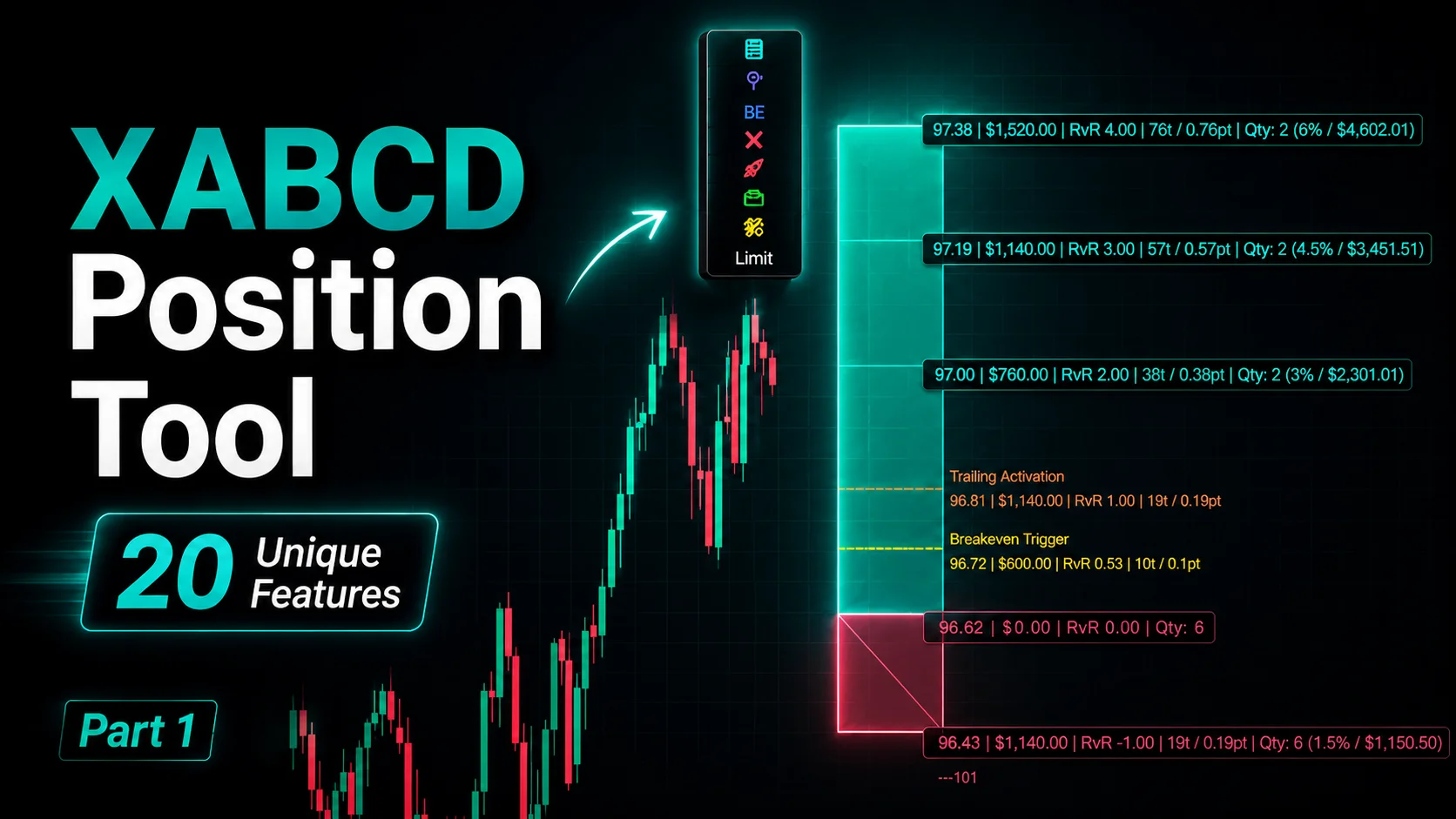
NinjaTrader Position Sizing Tool: 64 Features Stock NT8 Does Not Include
NinjaTrader – Adding to Position: A Field Guide for Active Traders