XABCD TRADING

4 Purposes of the Middle Mouse Button in NinjaTrader 8?
Subscribe
to get alerts to our next blog post!
What To Do With The Middle Button in NT8?
Chart Details Popup Box
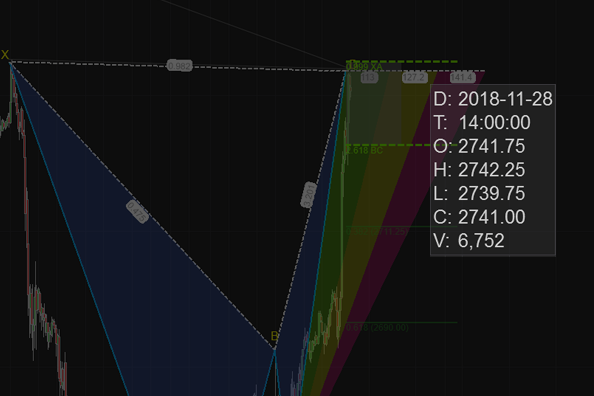
On any of the NinjaTrader 8 charts, all you need to do is push the middle mouse button down at any point.
This will activate a box telling you the date, time, open, high, low, close and volume.
The reason this is very useful (or the main reason I use it) is because it will give you more specific information about any point on the chart. Sometimes you will see the date at the bottom, but you can't see every date (or every time) as they are in intervals. When pushing the middle button at any point on the chart you will get the specific day/time for that candlestick which can be very helpful.
Quick Order Quantity Box
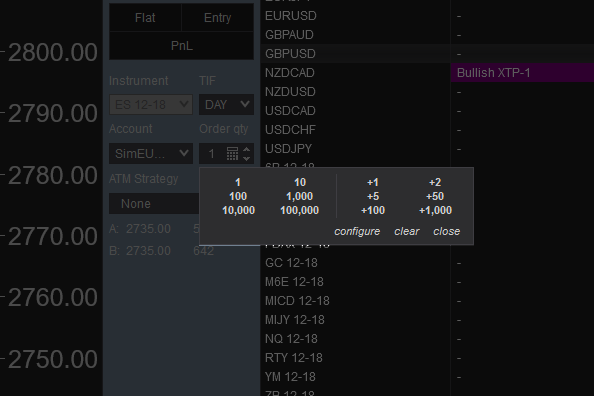
This next one is quite simple. When you have your mouse cursor over the quantity field for instance, press down on the middle mouse button. A quick select menu that can be customized with different order quantities for quick section will pop up.
This is just another customization feature you can take advantage of to save time if your used to entering the same order quanity with different sizes over and over again.
SuperDOM and Stops
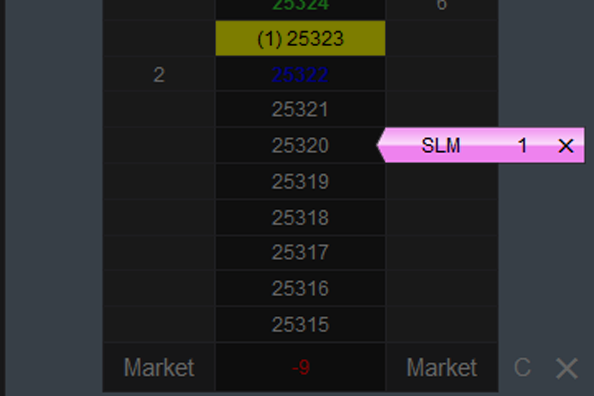
Middle button on the superdom will allow you to enter stop limit orders. In fact, this is probably one of the first features of the middle button you might use. Just place the middle mouse button on the ladder. Then watch what happens as the stop order gets placed. I would suggest doing this on a demo account first so you understand the use it. Once you get it, using the middle button in this fashion will certainly help you.
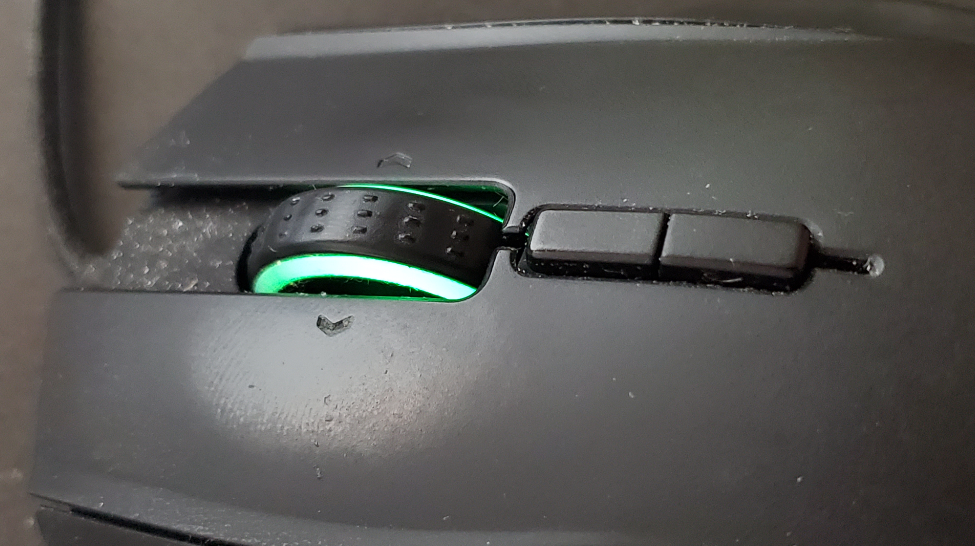
There is no "other way" to do this because it is a requirement for that 3rd mouse button. If your mouse doesn't have a middle button you will need to go shopping for a mouse that does have 3 buttons. Check before buying a new mouse that the wheel itself doesn't act as a 3rd middle button as most do.
Auto Market Price
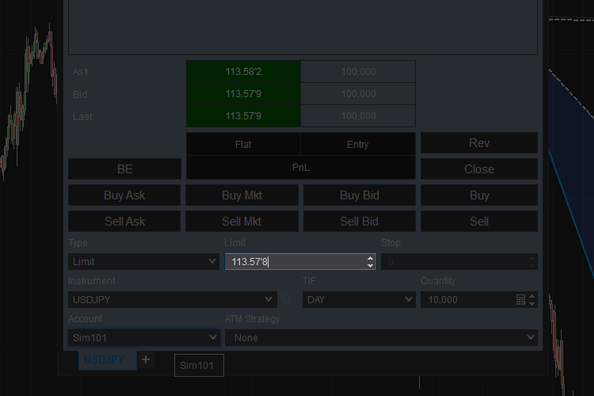
You can auto-input the current market price with the middle button too. If there is a window that you must input a price such as Limit Price or Stop Price. You can middle click in the cell it will automatically input the current market price.
Need A 3rd Mouse Button?
I highly recommend the razer naga chroma. Many of our members have used this mouse as you can do so much with it. Watch the video below to see some other cool tricks:
New NinjaTrader Articles Delivered First
 (opens in a new tab)
Easy Order Tool
The Strategy


Scanning & Alerting

NinjaTrader Release
XABCD News (Free Version)
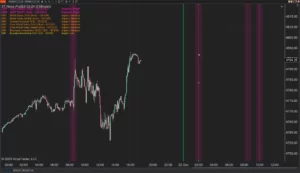
XABCD News (Community Edition) is the best free Indicator for NinjaTrader 8. Don't let news sneak up on you again. Puts economic news events on your charts so you can stay informed and move around positions/stops before the news is released. Works in any market.
XABCD Priceline (Free)
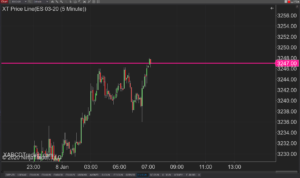
XABCD Price Line tool for NinjaTrader 8 will draw a line at current price and move every time the market changes price. This is useful because it will allow you to easily identify where price is at all times and the exact quoted price.
NinjaTrader Data Feed Not Updating? Quick Fixes

NinjaTrader Risk Per Trade: Risk $500 on Every Trade
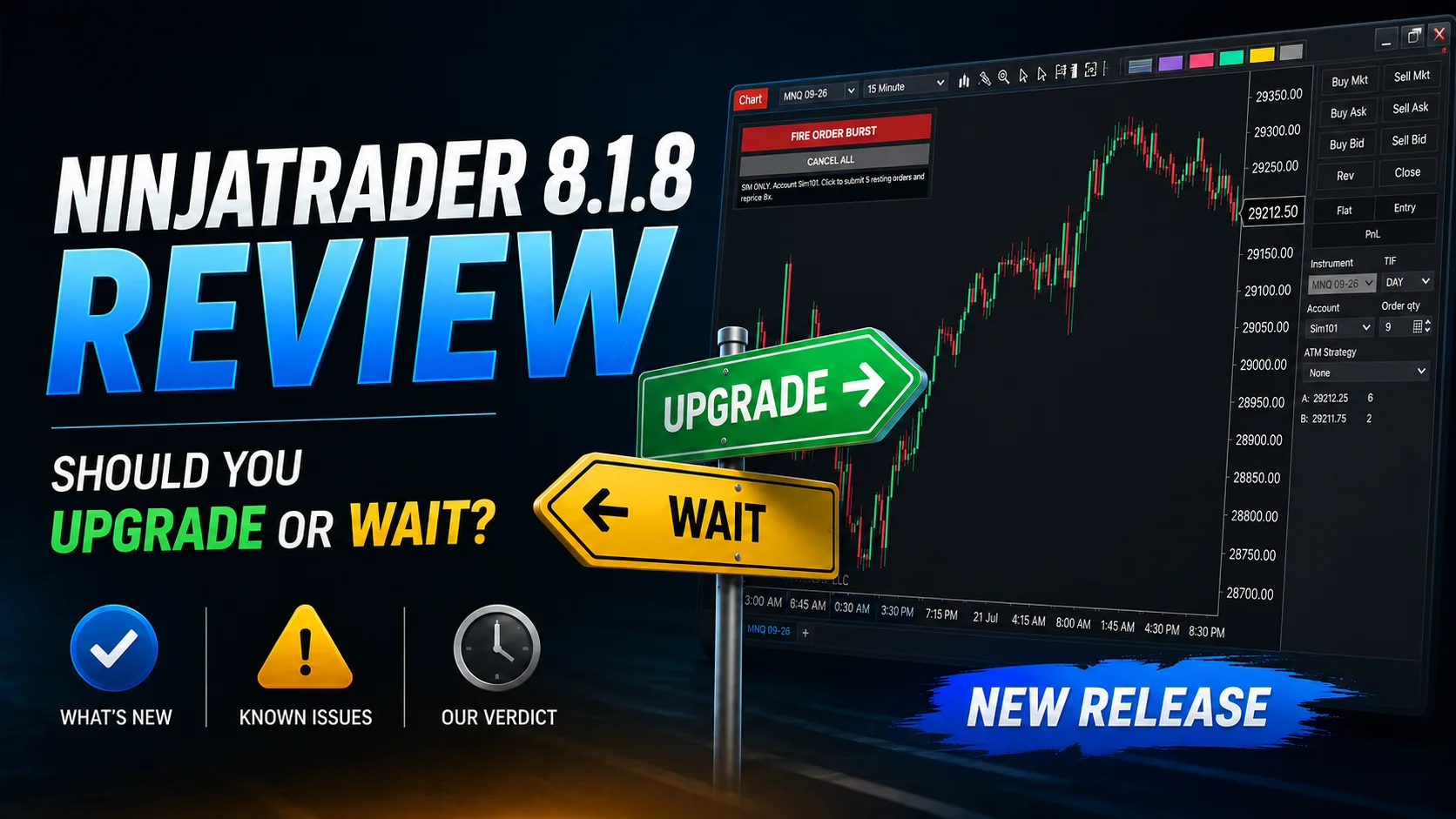
NinjaTrader 8.1.8 Review: Should You Upgrade or Wait?
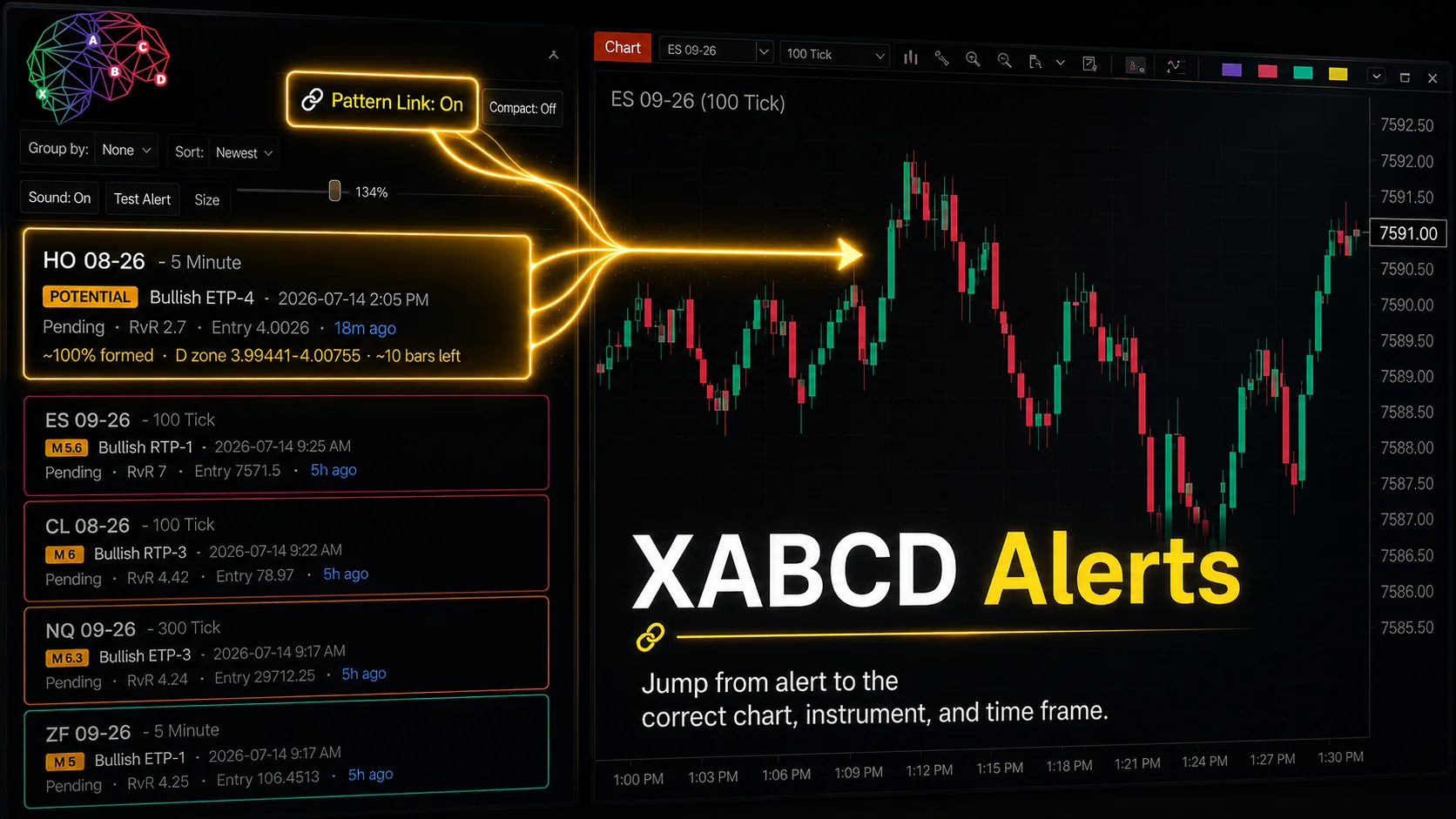
XABCD Pattern Alerts: The Complete Guide for Traders
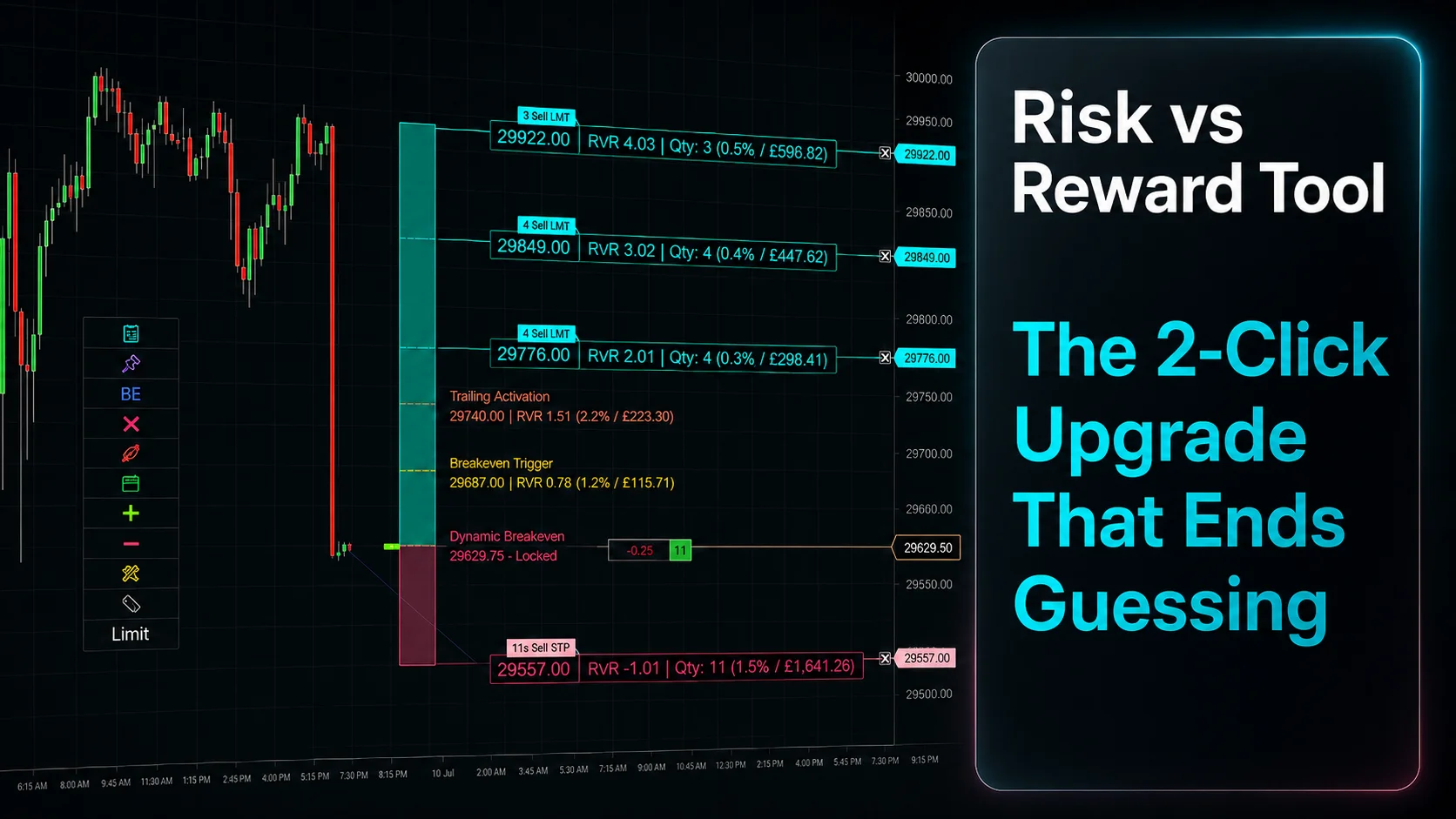
Risk vs Reward Tool: The 2-Click Upgrade That Ends Guessing
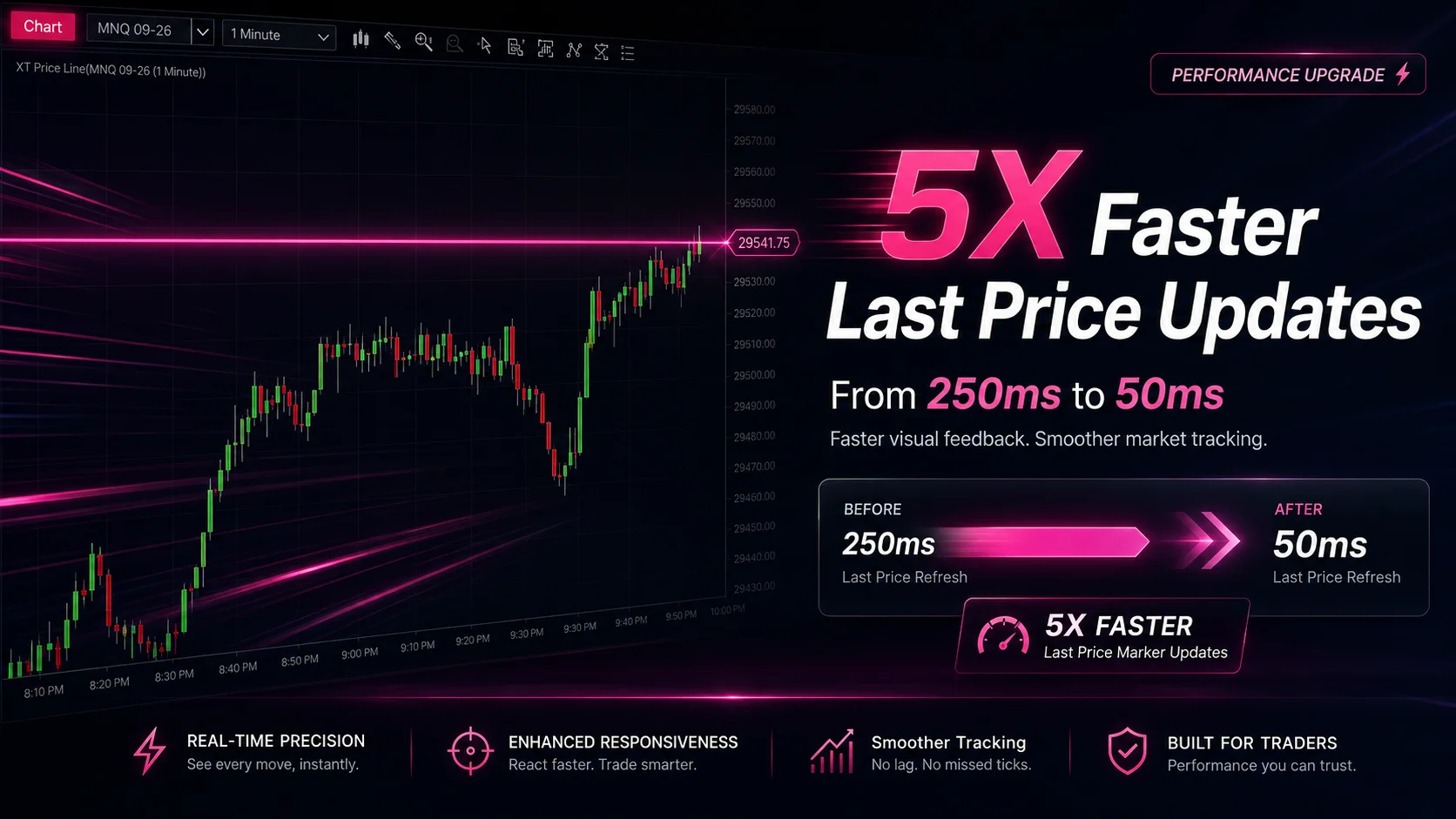
NinjaTrader Faster Last Price Updates on Charts Explained
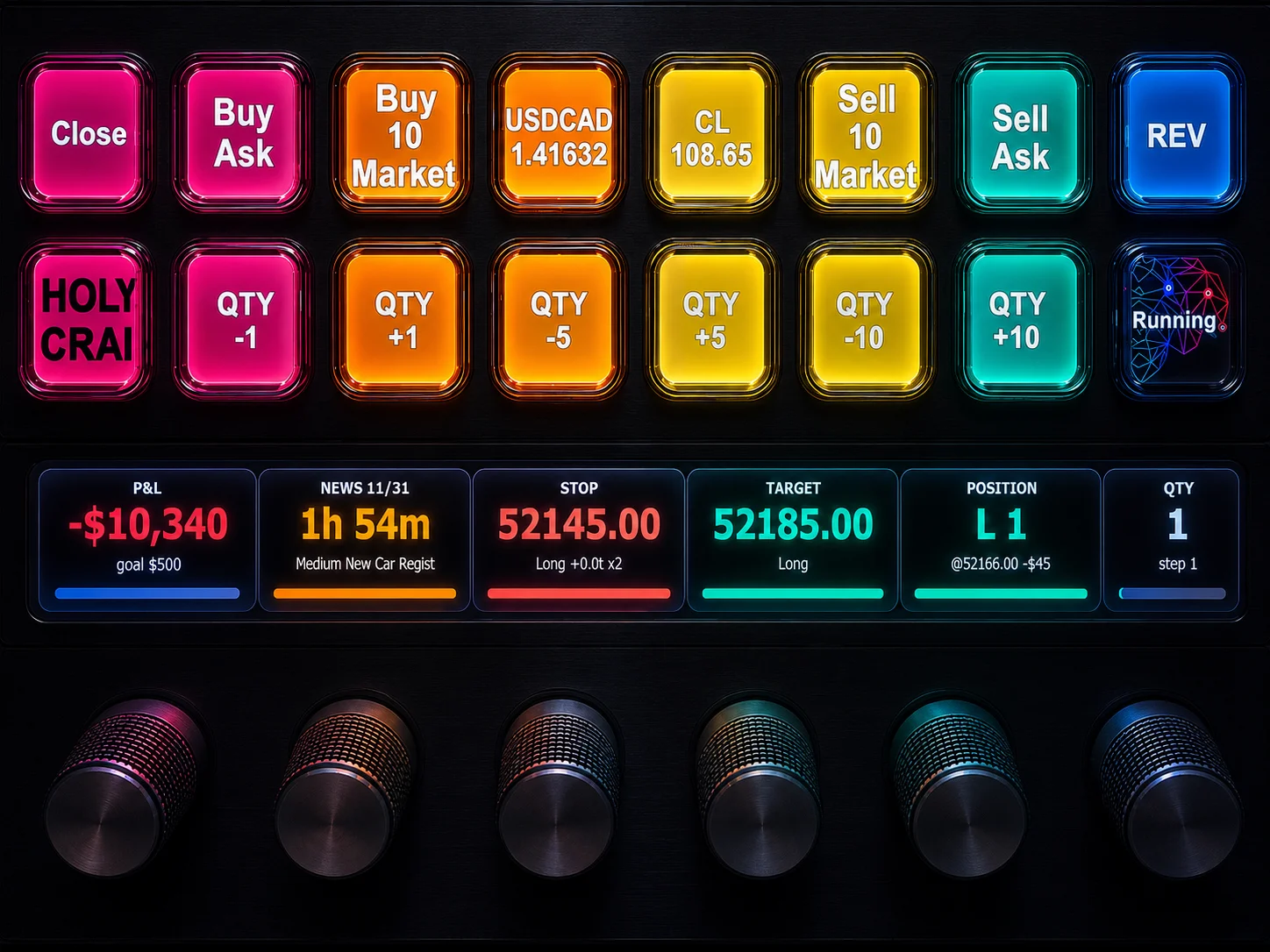
NinjaTrader 8 Hotkeys: Best Shortcuts for Faster Trading
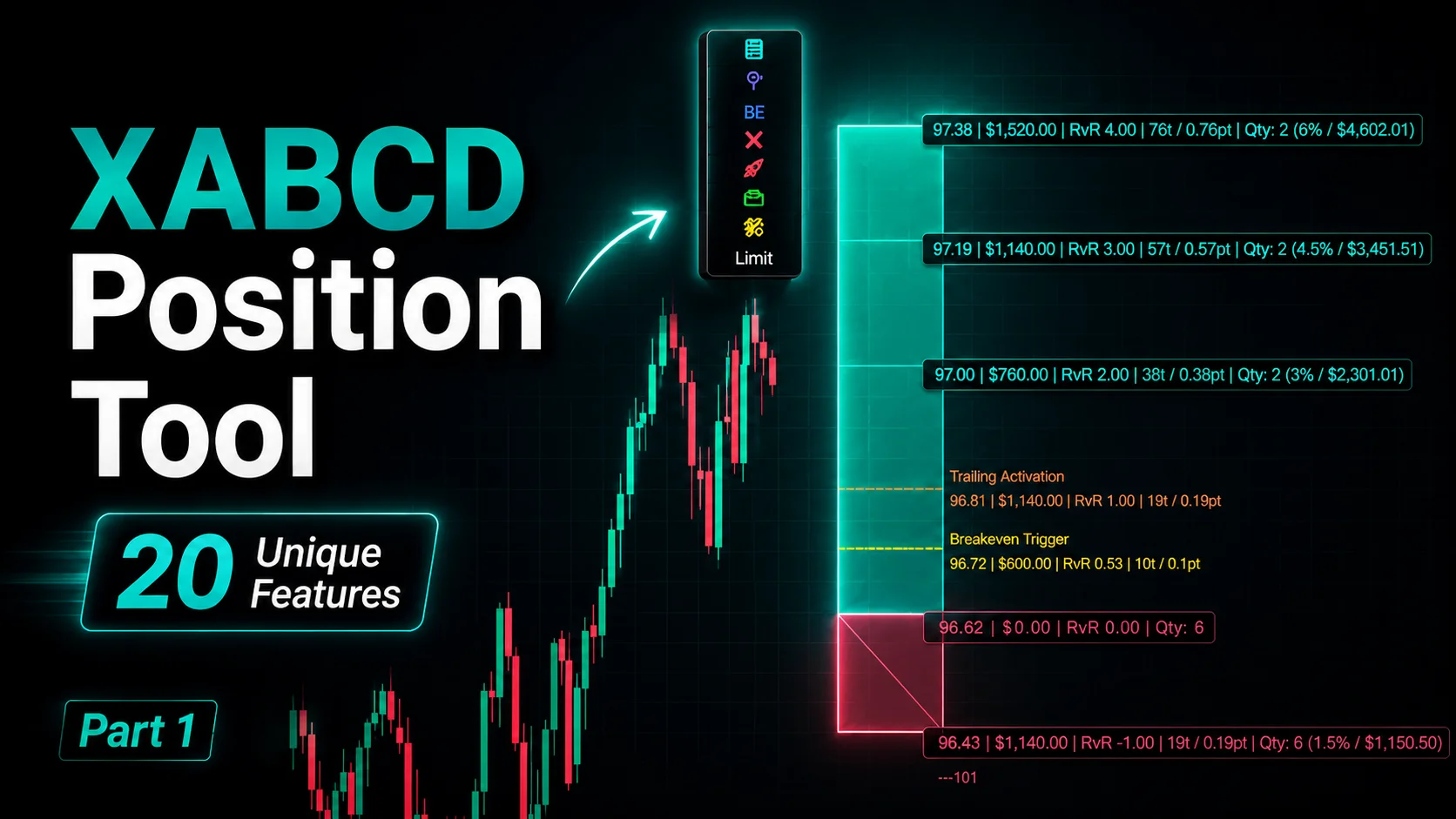
NinjaTrader Position Sizing Tool: 64 Features Stock NT8 Does Not Include
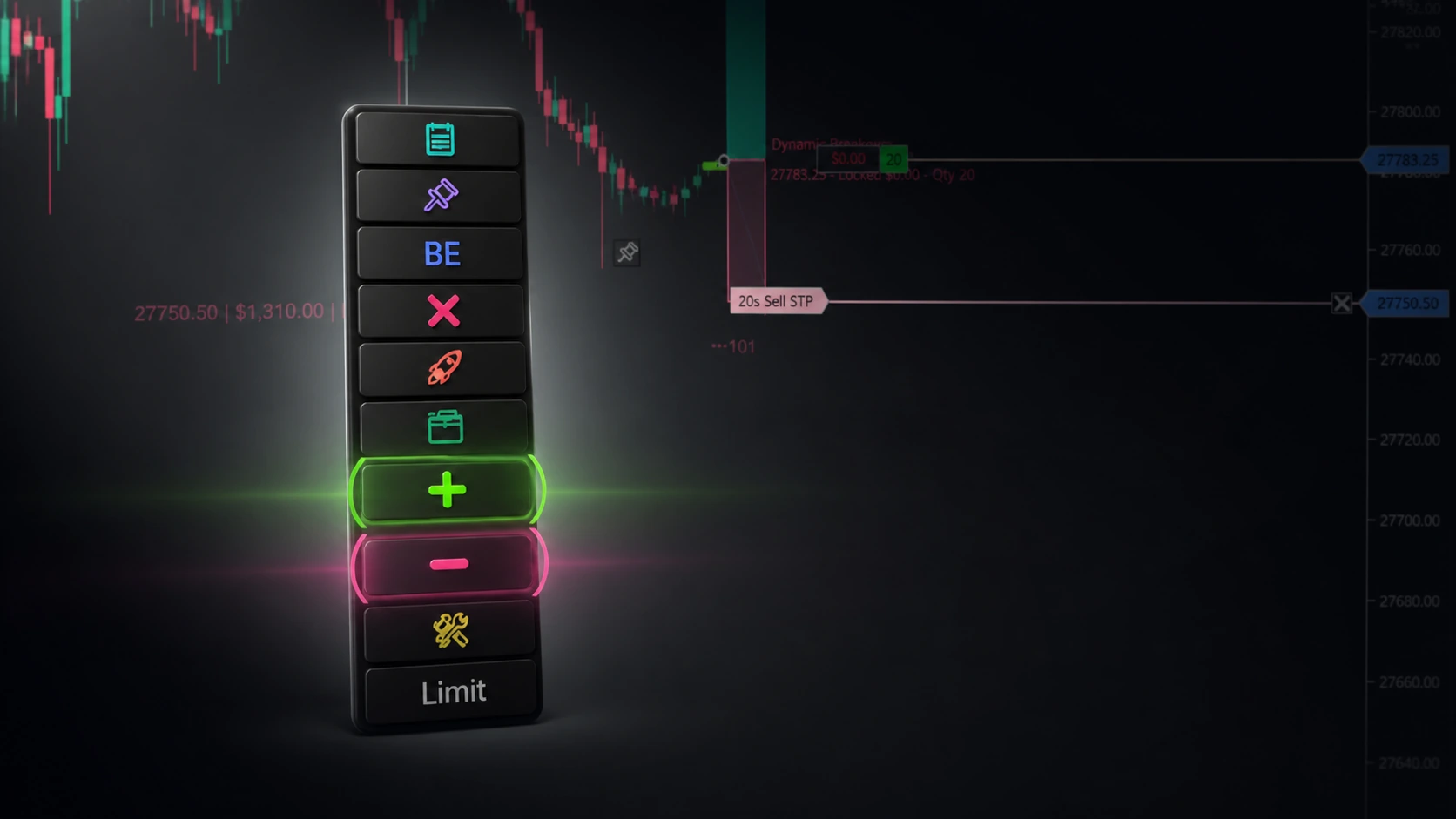
NinjaTrader – Adding to Position: A Field Guide for Active Traders