XABCD TRADING

NinjaTrader 8 Order Entry and Different Methods
Subscribe
to get alerts to our next blog post!
NinjaTrader 8 Order Entry Methods
The following are different ways to do your order entry in NinjaTrader 8. Master the following methods to make the most use out of your NinjaTrader 8 platform.
There are a few different ways to place orders in NinjaTrader 8:
- The Basic Entry window
- Through the SuperDOM (Dynamic)
- The FX Board for forex traders
- The Chart Trader
- By the use of actions with alerts
As you can see there are many ways in NinjaTrader 8 for Order Entry ways. The best way is going to be what works for you and that's what we're going to help you explore today. If you trade from the Chart Trader, it can help to overlay a chart in NinjaTrader so you can watch a related instrument while placing orders.
The Basic Entry Window
Most Basic Way to Enter Orders in NinjaTrader 8
This is a very easy way to place a trade, although I imagine for most once you get more popular with the NinjaTrader 8 platform you will be using the order entry window less and less in favor of other methods discussed below.
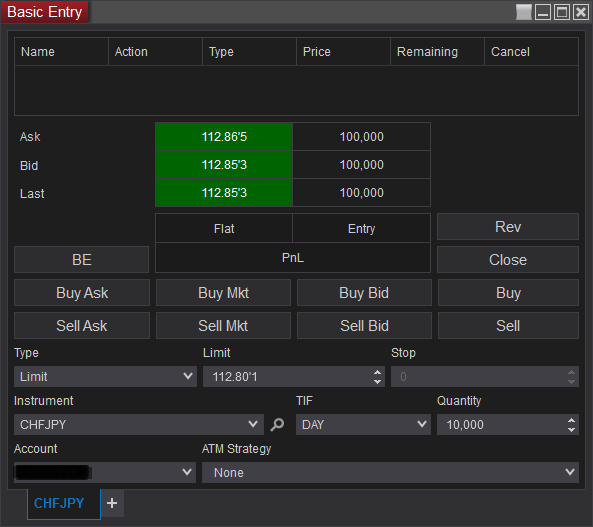
Live Order Entry Window:
This is what a Live order entry screen will look like. If you're on a simulation account you will see a grey background.
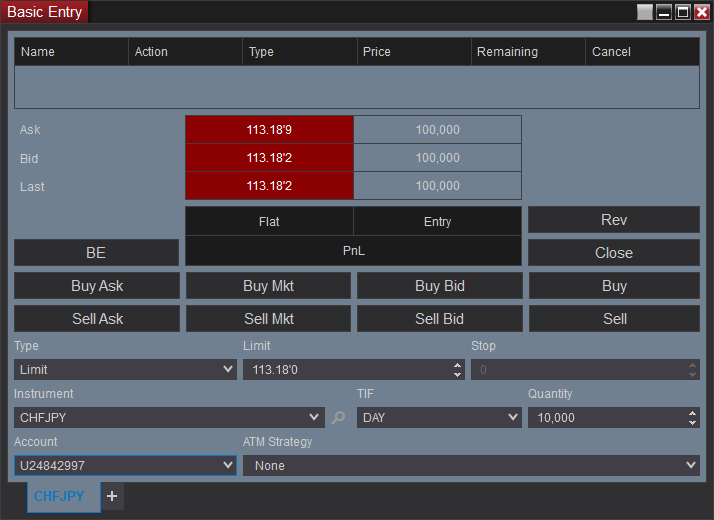
Simulation Order Entry Window:
If you have a grey screen you are most likely entering your trades into a simulation account. You can change the account number in the bottom left of this Basic Entry window. By setting this to a simulator or live account you will see the backgrounds change color. If the Basic Entry window or account list is not responding as expected, our guide on troubleshooting NinjaTrader 8 issues walks through common fixes step by step.
Depending on the type of order you might be hitting the Buy Mkt or the Buy button etc. So this is considered a basic understanding of how you would enter an order through NinjaTrader 8 using the Basic Entry window.
How to Place an Order in the Order Entry Window?
- Select your Account
- Enter the Type of order (limit, market, MIT) etc
- Fill out any other optional data like the limit or stop, ATM Strategy etc..
- Hit the Buy / Sell button that matches your order type
The SuperDOM
Popular with future traders for order entry
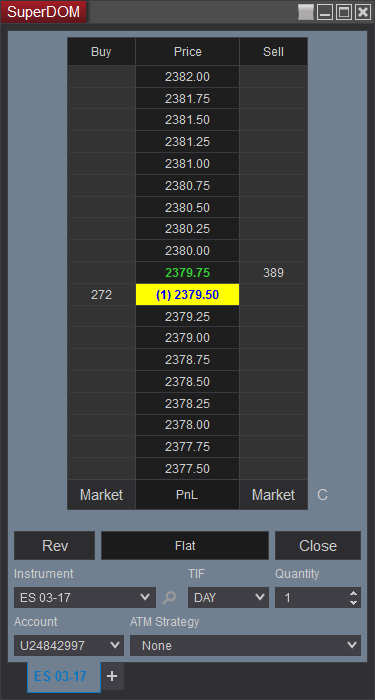
The SuperDOM as a popular way for futures traders to manage orders and positions in a very visual way. It looks like a ladder of price and you see price going up or down with buy and sell prices on each side.
Dynamic SuperDOM:
The price rows are dynamic and will change and update as price moves. There is a Hold button that will let you freeze price but the price ladder will move in a Dynamic SuperDOM. If you place orders from charts instead of the ladder, learning to change NinjaTrader bar types lets you view price as Renko, range or tick bars.
How to place an order through the SuperDOM?
- Select your Account
- Enter the Quantity
- Fill out the Instrument, TIF or ATM Strategy etc..
- Select the Market button at the bottom under the sell or buy buttons, OR Select the price which will put in your limit orders.
The FX Board
A popular way for FX traders to enter orders with a single click
This is a very easy way to place a trade, although I imagine for most once you get more popular with the NinjaTrader 8 platfrom you will be using the order entry window less and less in favor of other methods discussed below.
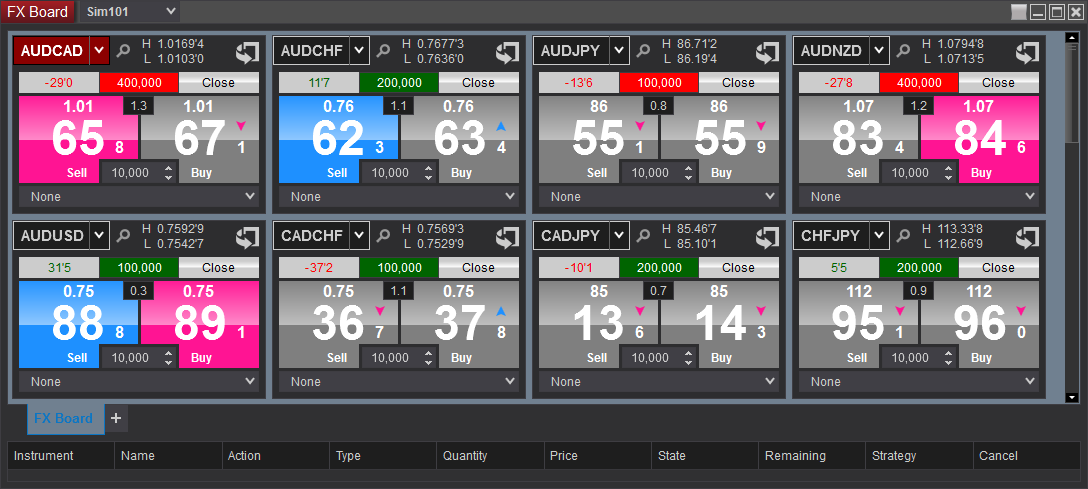
How to place an order in the FX Board with NinjaTrader 8?
- Select your Account in the top left of the board
- Select the quantity of you FX orders by typing in the contract size
- Click the door with the arrow (you'll only have to do this once) to make sure all your advanced settings are the way you expect them to be.
- Hit the Buy / Sell button
Frequently Asked Questions
What are the different order entry methods in NinjaTrader 8?
NinjaTrader 8 offers several order entry methods including the Basic Entry window, the SuperDOM (Dynamic), the FX Board for forex traders, the Chart Trader, and placing orders through actions with alerts. Each method is suited to different trading styles, so the best approach depends on your personal workflow and the markets you trade.
What is the difference between a live and simulation order entry window?
In NinjaTrader 8, a live order entry window displays a colored background, while a simulation order entry window shows a grey background. You can switch between live and simulation accounts by changing the account number in the bottom left of the Basic Entry window, and the background color will update accordingly.
How do I place a limit order using the SuperDOM?
To place a limit order on the SuperDOM, select your account, enter the quantity, and fill out the instrument, TIF, or ATM Strategy details. Instead of clicking the Market button at the bottom, click directly on a specific price level on the price ladder, which will place your limit order at that price.
What is the fastest way to enter an order for forex trading in NinjaTrader 8?
The FX Board is designed as a one-click order entry method specifically for forex traders in NinjaTrader 8. Simply select your account, type in your contract size, configure your advanced settings through the door-with-arrow icon, and hit the Buy or Sell button to execute your trade instantly.
What order types are available in the Basic Entry window?
The Basic Entry window in NinjaTrader 8 supports multiple order types including limit orders, market orders, and MIT (Market If Touched) orders. You can also configure optional fields such as stop levels and ATM Strategies before hitting the corresponding Buy or Sell button to submit your order.
Frequently Asked Questions
What are the different order entry methods in NinjaTrader 8?
NinjaTrader 8 offers several order entry methods including the Basic Entry window, the SuperDOM (Dynamic), the FX Board for forex traders, the Chart Trader, and placing orders through actions with alerts. Each method is suited to different trading styles, so the best approach depends on your personal workflow and the markets you trade.
What is the difference between a live and simulation order entry window?
In NinjaTrader 8, a live order entry window displays a colored background, while a simulation order entry window shows a grey background. You can switch between live and simulation accounts by changing the account number in the bottom left of the Basic Entry window, and the background color will update accordingly.
How do I place a limit order using the SuperDOM?
To place a limit order on the SuperDOM, select your account, enter the quantity, and fill out the instrument, TIF, or ATM Strategy details. Instead of clicking the Market button at the bottom, click directly on a specific price level on the price ladder, which will place your limit order at that price.
What is the fastest way to enter an order for forex trading in NinjaTrader 8?
The FX Board is designed as a one-click order entry method specifically for forex traders in NinjaTrader 8. Simply select your account, type in your contract size, configure your advanced settings through the door-with-arrow icon, and hit the Buy or Sell button to execute your trade instantly.
What order types are available in the Basic Entry window?
The Basic Entry window in NinjaTrader 8 supports multiple order types including limit orders, market orders, and MIT (Market If Touched) orders. You can also configure optional fields such as stop levels and ATM Strategies before hitting the corresponding Buy or Sell button to submit your order.
New NinjaTrader Articles Delivered First
 (opens in a new tab)
Easy Order Tool
The Strategy


Scanning & Alerting

NinjaTrader Release
XABCD News (Free Version)
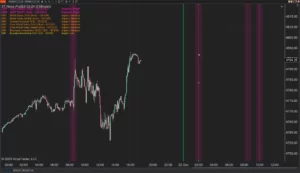
XABCD News (Community Edition) is the best free Indicator for NinjaTrader 8. Don't let news sneak up on you again. Puts economic news events on your charts so you can stay informed and move around positions/stops before the news is released. Works in any market.
XABCD Priceline (Free)
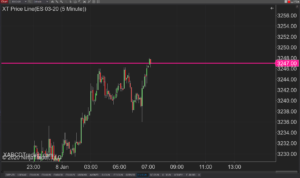
XABCD Price Line tool for NinjaTrader 8 will draw a line at current price and move every time the market changes price. This is useful because it will allow you to easily identify where price is at all times and the exact quoted price.
Trade NQ, Copy MNQ: Copy NQ Trades to MNQ in NinjaTrader 8
NinjaTrader Data Feed Not Updating? Quick Fixes

NinjaTrader Risk Per Trade: Risk $500 on Every Trade
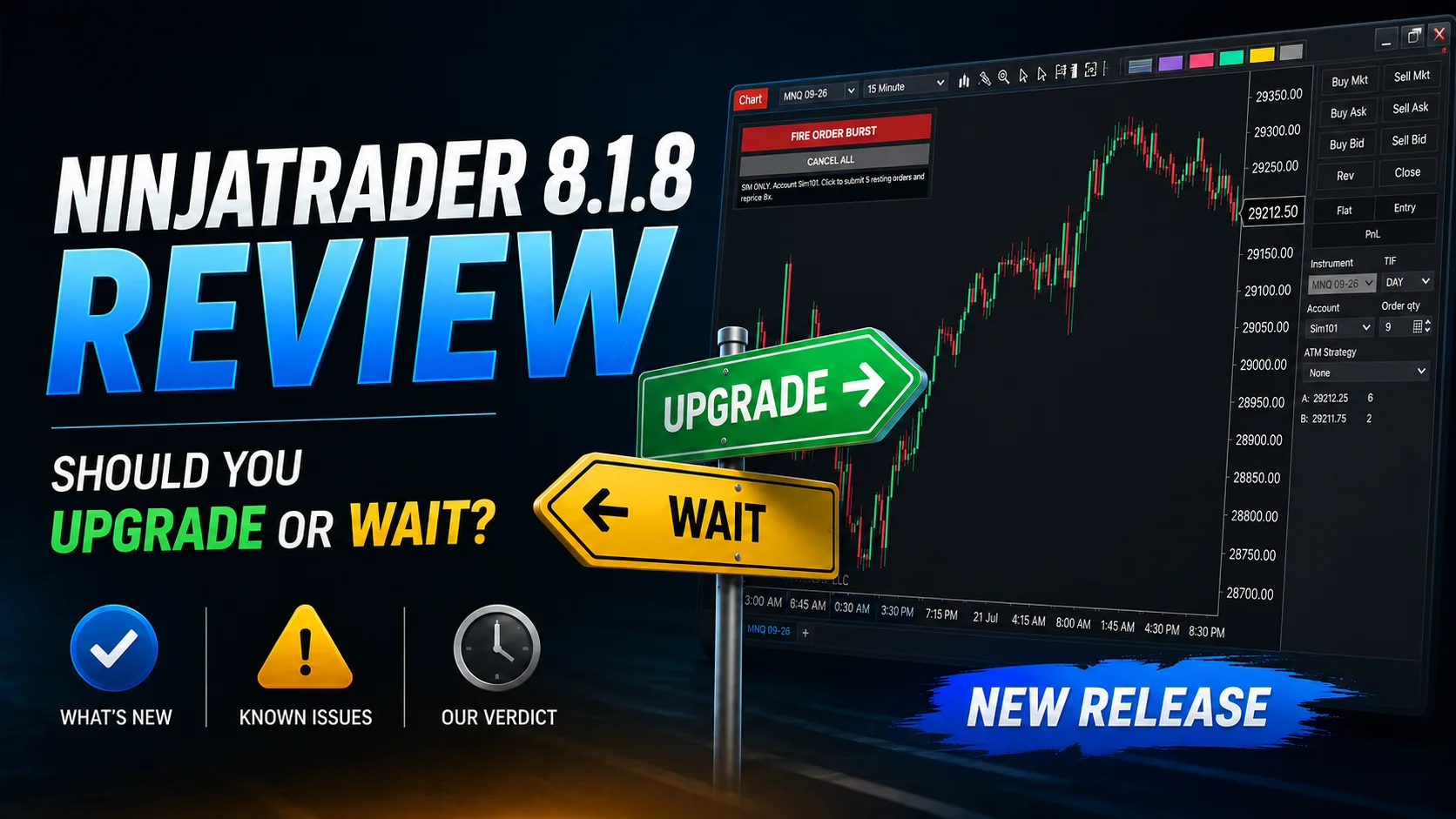
NinjaTrader 8.1.8 Review: Should You Upgrade or Wait?
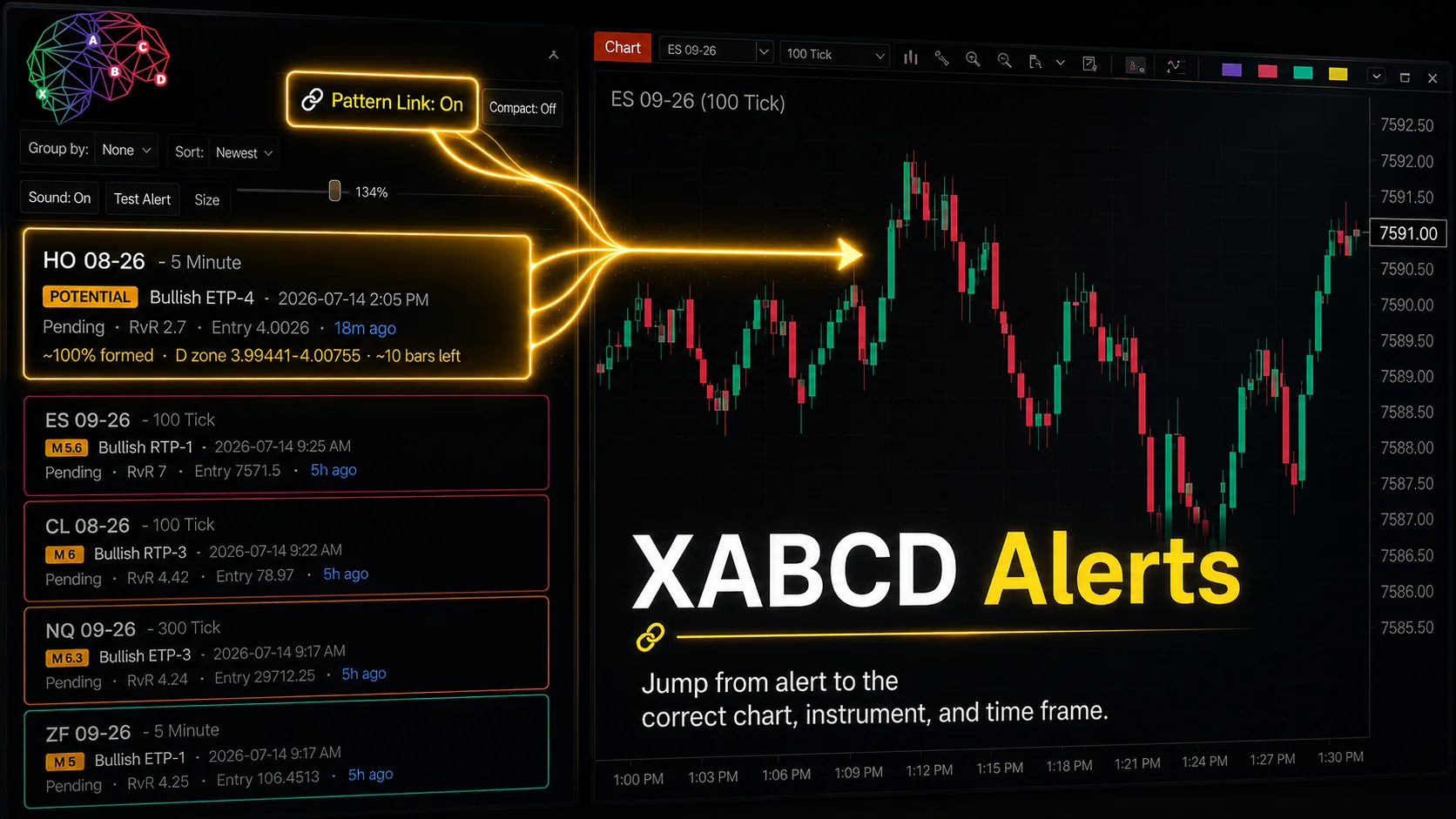
XABCD Pattern Alerts: The Complete Guide for Traders
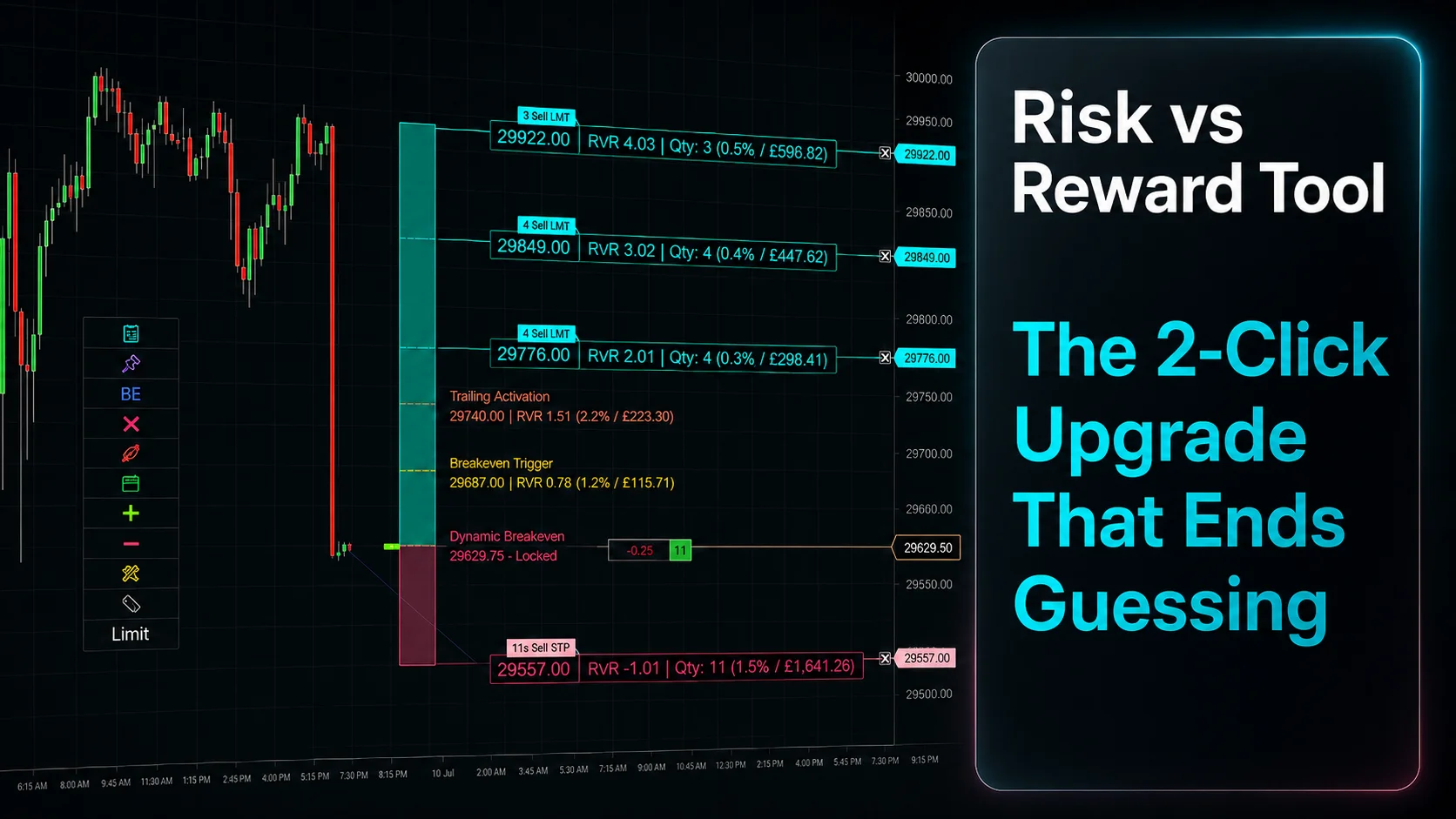
Risk vs Reward Tool: The 2-Click Upgrade That Ends Guessing
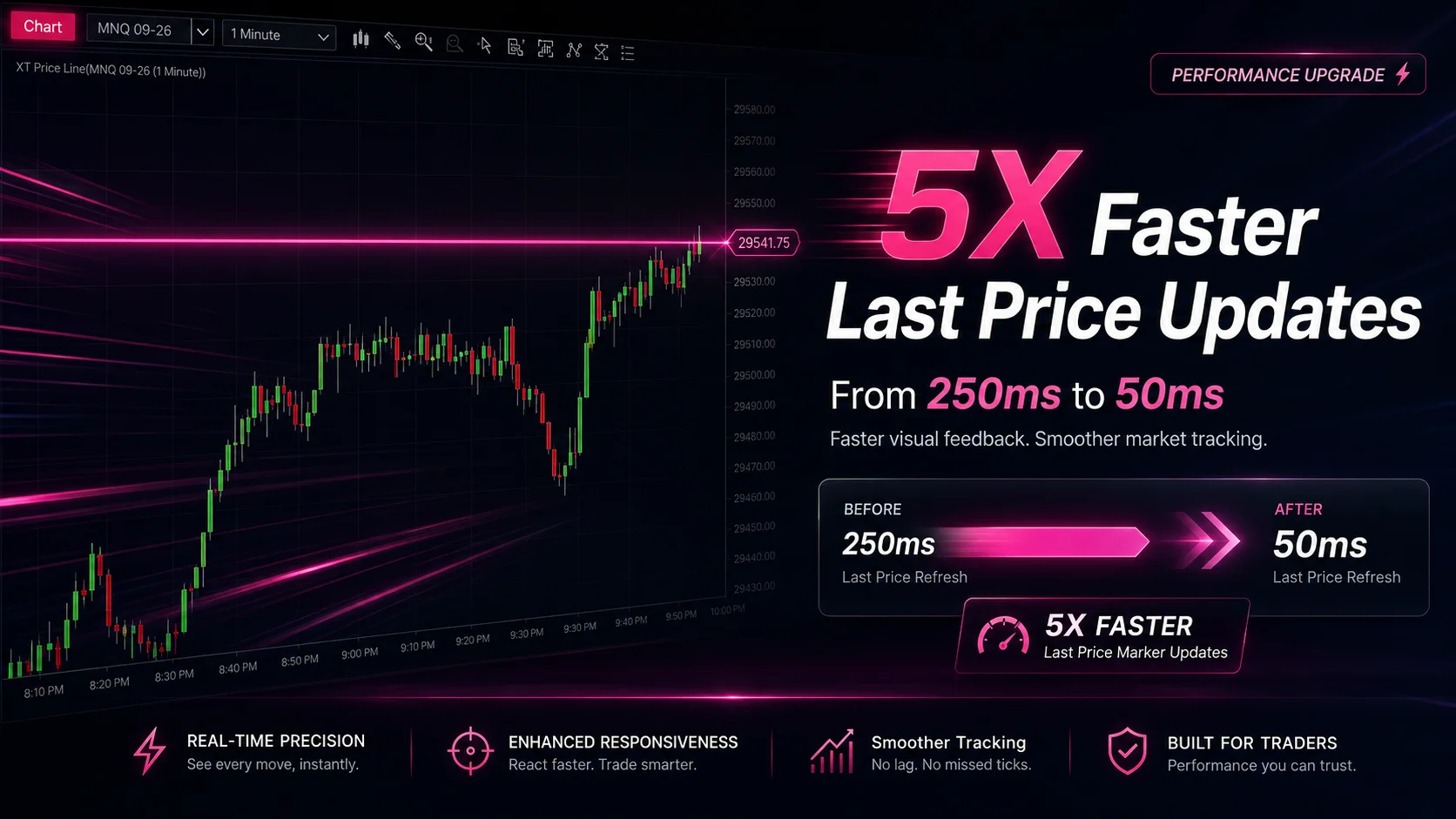
NinjaTrader Faster Last Price Updates on Charts Explained
NinjaTrader 8 Hotkeys: Best Shortcuts for Faster Trading
NinjaTrader Position Sizing Tool: 64 Features Stock NT8 Does Not Include