XABCD TRADING

One Drive Is Corrupting Your NinjaTrader 8 Settings
Subscribe
to get alerts to our next blog post!
Table of Contents:
- Issue Explained
- Are You Having The Issue?
- How To Remove OneDrive
- Alternative Backup Solutions
Why is One Drive A Problem with NinjaTrader?
NinjaTrader 8 installs all your configuration settings, quotes and user settings inside your Documents/NinjaTrader 8/ folder. OneDrive integration is included in Windows 11 as a cloud storage option, and Microsoft encourages users to utilize it for seamless file access across devices.
As more people use Windows 11 or run an "update", they will often get encouraged to use one drive. Huge problem though if you're a trader. The best tip I can give you (will take a bit of effort) is not to run Windows 11 under a Microsoft account, but instead create a new user as a "Local Account" and copy everything over to tha new user account. This will disable all those features like one drive and solve a bunch of headaches for you in the future.
NinjaTrader has since come out with their own official comment:
NinjaTrader should not be used with OneDrive as you will see file access violations and other issues when OneDrive tries to sync files to the cloud.
Removing OneDrive is a tip we gave out in our NinjaTrader Performance Improvement Tips video... be sure to check it out as well as the many other videos on our youtube channel.
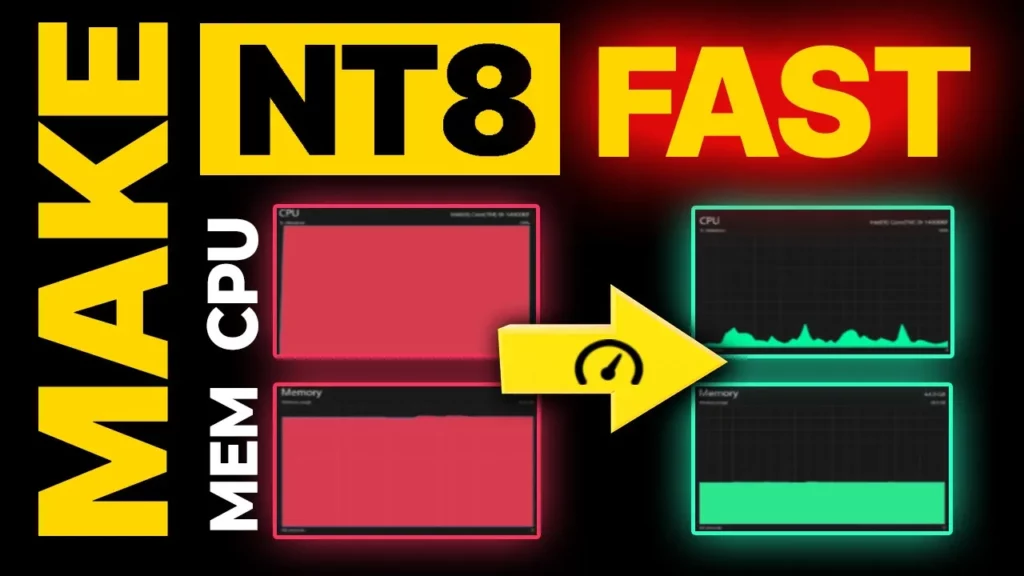
Run time: 4:28
6 Ways NinjaTrader and OneDrive Together Cause Issues
When your live data struggles to write to your hard drive because of a pesky locked file, you might see slow updates on quotes or charts. For traders, that's a bit of a nightmare – you don't want to miss out on opportunities or make decisions based on outdated info. So, it's important to tackle and fix these issues pronto for smoother trading. Once your data is updating smoothly again, you can also tidy up your charts by adding session break lines so each trading day is clearly separated. With your charts refreshing properly again, our five tips for charting in NinjaTrader will help you set them up to read price action more effectively.
- File Locking and Sync Conflicts: NinjaTrader accesses multiple files in real-time (like database files, logs, and strategy files). When OneDrive tries to sync these open files, it can cause file-locking conflicts, as both NinjaTrader and OneDrive attempt to control the file simultaneously. If OneDrive detects that a file is actively being changed by NinjaTrader, it may create duplicate files with conflicting changes, causing "conflicted copy" errors. This can result in multiple versions of the same file and confusion about which version is the latest or correct one.
- Risk of Corrupted Data Files: NinjaTrader uses a database to store trading data, such as historical trades, chart data, and strategies. Constantly syncing these database files while they’re open increases the risk of corruption if files are partially saved during sync. Database corruption can lead to unexpected platform behavior, such as crashes, missing data, or even the inability to open NinjaTrader. Rebuilding corrupted databases can be time-consuming and may result in the loss of critical data.
- Performance Issues: Syncing with OneDrive adds an extra load on the system’s resources, especially CPU and internet bandwidth. This can slow down NinjaTrader’s performance, which is already resource-intensive, especially during live trading sessions or when using multiple charts and indicators. Delayed file syncing can also impact the real-time access NinjaTrader needs, leading to sluggish responses or unresponsiveness in the application.
- Real-Time Data and Execution Delays: NinjaTrader requires fast, real-time data for accurate charting and order execution. When OneDrive syncs files, it can consume significant bandwidth, which may interfere with NinjaTrader’s data feed, potentially causing delays or lags. If using automated strategies, these delays could mean missed or late trade entries and exits, which can directly impact trading performance and profitability.
- Risk of Partial File Syncs During Market Hours: During active market sessions, NinjaTrader constantly writes to its data files (logs, charts, etc.), and if OneDrive attempts to sync these files mid-session, there’s a risk that only partial files will be saved to the cloud. Incomplete or partial files can result in data inconsistencies when NinjaTrader is restarted, potentially leading to missing trade records or gaps in historical data.
- Versioning and Overwrite Risks: OneDrive’s version history feature can lead to older versions of files overwriting new changes if there are syncing issues. NinjaTrader does not have built-in protection against this, so overwritten or outdated data files can disrupt saved configurations, such as layouts, chart templates, or automated strategies. If multiple devices are used to access OneDrive, there’s also a risk that NinjaTrader will open an outdated file, creating conflicts with more recent data or configurations.
How to Remove One Drive with NinjaTrader Installed?
Windows 11
If you want to kick OneDrive to the curb on your Windows 11 system in a more casual way, here's the lowdown:
- Press the Windows key + I to roll into Settings.
- Dance over to "System".
- Click on "System" like you're picking your favorite jam.
- Choose "Apps" from the cool menu on the left. Spot and kick out OneDrive.
- Scroll down, find "Microsoft OneDrive," and click "Uninstall" like you're cleaning up your playlist.
1 Open OneDrive by selecting the cloud icon in your system tray. Go to Settings > Account and select "Unlink this PC."
2 Stop OneDrive from Launching on Startup: Open the Task Manager (Ctrl + Shift + Esc), go to the "Startup" tab, and disable OneDrive.
3 Uninstall OneDrive: Open Settings > Apps > Apps & features. Search for "OneDrive" and select "Uninstall."
4 Delete OneDrive Folders and Clear Cache (if needed): Open File Explorer and go to C:\Users\[YourUsername]. Delete any remaining OneDrive folders or files.
5 Clear any leftover OneDrive cache by opening the Run dialog (Win + R), typing %localappdata%, and removing any OneDrive folders. Edit File Path in NinjaTrader.
6After uninstalling OneDrive, reinstall NinjaTrader and verify that it doesn’t include any OneDrive paths.
Windows 10
To remove OneDrive from Windows 10, you can follow these steps:
- Press Windows Key + I: This opens the Settings app.
- Navigate to "Apps": In the Settings app, find and click on the "Apps" section.
- Locate OneDrive: Scroll down the list of installed apps until you find "Microsoft OneDrive."
- Uninstall OneDrive: Click on "Microsoft OneDrive" to select it, then click on the "Uninstall" button that appears. Follow the on-screen prompts to complete the uninstallation process.
Alternatively, you can also uninstall OneDrive using the Control Panel:
Recommended Solutions Instead of OneDrive?
- Backup Only When NinjaTrader is Closed: Configure OneDrive to back up NinjaTrader files only after closing the application, preventing conflicts.
- Manual Backup: Periodically copy NinjaTrader’s important data files (like configuration and workspace files) to OneDrive manually, rather than letting OneDrive sync them automatically.
- Use an Alternative Backup Solution: A dedicated backup tool that copies files without interfering with open applications may be more compatible with NinjaTrader.
OneDrive offers valuable benefits as a cloud backup and storage solution, its limitations make it less ideal for live use with NinjaTrader. Traders who prioritize data integrity, performance, and reliability in their trading environment may find that alternative solutions, like dedicated backup software or local storage devices, offer greater stability. If OneDrive is used, keeping it limited to periodic, manual backups can help mitigate risks, allowing traders to maintain the integrity of their NinjaTrader data without impacting their trading performance.
Frequently Asked Questions
What is One Drive and why does it cause problems with trading software?
OneDrive is a cloud storage solution built into Windows that automatically syncs files across devices. It causes problems with trading platforms like NinjaTrader because it tries to sync files that are actively being used in real time, leading to file-locking conflicts, data corruption, performance slowdowns, and execution delays during live trading sessions.
How do I completely uninstall OneDrive from Windows 11?
To uninstall OneDrive from Windows 11, first unlink your PC by opening OneDrive settings and selecting 'Unlink this PC.' Then disable OneDrive from launching on startup via Task Manager, uninstall it through Settings > Apps > Apps & features, and finally delete any remaining OneDrive folders from your user directory and clear the cache by navigating to %localappdata% and removing OneDrive folders.
Can One Drive corrupt my NinjaTrader data files?
Yes, OneDrive can corrupt NinjaTrader data files. When OneDrive constantly syncs database files while they are open and actively being written to, files can become partially saved during the sync process. This database corruption can lead to crashes, missing data, or the inability to open NinjaTrader, and rebuilding corrupted databases may result in the loss of critical trading data.
What should I use instead of OneDrive for backing up trading data?
Instead of using OneDrive for live syncing, you can manually back up NinjaTrader's important data files like configuration and workspace files when the application is closed. Alternatively, use a dedicated backup tool that copies files without interfering with open applications, or use local storage devices for greater stability and data integrity.
Does OneDrive affect trading performance and execution speed?
Yes, OneDrive can significantly affect trading performance. Syncing with OneDrive adds extra load on CPU and internet bandwidth, which can slow down NinjaTrader during live trading sessions. It can also consume significant bandwidth that interferes with real-time data feeds, potentially causing delays in charting and order execution that directly impact trading profitability.
Frequently Asked Questions
What is One Drive and why does it cause problems with trading software?
OneDrive is a cloud storage solution built into Windows that automatically syncs files across devices. It causes problems with trading platforms like NinjaTrader because it tries to sync files that are actively being used in real time, leading to file-locking conflicts, data corruption, performance slowdowns, and execution delays during live trading sessions.
How do I completely uninstall OneDrive from Windows 11?
To uninstall OneDrive from Windows 11, first unlink your PC by opening OneDrive settings and selecting 'Unlink this PC.' Then disable OneDrive from launching on startup via Task Manager, uninstall it through Settings > Apps > Apps & features, and finally delete any remaining OneDrive folders from your user directory and clear the cache by navigating to %localappdata% and removing OneDrive folders.
Can One Drive corrupt my NinjaTrader data files?
Yes, OneDrive can corrupt NinjaTrader data files. When OneDrive constantly syncs database files while they are open and actively being written to, files can become partially saved during the sync process. This database corruption can lead to crashes, missing data, or the inability to open NinjaTrader, and rebuilding corrupted databases may result in the loss of critical trading data.
What should I use instead of OneDrive for backing up trading data?
Instead of using OneDrive for live syncing, you can manually back up NinjaTrader's important data files like configuration and workspace files when the application is closed. Alternatively, use a dedicated backup tool that copies files without interfering with open applications, or use local storage devices for greater stability and data integrity.
Does OneDrive affect trading performance and execution speed?
Yes, OneDrive can significantly affect trading performance. Syncing with OneDrive adds extra load on CPU and internet bandwidth, which can slow down NinjaTrader during live trading sessions. It can also consume significant bandwidth that interferes with real-time data feeds, potentially causing delays in charting and order execution that directly impact trading profitability.
New NinjaTrader Articles Delivered First
 (opens in a new tab)
Easy Order Tool
The Strategy


Scanning & Alerting

NinjaTrader Release
XABCD News (Free Version)
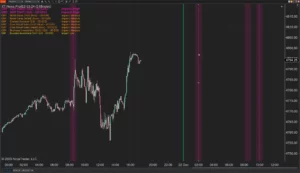
XABCD News (Community Edition) is the best free Indicator for NinjaTrader 8. Don't let news sneak up on you again. Puts economic news events on your charts so you can stay informed and move around positions/stops before the news is released. Works in any market.
XABCD Priceline (Free)
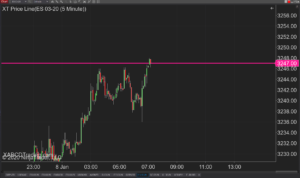
XABCD Price Line tool for NinjaTrader 8 will draw a line at current price and move every time the market changes price. This is useful because it will allow you to easily identify where price is at all times and the exact quoted price.
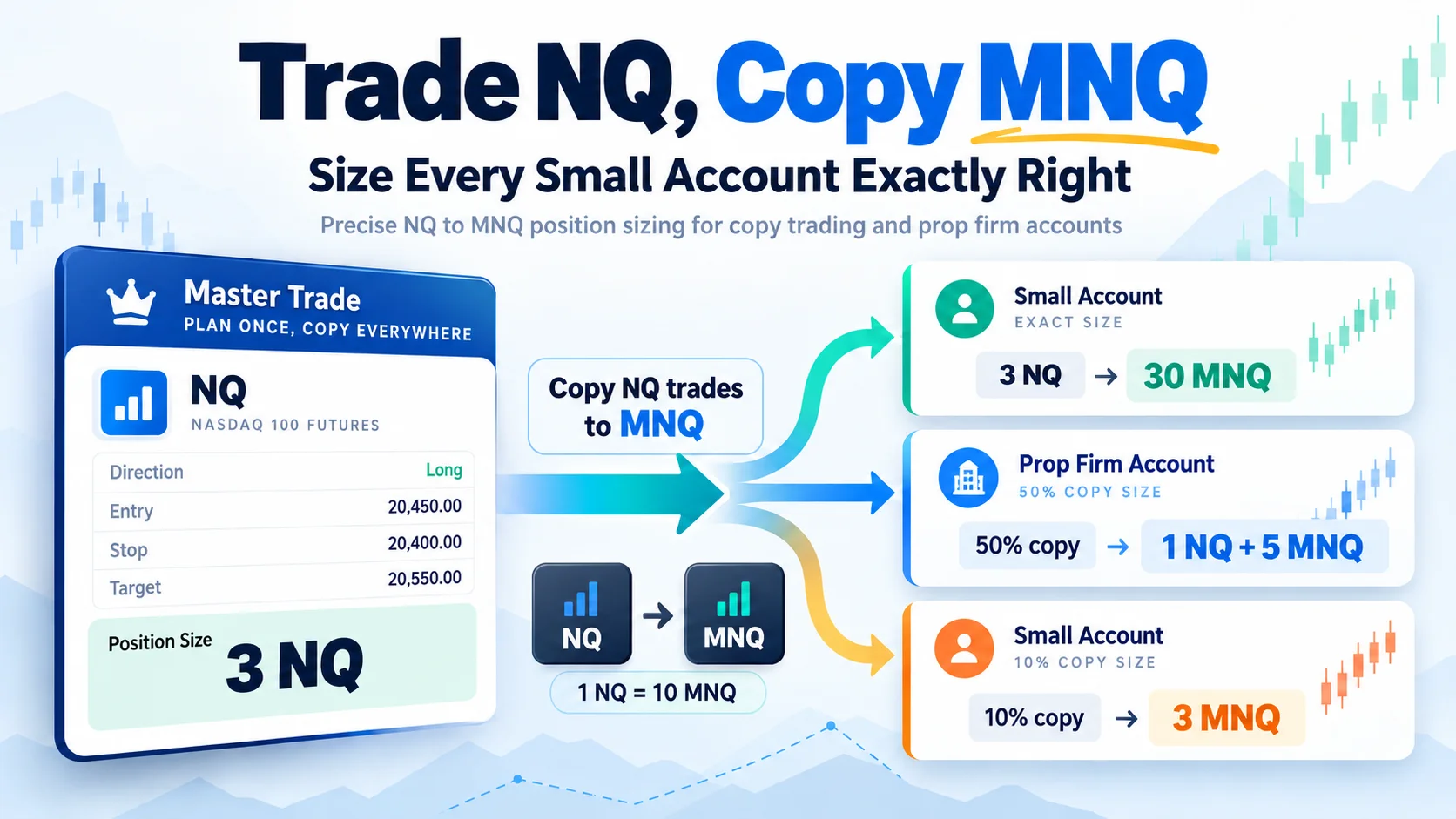
Trade NQ, Copy MNQ: Copy NQ Trades to MNQ in NinjaTrader 8
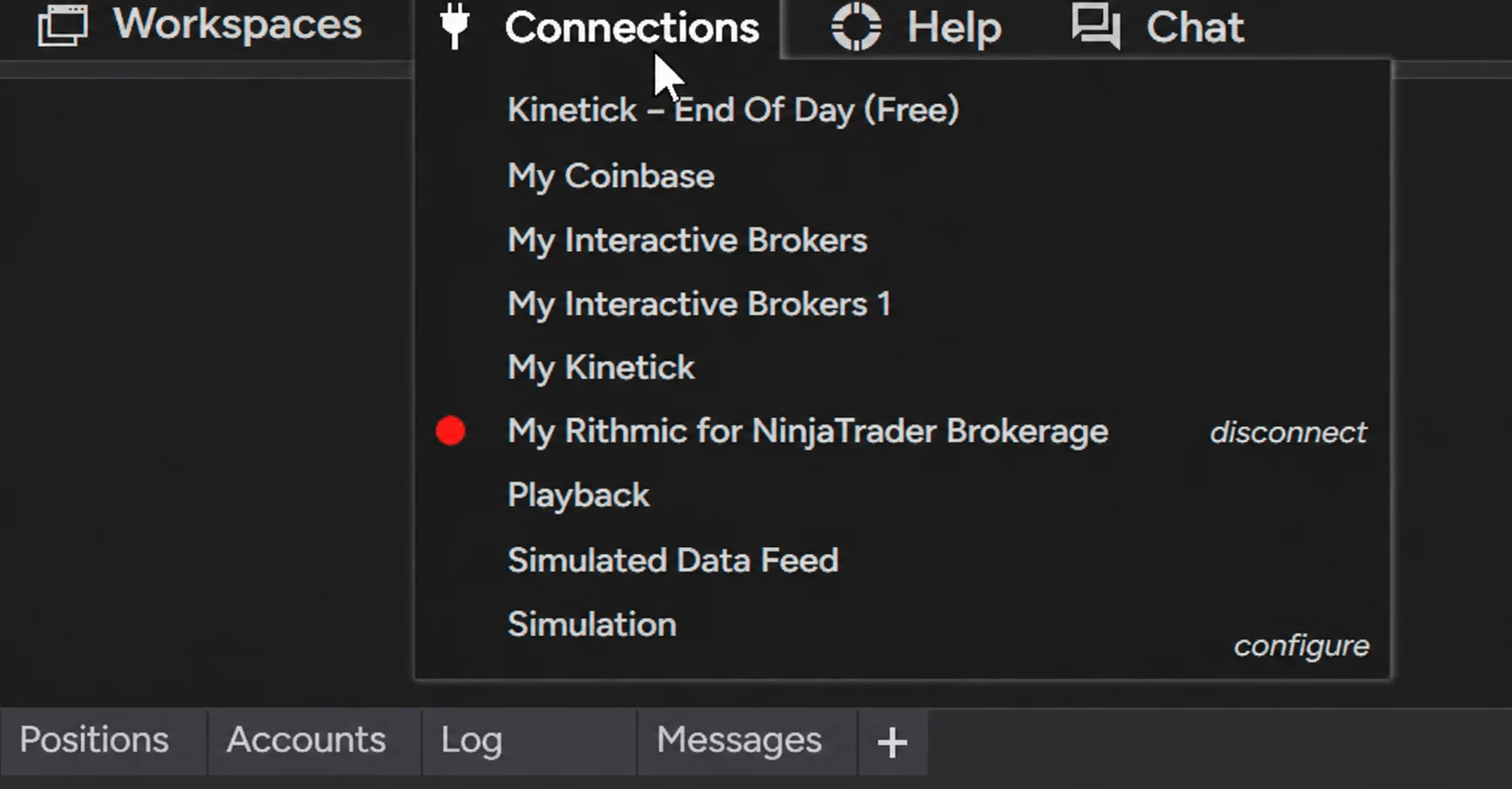
NinjaTrader Data Feed Not Updating? Quick Fixes

NinjaTrader Risk Per Trade: Risk $500 on Every Trade
NinjaTrader 8.1.8 Review: Should You Upgrade or Wait?
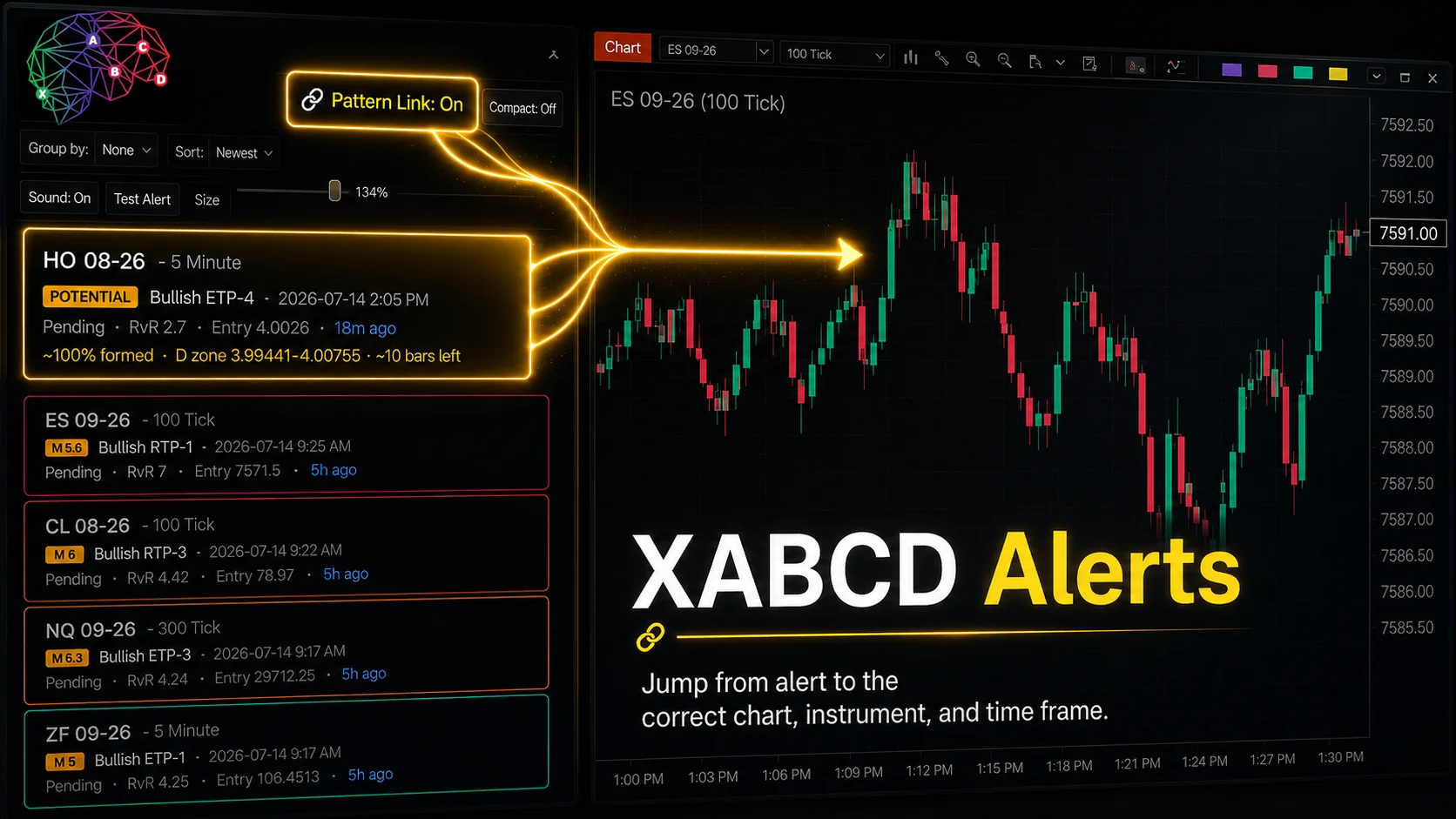
XABCD Pattern Alerts: The Complete Guide for Traders
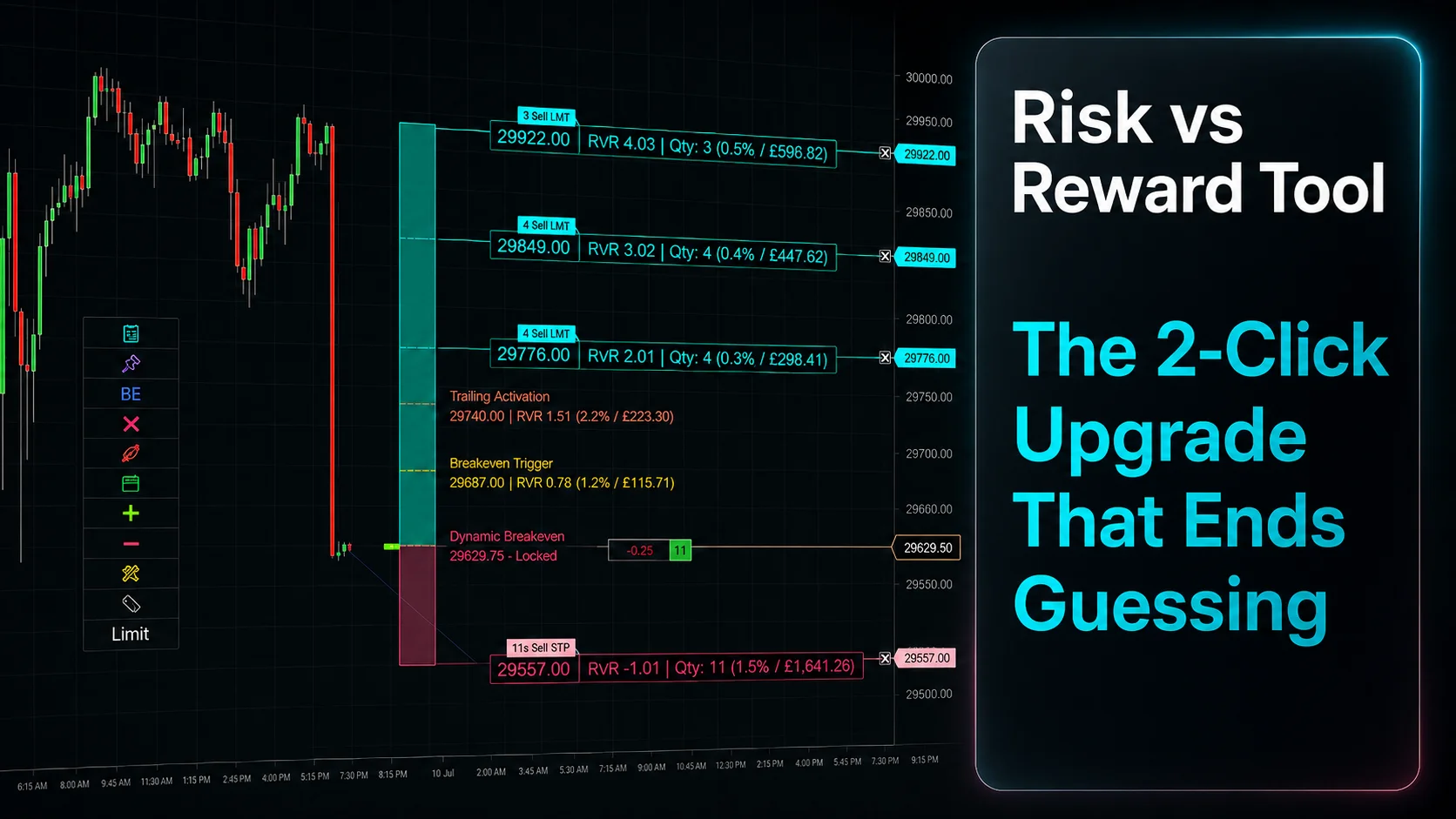
Risk vs Reward Tool: The 2-Click Upgrade That Ends Guessing
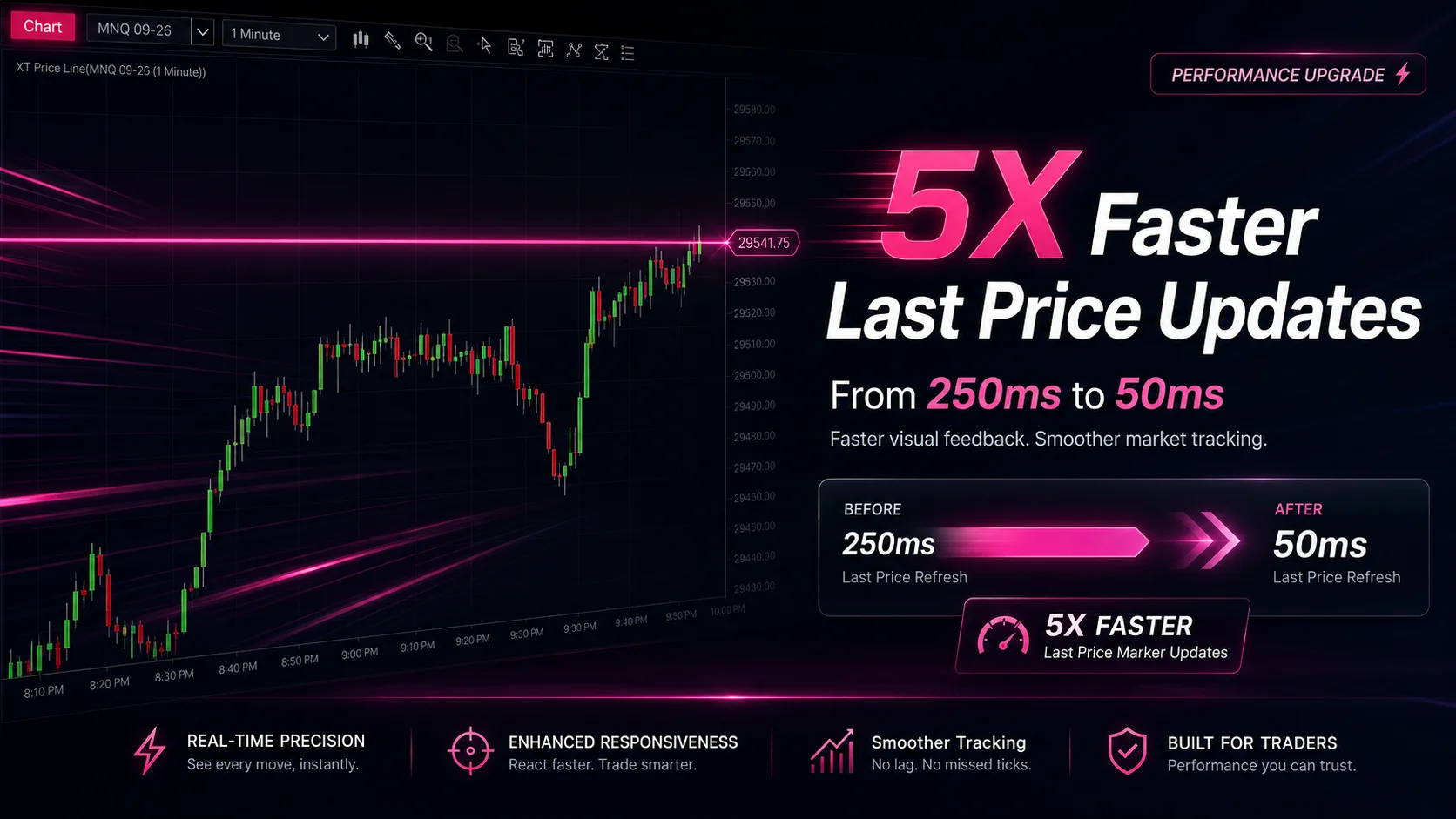
NinjaTrader Faster Last Price Updates on Charts Explained
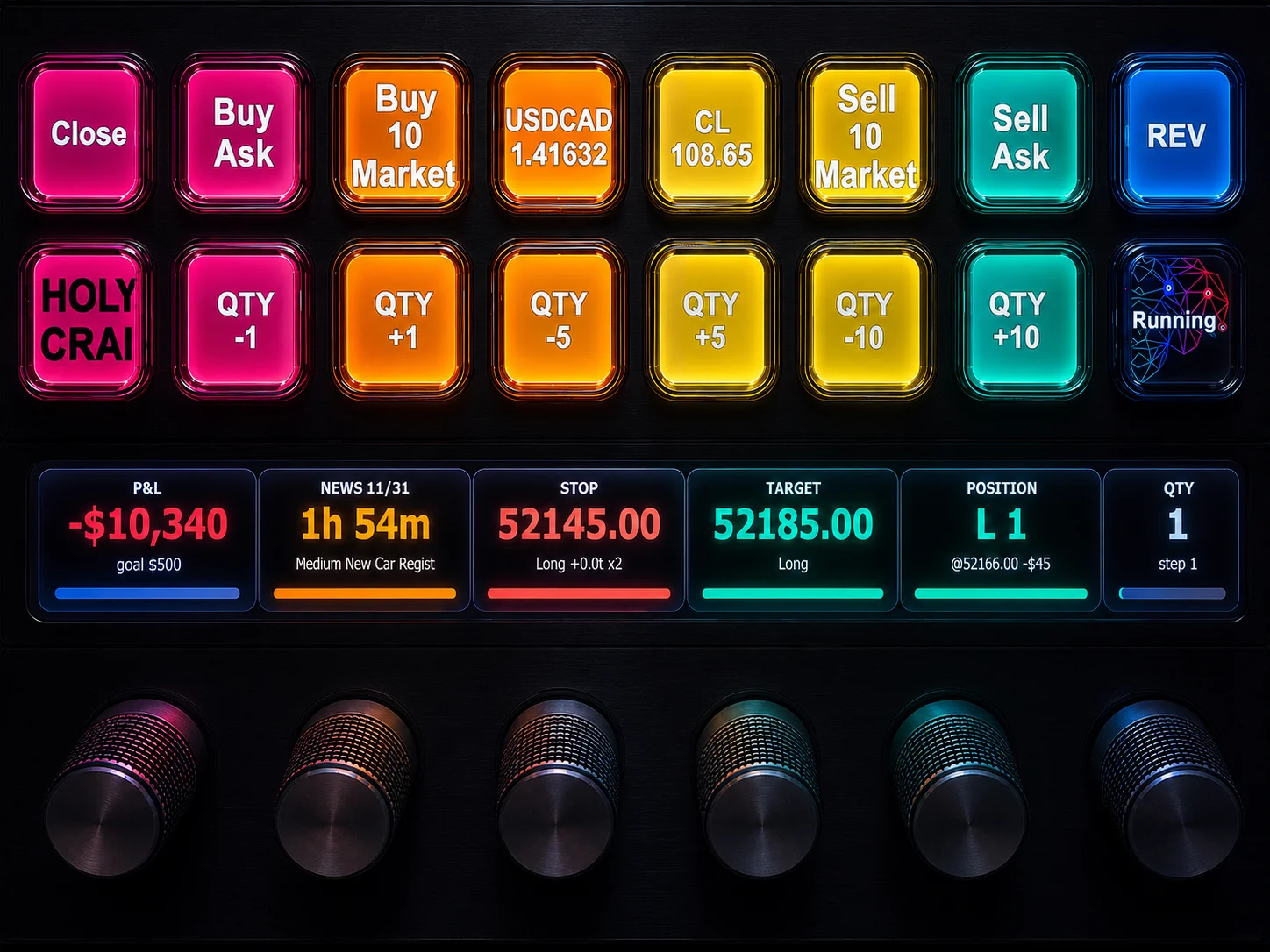
NinjaTrader 8 Hotkeys: Best Shortcuts for Faster Trading
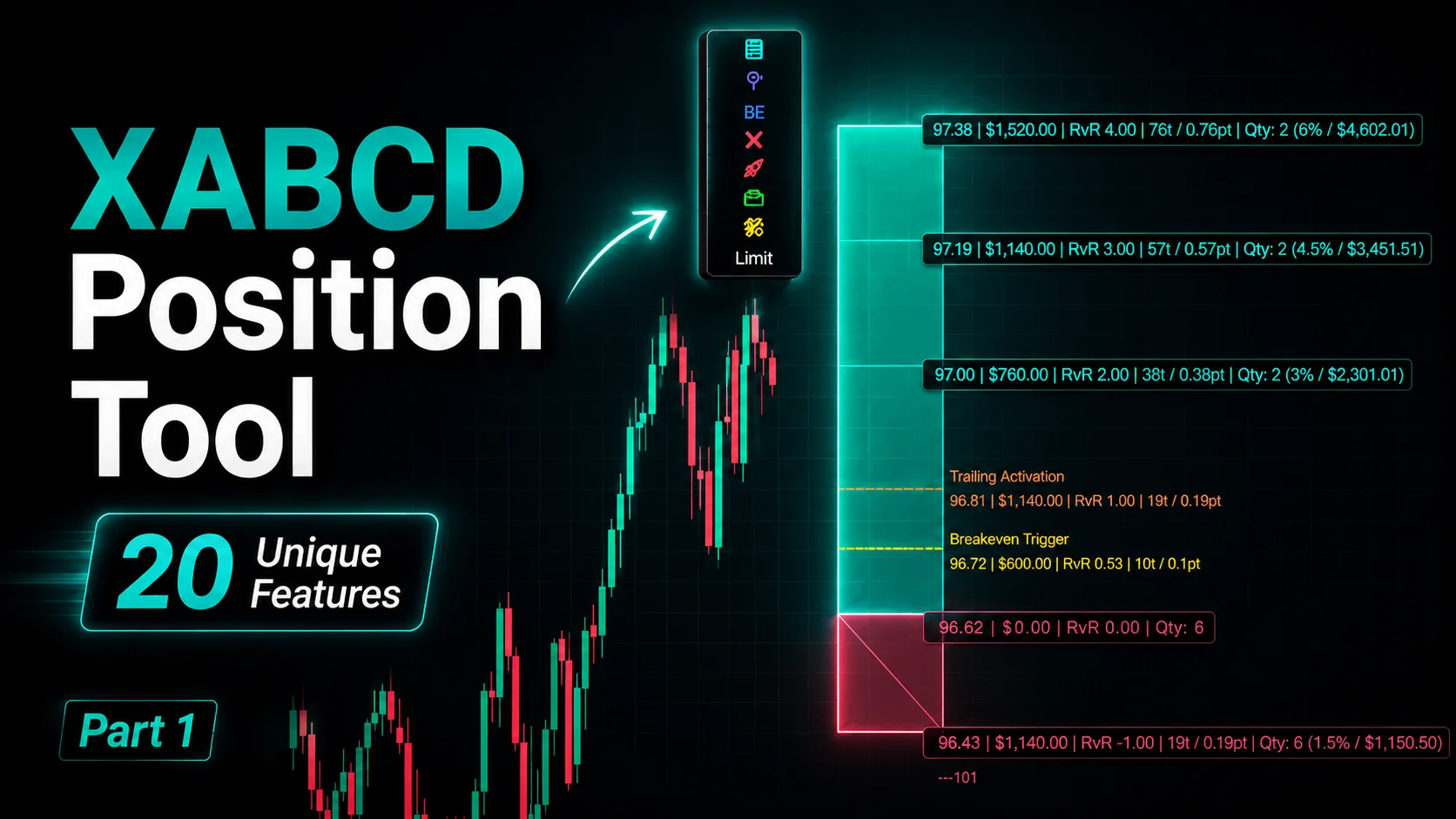
NinjaTrader Position Sizing Tool: 64 Features Stock NT8 Does Not Include