XABCD TRADING

NinjaTrader Data Feed Not Updating? Quick Fixes
Subscribe
to get alerts to our next blog post!
Few things rattle a trader more than a chart that suddenly stops breathing. When you hit a NinjaTrader data feed not updating problem in the middle of a session, you can lose your read on price in seconds. The good news? Most causes are simple, and you can check them in under a minute. In this guide, we walk through the fast fixes, the sneaky causes that fool even experienced traders, and a brand new tool we just launched that warns you before a freeze costs you money.
Grab a coffee. By the end, you'll have a repeatable checklist and a much calmer session.
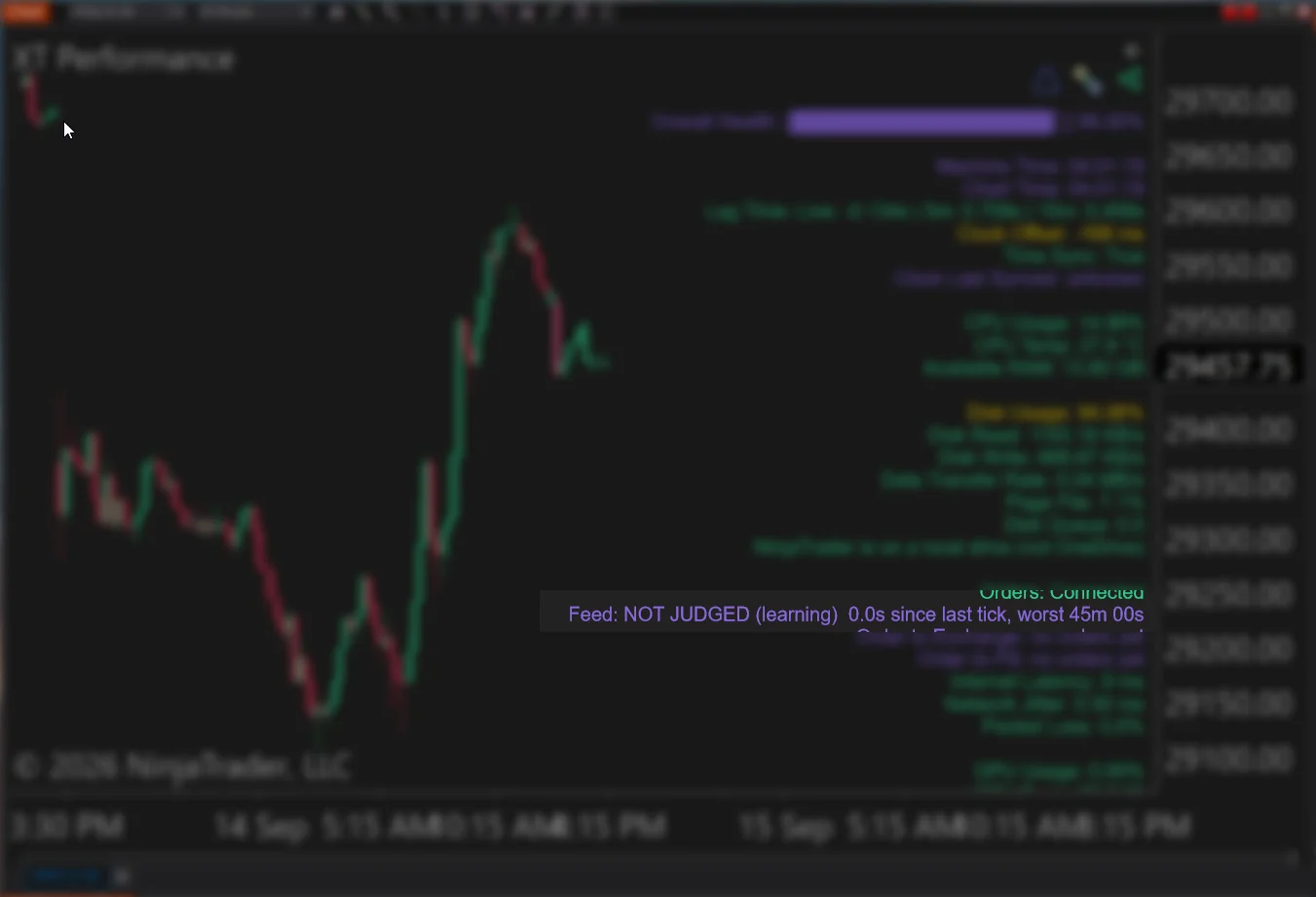
Feed quality line highlighted from the XABCD Performance Indicator
First, Make Sure It Is Really a Freeze
That's the tricky part. A quiet market and a broken feed can look almost identical, both showing a flat chart and an unchanged last price. So the first step is telling them apart.
Ask yourself three quick questions:
- Is the session actually open, or are you in a maintenance break?
- Are other instruments moving, or is every window stuck?
- Does the Time & Sales window show any prints at all?
If one symbol looks dead but the rest tick along, the problem is usually that single subscription. But if everything stalls at once, you're likely dealing with a connection issue instead.
Key takeaway: Silence is not the same as a freeze. Always compare at least two instruments before you start restarting things.
Watch the clock, not just the candles
Many traders add a clock or a "last update" readout to their layout, which helps them spot trouble faster. If the clock keeps ticking but prices don't, you have real NinjaTrader stale market data. That gap between time and price is your best early clue.
Why the NinjaTrader Data Feed Not Updating Problem Happens
Let's look at the usual suspects. Most NinjaTrader 8 data feed issues come down to a handful of repeat offenders.
Your internet blinked
Wi-Fi drops for two seconds and your router renegotiates. Meanwhile, the platform still thinks it's connected. As a result, you end up with a NinjaTrader chart not updating while the status light stays green. This is the classic "zombie connection," and it's very common on home Wi-Fi.
The data provider had a hiccup
Feeds go down. It happens to every vendor. Sometimes only one exchange gateway fails, so futures keep moving while forex or stocks stall. In that case, nothing on your machine is broken at all.
Your PC went to sleep or throttled
Laptops love to save power, so network adapters get suspended. Afterwards, the platform wakes up confused. And a CPU pinned at 100% can delay chart redraws enough to look like a NinjaTrader data feed frozen situation, even though data still arrives. If a maxed-out CPU turns into full freezes or shutdowns, our guide on NinjaTrader 8 crashing walks through the fixes to try before your next session.
Too many subscriptions
Every data provider caps how many symbols you can stream at once. Load a giant Market Analyzer plus twenty charts, and you can quietly blow past that limit. Then new windows show no prices while old ones keep working.
A bad indicator or script
One poorly written indicator can lock the UI thread. Meanwhile, the data engine hums along fine. Remove the indicator, and the chart springs back to life.
Firewall, VPN, or antivirus interference
Security software updates itself and suddenly blocks a port. VPNs reconnect on their own schedule. Both can trigger a NinjaTrader data feed connection lost message, or worse, no message at all.
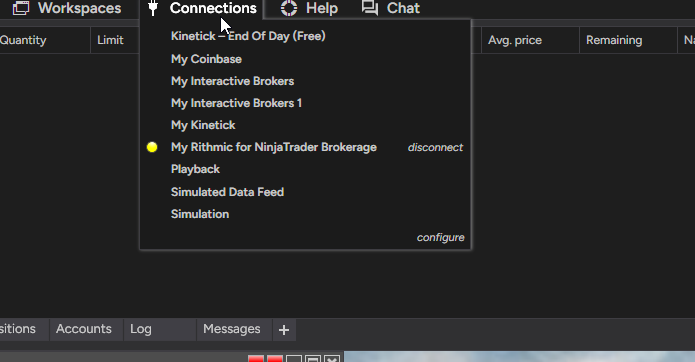
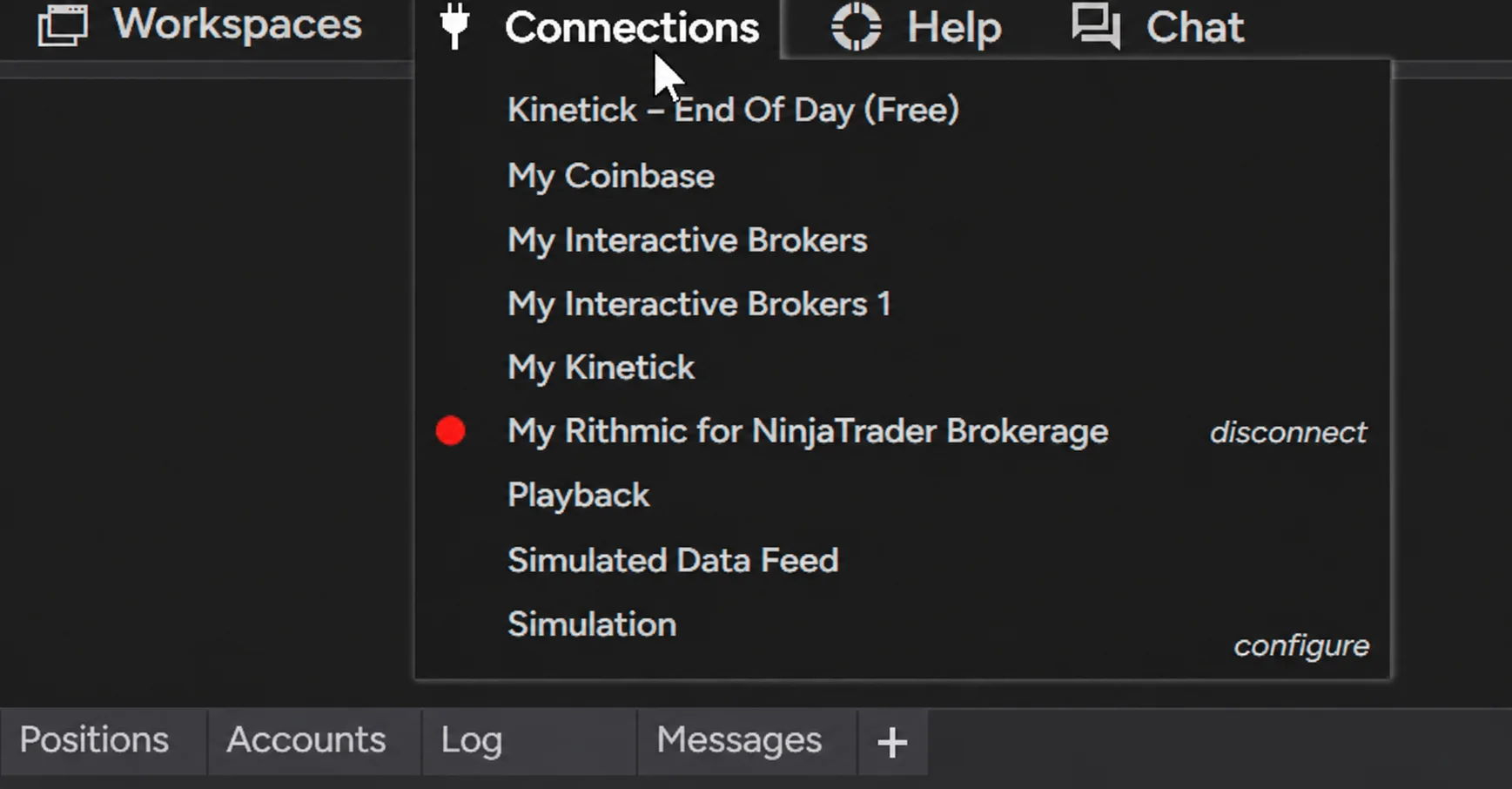
Screenshot of the NinjaTrader 8 Control Center Connections tab with the connection status indicator circled in red.
The 60-Second Triage Checklist
When price stops moving, work through the list in order, without skipping ahead. This sequence solves most cases.
- Check the Control Center. Look at the connection light and any log messages. Red or yellow tells you a lot.
- Open the Log tab. Scroll to the newest entries. Disconnect and reconnect notices show up here first.
- Test a second symbol. Open a fresh chart on a liquid instrument. If it ticks, your original subscription is the issue.
- Reload historical data. Right-click the chart and reload. This often repairs a single NinjaTrader frozen chart.
- Disconnect and reconnect. Do not restart the whole app yet. A clean reconnect is faster and usually enough.
- Test your internet. Load a website or run a speed test. If the web is slow, the feed will be too.
- Restart the platform. Only after the steps above. Restarting first hides the real cause.
Keep this list taped near your monitor. Under pressure, a written sequence beats memory every time.
If you are flat, breathe
No position means no urgency, so you can work the checklist calmly. But if you're in a trade, protect yourself first. Call your broker's trade desk or use a phone app to flatten. Never guess at price while your platform shows NinjaTrader market data not updating.
Connected But No Market Data? Read This
The most confusing scenario is "NinjaTrader connected but no market data." Everything looks healthy, the light is green, yet nothing moves.
Usually one of these three things is true:
- Your subscription does not include that exchange. Level 1 data for one product does not cover them all.
- You hit the symbol limit. Close a few windows and see if prices return.
- The socket is a zombie. The platform believes it is connected, but the pipe is dead.
For the third case, disconnecting and reconnecting is the cure. It also helps to confirm your entitlements with the vendor. Our data providers guide breaks down what each feed actually includes, which saves a lot of guesswork.
Introducing the XABCD Performance Tool
This is the part we're genuinely excited about. We built a monitor that watches your feed for you, so a NinjaTrader data feed not updating event never sneaks past you again.
The XABCD Performance tool sits quietly in the background, tracking how long it's been since the last tick, how your machine is performing, and whether your NinjaTrader connection status matches reality. When something drifts out of range, it speaks up.
What it actually does
- Tick timers. It measures the seconds since the last print on each instrument you care about.
- Stale data alerts. Set a threshold. If the feed goes quiet longer than that, you get an audio and visual warning.
- Connection watch. It flags a NinjaTrader data freeze even when the connection light stays green.
- Machine health. CPU and memory pressure show up next to feed health, so you can see cause and effect.
- Session awareness. Quiet overnight markets will not spam you with false alarms.
In short, it turns a guessing game into a dashboard. Instead of staring at candles and wondering, you get a clear answer in one glance.
Screenshot of the XABCD Performance panel showing seconds-since-last-tick, CPU load, and a red stale-data alert badge.
Why an alert beats a manual check
Traders scan charts, not status bars, so a silent failure can run for minutes before anyone notices. An audible alert changes that completely. You hear it, you check, you act. Simple.
Think of it like the oil light in your car. You do not pop the hood every mile. Instead, you trust the warning to tell you when something is wrong.
Build a Setup That Fails Less Often
Fixing freezes is good. Preventing them is better, so a few habits go a long way.
Use a wired connection
Ethernet beats Wi-Fi for trading. Full stop. Wi-Fi drops are the number one source of NinjaTrader real-time data not updating complaints we hear about. A cheap cable solves more problems than a new PC.
Turn off power saving
Dig into your network adapter settings and uncheck the option that lets Windows turn the device off to save power. Also set your power plan to high performance during market hours.
Trim your workspace
Fewer windows means less load and fewer subscriptions, so close what you are not watching. For faster window control without clutter, the hotkey shortcuts guide is a nice companion read.
Stay current on updates
Platform updates often include data engine fixes. For example, several stability items landed in a recent release, which we covered in our 8.1.3 release breakdown. Staying reasonably current reduces headaches.
Have a backup path
Keep a second way to see price and flatten a position. A phone app works, and so does the web version comparison if you want a browser fallback. Redundancy is cheap insurance.
Know your broker's contact
Save the trade desk number in your phone. Save it on paper too. If your PC locks up, you still need a way out.
Risk Rules for Freeze Events
A frozen feed is a risk event, not just a tech annoyance. Treat it that way.
First, decide in advance what you will do. Will you flatten immediately? Or will you hold if your stop already sits at the exchange? Write the rule down before you need it.
Second, lean on resting orders. A stop order working at the exchange doesn't care if your chart is stuck. That single habit removes most of the danger from a NinjaTrader price feed outage.
Third, size sensibly. Smaller positions survive surprises. If you want help with that math, the position sizing tool makes it quick and consistent.
Finally, log the event. Note the time, the symbol, and what you saw. Patterns emerge over a few weeks, and sometimes the fix is your router, not the vendor.
Prop traders, pay extra attention
Funded accounts often have strict drawdown rules. A freeze at the wrong moment can end a challenge, so monitoring matters even more. Our prop firm guide covers how those rules interact with real-world tech problems.
When to Escalate to Support
Sometimes the problem isn't on your desk. Escalate when you see these signs:
- The log shows repeated disconnects at the same time each day.
- Multiple instruments across different exchanges stall together.
- A fresh install on a clean machine behaves the same way.
- Your internet tests perfectly clean during the outage.
Bring evidence. Copy the relevant log lines and note exact timestamps. Vendors move much faster with specifics. You can also check broad connectivity trends on a public status tracker like Downdetector before you file a ticket.
Frequently Asked Questions
Why is my NinjaTrader data feed not updating even though it says connected?
The connection can look alive while the underlying socket has quietly died. Your subscription limits or missing exchange entitlements can also block prices. Disconnect, reconnect, and then test a second liquid symbol to confirm.
How do I tell a slow market from a frozen chart?
Compare at least two instruments and glance at Time & Sales. If one symbol is quiet but others print normally, the market is just slow. If everything stops at once, suspect your NinjaTrader market data connection.
Does restarting NinjaTrader fix stale data?
Often yes, but it shouldn't be your first move. Try reloading historical data and doing a clean disconnect and reconnect first. Restarting right away hides the real cause, and you'll just keep repeating the problem.
Can the XABCD Performance tool detect data feed loss automatically?
Yes. It tracks the time since the last tick and raises audio plus visual alerts when data goes stale. It also shows CPU and memory pressure, so you can see whether your machine or the feed caused the stall.
Will a wired connection really reduce data freezes?
In most cases, absolutely. Wi-Fi drops for a second or two are common and often invisible to the platform. Ethernet removes that whole category of problem for a very small cost.
Wrapping Up
A stalled chart feels scary, but it rarely stays mysterious for long. Work the checklist, compare instruments, and read the log. Most of the time you will find a network blink, a symbol limit, or a sleepy power setting behind it.
More importantly, stop relying on your eyes alone. Monitoring beats noticing. That is exactly why we built the XABCD Performance tool, and why we think every serious trader should run some form of feed watchdog.
Next time a NinjaTrader data feed not updating moment shows up, you'll know within seconds instead of minutes. That difference protects your account and your confidence.
New NinjaTrader Articles Delivered First
 (opens in a new tab)
Easy Order Tool
The Strategy


Scanning & Alerting

NinjaTrader Release
XABCD News (Free Version)
XABCD News (Community Edition) is the best free Indicator for NinjaTrader 8. Don't let news sneak up on you again. Puts economic news events on your charts so you can stay informed and move around positions/stops before the news is released. Works in any market.
XABCD Priceline (Free)
XABCD Price Line tool for NinjaTrader 8 will draw a line at current price and move every time the market changes price. This is useful because it will allow you to easily identify where price is at all times and the exact quoted price.
Trade NQ, Copy MNQ: Copy NQ Trades to MNQ in NinjaTrader 8
NinjaTrader Data Feed Not Updating? Quick Fixes

NinjaTrader Risk Per Trade: Risk $500 on Every Trade
NinjaTrader 8.1.8 Review: Should You Upgrade or Wait?
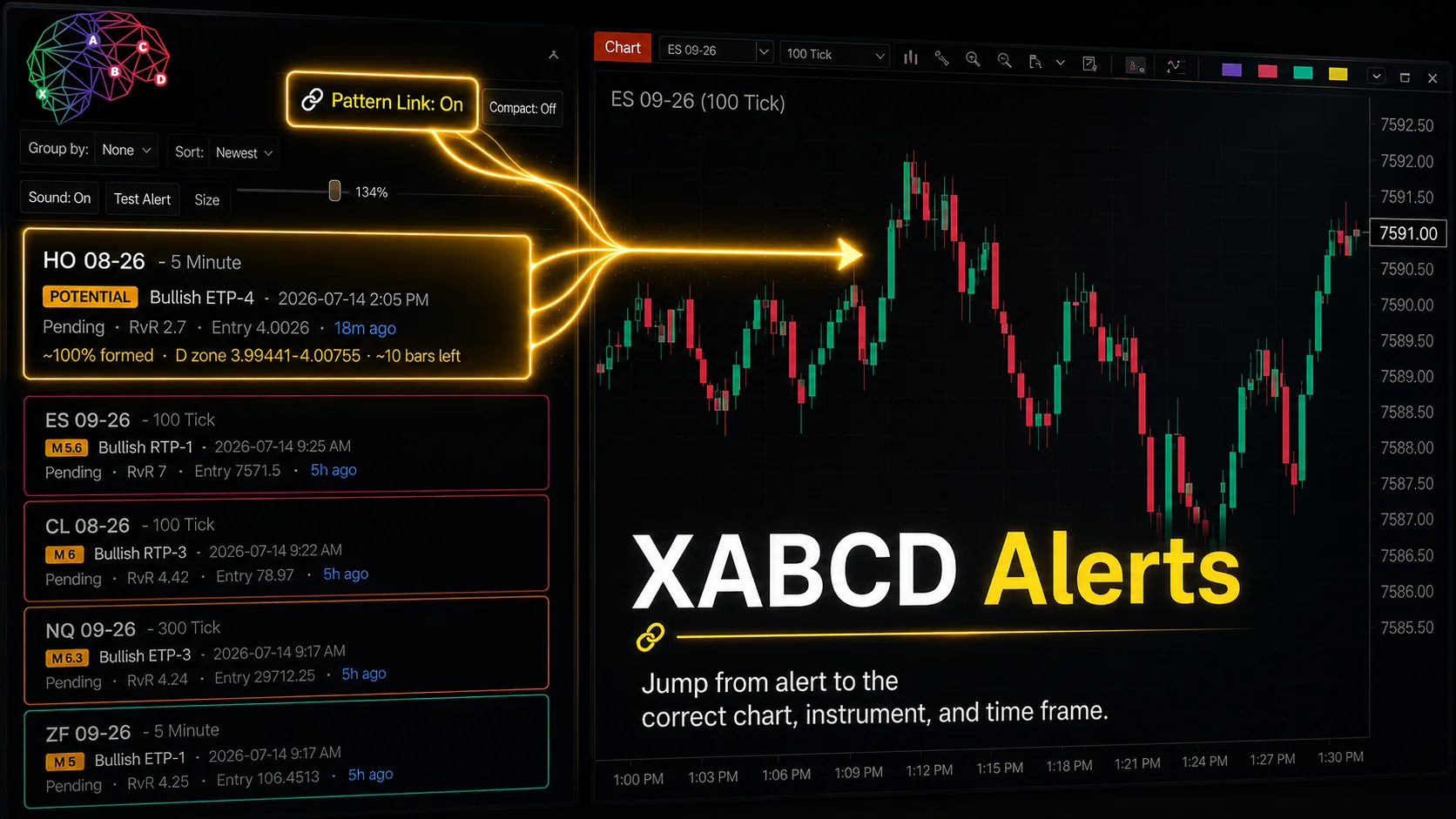
XABCD Pattern Alerts: The Complete Guide for Traders
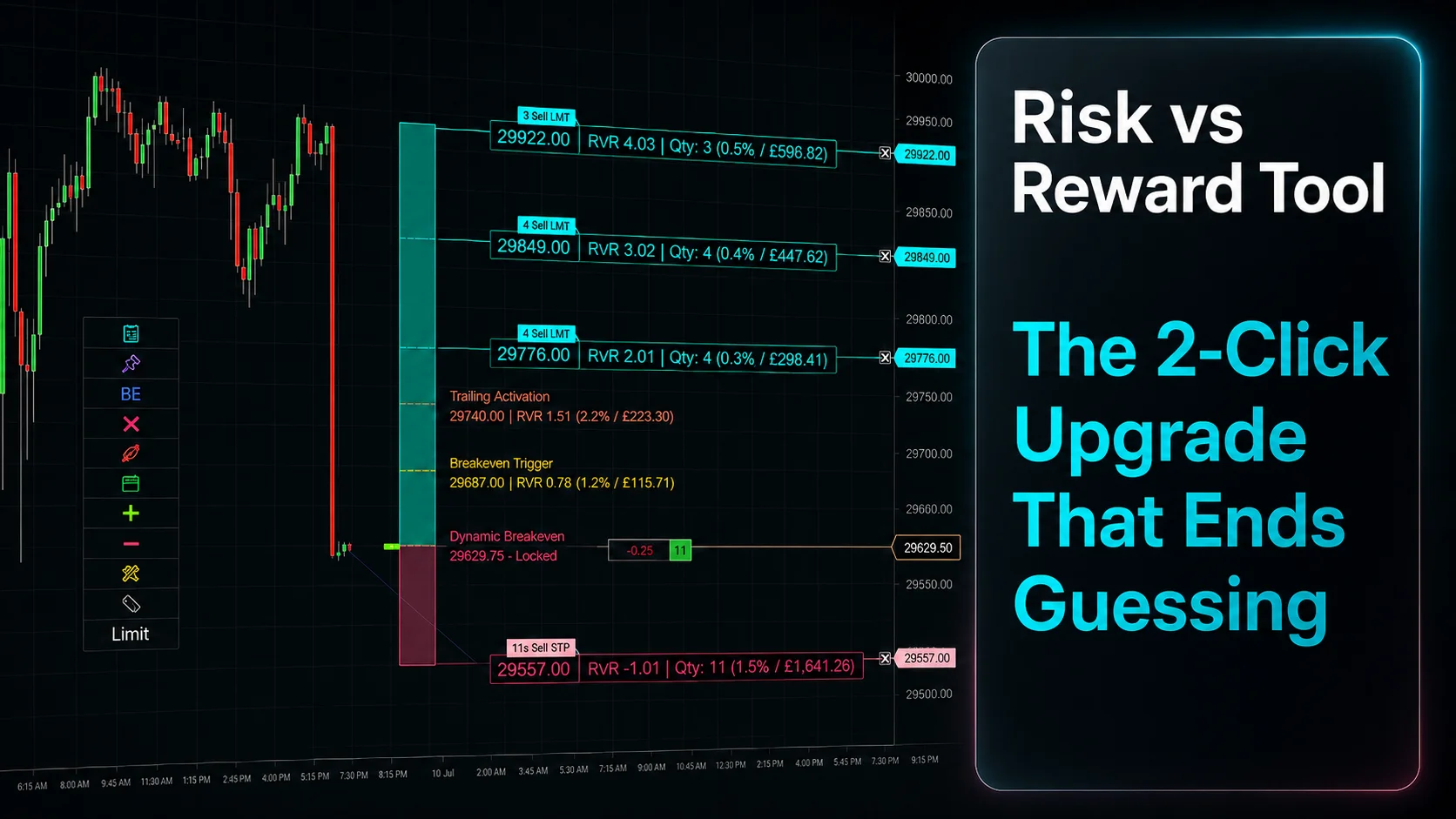
Risk vs Reward Tool: The 2-Click Upgrade That Ends Guessing
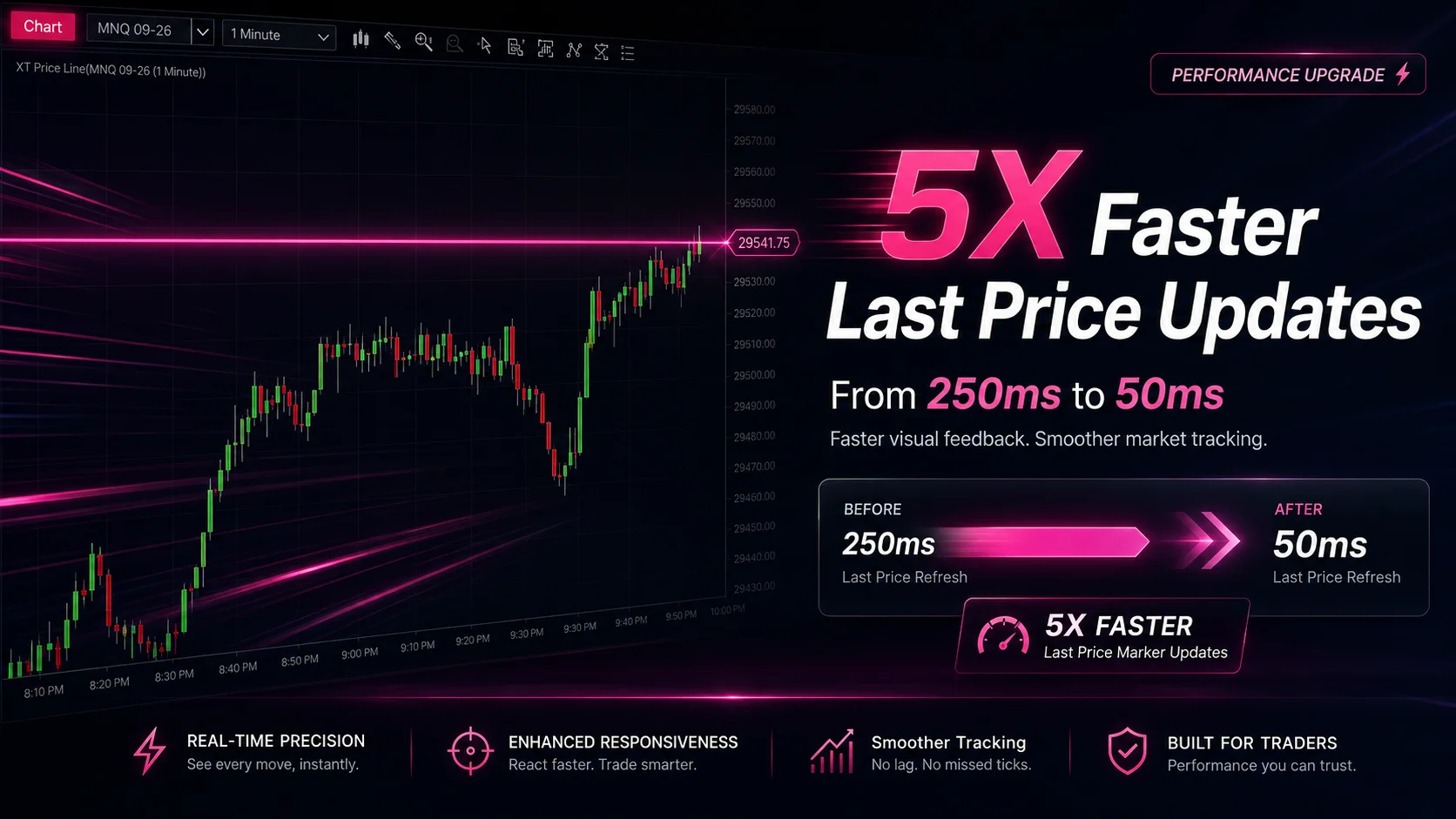
NinjaTrader Faster Last Price Updates on Charts Explained
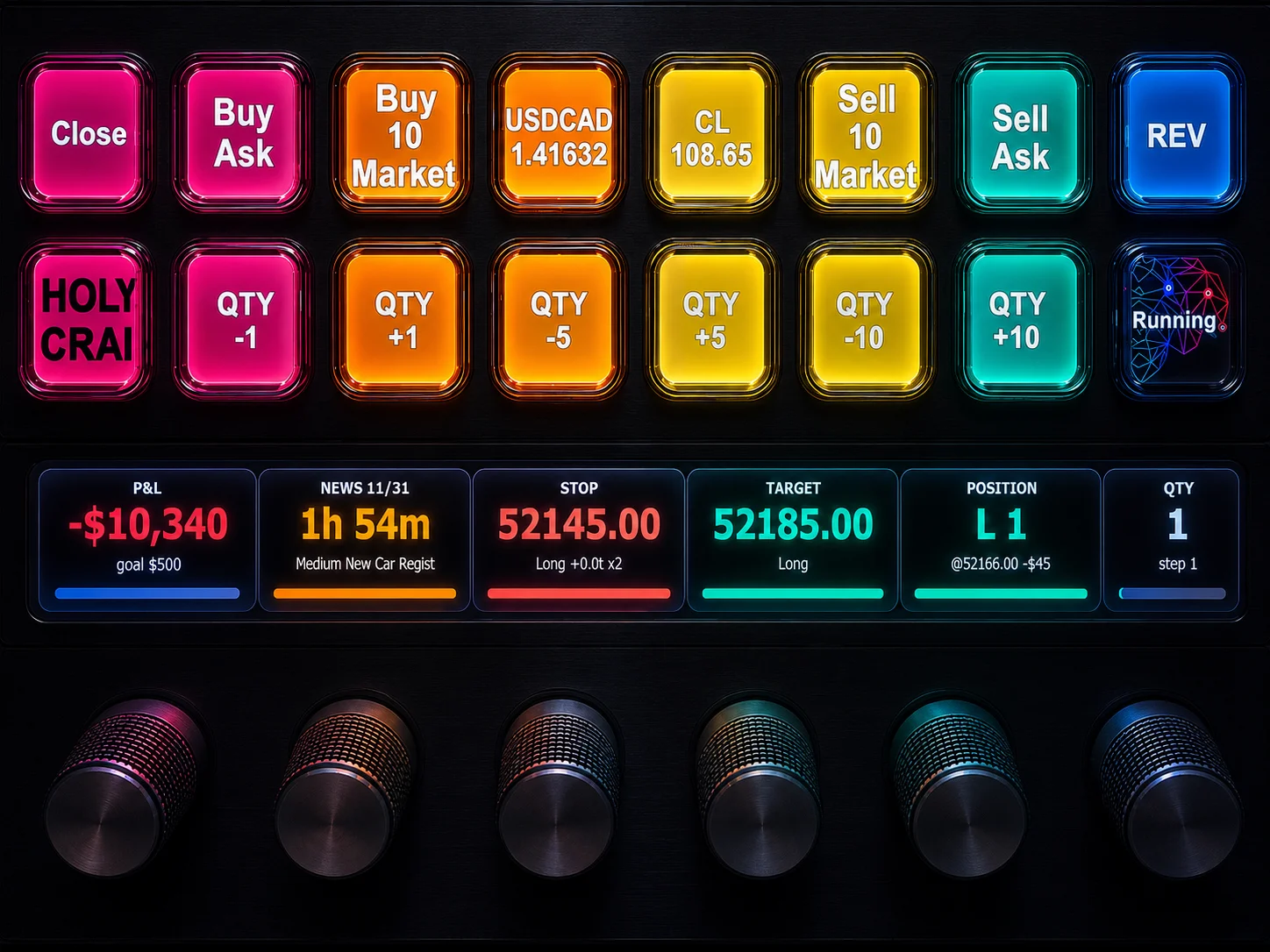
NinjaTrader 8 Hotkeys: Best Shortcuts for Faster Trading
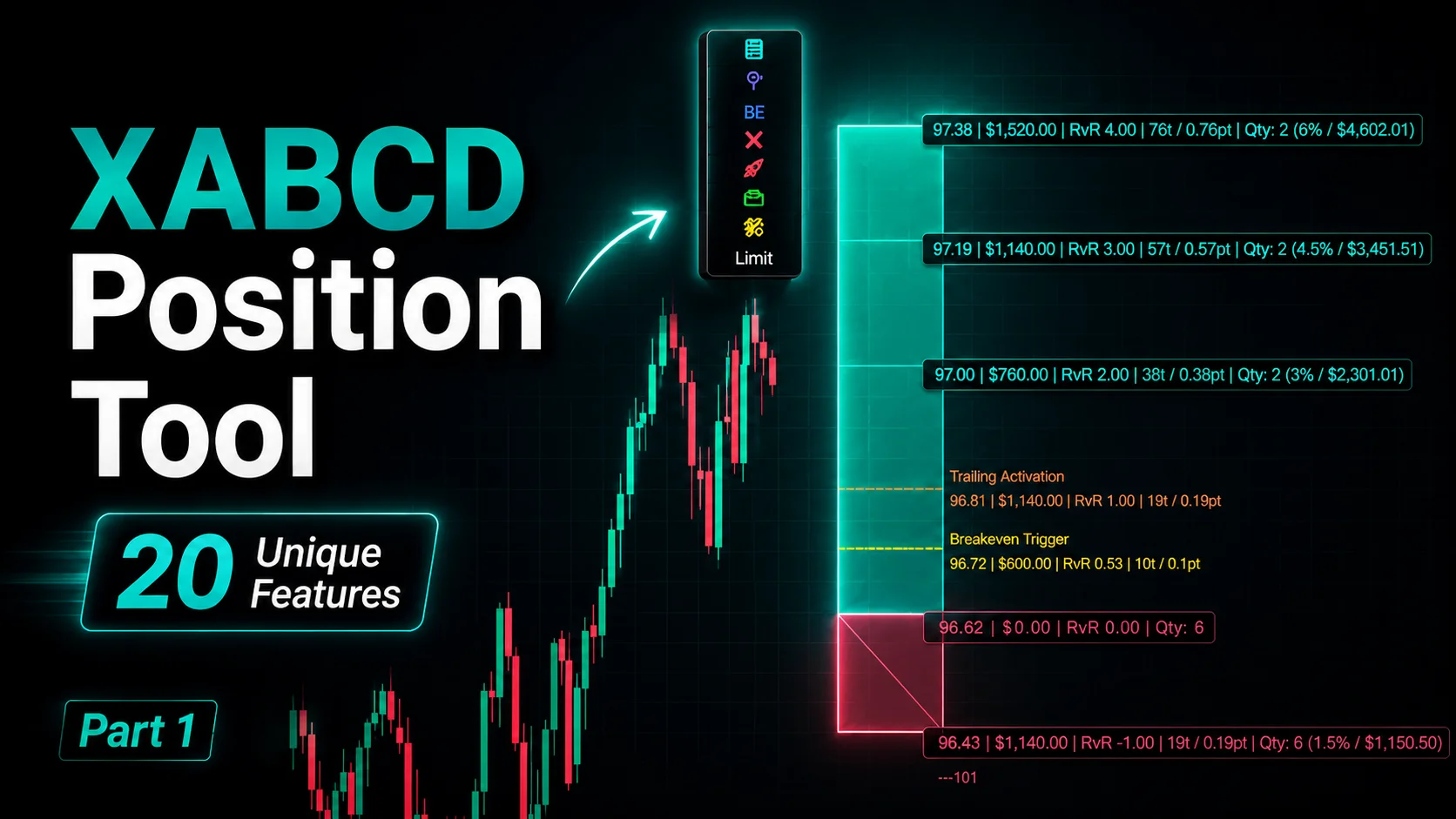
NinjaTrader Position Sizing Tool: 64 Features Stock NT8 Does Not Include